Revision and backup
The revision (version) records created at each upload to Live and the Revision History window; backup copy, automatic backup, .bak files and returning to an older revision.
FabyaVision keeps the history of a project with two separate mechanisms. Revisions are recorded every time you upload the project to Live, together with a description of the change you made; who uploaded it, when and from which computer is also recorded. Backups, on the other hand, are copies of the project file and let you revert to an older version. This topic describes both and the difference between them.
| Revision | Backup | |
|---|---|---|
| What | Record (number, date, person, description) | Copy of the project file |
| When it occurs | Each time you upload the project to Live | Manually (Save backup copy…), automatically (timer), when uploading to Live with overwrite, on every save (.bak) |
| Where it is located | Inside the project file (bilgi.revizyonlar) | Separate files (Yedek folder, .bak) |
| Can you revert to an older version? | No, it only shows the history | Yes |
Revisions
Revision description
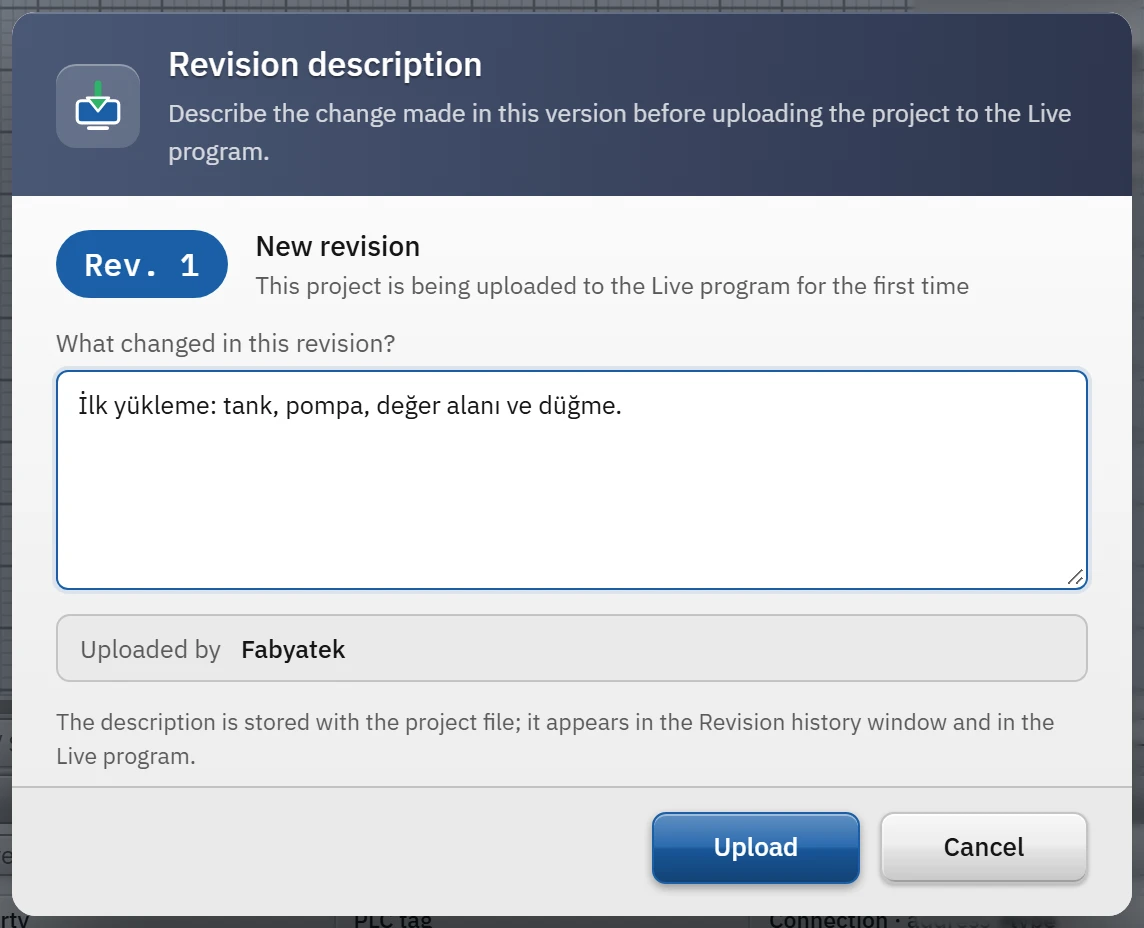
The Project›Upload project to Live… command (or Upload in the toolbar) opens the Revision description window before the folder is selected.
 12
12- Description — required; stored together with the revision.
- Upload — then a folder is selected.
- The header shows the number of the new revision (Rev. 3) and the previous revision; on the first upload, the note “This project is being uploaded to the Live program for the first time” appears and the description box is filled with the text “First upload”.
- Enter the change in the What changed in this revision? box. The description is mandatory (if it is empty: “The revision description cannot be empty.”) and may contain at most 2000 characters; line breaks are preserved. Ctrl+Enter works like the Upload button.
- The Uploaded by row shows in whose name the record is written: the Author in the Studio settings; if it is empty, the Windows user name (
kullanıcı@bilgisayarbelow it). - The last three revisions are summarized below the window.
- If, in the next step, you cancel the folder selection window or the “overwrite” question, the description you typed is kept; it remains in the box when you try again.
Revision record
When the upload is complete, a record with the following information is added to the target file:
- Number
- The highest history number, taken from both the source project and the target file, + 1. Even when uploads are made from two computers, the numbers do not collide.
- Date
- Time of the upload (stored as UTC, shown in local time in the lists).
- Description, person
- The description you wrote; the person's name (Author or Windows user name).
- Windows user, computer, Studio version
- The account and machine that performed the upload; the Studio version used for the upload.
- Target, number of screens and tags
- The path from which the file was loaded and the current project size.
As a result of the upload, the record is also entered into the project in Studio and the project is saved; in this way the history travels with the project file (to the Live folder, to a backup, to another computer). For this reason the upload also increases the save count of the source project by one.
Revision history window
It opens from three places: Project›Revision history…, Online›Revision history… and the Project information button in the Revision history… window (the upload result window also has a button).
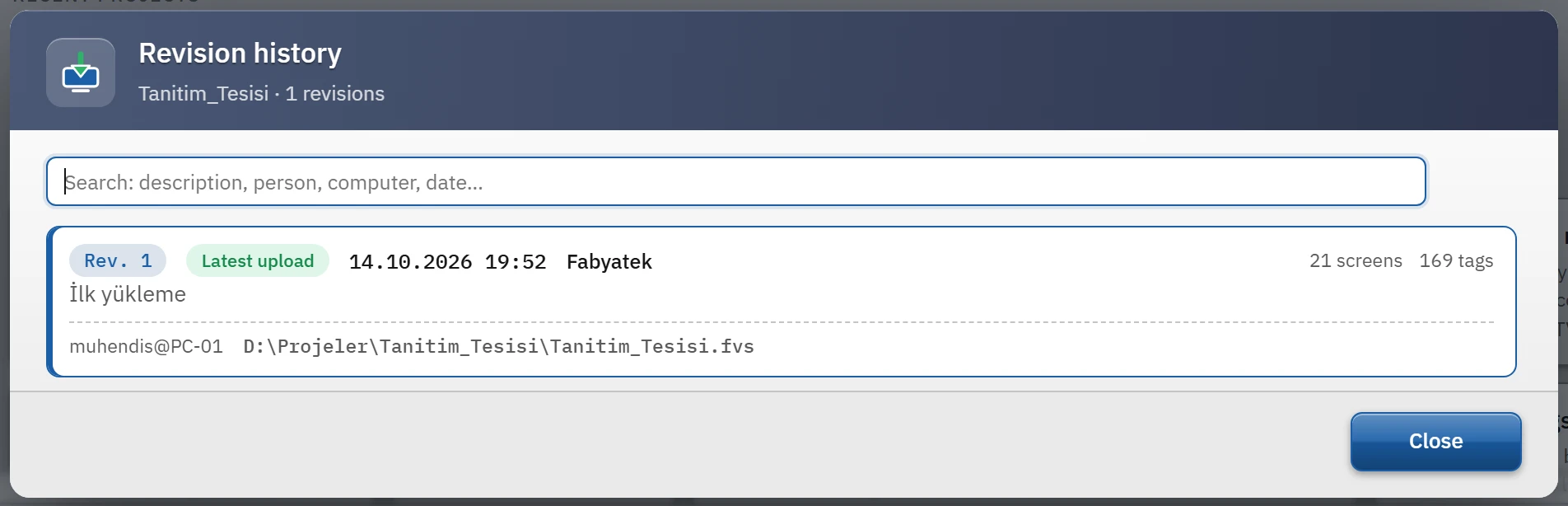
- Each revision is listed as a card: number, date, person, number of screens and tags, description,
kullanıcı@bilgisayarand the path of the uploaded file. - The Search… box searches the description, person, computer and date; the number of results is shown next to the box.
- If the project has never been uploaded, the window says so (“This project has not been uploaded to the Live program yet.”).
Live also shows the same history: the project selector card shows the latest revision and a History button (History (N) if there are several revisions), and while running, the system menu has Revision history…. The Live history is read-only; Live never writes to it.
Backups
| Backup | How it is formed | Where and how many |
|---|---|---|
| Backup copy | Project›Save backup copy…; the project must be saved first (“The project must be saved before a backup copy can be created.”). Unsaved changes are also written to the backup; the file itself does not change. | <proje klasörü>\Yedek\<Ad>_<yyyy-MM-dd_HHmm>.fvs. A maximum of 20 backups are kept; the oldest ones are deleted. A second backup made within the same minute overwrites the first. |
| Automatic backup | Same file format as the backup copy; when there are unsaved changes, it is created automatically at the interval set in Studio settings › Automatic backup (default 10 minutes; 0 is off). It is not created if the project has never been saved or has not changed since the last backup. | The Yedek folder above and the same limit of 20 (manual and automatic backups share the same folder). |
| .bak | The previous version of the file on every Save. | In the same folder, <dosya>.bak (for example Ilk_Proje.fvs.bak); it is a single file, renewed at every save. |
| Upload backup | When uploading to Live with Overwrite while a project with the same name exists at the target, the old version is kept. | <hedef proje klasörü>\Yedek\<Ad>_<yyyy-MM-dd_HHmm>.fvs; at most 10. |
Reverting to an older version
- Find the backup
In the
Yedekfolder inside the project's folder or in the.bakfile. The date and time in the name of a backup file indicate the moment the backup was made. - Open
Select the
.fvsbackup with Project›Open…. The.bakfile does not appear in the list: select the All files (*.*) filter in the file window. - Save under the real name
The file that opens is a file in the
Yedekfolder or with the.bakextension; Save overwrites it. Immediately save it to the actual path of the project (over the old file if necessary) with Project›Save as….