Options: settings, theme and language
The Studio settings window, the light / dark theme, the 3D view, the interface language, the interface scale and where these settings are stored.
The own settings of Studio (theme, language, interface scale, author name, backup interval) are independent of the project: they stay the same whichever project you open. The settings are collected in the Options›Settings… window and in the Options menu.
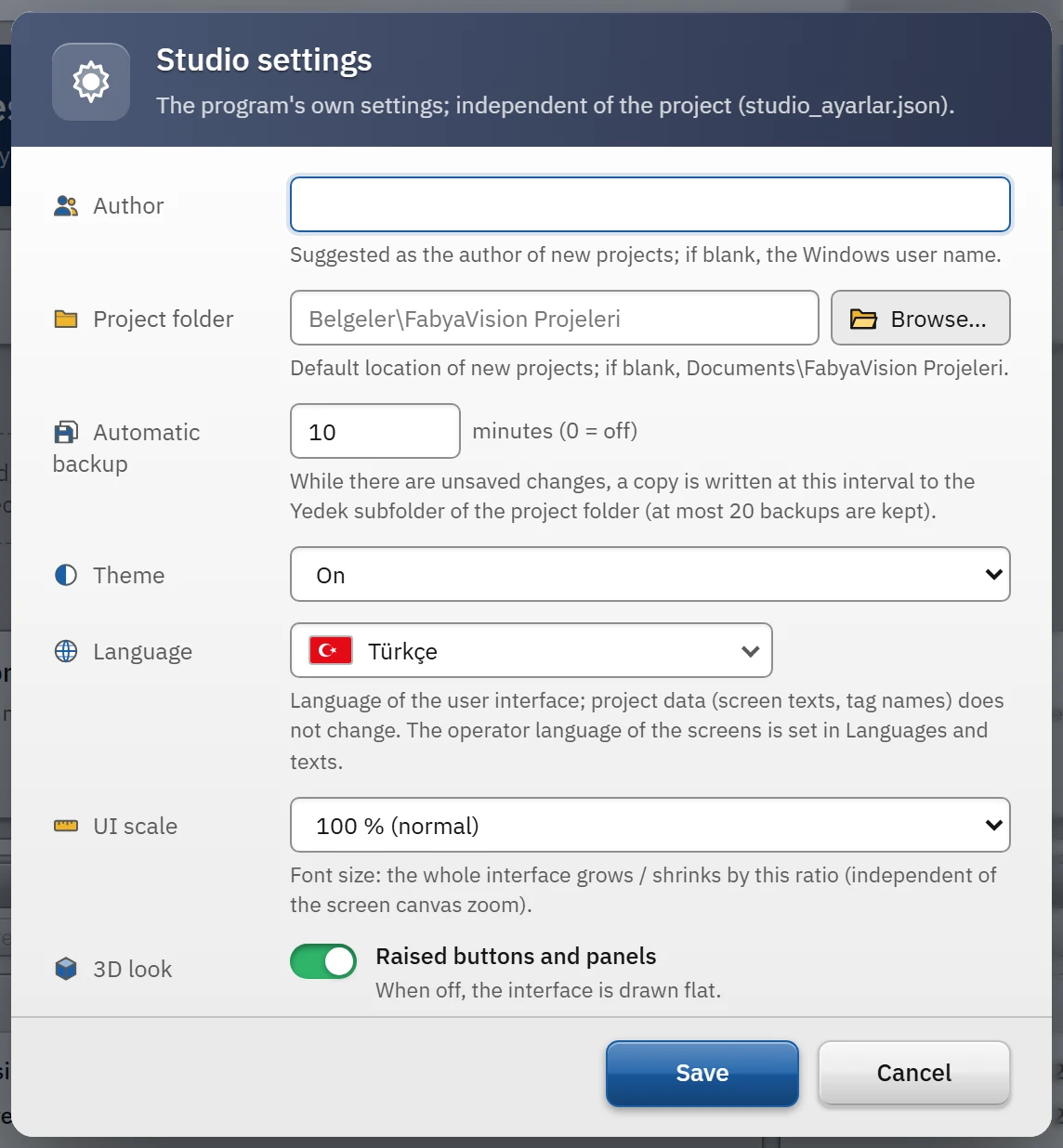
Studio settings window
 12345
12345- Author — recommended in new projects.
- Automatic backup — minutes; 0 = off.
- Theme — Light / Dark.
- Language — Türkçe / English.
- Interface scale
- Author
- The name suggested for the Author field in new projects; it is also recorded as the person who saved the revision when uploading to Live. If empty, the Windows user name is used.
- Project folder
- The default location of new projects. If empty,
FabyaVision Projeleriunder the Documents folder is used. Browse… opens the folder selection window. - Automatic backup
- Interval in minutes;
0is off, maximum 1440. While there are unsaved changes, a copy is written at this interval to theYedeksubfolder in the project's folder; at most 20 backups are kept. No backup is made if the project has not been saved yet or has not changed since the last backup. The default is 10 minutes. Revision and backup - Theme
- Light or Dark.
- Language
- Türkçe, English, Español, Deutsch, Italiano or Français; the flag of each language is shown next to it. This is the language of the interface. English is selected on first start; your choice is kept for later starts.
- UI scale
- 80%, 90%, 100% (normal), 110%, 125% or 150%. The whole interface (text, icons, spacing) is enlarged or reduced by this ratio.
- 3D look
- Raised buttons and panels switch: when it is off, the interface is drawn flat.
Save applies and stores the values; Cancel changes nothing. Selections made from the menu (theme, language, scale, 3D view), however, are applied and stored immediately.
Light and dark theme
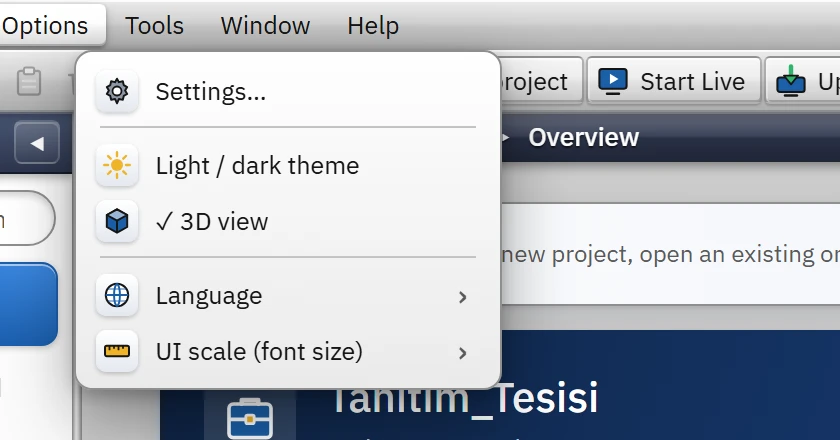
It can be changed in three ways: the sun / moon button at the right of the top bar, Options›Light / dark theme or the Theme list in the settings window. The change is visible immediately and remembered at the next start; because Studio applies the theme before the first paint at startup, the screen does not flash by switching from the light theme to the dark one.
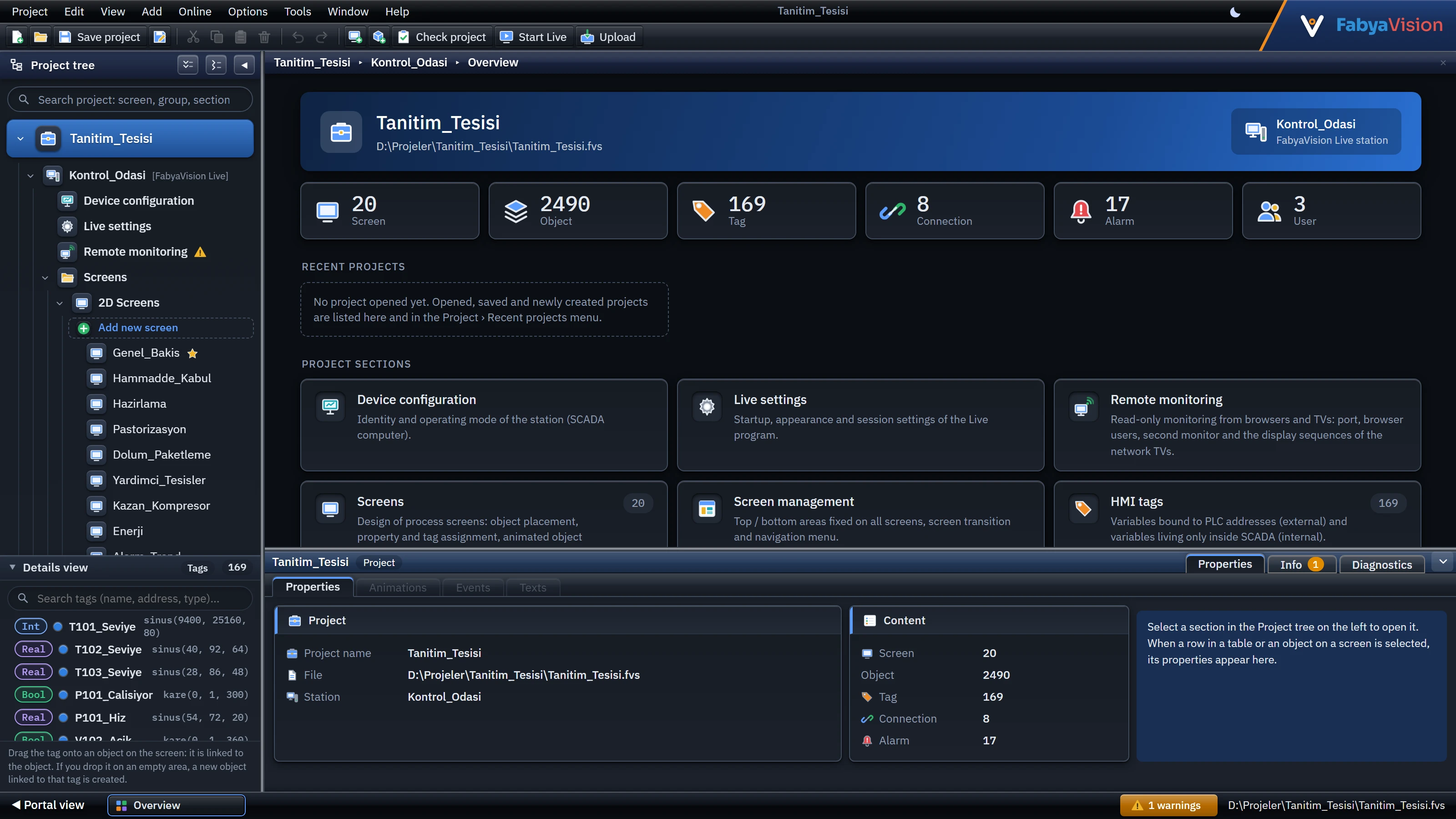 1
1- Theme button — light / dark.
The theme changes only the Studio interface. The colors of the objects and backgrounds you draw on screens are not affected by the theme.
3D look
This option determines whether Studio buttons and panels are drawn raised (3D) or flat: Options›3D look (when it is on, ✓ appears in front of it) or the switch in the settings window. The default is on. It has nothing to do with the 3D scenes in screens; the image quality of the scenes in Live is under Live settings › Object appearance.
UI language
Options›Language or the settings window changes the language of the interface; the selection is applied immediately and stored.
- The supported languages are Türkçe (source language), English, Español, Deutsch, Italiano and Français; the flag of each is shown next to it. English is used on first start.
- Translation affects only the appearance: menus, buttons, tooltips and window texts are translated; project data (screen and object texts, tag, connection and group names), texts in the code area and text columns in tables do not change.
- Texts that have no equivalent in the dictionary remain in Turkish.
- This manual is also available in the same six languages: the Help menu and F1 open the manual in the language of the interface; the menu and button names in the manual are the same as in the interface.
- This setting is not the language the operator sees in Live: the languages of the screens are defined in the Languages and texts section, and the startup language of Live is defined in Live settings (Languages and texts).
UI scale
Under Options›UI scale (font size), select a value between % 80 – % 150. The scale is applied as the zoom factor of WebView2: texts, icons and spacing grow together. It is independent of the canvas zoom in the screen editor (Zoom) and does not disturb the screen coordinates. If the text stays small on a high-resolution display, increase the scale.
Where settings are stored
| What | Where |
|---|---|
| Theme, language, scale, author, project folder, automatic backup interval, 3D view, 3D library placement model, recent projects, last upload folder | The studio_ayarlar.json file in the Studio folder |
| Panel widths, column orders, splitter bars, expanded / collapsed states of the Toolbox groups | On this computer, in the WebView2 profile of Studio (%LOCALAPPDATA%\FabyaVision_Studio\WebView2) |
- The settings file must be writable; the installation opens this file to users with write permission (Installation). If it cannot be written, the settings are not persistent and the line
studio_ayarlar.json yazilamadiis added to the log (Log files). - If the file is deleted or corrupted, Studio opens with the defaults.
- To move the settings when switching to another computer, you can copy the file
studio_ayarlar.json; the layout information in the WebView2 profile is not transferred.
For the full list of locations, see File and folder locations.