Main window
The regions of the Studio main window: menus and toolbars, project tree, workspace, Inspector and status bar; the purpose of each region.
Studio runs in a single window. The window opens maximized; its minimum size is 1100 × 700 pixels. The window title has the format <Proje adı> — FabyaVision Studio; if there are unsaved changes, * appears after the project name.
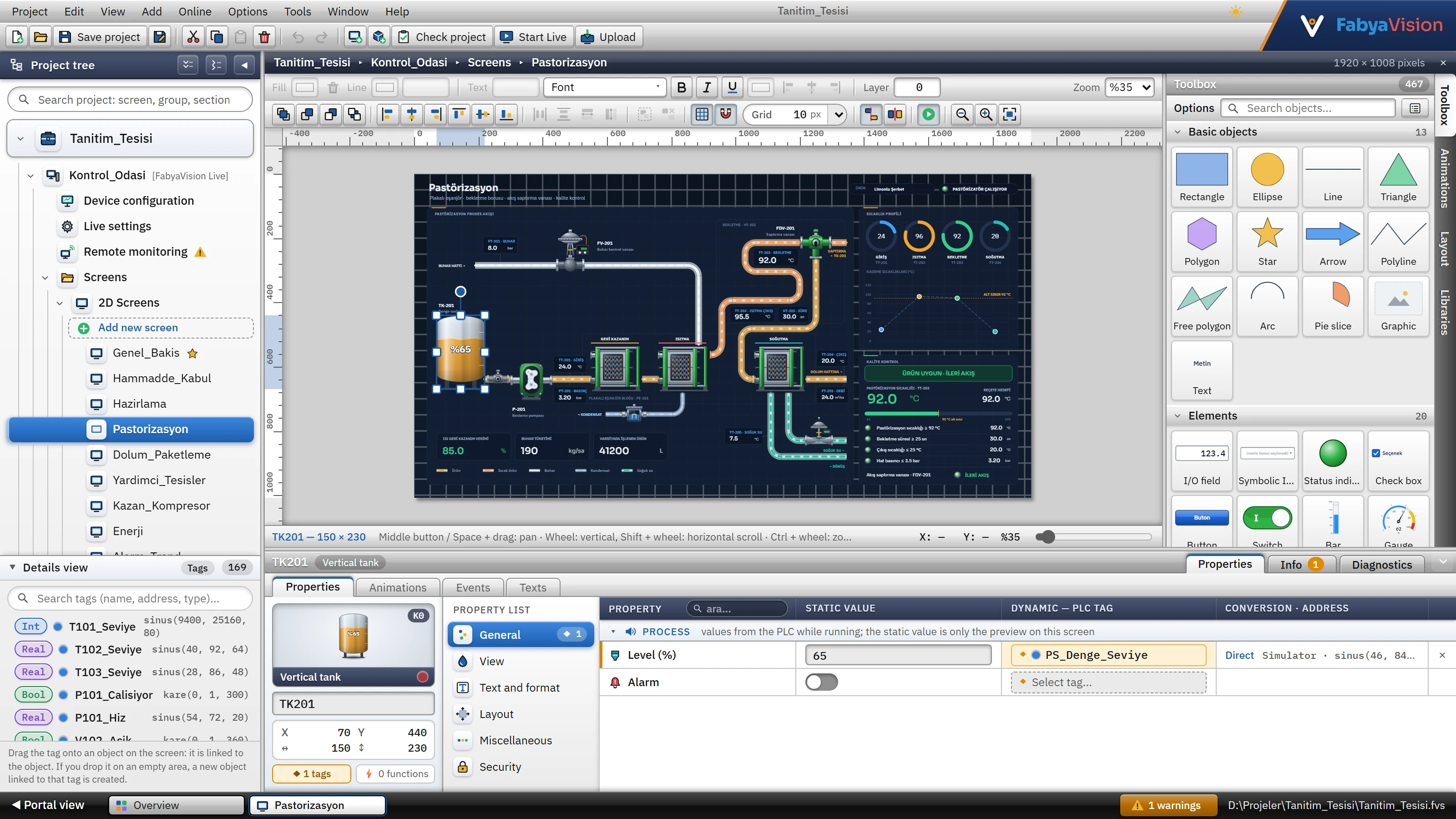 12345678
- Menu bar — Project, Edit, View, Add, Online, Options, Tools, Window, Help.
- Toolbar — frequently used commands.
- Project tree — all sections and screens of the project.
- Details view — tag list.
- Workspace — screen editor or table.
- Task cards — Toolbox, Animations, Layout, Libraries.
- Inspector — properties of the selected object.
- Status bar — open editors, number of problems, file path.
| No. | Area | Purpose |
|---|---|---|
| 1 | Menu bar | Nine menus: Project, Edit, View, Add, Online, Options, Tools, Window, Help. The project name (with the unsaved-changes dot next to it) is in the center; the theme button and the brand block are on the right. Menus and toolbars |
| 2 | Toolbar | The buttons New / open / save, cut / copy / paste / delete, undo / redo, new screen, Check project, Start Live and Upload. When the screen editor is open, there are two more toolbars above the editor (format; order, alignment, grid, zoom). |
| 3 | Project tree | Shows all sections and screens of the project as a tree; clicking a node opens the corresponding editor in the work area. Project tree |
| 4 | Details view | The list of tags in the project (name, type, address). If a tag is dragged and dropped onto an object on the screen, it is bound to that object; if it is dropped on an empty spot, a new object bound to that tag is created. Clicking its title collapses it; the box is used to search for tags. |
| 5 | Workspace | The editor of the open node: 2D screen, 3D scene, section table or section form. The path bar at the top shows the path “Project › Station › Section › Group”; to its right are the description of the section (for a screen, the screen size) and the × button that closes the editor. |
| 6 | Task cards | The right panel, visible only in the screen editor. On a 2D screen, with vertical tabs: Toolbox, Animations, Layout and Libraries; in a 3D scene: 3D Library, Scene and Views. |
| 7 | Inspector | The panel at the bottom: properties of the selected object or table row; project problems (Info) and connection diagnostics. Inspector |
| 8 | Status bar | The Portal view button, the open editor tabs, the number of problems and the file path of the open project. |
Portal view and tabs
Each editor that is opened becomes a tab in the status bar. The Overview tab is always open and cannot be closed; the Portal view button or View›Overview returns to this tab. The Overview shows the numbers of screens, objects, tags, connections, alarms and users of the project and the cards of the sections; if the program was opened with a new project that has not been touched at all, the Start strip also appears at the top (Project files).
 1234
1234- Portal view
- Open editor
- Problems
- File path
- Clicking a tab brings the editor to the front; the × on the tab or the middle mouse button closes it. The right-click menu offers the commands Close, Close others, Close to the right, Close all and Show in project tree.
- The Window menu lists the open editors (the active one is marked with
•) and contains the Close all editors command. - Clicking the problem button (1 error, 2 warnings or No problems) opens the Info tab of the Inspector. Check the project
- If the project has not been saved yet, the file path field shows “Not saved yet”.
Editing the panel
- Size: drag the divider between the panels: the project tree can be set between 200 – 520, the right panel between 190 – 460 and the Inspector between 110 – 560 pixels. The sizes are remembered on this computer.
- Collapsing the project tree: the ◀ button in the header of the tree (or View›Project tree) reduces the tree to a thin edge strip; clicking the strip opens it again.
- Details view: clicking its title collapses / expands it (View›Details view).
- Inspector: the arrow button to the right of the title minimizes / opens the Inspector (View›Inspector window opens it).
- Full screen: F11 or View›Full screen expands the window across the whole display without a border; the same command restores it.
- Theme, language and scale: the theme button in the top bar switches between the light / dark theme; language and scale are in Options.
What opens in the work area
| What you click in the project tree | What opens |
|---|---|
| Project name | Overview (Portal view) |
| 2D screen | 2D screen editor: canvas with grid, Toolbox, rulers. 2D screen editor |
| 3D scene | 3D editor: rotatable scene, 3D library. 3D screens |
| Table section (HMI tags, Connections, Alarms …) | Table editor; if the section has more than one table, inner tabs at the top. Table editor |
| Form section (Device configuration, Live settings, Remote monitoring › General …) | A form divided into cards; changes are written to the project immediately. |
| Scripts | Script table on the left, code area on the right. Script editor |