Table editor
The common table editor of sections such as tags, connections and alarms: adding, duplicating and deleting rows, editing and validating cells, search, sorting, group filter, moving columns, Excel and undo.
HMI tags, Connections, Alarms, Users, Cycles and many other sections are edited with the same table editor. This topic describes the common behavior that applies to all of them; the meaning of the columns is covered in the topic of the relevant section.
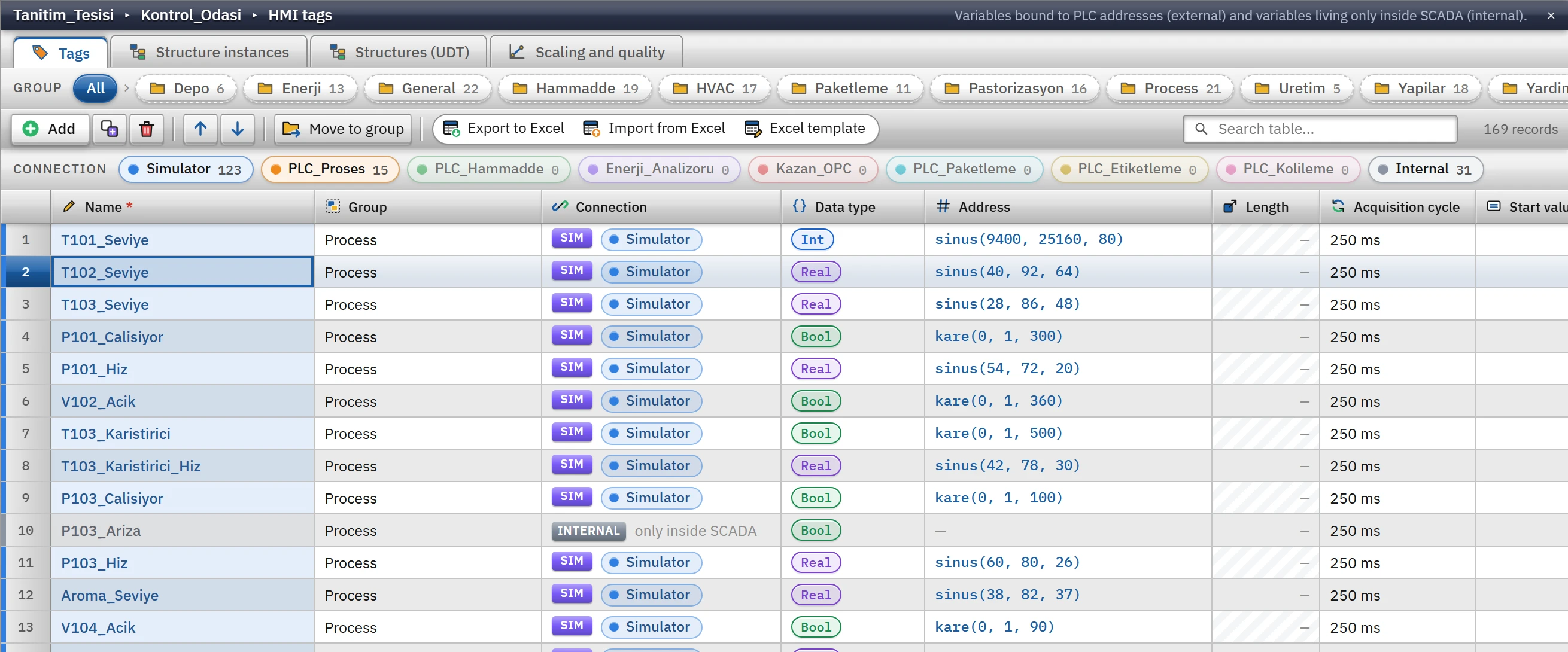 1234567
- Inner tabs — the tables of the section.
- Group bar — filter by group.
- Add
- Excel — export / import, template.
- Search in table
- Connection filter
- Header — clicking it sorts.
Parts of the table
- Inner tabs: if a section has more than one table, they are at the very top (for HMI tags: Tags, Structure instances, Structures (UDT), Scaling and quality).
- Group bar: in sections that can be grouped, the All button and the group buttons; to the right of them, Add new group. Clicking a group button filters the table to that group (and its subgroups). About groups: Project tree.
- Toolbar: Add, duplicate, delete, move up / down; (in grouped sections) Move to group; three Excel buttons; the Search in table… box; on the right, the number of records (
169 kayıt;12 / 169 kayıtwhile a filter is active). - Color filter: in HMI tags, the connection names are listed as chips with their colors and tag counts (Internal at the end). Clicking a chip filters the table to the tags of that connection; clicking it again removes the filter.
- Table: the first column is the row number; the heading of required columns has a *; at the bottom is the Add new row row.
- Inspector: shows all fields of the selected row as a form; a change made there passes through the same rules as editing in the table (Inspector).
Row operations
| Action | How | Note |
|---|---|---|
| Adding a row | The Add button, Insert, right-click › Add new row or the Add new row row at the bottom of the table | The row is added at the end; it is filled with default values, a unique name is generated automatically (Tag_1, Tag_2 …) and the name cell opens in edit mode. The search filter and the connection filter are cleared. |
| Duplication | The Duplicate button or Ctrl+D | The copy of the selected rows is placed directly below the source; the name, which must be unique, is renewed with the suffix _N. |
| Deleting | Delete button or Delete | No confirmation is requested; Ctrl+Z undoes the deletion. Some rows cannot be deleted (for example, a tag generated from a structure instance); the reason is given in a message. |
| Conveying | Up / down arrows | Works when a single row is selected; it is disabled while a search filter or sorting by heading is active. |
| Selecting | Single click; Ctrl+click multiple selection; Shift+click range; Ctrl+A all | Duplicating, deleting and moving to a group apply to all of the selected rows. |
| Moving to a group | The Move to group button or right-click › Move to group | The (… — ungrouped) row in the menu is for the root. In sections with groups, a Group column is added to the table. |
Cell editing
- Select the cell
Click the cell. Check box, drop-down list, color and image cells open with a single click; a text or number cell is edited with a second click (or a double-click).
- Start editing
Enter, F2, double-clicking, or starting to type. In a text or number cell, the first character you press opens the cell and becomes the start of the text.
- Enter the value
In some cells (such as the address), a help box opens below the cell and checks the value as you type.
- Confirm
Enter confirms the value; Tab confirms it and moves to the cell on the right (Shift+Tab to the left); Esc cancels. Clicking elsewhere also confirms the value.
Navigation: the arrow keys move between cells, PageUp / PageDown page by page, Ctrl+Home / Ctrl+End go to the first / last row.
Validation
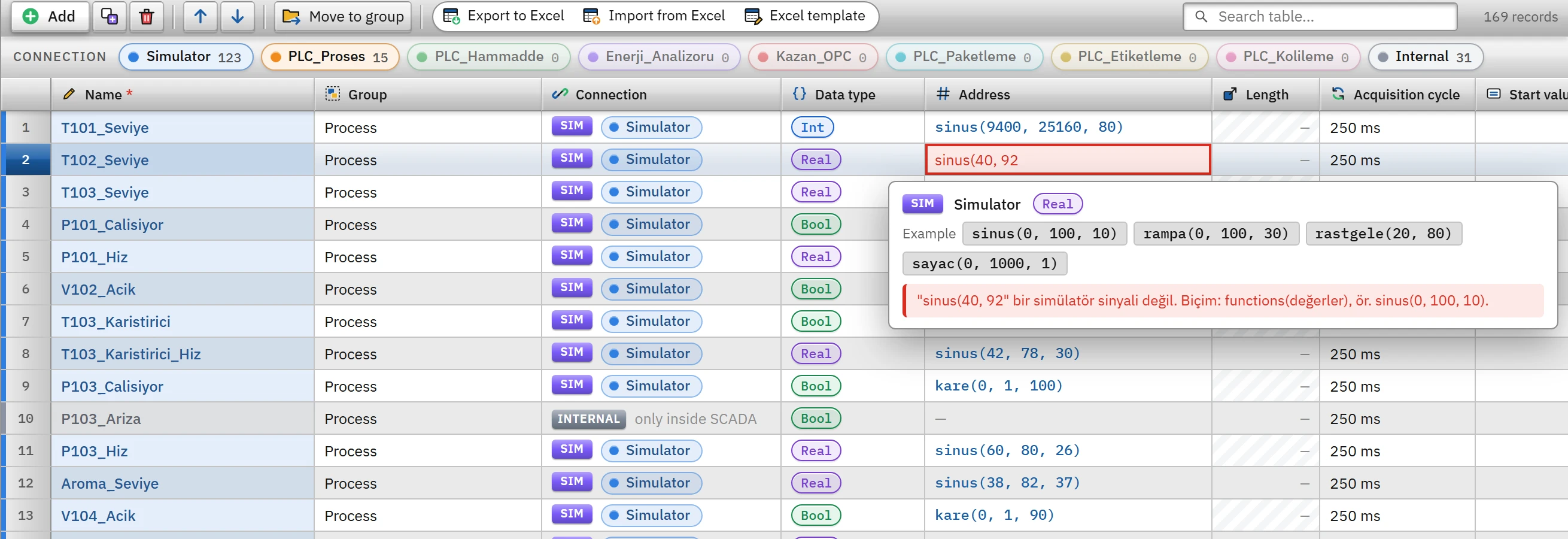 12
12- Cell being edited — Enter confirms, Esc cancels.
- Validation box — tells why it is invalid.
- An invalid value is not written. If you try to confirm it with Enter or Tab, editing stays open and the error appears below the cell. If you leave by clicking elsewhere, the value is discarded and the reason is reported in the Value not accepted window.
- Rules depend on the column: required field, unique name, name pattern (“The name must start with a letter; it may contain only letters, digits and "_".”), number range, driver address rules.
- Marked cells: if a stored value later breaks the rule (for example, the connection of the tag was deleted), the cell is marked in the error or warning color; the reason is shown when you hover over it. These problems are also listed in the Information tab (Check project).
- Locked cells cannot be edited (for example, the address of an internal tag).
Searching, sorting, filtering
- Search: the Search in table… box searches all visible columns for the text you type (differences between upper / lower case and Turkish letters are ignored).
- Sorting by header: clicking a column header sorts the table ascending, a second click sorts it descending and a third click returns to the original order; clicking the sequence-number header also returns to the original order. Only the view is sorted: the row order in the project, the sequence numbers and the export to Excel do not change. Number columns are sorted as numbers and text columns with Turkish collation (
Tag_2<Tag_10); empty values stay at the end in both directions. The order is frozen at that moment so that a row does not move away when a cell is edited. - Filters work together: the group, the connection chip and the search can be applied at the same time.
Moving columns
Drag the column header more than 6 pixels and drop it, or right-click the header and select one of the commands Move to start, Move one column left, Move one column right, Move to end, Move before column, Move after column (Reset column order returns to the default order). The column order is not written to the project; it is stored on this computer (in the WebView2 profile of Studio); the sort menu is in the same right-click menu (Sort ascending, Sort descending, Clear sorting). While dragging, Esc cancels the operation.
Right-click menu
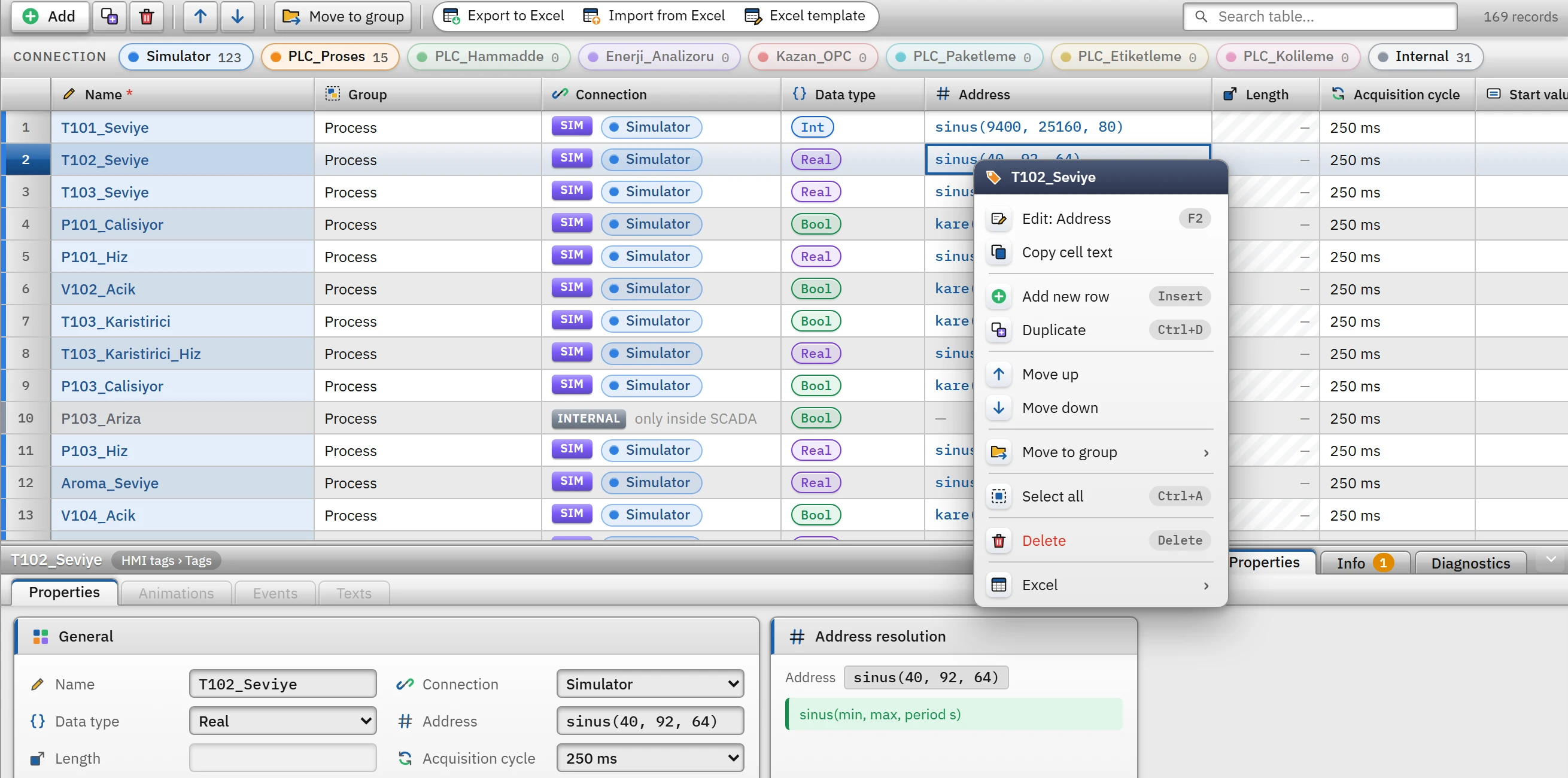
Right-clicking a row (if it is not selected, it is selected first; if it is part of a multiple selection, the selection is kept) opens a menu with the following commands: Edit: <column> (F2), Copy cell text, Add new row (Insert), Duplicate (Ctrl+D), Move up, Move down, section-specific commands (for example, in Connections: Test connections…, Move to group ▸), Select all (Ctrl+A), Delete (Delete) and Excel ▸. With a multiple selection, the command names include the number (3 rows: duplicate). Right-clicking an empty area shows only the add commands, Select all and the Excel commands.
Excel
The three buttons on the toolbar are present in every table:
| Button | What it does |
|---|---|
| Export to Excel | Writes all rows of the table (the filter and group selection are ignored) to an .xlsx file, with the visible column order and headers. |
| Import from Excel | Maps the columns in the file by header name; a row whose name (or the table's unique column) matches is updated, and a row that does not exist is added. Each cell goes through the table's own validation, and faulty rows are skipped. A preview is shown first; the operation is a single undo step. |
| Excel template | Generates an empty file with headers, drop-down lists and a Description sheet; fill it in and import it with Import from Excel. |
For details and limits, see Importing / exporting with Excel; the CSV commands specific to tags are described in Transferring tags with CSV / Excel.
Undo and redo
Every change in the table enters the undo stack of the project: Edit›Undo (Ctrl+Z) and Edit›Redo (Ctrl+Y or Ctrl+Shift+Z). The stack holds at most 100 steps and, as its size grows, the oldest steps are discarded; saving the project does not clear the stack, but opening another project resets it. An undone operation counts as an unsaved change.