Connections table
The table in which you define the connections that Live uses to communicate with the PLC and other devices: driver, address, port, timeout and driver-specific parameters.
What is a connection
A connection is the single-row definition of the information needed to exchange data with a device (PLC, OPC server, MQTT server, Modbus device). Tags are read from the PLC and written to the PLC by being bound to a connection; a tag without a connection becomes an internal tag and its value lives only inside Live. Connections are defined in the Connections section of the project tree.
Live runs a separate read cycle for each active connection. A device that does not respond does not delay the other connections. Studio does not connect to any device: the live state of a connection is visible only in Live (Connection diagnostics).
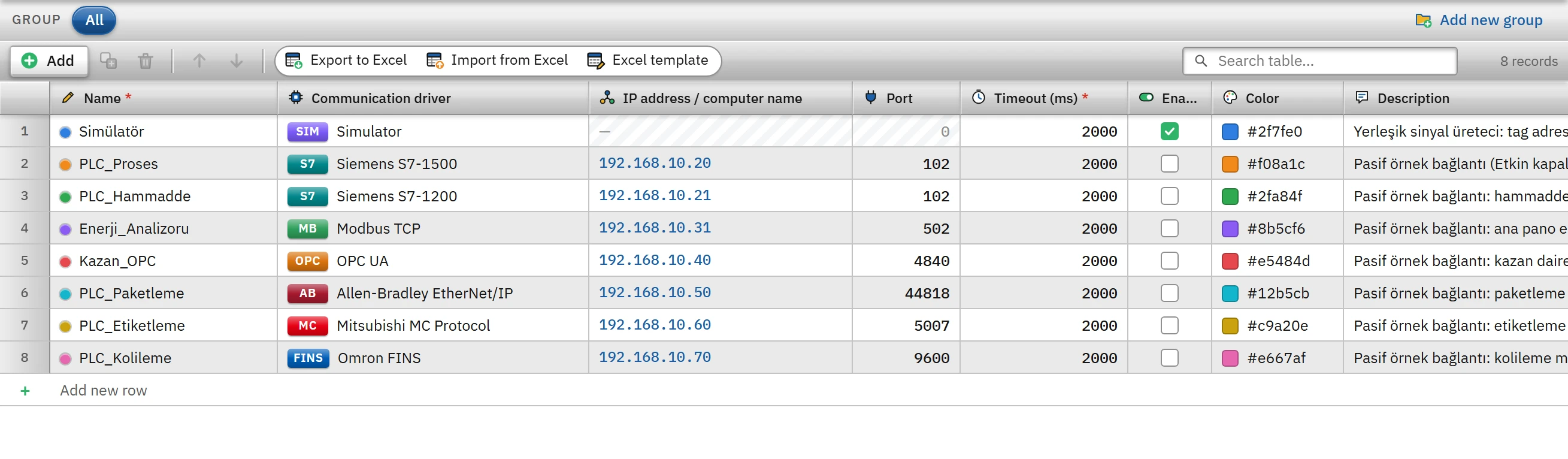 1234567
- Add — new connection row.
- Name — unique; the dot next to it is the color of the connection.
- Communication driver — determines the protocol.
- IP address / computer name — the network address of the device.
- Port — the default port of the driver is filled in.
- Timeout (ms) — how long to wait for a response from the device.
- Enabled — if off, Live does not establish the connection.
Adding a connection
- Open the section
In the project tree, click the Connections section.
- Add a row
Click the Add button on the toolbar or the Add new row row below the table. The new connection is created with these values: name
Baglanti_1(the number increases for later connections), driver Siemens S7-1500, address the first unused address in the192.168.0.xrange, port102, timeout2000ms, Enabled on, the first unused color from the color palette. - Change the name
The name must begin with a letter; it can contain only letters, digits and
_and must be unique in the project. The name appears in the Connection column of the tag table. - Select the driver
Select the driver that suits your device from the Communication driver cell (Drivers). When the driver changes, the port and driver parameters return to that driver's defaults; for drivers that do not need a network address, the address is cleared.
- Type the address
In the IP address / computer name cell, enter the IPv4 address of the device (
192.168.0.10) or the computer name (PLC-HAT1). An invalid address is not accepted into the table; the reason is shown below the cell. If you paste the address in the formopc.tcp://192.168.0.5:4840/yolormqtts://sunucu:8883, only the server part goes into the address; the port and (for OPC UA) the endpoint path are written to the corresponding fields, andmqtts://sets the security to TLS. - Enter the parameters
When a row is selected, the <Driver name> parameters card opens in the Properties tab of the Inspector window: driver-specific fields such as rack / slot, unit ID and security are entered here.
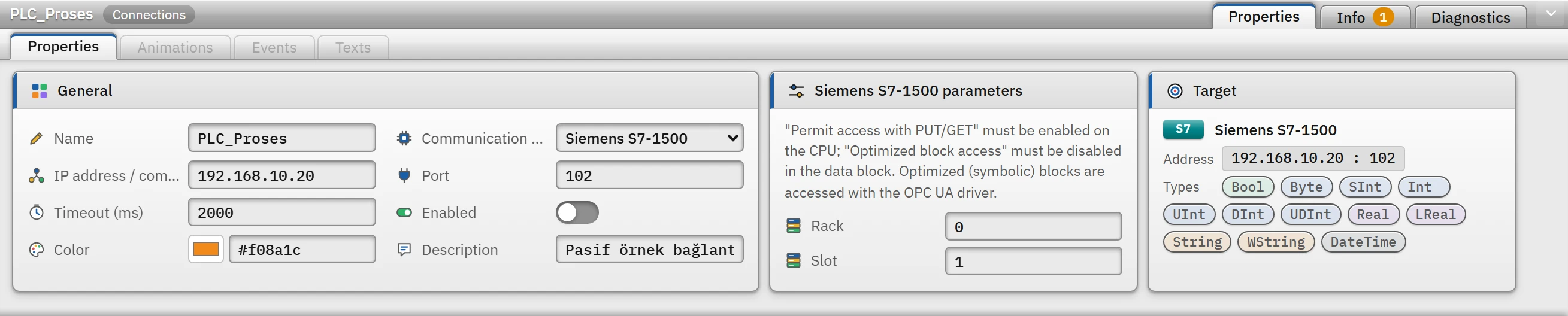 1234
1234The parameter and Target cards of the selected connection in the Inspector. - Driver — when it changes, the port and parameters return to the default.
- Rack — 0 – 7.
- Slot — the slot in which the CPU is installed.
- Target — the address the connection goes to and the data types it can carry.
- Test
Use Online›Test connections… to see whether the device can be reached (details), and check the project with F7.
Columns
| Column | Meaning and rules |
|---|---|
| Name | Required, unique. The dot next to the color is the color of the connection. |
| Communication driver | Determines the protocol. The list contains Siemens S7-1500, S7-1200, S7-300 / 400, OPC UA, Modbus TCP, Allen-Bradley EtherNet/IP, Mitsubishi MC Protocol, Omron FINS, OPC DA, MQTT and Simulator. |
| IP address / computer name | Network address of the device. It is locked for a simulator connection. For OPC DA it can be left empty: empty = the OPC server is on this computer. |
| Port | 1 – 65535. When a driver is selected, its default port is entered (S7 102, OPC UA 4840, Modbus 502, Allen-Bradley 44818, Mitsubishi 5007, Omron 9600, MQTT 1883). The simulator and OPC DA have no port; the cell is locked. |
| Timeout (ms) | 100 – 60000, default 2000. This is the time to wait for the device to respond to a request; a TCP connection attempt waits for the timeout or 3 s, whichever is shorter. Increase it on very slow networks; keep it low if you want to see errors quickly. |
| Enabled | If it is off, Live never establishes this connection: its state appears as Inactive and the tags bound to the connection are not read (they remain with bad quality). The PLC connections in the demo project are off for this reason. |
| Color | The tags of a connection are marked in Studio with this color (the stripe in the tag table, the dot in the Detail view, the color indicator). A new or duplicated connection takes the first unused color from the palette; it can be changed as #rrggbb. |
| Description | Free text. |
The Connections section can be grouped: a Group filter appears in the table and folders appear in the project tree (Table editor).
Address rules
The network address is validated with the following rules:
- If it contains only digits and dots, it must be IPv4: four parts, each 0 – 255, with no unnecessary leading zero (
192.168.01.5is invalid), the first part in the range 1 – 223. - If it contains other characters, it is treated as a computer name: letters, digits,
-and.can be used; the name must start and end with a letter or a digit. - An empty address is not accepted (except for OPC DA).

Target card
The Target card in the Inspector shows where the binding goes and which data types it can carry:
| Driver | Target display |
|---|---|
| S7, Modbus, Allen-Bradley, Mitsubishi, Omron | adres : port |
| OPC UA | opc.tcp://adres:port/uç nokta yolu |
| OPC DA | bilgisayar › ProgID (localhost if the address is empty) |
| MQTT | mqtt://adres:port, or mqtts://adres:port if TLS is selected |
Connection status tag
When each connection is created, an internal Bool tag named <Bağlantı adı>_Baglanti is added automatically (1 = connected). Live writes its value; it can be used in animations, alarms and scripts. If the connection is renamed, the tag name follows (unless you changed it manually); if the connection is deleted, the tag is deleted too. Details: Connection diagnostics.
Duplicating, deleting, Excel
- Duplicate (Ctrl+D): the copy receives a new name, a new color from the palette and (for drivers that need a network address) the first unused
192.168.0.xaddress. The copied connection gets its own status tag. - Delete (Delete): tags bound to the connection are not deleted; tags that refer to the connection records produce the error refers to a deleted record in the Check project list. Move these tags to another connection.
- Excel: the table can be exported to Excel and imported back. Driver parameters (rack / slot, unit ID, PLC series, etc.) are not written to Excel; a connection added from Excel is created with the driver's default parameters, and for a connection whose driver is changed in Excel, the port and parameters return to the defaults.
Limitations and points to note
- After changing the connection settings, save the project and upload it to Live (Uploading to Live); Live establishes the connections when the project is opened.
- For drivers that require authentication (OPC UA, OPC DA, MQTT), the user name is entered in the project and the password on the Live computer: Connection security.
- The connection addresses in the demo project are examples; enter the address of your own device.