Connection security
Where connection passwords are kept and how they are entered, the security offered by each driver (authentication, TLS, certificate, DCOM) and network / firewall notes.
Passwords are not written to the project
For the three drivers that require authentication (OPC UA, MQTT, OPC DA), the connection parameters contain only the User name; even when Authentication (DCOM identity in OPC DA) is set to User name and password, there is no password field. The password is never written to the project file (.fvs); sharing the project with someone else, backing it up or uploading it to Live does not carry the password.
Entering the password in Live
- Log in as an authorized user
The Settings authorization is required to enter a password. If no user is logged on, Live opens the login window with the message This operation requires the "Settings" authorization.; a user without the authorization receives the message is not authorized. After logging on, click the button again.
- Open the system menu
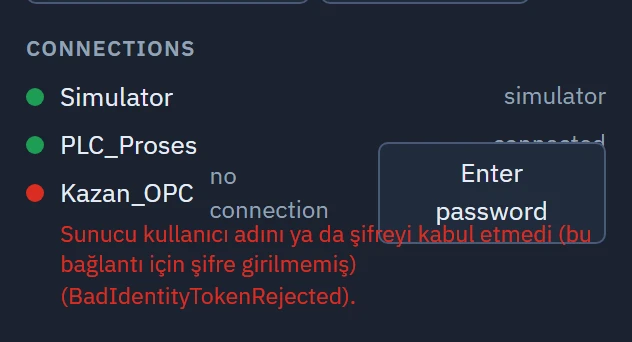
In Live, open the system menu (the ☰ button at the bottom right of the screen). In the Connections section, next to each connection that asks for a user name and password there is a button: Enter password if no password has ever been entered, Password… if one has.
 1
1The Enter password button next to the connection that requires a password in the System menu. - Enter password — the password is stored on this computer; the Settings authorization is required.
- Type the password and save
The Connection password window shows the connection name and the user name. Enter the password and click Save. After saving, communication restarts: all connections are briefly interrupted and re-established.
A connection with no password entered is still attempted; when the server rejects the credentials, the connection message reads … (no password has been entered for this connection) (OPC UA) or asks for the password to be entered in Live (MQTT).
If a connection is deleted and re-created with the same name, it gets a new ID and the password must be entered again.
Security offered by the drivers
| Driver | Authentication | Encryption |
|---|---|---|
| Siemens S7 | None (the PLC password is not sent) | None (PUT/GET over plain TCP) |
| Modbus TCP | None | None |
| Allen-Bradley EtherNet/IP | None | None |
| Mitsubishi MC Protocol | None (a PLC locked with a remote password cannot be accessed) | None |
| Omron FINS | None (the PLC can restrict the connection by IP address) | None |
| OPC UA | Anonymous or user name / password | None, signed or signed and encrypted (Basic256Sha256) |
| MQTT | Anonymous or user name / password | None or TLS 1.2 |
| OPC DA | The Windows user running Live, or an explicit user name / password (DCOM) | Depends on the Windows DCOM settings |
With the S7, Modbus, Allen-Bradley, Mitsubishi and Omron protocols, anyone on the network can establish the same connection and read and write. Place these devices on a separate control network, place a firewall or VPN between them and Live, and where secure communication is required, use the device's OPC UA server.
TLS and certificates
- OPC UA: in the security modes, the server certificate is trusted on first use; afterwards only the saved certificate is accepted. For the server to trust Live, the Live certificate is added to the server. Folders and steps: OPC UA driver. There is no management screen for certificates; the files are located under
%LOCALAPPDATA%\FabyaVision\OpcUa. - MQTT: TLS (server certificate is verified) requires the certificate to be signed by an authority trusted by Windows and the address to match the name in the certificate; add a self-signed certificate to Windows as trusted. TLS (certificate is not verified) does not check the identity of the server; a man-in-the-middle attacker can read the traffic, so use it only in closed networks. There is no authentication with a client certificate.
OPC DA and DCOM
- Local server: The Windows user running Live stays selected as the DCOM identity. If the server runs under another account, that account must have permission to launch / access the server.
- Remote server: in the DCOM settings of the OPC server on the remote computer, grant launch and access permission to the connecting user. If you select a user name and password, you can use the format
ALAN\kullanıcı. The messages access denied (DCOM permissions) and RPC server unavailable indicate these two problems. - DCOM / RPC traffic must be allowed through the firewalls between the Live PC and the server. If the server also offers OPC UA, prefer the OPC UA driver.
Network and firewall
Drivers establish an outbound connection to the device; no inbound rule is needed for these connections on the Live PC. In Windows Firewall and network firewalls, outbound traffic to the following ports must be allowed toward the network the device is on:
| Driver | Default port |
|---|---|
| Siemens S7 | TCP 102 |
| OPC UA | TCP 4840 (or the port changed on the server) |
| Modbus TCP | TCP 502 |
| Allen-Bradley EtherNet/IP | TCP 44818 |
| Mitsubishi MC Protocol | TCP, the port opened in the PLC (default 5007) |
| Omron FINS | TCP or UDP 9600 |
| MQTT | TCP 1883 (TLS: 8883) |
| OPC DA (remote) | DCOM / RPC ports |
Browser monitoring and TV display are separate from these: they require a rule for connections coming in to the Live PC (Remote monitoring).