Remote monitoring
Read-only monitoring of the screens of Live from the browsers of computers, tablets and TVs on the network: enabling, port, browser users, access networks, Windows Firewall permission and what the viewer sees.
What it is used for
While remote monitoring is on, Live runs a small web server on the computer it is installed on. Computers, tablets and smart TVs on the same network enter the address of the Live PC in the browser and watch the screens of the project live and read-only. Control, alarm acknowledgment, recipe operations and setting changes can be made only from the Live computer.
The monitoring settings are in the Remote monitoring section in Studio (under Live settings in the project tree). In the project tree, the badge next to the section shows the state: ON, or TV if only the TV is on.
Installation steps
- Turn on monitoring
In the Remote monitoring › General › Browser monitoring group, set Browser monitoring to On. Port is an integer between 1024 and 65535 (default 8080). While it is off, Live is not opened to the network; only the TV display on the second monitor (if it is on) works.
- Add a browser user
On the Browser users tab, enter the Name (at most 40 characters, must not start with
@, unique) and the Password (at least 4 characters) for each viewer. A user without a password cannot log on. These users serve only to log on to monitoring; operator users are in User administration. - Review the access rule
General › Access (VPN) › Allowed addresses and, if necessary, Access Networks (below).
- Upload the project to Live
The server starts when the project is opened. The address strip in Studio shows the monitoring address in the form
http://<Live PC'sinin IP adresi>:8080. - Add the firewall permission
In the system menu › Remote monitoring… window on the Live computer, click Add firewall permission (see below).
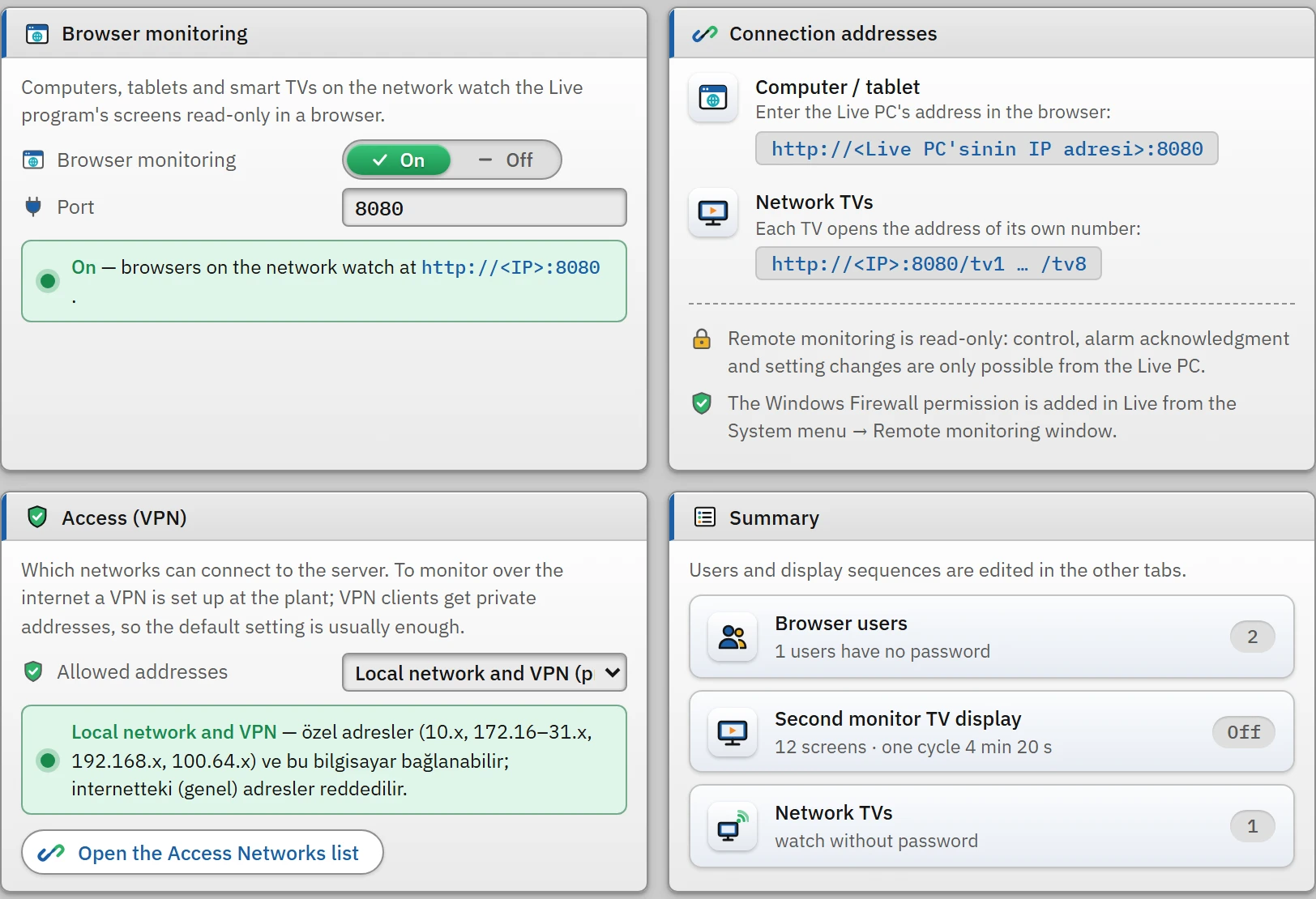 123
123- Browser monitoring — on / off and port.
- Connection address — typed into the browser.
- Access (VPN) — allowed addresses.
How to monitor from a browser
http://<Live PC'sinin IP adresi>:<port> is entered in the browser. On the login screen, User name and Password are entered; if Remember me (30 days) is selected, the session is valid for 30 days, otherwise for 12 hours. The session is carried by a cookie; if a user is deleted or the password is changed, their session becomes invalid immediately.
- Screens arrive with the same appearance as in Live, with live data refreshed about once per second. The system menu is simplified: screens, connection states, language, theme (Light / Dark), interface language, font size and Logout. The language, theme and font size are stored in that browser.
- The menu shows read-only. A control attempt is not written; a short warning is displayed.
- Scripts do not run, and there are no scheduled tasks or drivers: these exist only in the Live program.
- The Camera image and the files of the PDF viewer are delivered through the server and require a session. A PDF is opened only from the folder defined for the PDF viewer objects in the project.
- Screen that requires authorization: in the viewer, authorization is determined by the session on the Live PC. Until an authorized user logs in on the Live PC, the message The … screen requires the "…" authorization: it is shown when an authorized user logs in on the Live PC. appears instead of the screen.
- Hiding a screen from viewers: if Web access › Viewable from browser / TV is switched off in the screen properties, the screen does not appear in the viewer's list and is skipped in the TV sequence; it does not affect the Live display.
| Banner at the top / screen | Meaning |
|---|---|
| Connection interrupted — retrying | The browser cannot reach the Live PC; it retries. |
| The Live computer is not responding — data is not up to date | The server responds, but the Live main engine has not been broadcasting for 15 seconds. |
| No project is open on the Live computer — waiting | No project is running in Live (e.g. on the Select project screen). |
| The Remote monitoring is off screen | The project has turned off monitoring; the page retries every 10 seconds. |
Security
Access rule (source address check)
The server looks at the address the connection comes from. General › Access (VPN) › Allowed addresses:
| Option | Who can connect |
|---|---|
| Local network and VPN (private addresses) (default) | This computer and private addresses: 10.0.0.0/8, 172.16.0.0/12, 192.168.0.0/16, 169.254.0.0/16, 100.64.0.0/10 (Tailscale), IPv6 ::1, fe80::/10, fc00::/7. The Access Networks list permits further networks in addition to these. Internet (public) addresses are rejected. |
| Only those in the “Access Networks” list | This computer and only the enabled networks in the list. If the list is empty, only this computer can connect. |
| From anywhere (not recommended) | Any address. The server is exposed directly to the internet and there is no HTTPS; Studio warns. |
A rejected request receives the response 403 and Access from this address is not allowed. The counter is shown in the Remote monitoring window in Live.
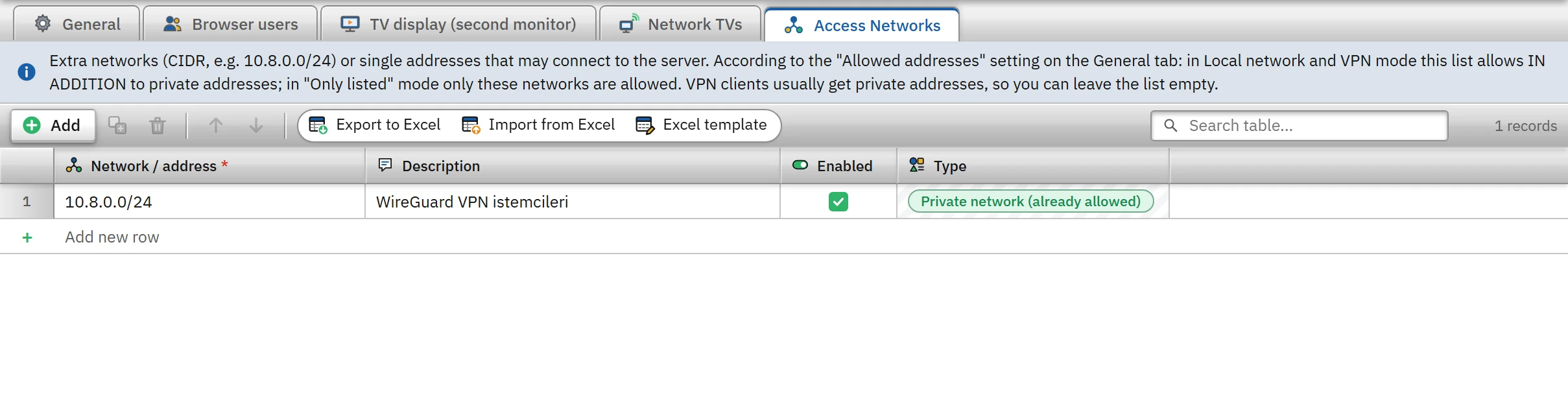 12
12- Network / address — CIDR or a single address.
- Type — private network or internet address.
Access Networks table: Network / address (e.g. 10.8.0.0/24, 192.168.1.20, fd00::/8; the value you type is converted to a single standard form), Description, Enabled, Type (private network, public address / network, all addresses). An entry that covers all internet addresses is an error; a network that is too wide and writing the same network twice are warnings.
Logon attempts
If there are 5 failed logins from the same address within 10 minutes, that address is put on hold for 60 seconds; the login screen says Too many failed attempts. Try again in N seconds. A wrong password gives User name or password is incorrect.; whether the user exists cannot be told from the message. Logins and failed attempts are written to Live's program log (Log files).
Other protections
- The origin of the request is checked: a request coming from a foreign site gets
403with Invalid request origin.; the cookie hasHttpOnlyandSameSite=Strictset. - The viewer can read only certain logs and records; requests that write (tag write, store write, exit) are never sent to the server.
- Passwords are stored in the project file as a hash (
sha256); plain text is not kept.
Remote monitoring window in Live
On the Live computer, system menu › Remote monitoring… shows the server status and refreshes every two seconds.
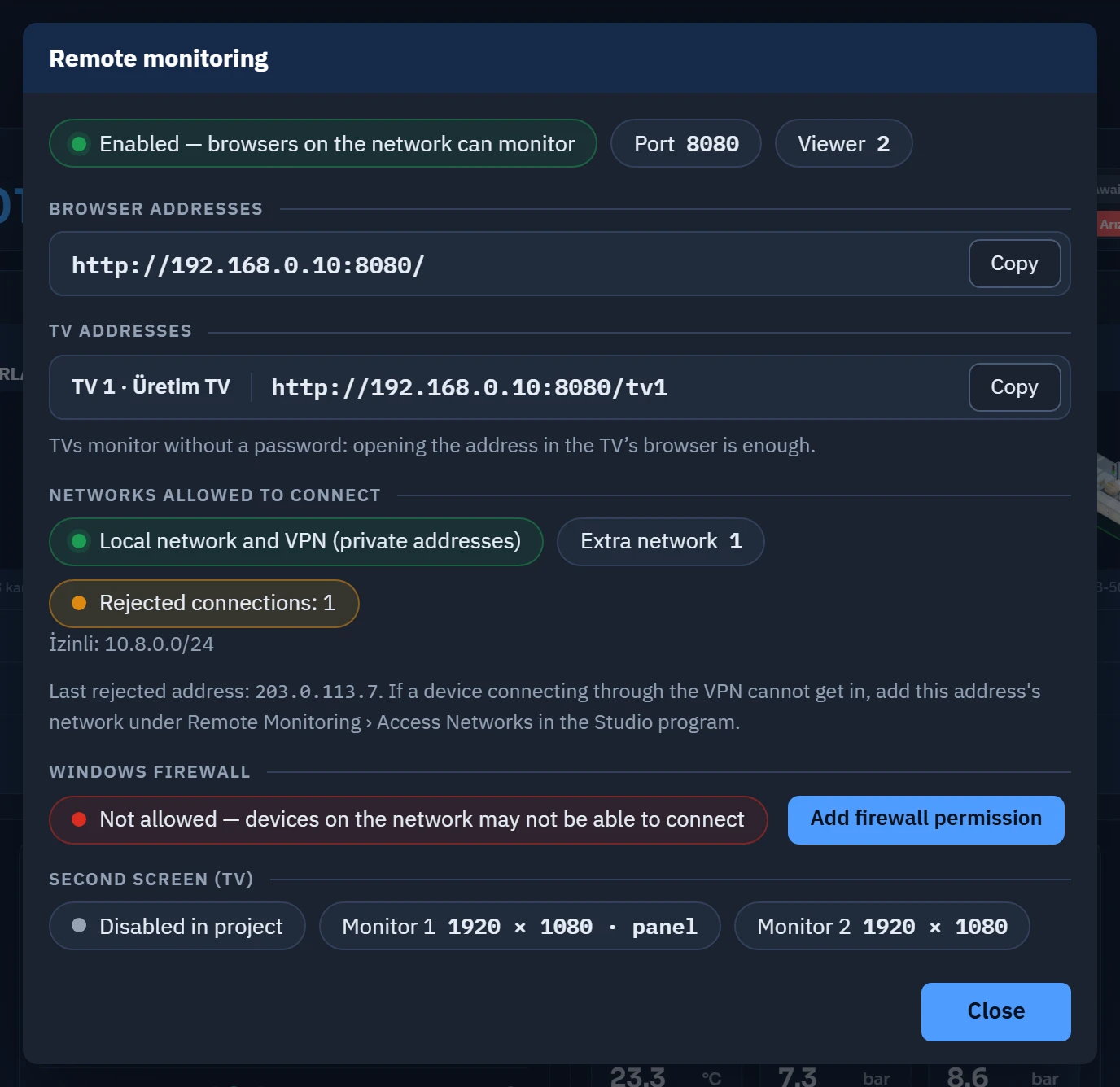 1234
1234- State — whether the server is running, the port, the number of viewers.
- Browser address — with the Copy button.
- Last rejected address — a hint for VPN problems.
- Add firewall permission
- State badge
- On — browsers on the network can monitor, On — this computer only or Off; when on: Port and the number of connected Viewers.
- Browser addresses, TV addresses
- The addresses of the Live PC and the
/tvNaddress of each TV; Copy buttons. - Networks allowed to connect
- The active rule, the networks in the list, the Rejected connections count and the Last rejected address. If a VPN client cannot connect, add the network of this address to Access Networks.
- Windows Firewall
- Allowed, Not allowed — devices on the network may be unable to connect, Not required (the server is not open to the network) or State unknown.
- Second screen (TV)
- The state of the TV window and the connected screens (see Multi-screen and TV).
Firewall permission
For the devices on the network to be able to connect, Windows Firewall must have an inbound connection permission for this program and port. The Add firewall permission button does this: first the settings authorization is checked, then Windows administrator approval (UAC) is requested. The rule that is added is named FabyaVision Uzaktan Izleme (TCP <port>) (inbound, allow, TCP, this program and this port, all profiles). When the port changes, the old rule is deleted and a new one is added. If approval is not given, the message Administrator approval was not granted; the rule was not added. is shown.
Limitations and points to note
- Plain HTTP: passwords and data are not encrypted; use a VPN. TV addresses have no password by default (TVs watch without password).
- The viewer is read-only; scripts, tasks and drivers do not run in the viewer.
- If the port is used by another program, browser monitoring cannot be started: the Live window says Port … is being used by another program; browser monitoring could not be started. Select a different port in the project. and the server runs on a random port bound to this computer only.
- A real-network and Windows Firewall test for connections from other computers must be carried out on site.