Troubleshooting guide
From symptom to cause and solution: Live does not start, no connection can be established, no tag value arrives, no alarm or trend, the script does not run, the on-screen keyboard or remote monitoring does not work. Based on the real error messages.
Where to start
- Look at the problem list
In Studio, F7 Check the project: most address, connection, script and setting errors show up here, before the project is even uploaded to Live.
- Check the connection state in Live
System menu › Connections shows the state of each connection and, when it is disconnected, the reason.
- Check the event log
Script errors, connection losses, and session and setting changes are in the event log (Event view object). Program messages are in the
logsfolder. Details: Log files. - If you have problems with scheduled tasks
See the System menu › Tasks… window (below).
Installation and startup
| Symptom | Cause | Solution |
|---|---|---|
| The setup program says FabyaVision requires Microsoft .NET Framework 4.8; it was not found on this computer. | .NET Framework 4.8 is not installed. | Update Windows, or install .NET Framework 4.8 and run the setup again. The setup requires Windows 10 or later. |
| At the end of the installation, Microsoft Edge WebView2 Runtime could not be installed on this computer (an internet connection is required) | WebView2 is not installed and the setup program could not install it. | Install the WebView2 Runtime with the "Evergreen Standalone Installer". Studio and Live do not start until it is installed. |
| At startup the message Microsoft Edge WebView2 Runtime is not installed on this computer. appears and the program closes | WebView2 Runtime is missing. | Same: install the Evergreen Standalone Installer (x86 / x64) and restart the program. The line WebView2 Runtime yok appears in the log. |
| The interface could not be started: … | WebView2 could not be started. | See the details of WebView2 baslatilamadi in the log; reinstall the WebView2 Runtime. |
| The Select project screen appears when Live starts | No project is given on the command line and Start automatically with the last project is off (or there is no last project file). | Select the project or turn on automatic start (Live overview). |
| There is no project in this folder. | There is no .fvs file in the project folder. | In Studio, transfer the project with Upload project to Live… or use Open from file…. |
| Project folder not found. | The folder has been deleted or disconnected from the network. | Select an existing folder with Change folder…. |
| The card is red: Unreadable — Project file is damaged: invalid JSON format (line N). | The project file is damaged or was copied incompletely. | Restore from the backup (the Yedek folder) or upload the project again from Studio. |
| The project could not be opened (path): … | The file could not be read (corrupt, locked, or no access). A setup error may also occur while the screen / tag count is being loaded. | Fix the cause given in the message; look for the line Proje okunamadi in the logs folder. In Recover mode the selection screen opens again. |
| The screen reloaded by itself while running | The WebView2 render process crashed (RenderProcessExited). | Live reloads the screen and recovers from where it stopped (drivers and tags restart). If this happens often, keep the log (WebView2 sureci coktu: RenderProcessExited). If Live closes suddenly, look for the BrowserProcessExited line in the log. |
Communication and tag values
| Symptom | Cause | Solution |
|---|---|---|
| In the System menu, the connection shows no connection | The device cannot be reached or the device refuses the connection. The red text below the connection gives the reason. | See the Connection and driver messages table. |
| Connection no driver | The driver of the connection could not be created or is not supported. | Check the driver type and the parameters; the log may contain a Surucu olusturulamadi (…) line. |
| The connection shows no connection but there is no red message | The first connection attempt is in progress (the connecting state is not shown); the device does not respond during the timeout. | Wait a few seconds; the message is written at the end of the attempt. If it does not appear, check the IP, the network and the firewall; try increasing the Timeout value. |
| The connection has an Enter password button and does not connect | The OPC UA / MQTT / OPC DA connection requires a user name and password; no password has been entered (… password not entered). | From the System menu, Enter password (requires the settings authorization). The password is not written to the project file; it is stored on this computer. |
| No value / zero in the object | The tag could not be read (no connection, address error) or the first value has not arrived yet. | See the quality codes below and the tag read errors table. |
| The value is present but wrong | The tag type / address does not match the one in the PLC; scaling; byte order. | Correct the Data type and the address according to the actual type in the PLC (Tag addresses). |
| Value cannot be written: Operation failed | Out-of-limits value, connection state tag, authorization. | See the message table in the operator guide. |
Quality codes
In scripts, tag quality is numeric: 192 good · 84 value outside the tag limits (usable) · 8 no connection · 4 undefined · 0 bad. In C, the status code: 0x0001 no connection, 0x0080 value not read yet, 0x0200 address error, 0x0400 no tag.
Alarms, trends and other functions
| Symptom | Possible cause | Solution |
|---|---|---|
| No alarms are generated | In the Startup sequence, Alarm system is off; the trigger tag of the alarm is not selected (… not selected; the alarm never occurs); the trigger tag cannot be read. | Check the startup sequence and the alarm definition; view the value of the tag in Live. See Alarm definition. |
| The alarm line is not visible or the alarm cannot be acknowledged | Show alarm line is off; there is no active alarm; the user does not have the alarm acknowledgment authorization. | Live settings › General › View; log on with an authorized user. |
| Trend is empty | In the Startup sequence, Data logging is off (no new records are written); no tag is selected in the archive; a text tag cannot be drawn as a trend; there is no data in the time range. | Check the data archive definition and the start sequence (Historical data). If the archive cannot write to SQL, the program log contains the line Arsiv SQL (…): baglanti / yazma hatasi; the rows wait in the disk buffer. |
| The recipe button says Recipes are turned off in Live settings › Startup sequence | The recipe service is turned off. | In the Startup sequence, turn on Recipes. |
| Reports are not recorded automatically | Report recorder is off or no trigger tag has been selected. | Check the startup sequence and the Trigger and record setting of the report. |
| Screen does not open, The … screen requires the … authorization | The user in the session has no authorization / no session. | Log on with an authorized user. If the screen is a draft (marked as draft), it is never opened in Live. |
Scripts and scheduled tasks
Script errors, the time limit, permissions and all messages are covered in Script and task problems. If a task does not run, first look at the window below: the Inactive, no script selected or Not run yet state shows the cause; Startup sequence must also be switched on in the Scheduled tasks.
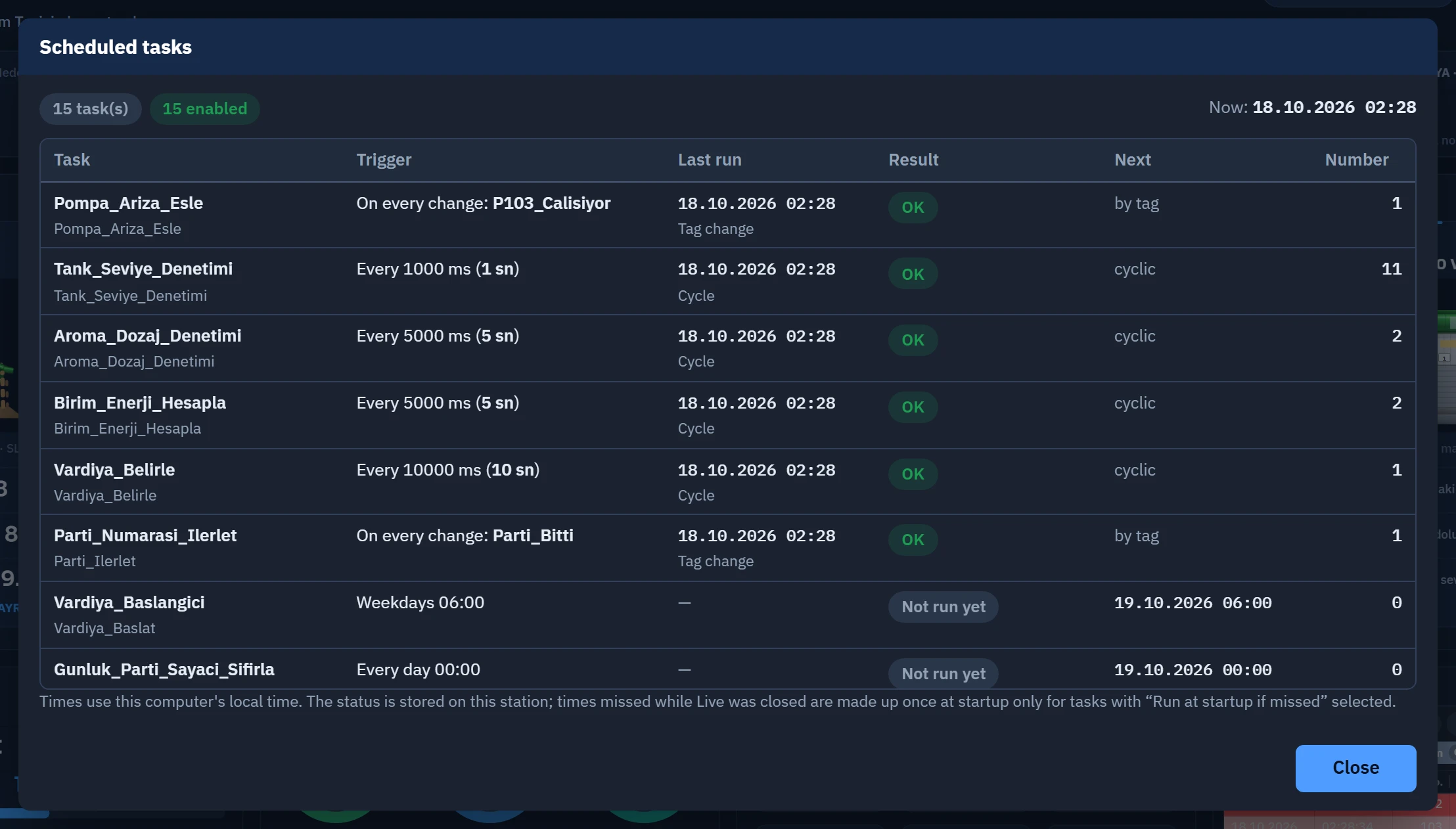 123
123- Summary — the number of tasks, enabled tasks and faulty tasks; the current time.
- Result — OK, Error, Skipped, Inactive … The error message appears below.
- Next — next scheduled run time.
The Tasks… window refreshes every second. The Result column shows OK, Error, Skipped (e.g. triggered again while the previous call was still running), Running, Inactive, Completed (one-time task) or Not run yet; the error and skip message is written below the row. The Next column shows the next scheduled time for time-triggered tasks; for the others it shows cyclic, by tag, at startup or at shutdown. The task state is stored on this station.
On-screen keyboard, camera, and remote monitoring
| Symptom | Cause | Solution |
|---|---|---|
| The on-screen keyboard does not open | In the System menu, On-screen keyboard is Inactive; the field is read-only / disabled; monitoring from a browser (the keyboard never opens there). | Set the switch to Active (On-screen keyboard). |
| The camera object says No camera server | The main program could not start the camera server (the local listener could not be opened). | In the logs folder, look for the line Kamera sunucusu baslatilamadi. Camera states: Off, Queued, Connecting, Connected, Error. See IP camera. |
| The screen does not open from the browser (timeout) | No Windows Firewall permission; the Live PC is not on the network; wrong port. | In Live, system menu › Remote monitoring… › Add firewall permission. Copy the address from the same window. |
403 Access from this address is not allowed. | The client's address does not match the access rule. | Add the Last rejected address shown in the Live window to Access Networks. |
| Login fails: User name or password is incorrect. | The browser user has no password / the password is wrong. | In Studio, enter the password again under Browser users. |
| Too many failed attempts. Try again in N seconds. | 5 failed logins from the same address. | Wait (60 seconds). |
| Port number … is being used by another program; browser monitoring could not be started. | Port conflict. | In Studio, change Remote monitoring › Port. |
| In the viewer, Live PC is not responding — data is not up to date | The server responds, but the Live main engine has not been broadcasting for 15 seconds. | Check the Live PC (load, freezing). |
| The TV does not open at all | No suitable second display is available (a display other than Live's display and the monitors covered by the multi-display setup is required). | In the Live › Remote monitoring window, check the status of Second screen (TV) (Multiple displays and TV). |
Before requesting support
If you cannot solve the problem, prepare the list Information to collect for support in the topic Log files: the logs folders, the project file, the event log files, the version information and a screenshot of the problem.