Live settings: window, startup, additional application, keyboard
The Window, Startup sequence, Additional applications and Keyboard tabs of the Live settings: the behavior of the Live window, services and programs that start at startup, keyboard action keys.
Window
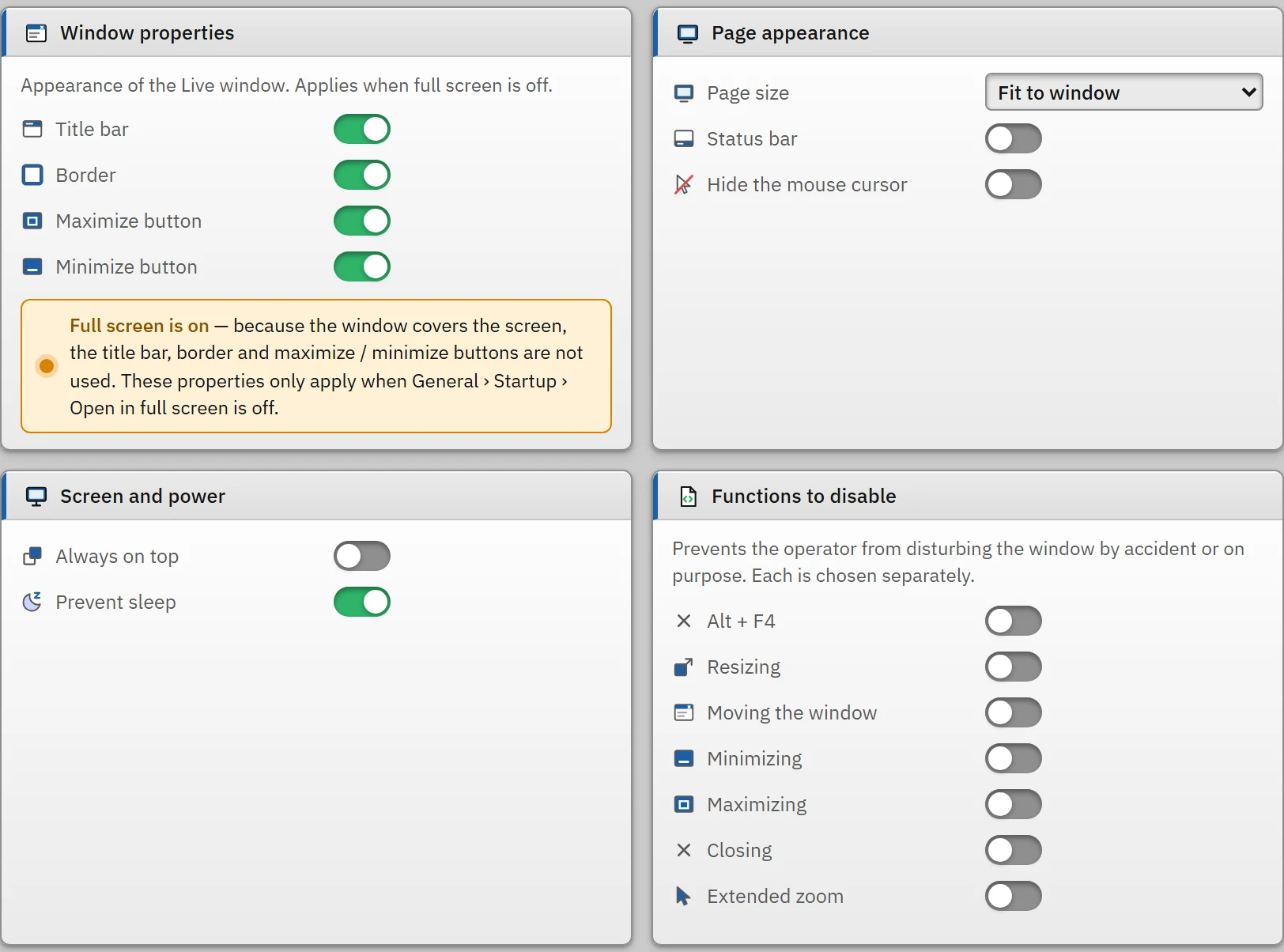
The Window tab determines the appearance of the Live window and what the operator can do with the window. The title bar, border, and maximize and minimize buttons apply only when General › Open in full screen is off; when full screen is on, the window covers the display without a border. The strip above the tab reports this state.
 12
12- Status strip — the title / border settings are not applied while full screen is on.
- Functions to be disabled — Alt + F4, closing, moving …
| Field | Effect |
|---|---|
| Title bar, Border, Maximize button, Minimize button | An item that is off does not appear in the window. If the border is off, the window opens without a border and its size cannot be changed manually. |
| Page size | Fit to window: the screen is fitted to the window proportionally (default). Actual size (with scroll bars): the screen is displayed at the pixel size it was designed at; if it is larger than the window, scroll bars appear. |
| Status bar | A thin bar at the bottom of the display: on the left the logged-on user (No session if there is none; clicking opens the login window), in the middle the name of the open screen, on the right the summary PLC: 3 / 4 connected (red if there is a lost connection) and the time. It exists only in the local Live. |
| Hide the mouse cursor | The mouse pointer is not visible; the mouse and keyboard still work. For touch-screen panel PCs. |
| Always on top | The Live window does not end up behind other windows. |
| Prevent sleep | On by default. While Live is open, Windows does not dim the display or put the computer to sleep; when Live closes, the normal power setting is restored. |
| Functions to be disabled | Each is selected separately: Alt + F4, Resizing, Moving the window, Minimizing, Maximizing, Closing, Extended zoom (on the screen, Ctrl + wheel / two-finger zoom). If closing is blocked, the window close button, Close on the taskbar and Alt+F4 do not work; the program can be closed only from the system menu (Exit Live). The program's own closing is not blocked. |
Startup sequence
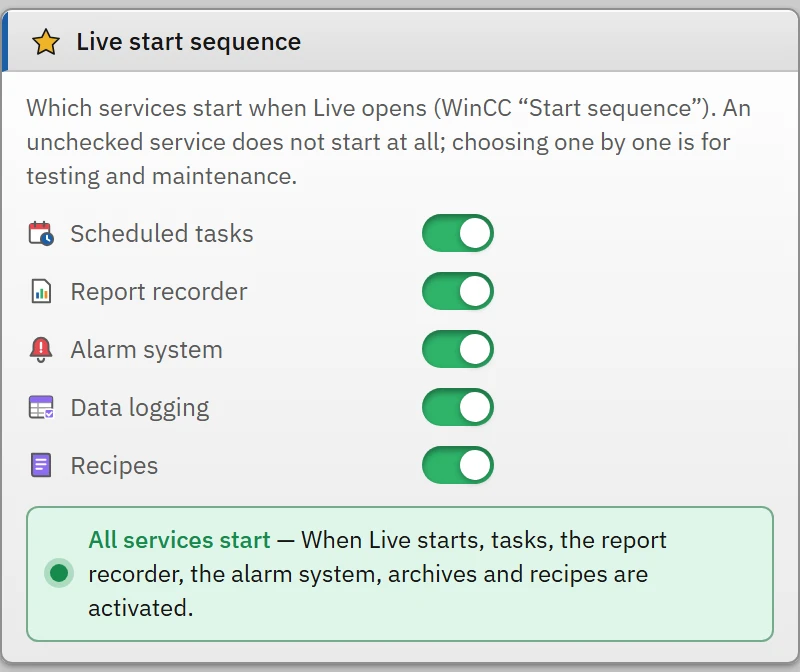
Selects which services start when Live opens. A service that is not checked never starts; Başlangıç dizisi: <hizmet> başlatılmadı (Live Ayarları › Başlangıç Dizisi) is written to the event log. Switching services off one by one is intended for testing and maintenance; the strip above the tab lists the services that are switched off.
 1
1- Service — an unchecked service does not start when Live opens.
| Service | When off |
|---|---|
| Scheduled tasks | No task runs (including startup and shutdown tasks). |
| Report recorder | Trigger-based automatic recording of reports is not set up; report records are created manually only. |
| Alarm system | Alarm definitions are not monitored; no alarm line or alarm record is created. Alarm views stay empty. |
| Data logging | Archives are not written to a file / SQL; trends show the value held in memory. |
| Recipes | The recipe load, save and event functions do not work; when the button is pressed, the notification Recipes are turned off in Live settings › Startup sequence is shown. Recipe objects continue to be drawn. |
Additional applications
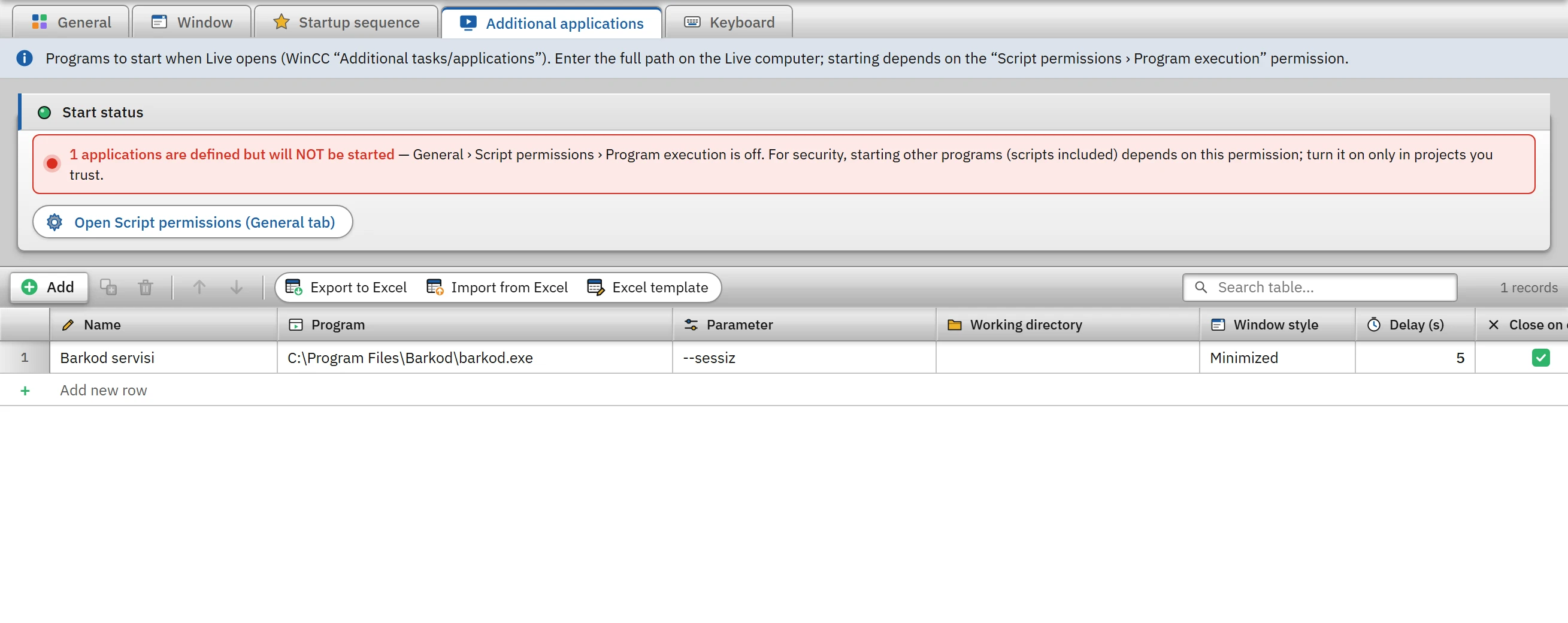
Defines the programs to be started when Live starts (e.g. a barcode reader service, a network monitoring tool). Starting depends on the General › Script permissions › Program execution permission; if the permission is off, no application is started and the reason is written to Live's program log (the logs folder). The strip above the table shows the number of defined applications and the permission state.
 123
123- Start status — if the permission is off, applications are not started.
- Program — the full path on the Live computer.
- Delay (s) — after Live starts.
| Column | Meaning |
|---|---|
| Name | The name shown in the log (the program path if empty). |
| Program | A file on the Live computer (.exe, .bat, .cmd, .com, .lnk, .msc) or a plain program name (notepad.exe; searched for in the Windows folder and in PATH). Environment variables such as %ProgramFiles% are expanded. A relative path (..\uygulama.exe) is rejected. |
| Parameter | Command-line parameters. |
| Working directory | If empty, the program's own folder. |
| Window style | Normal, Minimized, Maximized, Hidden. |
| Delay (s) | The number of seconds after Live starts before the program is started (0 – 600), so that the network and drives are ready. The delayed start is scheduled in the background; the result is written to the log. |
| Close on exit | When Live closes or switches to another project, this application is closed as well: a close request is first sent to its main window, and after 3 seconds the process is terminated. Processes that Live did not start are left untouched. |
| Enabled | An unchecked row is not started. |
If a process is already running for the same program and parameter, it is not started again. If the path does not exist, Live does not crash; the cause of the start error (e.g. file not found) is written to the program log. Studio warns in the Problems list about a row with an empty path or a path that is not a full path, and about use while the permission is turned off.
Keyboard
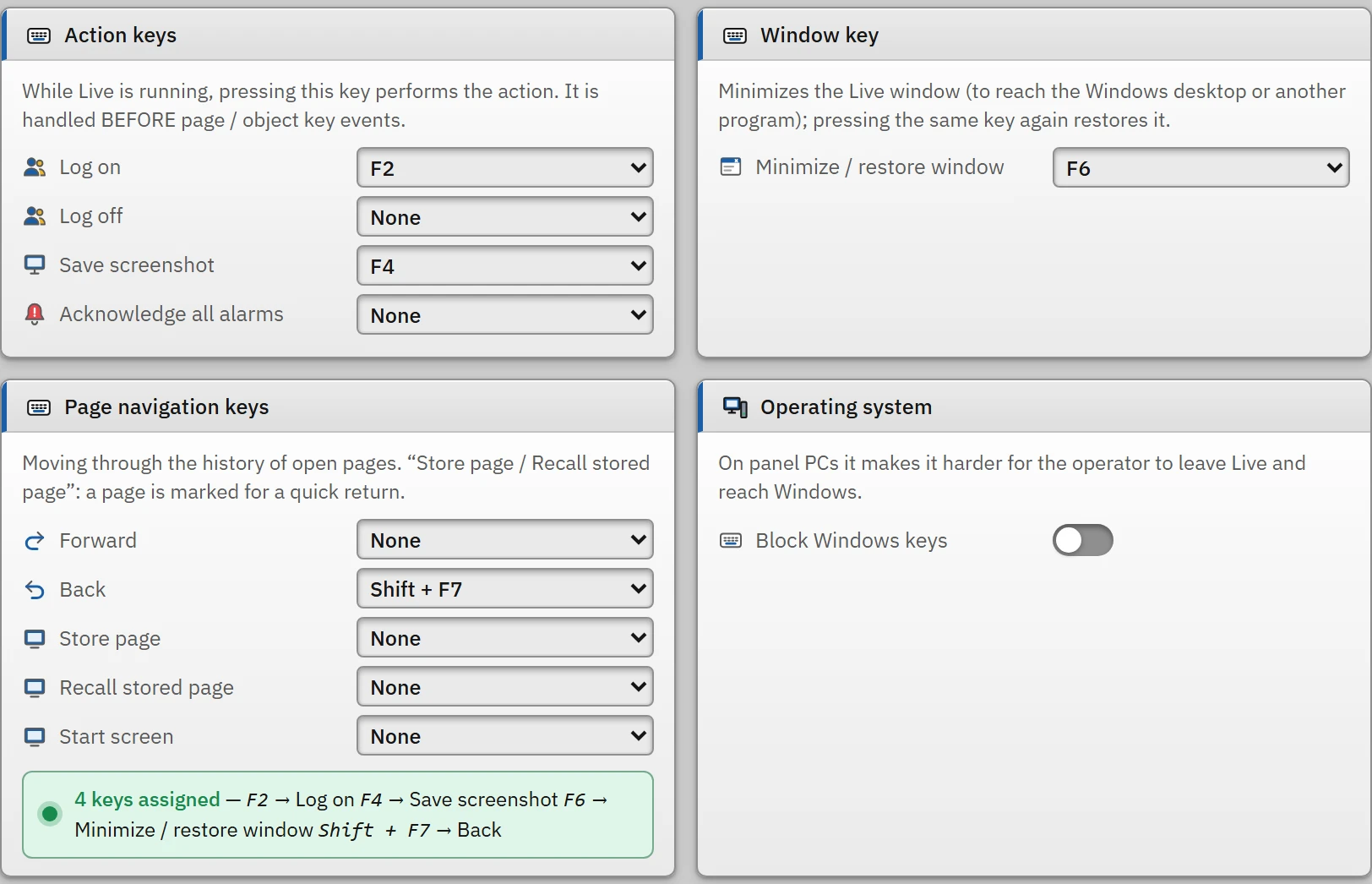
Makes a specific action run when a key is pressed while Live is running. Key options: None, F1 – F12, Ctrl+F1 – F12, Shift+F1 – F12.
 123
123- Action keys — session, screenshot, alarm acknowledgement.
- Assignment summary — conflicting keys are marked here.
- Operating system — block the Windows keys.
| Action | What it does |
|---|---|
| Log on, Log off | Opens the login window / logs off. |
| Save screenshot | Saves a PNG image of the Live window as Belgeler\FabyaVision_Live\Ekran Görüntüleri\<Proje>_<yyyy-MM-dd_HHmmss>.png (the folder name is the name of the running program; the folder can be changed with live_ayarlar.json › EkranGoruntuKlasoru). A Screenshot saved: … notification is then shown. |
| Acknowledge all alarms | Acknowledges all alarms (requires the alarm acknowledgment authorization). |
| Minimize / restore window | Minimizes Live (to switch to the Windows desktop or another program); the same key restores the window. Even if the minimize block is enabled, Live can be minimized with this key. |
| Forward, Back | Goes forward / back in the screen history. |
| Store page, Recall stored page | Marks the open main screen (Screen saved: …) and then quickly returns to that screen. |
| Start screen | Opens the start screen. |
| Block Windows keys | While Live is in the foreground, the Windows key, Alt+Tab, Alt+Esc and Ctrl+Esc do not work (for panel PCs). Ctrl+Shift+Esc and Ctrl+Alt+Del are not blocked. |
- Action keys are processed before screen and object key events and menu shortcuts; they also work while a text box has focus.
- While a notification or question window and the Select project window are open, the action keys do not work.
- If the same key is assigned to two actions, Studio reports an error; in Live only the first action runs. If the key is also used in a screen / object key press event, Studio warns: the system key runs first and the event is not triggered.
- If the Block Windows keys option is on and the Require authorization to exit option is off, Studio shows a warning: an operator can close the program from the system menu without authorization.
Limitations and points to note
- The window, keyboard and additional application settings apply only in the local Live window; they do not apply in browser monitoring or on the TV.
- The Alt+F4 block and the blocking of the Windows keys must be tested in the field on a real keyboard; automatic tests do not send real key input.
- If you really want to prevent the window from being closed, select not only Alt + F4 but also Closing: the Closing block cuts off every way of closing, including Alt+F4.