Operator guide
For the operator who uses Live: logging on and off, navigating between screens, entering values, alarms, recipes and reports, language and font size, connection state and closing the program.
Sections of the screen
The parts of the Live window (screen area, fixed top and bottom areas, alarm line, status bar and the ☰ system menu button at the bottom right) are described in Live overview. This guide collects the tasks that operators perform most often, step by step.
Login and logout
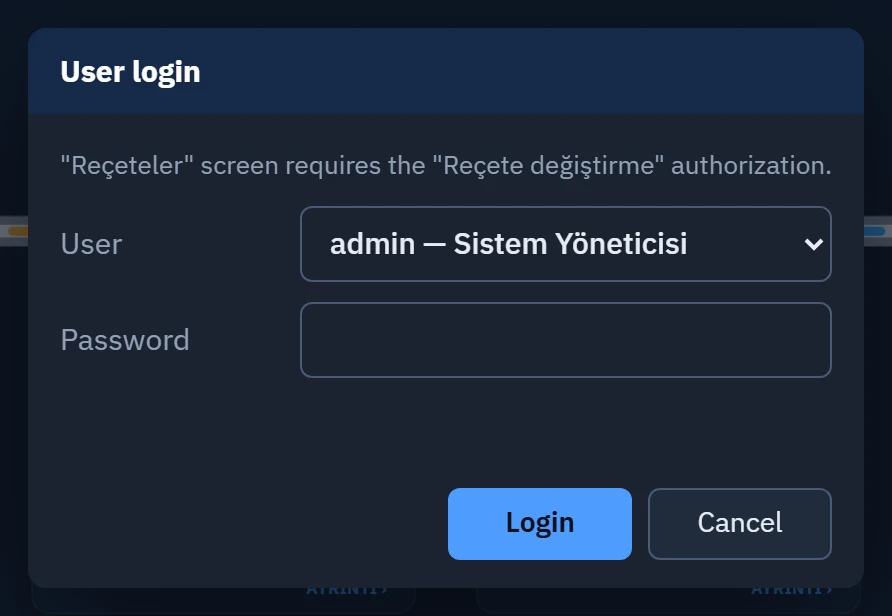
Control and setting operations require authorization. If an operation that requires authorization is attempted while no session is open, Live opens the login window automatically; you can also log on from the system menu.
- Open the login window
Open the system menu with the ☰ button and click Login. If a keyboard key is assigned to Log on in the project, that key also opens the window; if the status bar is on, clicking the user area on the left also opens it.
- Enter the user and password
Select your name from the User list, type your password in the Password box and click Login (or press Enter). On a touch panel, the on-screen keyboard opens when you touch the password box.
- Check the result
If the password is wrong, the window says Wrong password. and stays open. When you have logged on, the window closes; your user name and group appear at the top of the system menu.
 1234
1234- Why it is requested — which authorization is required.
- User — selected from the list.
- Password
- Login / Cancel
- Logging out: the Exit button next to your name in the System menu ends the session (a Log off key may also be assigned). Log out when you have finished: while an authorized session is open, someone else can operate the system.
- Automatic log-off: if Session timeout (min) is set in the project, the session closes by itself that many minutes after log-on; performing actions does not extend the time. When the time expires, log on again.
- Changing users: log off first, then log on again. When there is no session, the system menu shows Session closed.
- Logins and logouts are written to the event log with the type
oturum.
Navigating between screens
- Buttons on the screen and navigation menu: the person who prepared the project has placed buttons for switching between screens, or a navigation bar at the top of the display; clicking opens the screen.
- System menu › Screens: the screens in the project's menu are listed; clicking one opens it. The current screen is highlighted.
- Previous screen: the Previous screen button in the System menu returns to the previous screen. If the keys Forward, Back, Store page, Recall stored page and Start screen are assigned in the project, they work as well (Keyboard).
A screen that requires authorization appears in the list with a lock icon. If your session has no authorization, clicking opens the login window; if your session is open but you do not have the authorization, the notification User "Name" is not authorized to open the … screen (Authorization name) appears. If the screen remaining on the display requires authorization and the session ends, a lock card appears in place of the screen: An authorized user must log in to open this screen. and the required authorization. When an authorized user logs in, the screen opens by itself.
Entering values and control
- Touch or click the object
It runs when control objects such as an input field, button, slider or check box are clicked. In text and number fields, if the on-screen keyboard is enabled, touching the field opens the keyboard (On-screen keyboard).
- Enter the value and confirm it
The value is written to the tag. Some buttons ask first (Yes / No window); the prompt is performed by a script or an event.
- Read the error message
If a write is rejected, an Operation failed window opens in the center.
| Message | Meaning and what to do |
|---|---|
| Tag: the value cannot be less than the lower limit (…). / … cannot be greater than the upper limit (…). | A value outside the defined limits of the tag was entered. Enter a value within the limits. |
| … cannot be written to the connection status tag (communication determines its value). | The connection status tag cannot be written to; its value is determined by the communication. |
| Tag not found: … | There is no tag with that name in the project; report it to the person who prepared the project. |
| The user … does not have the authorization for this operation (Authorization name). | The user in the session has no authorization for that action. Log on with an authorized user. |
| This operation requires the "Authorization name" authorization. (above the logon window) | No session is open; log on with an authorized user. |
If the operator action log is enabled in the project (default), your writes are recorded in the event log with the type operator: who, when, which tag, old and new value, from which object, result (written / rejected / unauthorized). Unauthorized attempts are also recorded. These records are visible in the Event View object, if the screen contains one.
Alarms
- When an alarm is active and the project has the alarm line enabled, the most important alarm appears at the bottom of the display: number of alarms, time, number and text; if it is waiting for acknowledgement, pending acknowledgement is shown.
- Clicking the alarm line or the Alarms button in the system menu opens the Alarms window; the alarms are viewed and acknowledged there. Acknowledgment requires the alarm acknowledgment authorization.
- If a key is assigned to Acknowledge all alarms in the project, that key acknowledges all alarms.
Details of alarm handling: Operator alarm handling.
Recipe, report and trend
Selecting a recipe and writing it to the PLC, creating and printing reports, and examining trends are done with controls placed on the screens. Details: recipe handling, report use, trend use. If recipes are turned off in the Startup sequence, pressing the recipe button shows the notification Recipes are turned off in Live settings › Startup sequence.
Language, font size, on-screen keyboard, and theme
These preferences are in the system menu and apply only to this computer; they are also kept when Live is reopened (they are stored on the computer as a station setting).
| Preference | Where | Effect |
|---|---|---|
| Project language | Language buttons (if several languages are enabled in Live for the project) | The screen texts appear in the selected language. |
| UI language | UI language: Türkçe, English, Español, Deutsch, Italiano, Français (buttons with flags) | The language of menu, window and notification texts. English is used on first start; your choice is stored and kept for later starts. |
| Font size | Font size: Normal, Large, Larger, Largest (100%, 115%, 130%, 150%) | The System menu, windows, menus / toolbars and the alarm row are enlarged. The screen content does not change. |
| On-screen keyboard | On-screen keyboard switch (Active / Inactive) | Opens / closes the touch on-screen keyboard. |
| Light / dark theme | If the project has a button carrying the Toggle light / dark theme function, that button | The theme changes. The System menu has no theme button. |
Monitoring the connection status
The Connections section in the System menu shows the state of each connection: connected, connecting, no connection, no driver, inactive (disabled). When a connection is disconnected, the reason is written in red below it. If the status bar is on, the summary PLC: 3 / 4 connected is at the bottom of the display. If a connection asks for a user name and password (OPC UA, MQTT, OPC DA), an Enter password button appears next to the connection; entering the password requires the settings authorization. For what to do, see Troubleshooting.
Closing the program
In the System menu, click Exit Live and confirm the question Exit the Live program? Monitoring, alarms and logging will stop. with Close. If the project has Require authorization to exit set, you must first log on with an authorized user. In a Live that has been closed, monitoring, alarms and logging stop; do this only during maintenance.
Limitations and points to note
- A user monitoring from the browser or TV can only view: control, alarm acknowledgment and settings changes are made only from the Live PC. For the viewer, the system menu is simplified (screens, connection states, language, theme, Logout).
- The user is selected from the list; only users that are enabled in the project are listed.
- Users, groups and authorizations are defined in Studio: Users and authorizations.