Using authorizations
Applying authorizations to objects, screens, menus, recipes, reports and alarms; what happens to an unauthorized user in Live, and the action log.
Defining an authorization (Users, groups and authorizations) does not protect anything by itself; you must assign it to the object, screen or menu item you want to protect. This topic describes where an authorization can be applied and what happens to an unauthorized user in Live.
Basic rule
If the authorization field is empty, the operation is open to everyone (no logon is required). If an authorization is selected, only a user who is logged on and whose group has that authorization checked can perform the operation. On an attempt without authorization, Live:
- if there is no session, opens the User login window (the window states which authorization the operation requires);
- if a session is open, it shows the notification “User
kullanıcıis not authorized for this operation (yetki adı)”.
Successive press-release clicks produce a single warning (a second warning is not shown within 0.7 s).
Where authorization applies
| Location | Where it is set | Effect in Live |
|---|---|---|
| Object (button, I/O field, slider, switch …) | Select the object; Inspector › Properties › Security category › Operator authorization: Required authorization and Operable. | An unauthorized user cannot use the object's events (click, etc.) or its input; the object also does not receive focus when navigating with the keyboard. If Operable is off, the object's events do not run for anyone. |
| Screen | Screen properties › Security › Required authorization and Operable. | An unauthorized user cannot open the screen: if there is no session, the login window appears; if the authorization is insufficient, a notification appears. In the system menu, the screen is listed with a lock icon. If Operable is off, the screen can only be viewed (object events and inputs do not work). |
| Menu / toolbar item | In the Menus and Toolbars section, select the item › Authorization › Required authorization. | For a user without authorization the item appears disabled; clicking it shows an authorization warning. |
| Navigation menu | Screen management › Navigation menu table › Authorization group. | If a group is selected, the screen entry in the System menu is visible only to a logged-on user who belongs to that group; it is not listed when nobody is logged on. |
| Recipe | Recipes › Authorization group; Transfer and rules › Approval › Group that can approve. | Recipe operations require the Recipe change authorization and (if selected) group membership (Operator recipe handling). |
| Report | Reports › Authorization group; Period, Print and Approval › Approval and Retention › Group that can approve. | Deleting records, creating records manually and approving depend on group membership (Using reports in Live). |
| Alarm | No authorization needs to be assigned: the built-in Alarm acknowledgment authorization is used. | Required for acknowledging, shelving and commenting (Operator alarm handling). |
| Camera | The Required authorization in the Required authorization category of the camera object. | An unauthorized user cannot interact with the camera object (the same rule as for operable objects). |
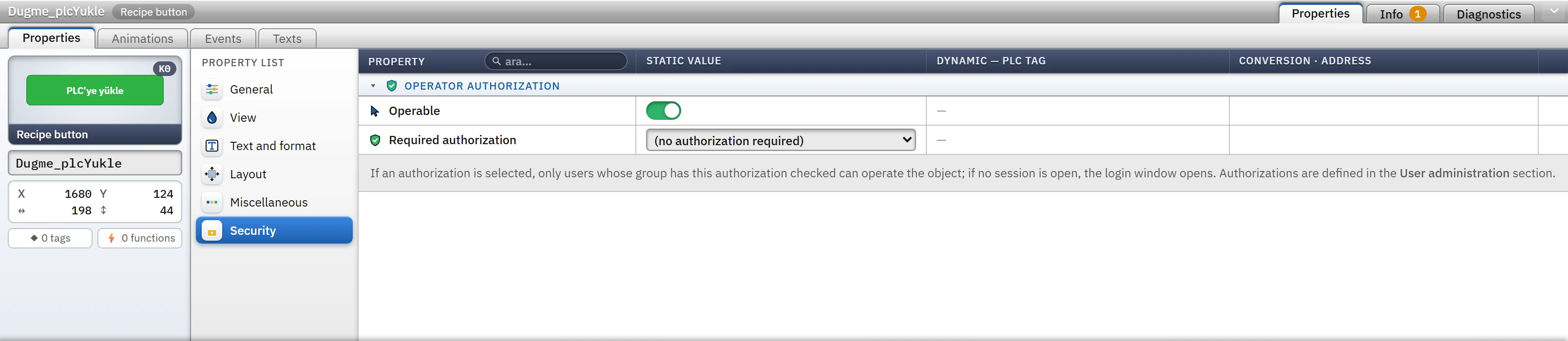
Example: protecting the load-to-PLC button
- Define the authorization
In User administration › Authorizations (example), add the authorization
Reçete yüklemeand, on the Groups and authorizations tab, check it only for theMuhendislergroup. - Link it to a button
On the recipe design screen, select the Load to PLC button; in the Security category, select
Reçete yüklemeas the Required authorization. - Try it in Live
With no session open, pressing the button brings up the log-on window; with a user from the
Operatorlergroup you see a notification; with aMuhendisleruser the action runs.
Screens with authorization
When a screen that requires authorization is opened in Live:
- If the start screen requires authorization, or that screen is open after logging off, a lock card replaces the screen: the screen name, the message “An authorized user must log in to open this screen”, the required authorization and the Login button (Change user if a user is logged on). When an authorized user logs on, the screen opens automatically.
- An authorization-protected screen shown as a pop-up window closes when the session changes or the authorization is removed.
- On the TV display no authorization is checked: there is no operator at the TV; the designer chooses which screens are shown.
- In monitoring from a browser, a screen is displayed once an authorized user logs on at the Live computer; logging on from the browser is not possible.
Authorization in scripts
Scripts can query an authorization by the No. value in the Authorizations table (for example, in a C script, PWRTCheckPermission: if the authorization with that number is missing, the log-on window opens or the query is made silently). For details, see Script object model reference.
Authorized action log
Live writes the operator's tag writes (I/O field, button, slider, check box, recipe loading, event functions) to the event log with the type operator: who, when, which tag, old and new value, from which object, and the result. The result is one of four values: written, rejected (tag outside the limits or not writable), error (PLC write error) or unauthorized (authorization denied; the authorization that was required is also recorded). Repeated unauthorized attempts within 2 seconds for the same authorization and source are combined into one entry.
- Logging is switched on and off with Write operator actions to the event log in the Live settings›General›Operator action log section (on by default). While it is off, unauthorized attempts are not written either.
- Also log script / task writes (off by default) also adds writes from scripts, scheduled tasks, screen events, alarm acknowledgment bits and report feedback; with scripts that write frequently, it makes the log larger.
- Slider, script, task and automatic writes for the same tag and source are merged into a single entry after 1.5 s of silence; button, I/O field, menu and recipe writes are written immediately and one by one.
- The records are monitored, with filtering, in the Event view object (the
Olaylarscreen in the sample project) (Controls).