Controls
Ready-made screen components such as alarm, trend, recipe, report, user, connection, camera, screen window, menu and event log: what each one shows, where it gets its data from, and how it looks in Studio and in Live.
What is a control
A control is a ready-made screen component that contains its own table, buttons and filter. You place the alarm list, the trend curves, the recipe records or the event log on the screen as a single object; the object takes the data itself from the project tables (alarms, logs, recipes, reports, users, connections). You do not have to draw individual shapes or bind each row to a tag.
Controls are in the Toolbox group of the Toolbox panel. The group contains 11 objects. Click an object and drag on the screen to set its size, or drag it from the toolbox onto the screen and drop it.
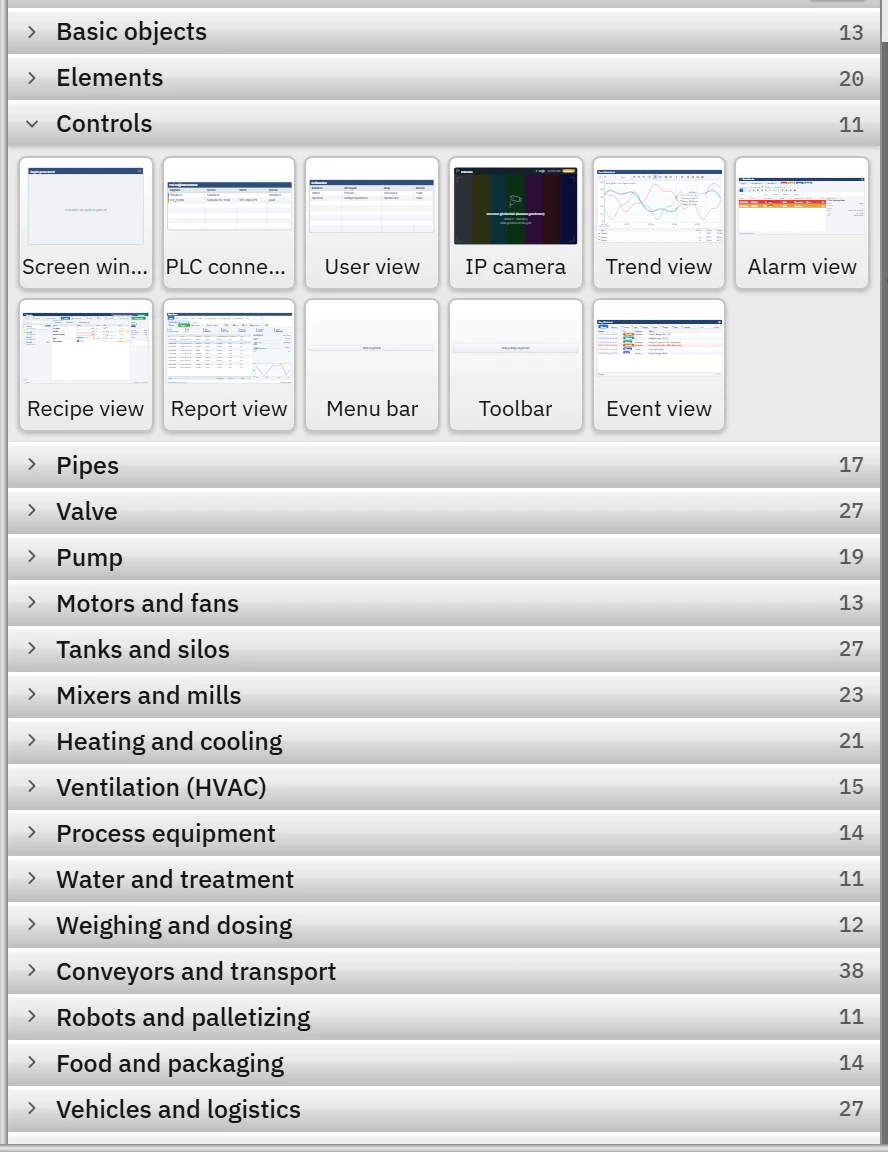
Which control shows what
| Object | What it shows | Data source | Details |
|---|---|---|---|
| Alarm view | Current, awaiting acknowledgment, historical and shelved alarms; filter, acknowledgment, Excel | HMI alarms table | Alarm view, operator alarm handling |
| Trend view | Time curves of archived tags or tags selected directly; zoom, cursor, export | Historical data archives, tags | Trend control, operator trend handling |
| Recipe view | Recipe records, element table, comparison with the PLC and transfer | Recipes table | Recipe design, operator recipe handling |
| Report view | Report records, filters, statistics, approval, Excel / CSV / PDF | Reports table | Report design, using reports in Live |
| User view | The user of the session, the Log on / Log off buttons and the list of enabled users | User administration | Users and authorizations |
| PLC connection status | Name, driver, address and state of each connection | Connections table | Connection diagnostics |
| IP camera | The live image of the camera | The object's own Camera settings | IP camera |
| Screen window | Another screen inside this screen | Selected screen | Faceplate and Screen window |
| Menu bar, Toolbar | Drop-down menus and icon buttons | Menus and Toolbars section | Menus and toolbars |
| Event view | Log of session, settings, recipe, report, system, script, operator and connection events | Live event log | At the end of this topic |
Appearance in Studio, appearance in Live
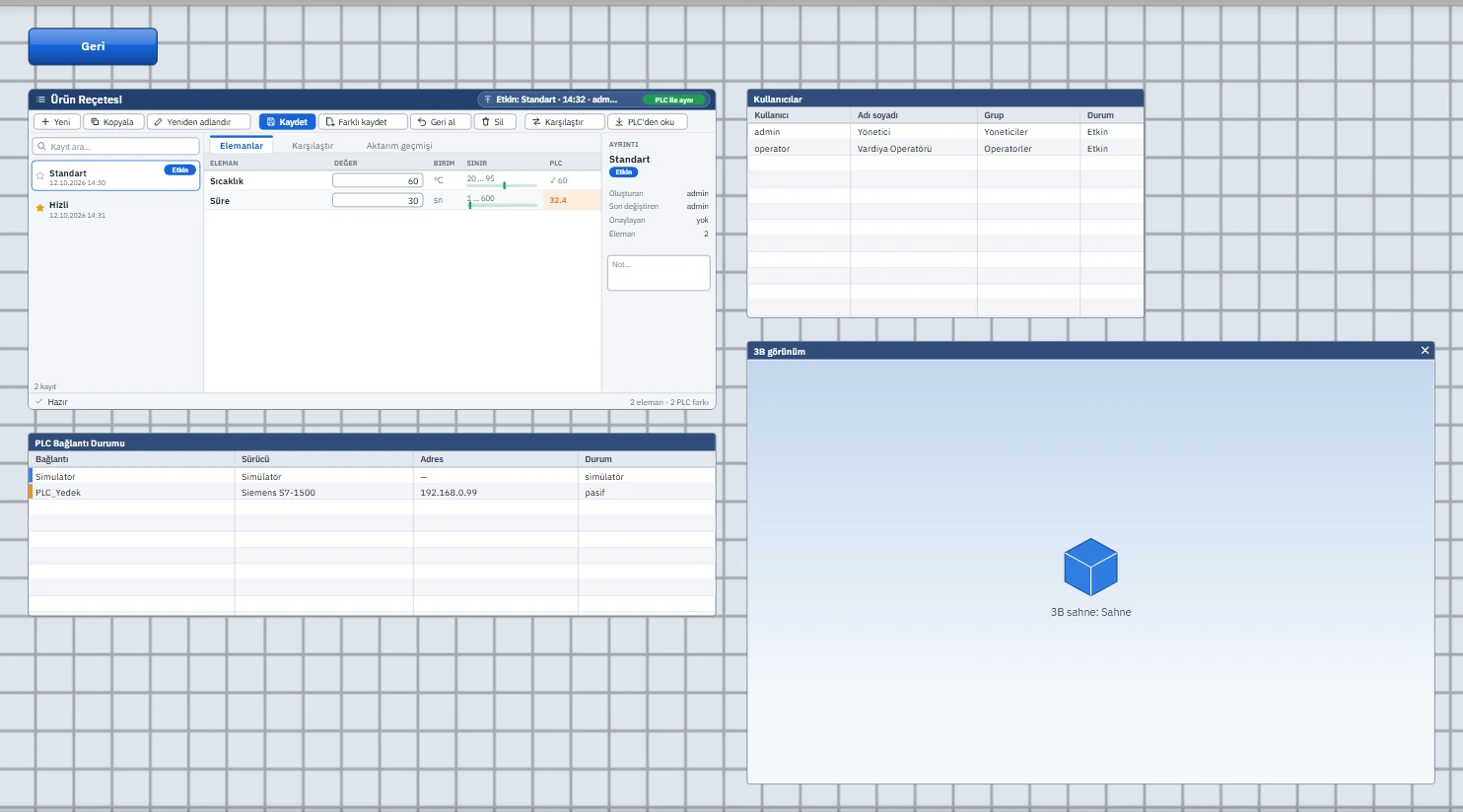
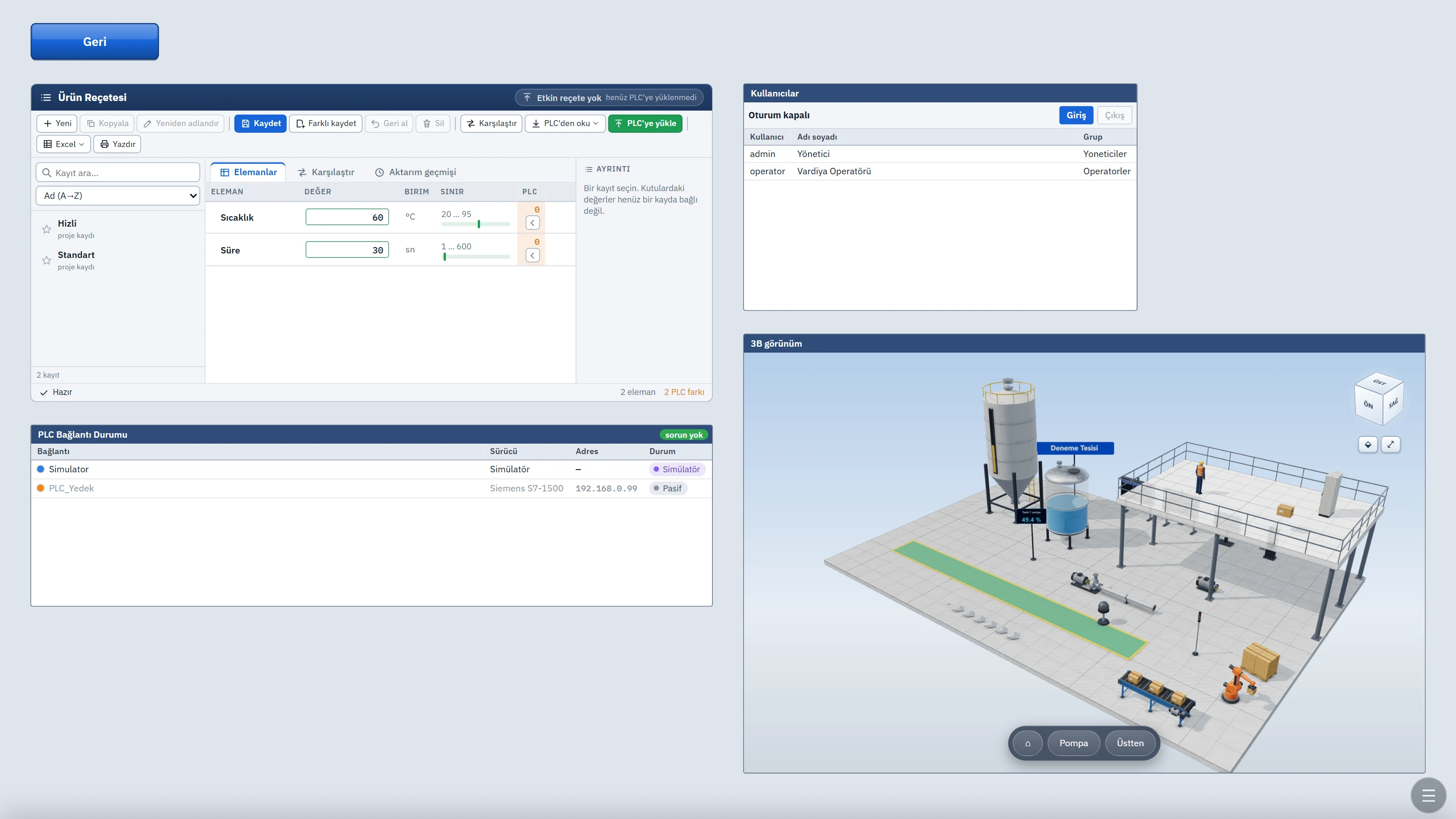
In Studio, a control is a preview drawn from the project's own tables and sample values: there is no real alarm, no real record and no live image. In Live, the same object works with real data. Two views of the same screen are shown below.
 1234
1234- Recipe view — recipe records, element table, PLC transfer.
- User View — the list of users in the project.
- PLC Connection Status — the live counterpart of the connections table.
- Screen window — shows another screen inside this screen.
 1234
1234- Recipe view — records, element values, PLC difference.
- User View — Log on / Log off buttons.
- PLC Connection Status — the actual state of each connection.
- Screen window — the 3D scene inside it runs in Live.
Things you will notice:
- In the Recipe view, Studio shows sample records; Live shows the recipe records of the project and the difference from the values in the PLC.
- In the PLC connection status, Studio writes a sample status. Live writes the actual state of the connection as Connected, Connecting, No connection, No driver, Inactive or Simulator; the error message appears below the row.
- In the User view, Live lists only enabled users and shows the Login / Exit buttons at the top; the row of the logged-on user is highlighted.
- If the Screen window shows a 3D screen, Studio draws a placeholder icon; in Live, the scene runs and the operator can rotate it.
Tag binding and events
Most controls have few properties that can be bound to a tag, because the object obtains the data itself. Examples of properties that can be bound: in Trend view, Time range (min), Live monitoring, the Y-axis limits and the title text; in IP camera, Channel, Flow, Stream on and Title; in Screen window, Tag prefix and Title text. In the row of a property that can be bound, the Inspector's Dynamic column contains the Select tag... button.
Event view
The Event view shows Live's event log as a table. Each row has a time, a type, a user and a text. A value written by an operator, a recipe selected by an operator, or a connection that drops is entered in this log.

- Initial view
- Current (live): a new event is added to the top of the list; the records in memory and the last 1000 records of the log are shown. History (from the log): read from the log with the Today, Yesterday, Week, Month and All buttons or with a manually entered date range (at most 20000 records).
- Maximum rows (per page)
- Default 200; the list is divided into pages of this size.
- Data
- The eight types can be switched on and off individually: Session, Setting, Recipe, Report, System, Script, Operator, Connection. A disabled type does not appear in the list or in the filter.
- Live refresh, Toolbar buttons
- The tool buttons are Current / History, the type filter, search, date range, Refresh and Excel. The Excel file contains the whole of the filtered list.
- View
- Title bar and text, Theme (Light theme, Dark theme, Follow the application theme), striped rows and optional custom colors.
In the remote monitoring browser, the list is read from the Live computer every 4 seconds.
Controls in 3D screens
The Controls group of the 3D library contains eight display objects: Screen window, Alarm view, Report view, Trend view, IP camera, Recipe view, PLC connection status and User view. They stand in the scene as free-standing displays or panels and do not provide the full function of the 2D controls; for details, see the topic 3D screens.