Menus and toolbars
Design the menu bar and toolbars placed at the edge of the Live window: items, icons, shortcuts, events, tag-bound visibility and authorization; then assign them to the screens through a configuration.
Three records, one configuration
Menus and toolbars are designed in the Screen management section under the Menus and toolbars section. The section has three inner tabs:
| Tab | What it defines |
|---|---|
| Toolbars | Bars made up of buttons, separators, flexible spaces, and labels; button type and icon size. |
| Menus | A menu bar made up of submenus and menu items. |
| Configurations | Places a menu and toolbars on the edges of the display (top, bottom, left, right); sets the appearance and size; determines on which screens they are shown. |
When the design is finished, the bar appears on screen in two ways: the configuration is placed along the edges of the screen, whereas a Menu bar or Toolbar control that you place directly on the screen stays wherever you want on the screen.
Designing a toolbar
- Add the bar.
In the Toolbars tab, click Add. When the section is empty, the Create example button that appears in the table's toolbar sets up a ready-made menu, toolbar and configuration. The toolbar's Button type (Icon only, Icon + text (side by side), Icon above, text below, Text only) and Icon size (16, 20, 24, 32 or 40 px) are selected in the table.
- Add a button.
In the designer bar, click Add button, Separator, Space or Label. The item is added after the selected item; it is reordered by dragging or with the up / down arrows.
- Specify an icon and text.
Icon… opens the built-in library (grouped, searchable) or an image that you have embedded in the project; the image can be 512 KB at most. The text and the tooltip are translatable texts.
- Assign functions to the button.
Set up a function list in the Events category of the Inspector (see below).
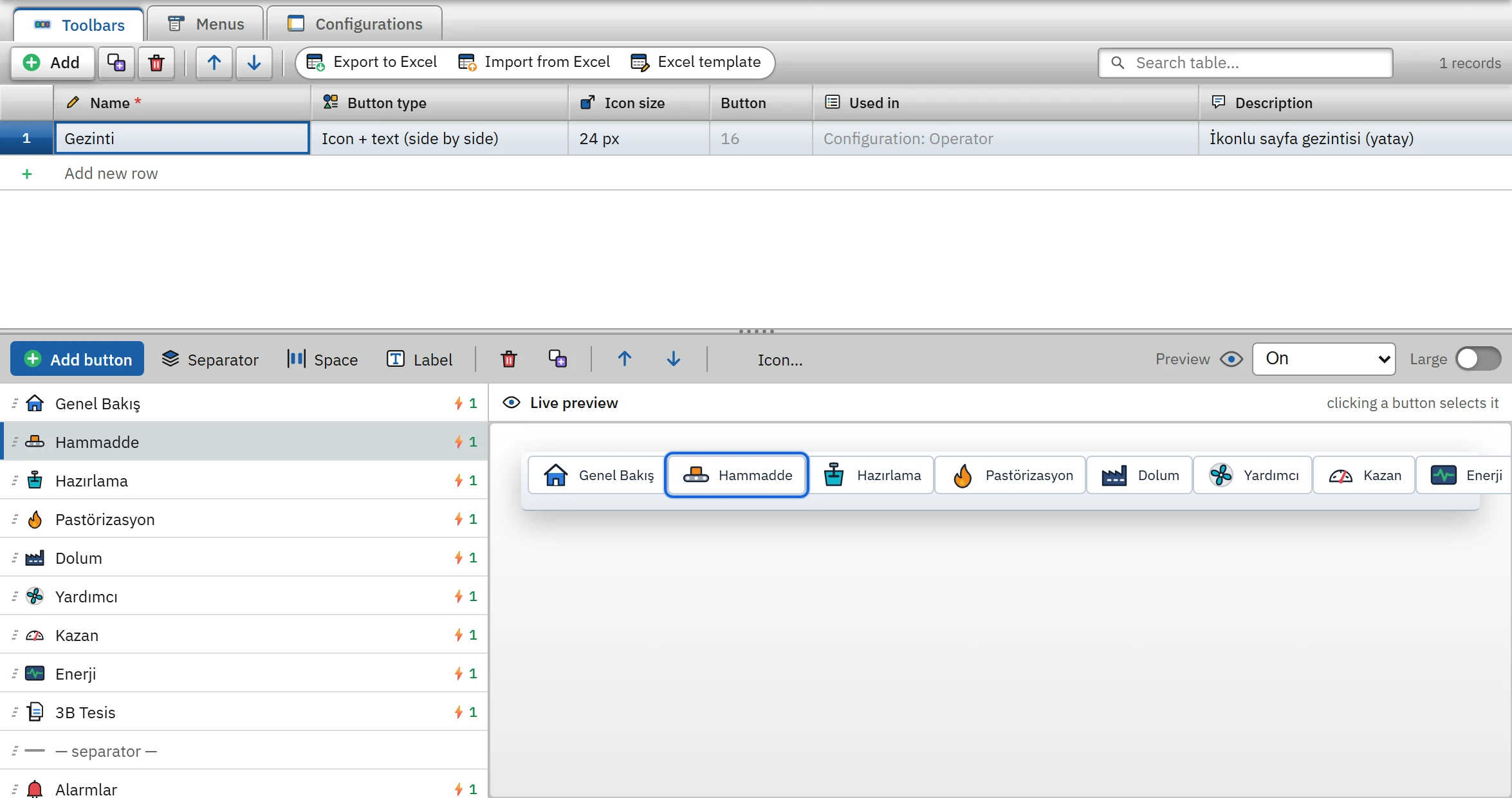 12345
12345- Inner tabs — Toolbars, Menus, Configurations.
- Bar table — name, button type, icon size.
- Designer bar — adds buttons, separators, spaces and labels; selects the icon.
- Item list — sorted by dragging; ⚡ is the number of functions.
- Real-time preview — clicking the button selects the item.
| Item type | On the bar | In the menu |
|---|---|---|
| Button / Menu item | It is clicked and runs its functions. | It is clicked and runs its functions. |
| Submenu | Not available. | Drop-down list; items and submenus are placed in it. |
| Separator | The line that separates groups of buttons. | Line between menu rows. |
| Spacer | Pushes the following buttons to the other end of the bar (for example, it aligns Close to the right). | Not available. |
| Label (text) | Non-clickable text. | Not available. |
Designing menus
The Menus tab uses the same layout; the designer bar has Add item, Submenu and Separator. To add an item inside a new submenu, select the submenu and click Add item. You can rearrange an existing item with the Move into submenu (›) and Move out of submenu buttons. Menus can be nested up to 3 levels deep.
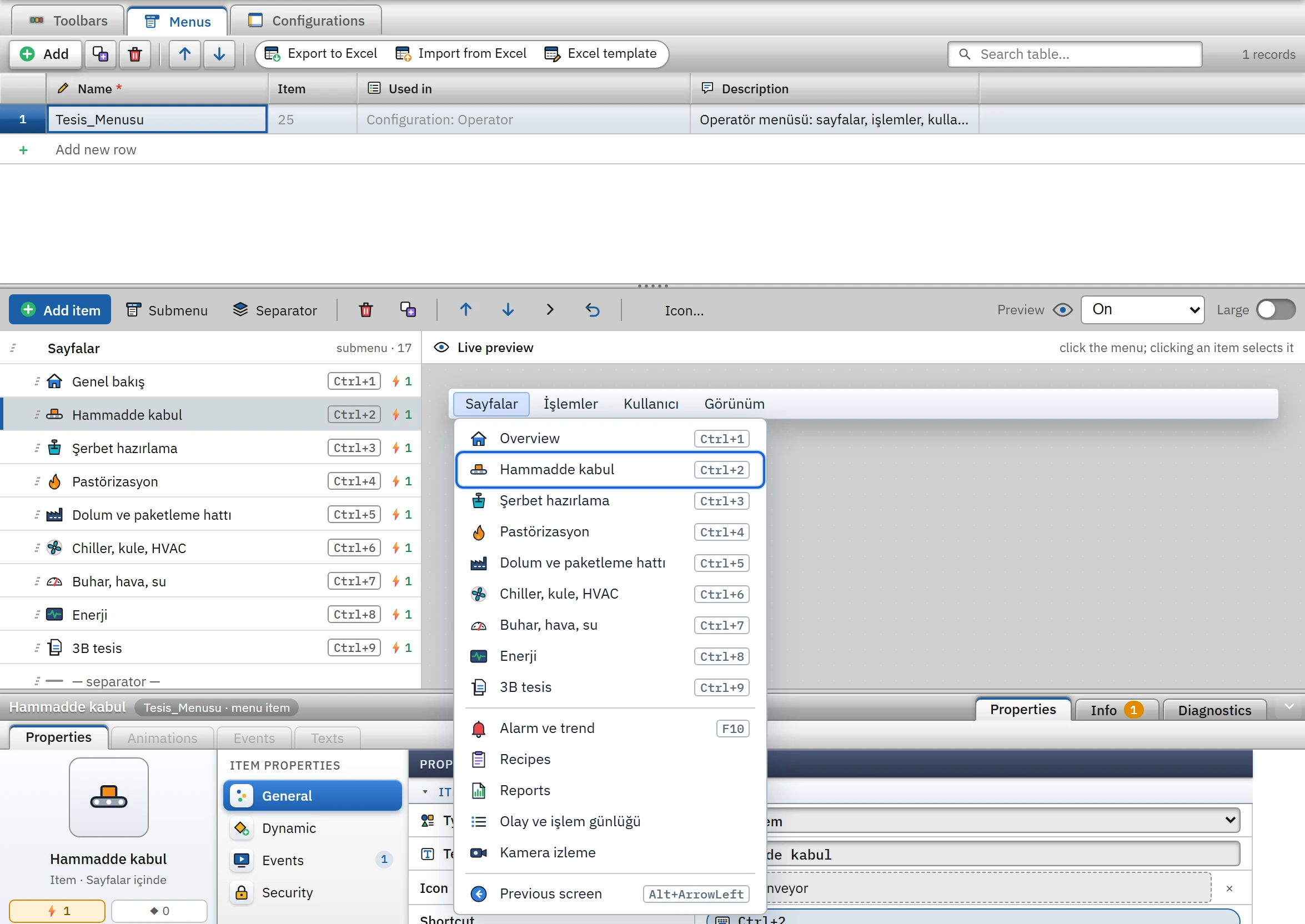
Item properties
When you select an item, the Inspector shows four categories:
- General
- Type, Text, Icon, Shortcut and Tooltip. Click the shortcut field and press the keys (F5, Ctrl+S …); Esc cancels, Backspace or Delete removes the shortcut. A shortcut exists only for menu items and toolbar buttons.
- Dynamic
- Binds the Visible, Enabled and Checked states to a Bool or integer tag (invert with Invert). When the tag is false, the item is hidden (Visible), dimmed and not clickable (Enabled), or carries a check mark (Checked). If there is no connection, the item is always visible and enabled.
- Events
- The function list goes through the same executor as object events: it runs from top to bottom, and when a function that writes to the PLC finishes, the next one starts. All functions in object events can be used; additionally, the Menu and windows group contains Open alarm window, Open / close system menu, Open remote monitoring window, Toggle light / dark theme and Print. Functions that need an object on the screen (such as property assignment) are not available in the menu. For function lists, see Events.
- Security
- Required authorization: if selected, the item appears disabled for a user who does not have the authorization (Applying authorizations).
Configuration and assignment to screens
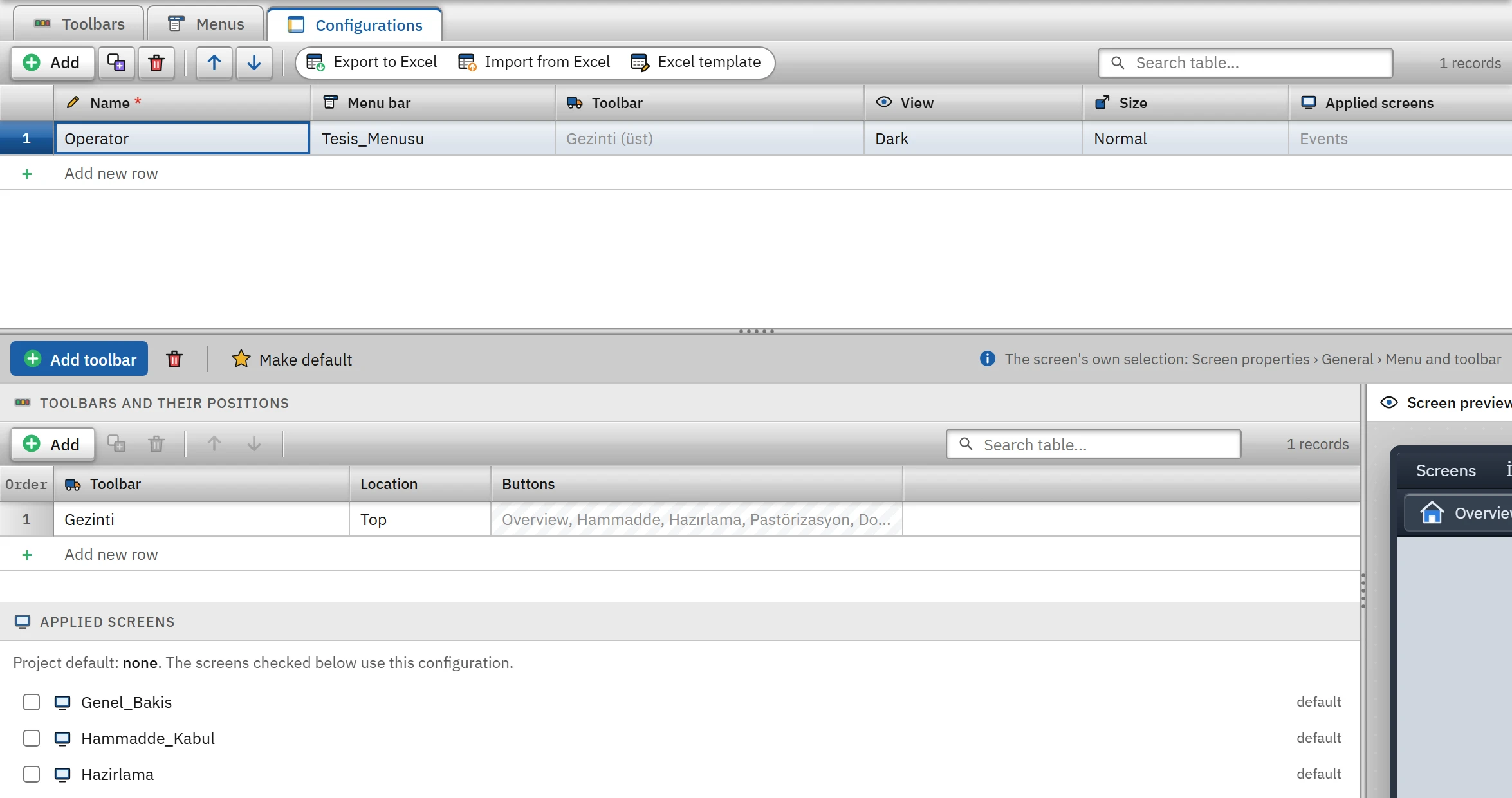
- Add a configuration.
On the Configurations tab, click Add. Select the Menu bar from the table; specify the Appearance (Automatic (by theme), Light, Dark, Navy (brand)) and the Size (Normal, Large (touch)).
- Position the toolbars.
Click Add toolbar; in each row, select the toolbar and its Location (Top, Bottom, Left, Right). The Screen preview on the right shows the layout.
- Assign to screens.
In the Applied screens list, check the screens, or make the configuration the project default with Make default: all screens without a separate selection use it. The selection of an individual screen is in the Menu and toolbar field of the Menu and toolbar category in the screen properties: Project default, None (not shown on this screen) or a configuration.
Behavior in Live
The configuration of the open screen is placed along the edges of the display: the menu bar at the very top, below it the upper toolbars and the fixed upper area; in the middle the left toolbar, the screen and the right toolbar; then the fixed lower area and the lower toolbars.
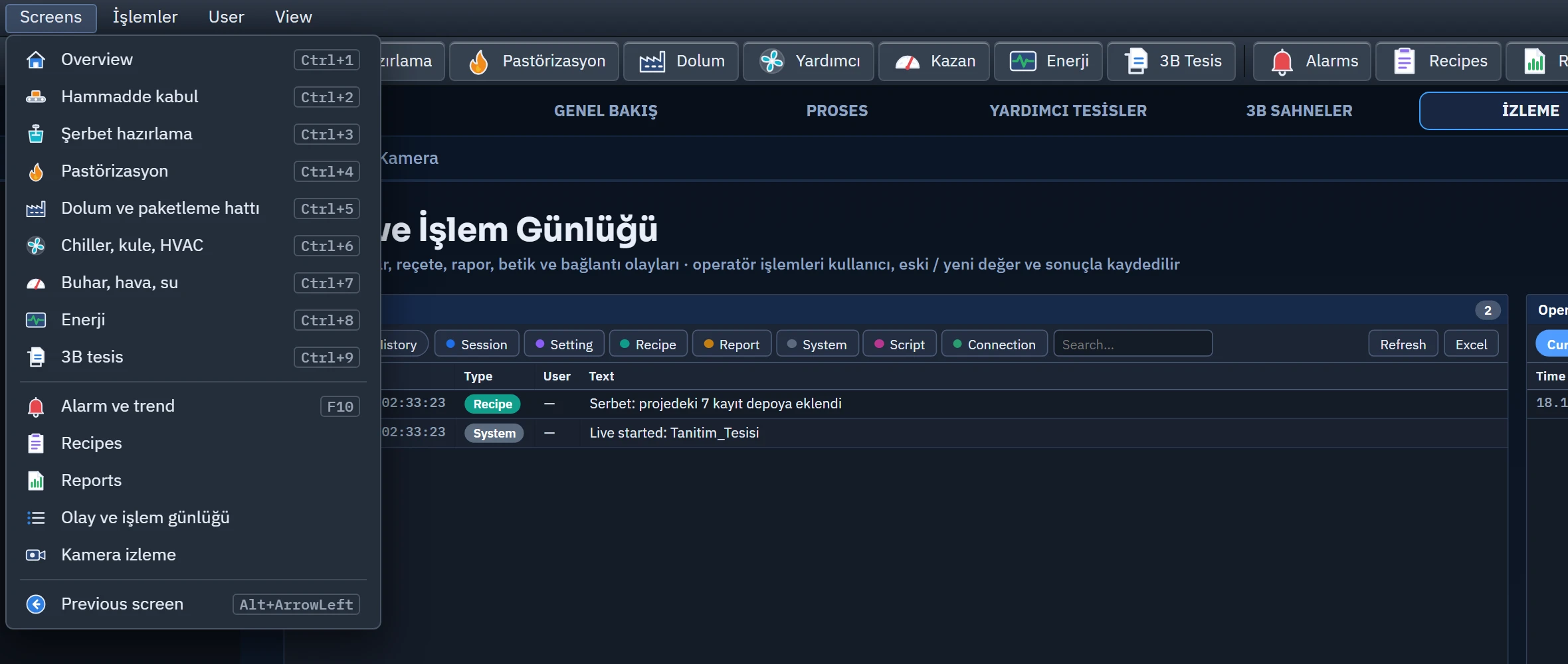 123
123- Menu bar — top-level items; the shortcuts are shown in an open menu.
- Toolbar — icon + text buttons; buttons that do not fit are not visible.
- Open menu — submenu panel: icon, text, shortcut.
- In an open menu, the arrow keys, Home, End, Enter / Boşluk and Esc work; the right / left arrow opens the submenu and switches between the top-level menus.
- Shortcuts are captured at document level. In a text box, only shortcuts with the Ctrl, Alt or F keys work; they do not work while a notification or question window is open. The shortcut of a hidden or inactive item does not work.
- When the item is clicked, the functions run. For a user without authorization and for an item whose Enabled tag is false, the button is disabled.
- The menu and toolbar are not shown on the TV display. They are visible in the remote monitoring browser, but functions that write and log on are blocked.
- The configuration is not applied in pop-up windows, templates and recipe / report design screens.