Events and functions
Events tab: object and screen events, the list of functions bound to an event, sequential execution of functions, key condition, authorization and viewer restrictions; examples.
Event and function
An operator clicking an object, pressing a key or a screen being opened are each an event. A function list is bound to each event: write a value to a tag, invert a bit, open a screen, run a script … When the event occurs, the list runs from top to bottom. The full reference of the functions is in the topic Function reference; this topic describes the events and the rules of execution.
The events of an object are defined on the object, and the events of a screen are defined on the screen: select the object and open the Events subtab of the Inspector; when no object is selected, the same tab shows the events of the screen. Event definitions are stored in Studio; Live applies them.
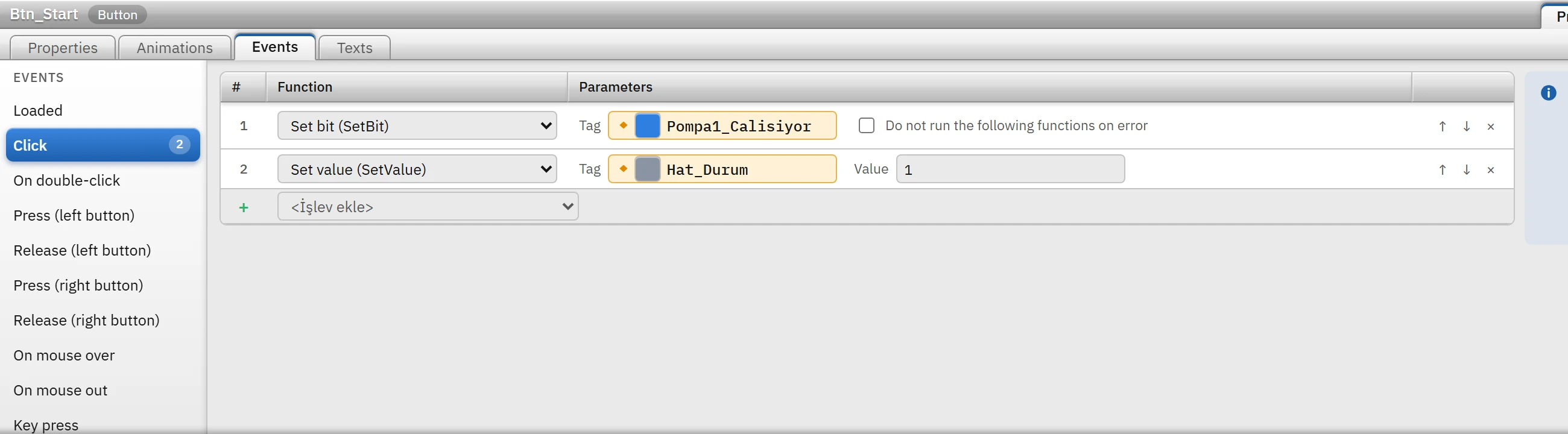 123456
- Event list — 13 events on the object; the number on the right is the number of functions.
- Function — the function is changed from the row.
- Parameters — depending on the function: tag, value, screen …
- ↑ ↓ × — change the order, delete the function.
- <Add function> — new function at the end of the list.
- Tooltip — when the selected event runs.
- Event list (on the left)
- Events of the selected object or screen. The number next to an event is the number of functions bound to it.
- Function table
- Each row is a function: the # order, the Function list, Parameters. The ↑ ↓ at the end of the row change the order, × deletes the row. The <Add function> list at the bottom adds a new row. If you change the function, the tag and the key condition of the row are kept.
- Do not run the following functions on error
- The check box shown on all rows except the last. If it is selected and this function raises an error, the rest of the list does not run; if not, the error is reported and the list continues.
- Tip strip
- States when the selected event runs.
Object events
| Event | When it runs |
|---|---|
| Loaded | After the object's screen (or window) has opened and the first tag values have been applied, once per object. |
| Click | When the object is clicked (pressed and released). On an object focused with the Sekme key (with the focus frame visible), Enter / Boşluk also count as a click; focus obtained by clicking with the mouse does not respond to Enter. |
| On double-click | When the object is clicked twice within 450 ms, less than 32 pixels apart (mouse, pen, touch). The first click also runs the Click event. |
| Press (left button) | When the left mouse button is pressed over the object. |
| Release (left button) | When the left button is released over the object (see the limitation below). |
| Press (right button), Release (right button) | With the right button; the browser's own menu does not open on the object. A long touch press counts as a right click. |
| On mouse over, On mouse out | When the mouse or pen pointer moves onto / leaves the object. It does not run on touch or while a button is held down (dragging). Use it for highlighting and tooltips. |
| Key press, Key release | When a keyboard key is pressed / released while the object has focus (after it is clicked or reached with Sekme). The Key column is the condition (see below). |
| Activate | When the object receives focus (when clicked with the mouse or reached with Sekme). |
| Object change | When a property of the object changes through a tag binding. Does not run for the initial values when the screen opens; runs at most once per update cycle. |
3D objects have no focus, key, double-click or cursor events; only On load, Click, On press, On release, Press (right button), Release (right button) and Object change are listed (3D screens).
Screen events
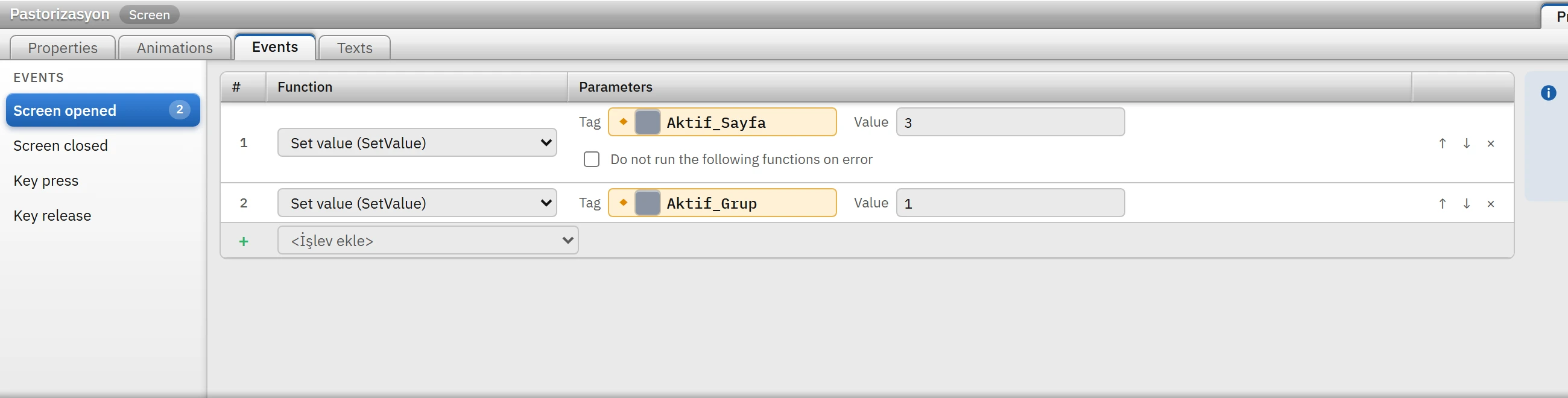 12
12- Screen events — on opening, on closing, on key press, on key release.
- Tag and value — writes the value to the tag when the screen opens.
| Event | When it runs |
|---|---|
| Screen opened | Once each time a screen (or window) is opened; also for the main screen, a pop-up window, a screen in a Screen window and a fixed-area screen. |
| Screen closed | When a screen (or window) is closed. |
| Key press, Key release | When a keyboard key is pressed / released while the screen is open; regardless of where the focus is. It does not work while a text box, the on-screen keyboard, an input / notification window or the system menu is open. Among pop-up windows, only the screen of the topmost window receives the key; the main screen and fixed areas continue to receive it. Several shortcuts are defined on one screen by giving each function row its own Key. |
Key condition
In key events, each function row has a Key cell. If it is empty (any key), the function runs on every key; if it is filled in, only on that key. Click the cell and press the key (or combination).
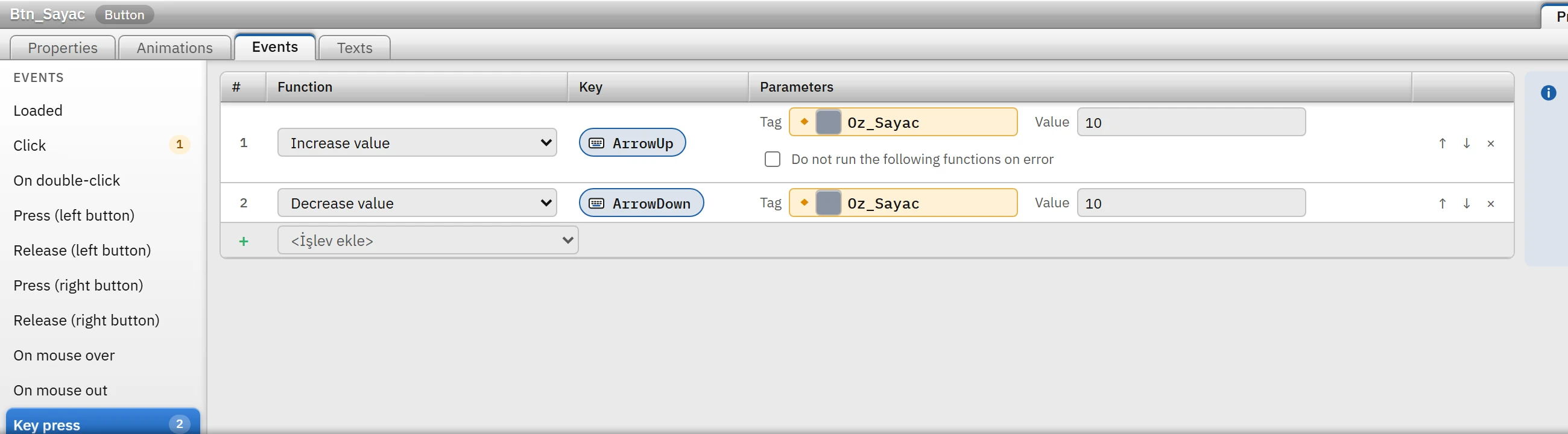 123
123- On key press — while the object has focus.
- Key — click the cell and press the key; empty = any key.
- ArrowUp — works only with this key.
- Esc cancels; Backspace / Delete clears the condition (every key).
- Key names:
Enter,Escape,Space,Tab,Backspace,Delete,F1…F12,A…Z,0…9,ArrowUp… Combinations are written in the orderCtrl+,Alt+,Shift+:Ctrl+S,Shift+Tab. Letters are written in capitals. - A key that is held down does not generate the event again. If the key event has been handled, the browser's default behavior is prevented.
Execution conditions of the event
An object event (other than Loaded, Object change and the pointer events) is an event started by the operator and runs when all of the following conditions are met:
- The Operable property of the object is on (Object properties › Security) and the Operable property of the screen is on (Screen properties).
- The object is not hidden; it is visible in Live.
- If the object's Required authorization field is filled in, the user has the authorization: if not and no session is open, the User login window appears; if a session is open, an error notification appears (Using authorizations). If the authorization is missing, the event does not run. For Pointer events, the login window is not opened.
Some objects have a built-in behavior that works independently of the event list: clicking an I/O field opens the value entry window, Symbolic I/O opens a selection window, Switch and Check box invert the bound bit, and Slider, Increase / decrease and Selector switch write the value to the tag. If you have an event list, it runs after the built-in behavior (Elements).
How the functions work
- Sequential. Function rows run from top to bottom. If a function writes to the PLC or runs a script, the next row starts when it has finished ("Write value → Open screen": the screen is not opened until the write has finished). Writing to internal and simulator tags finishes instantly.
- Error. If a function returns an error (connection lost, value out of limits, no such tag …), an error window appears and the list continues; it stops at a row where Do not run the following functions on error is checked.
- Timeout. If a function does not finish within 30 seconds, the list continues and a note is written to the event log.
- Overlapping events. If the same event is triggered again, a new list is started separately.
- Write rules. The value written to a tag is converted to the type of the tag; a number outside the tag's lower / upper limit is rejected. Connection status tags cannot be written to.
Examples
- Start / Stop button
Add Set bit (SetBit) to the Set bit (SetBit) event of the button and select
Pompa1_Calisiyoras the tag. For the Stop button, use Reset bit. As a second function in the same event, you can write a value to the state tag with Set value (as in the figure). - Button that acts while held down (jog)
Add Press (left button) to the Press (left button) event and Release (left button) to the Release (left button) event. The bit is 1 as long as the button stays pressed.
- Screen-changing button
Add Open screen to the Open screen event and select the target screen. Such buttons placed on the fixed-area screen provide a navigation strip on every screen (Screen management).
- Keyboard shortcut
Add Key press to the screen's Open screen event and select F5 as the Key: while the screen is open, F5 opens the target screen.
- Changing a property with an event
To change the property of another object with a click, use the Set object property to a constant function.
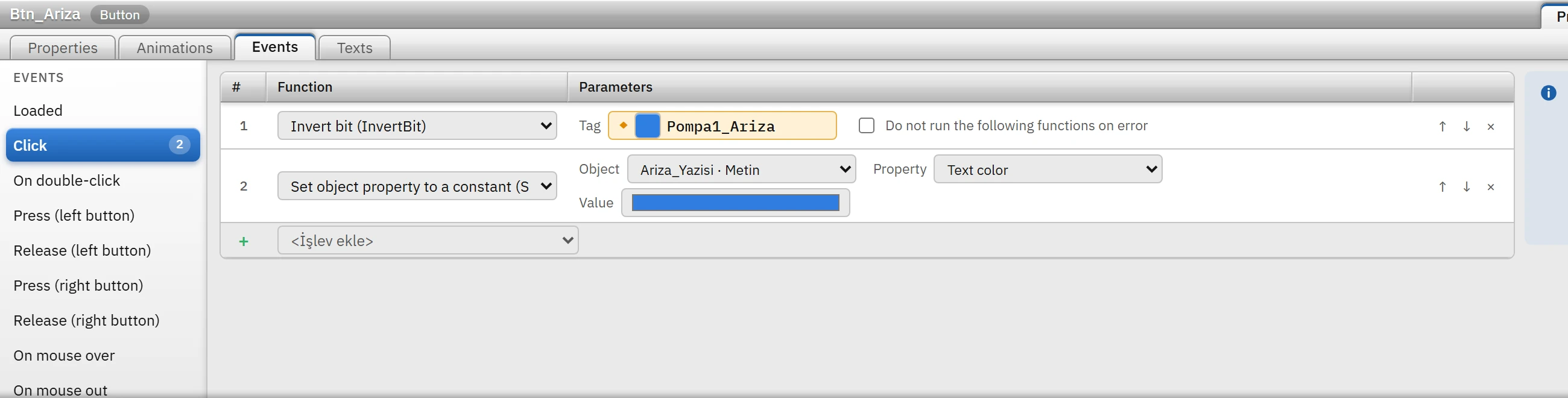 12
12A function that, when clicked, makes the text color of the Ariza_Yazisi object blue. - Function — From the object and window group.
- Object, property, value — a field appropriate to the type of the property appears.
Restrictions and points to note
- Viewer (read-only monitoring from the browser): only the functions that change the view work: Open screen, Go to previous screen, Open pop-up window, Close pop-up window, Go to 3D view, Show / hide layer, Change Live language, the Object property … functions and Show screen in screen window. The others show a warning and do not run. No events run on TV displays.
- Loaded, Object change and cursor events are events of the system or of the cursor: they do not make the object "controllable"; if an object has only these events, it does not change to the hand cursor and does not receive focus with Tab.
- Function rows that refer to a deleted tag, screen or script are listed as errors in Check project; in Live such a function raises an error and is skipped.
- Some function rows (e.g. Set object property to a constant) are not in the event table of menu and toolbar items; see Menus and toolbars.