3D screens
Build the plant as a three-dimensional scene: place objects in the 3D editor, define floors and views, draw the objects with the Standard or Realistic model; in Live, the operator rotates the scene, zooms in and sees tag values in the scene.
What is a 3D screen
A 3D screen (scene) is a three-dimensional screen in which objects stand on a floor measured in meters. The tag binding, animation and event logic of 2D screens applies unchanged; the difference is that the objects come from the 3D library and the screen is navigated with a camera.
For a new 3D screen, select Add›New 3D screen; the screen appears in the project tree under 3D Scenes. The ground of the new screen is 30 × 20 m. To create a scene from an existing 2D screen, there is the Convert page to 3D feature.
3D editor
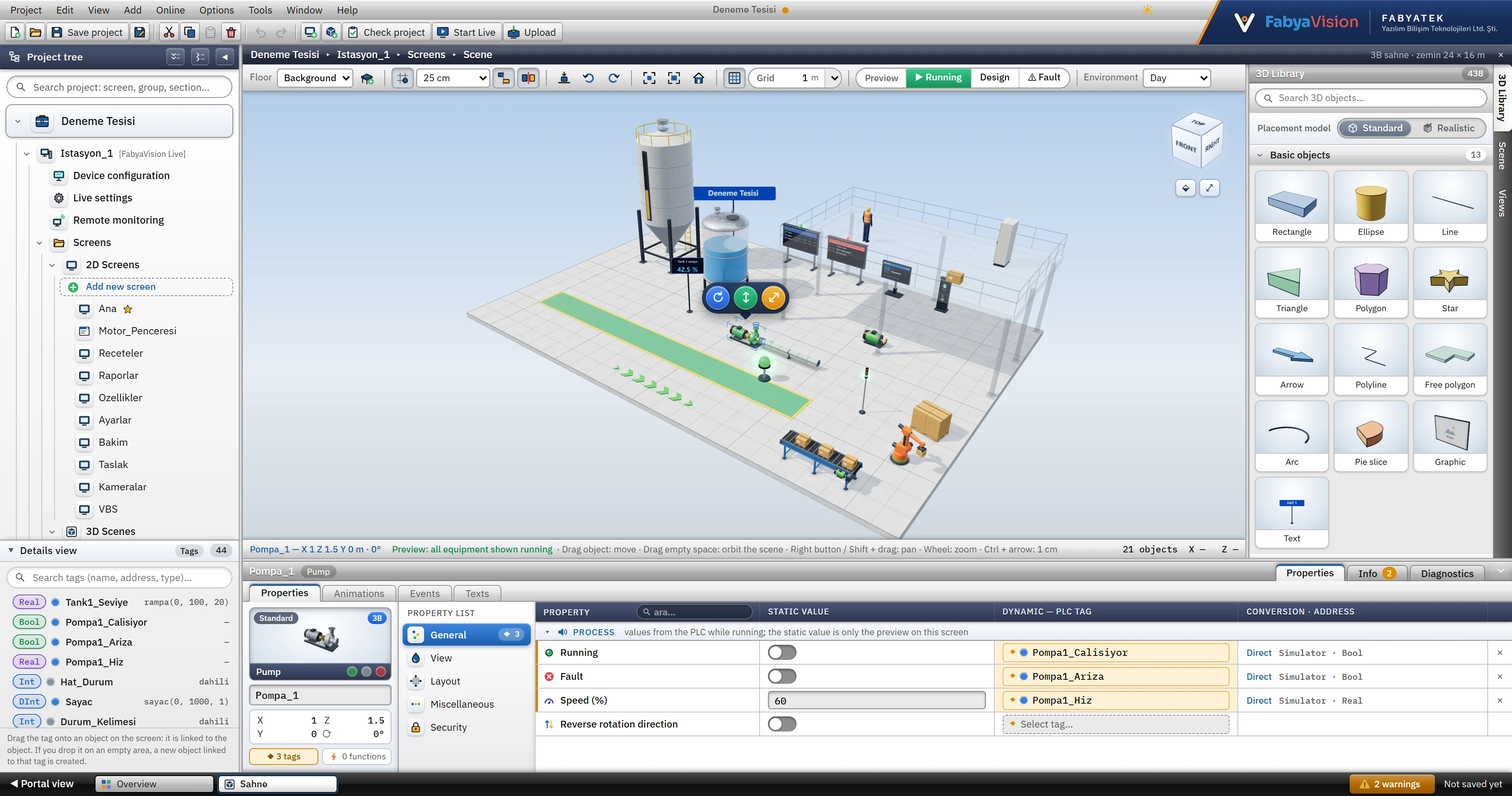
When a 3D screen tab is active, the scene is shown in the middle, the toolbar at the top, vertical tabs on the right (3D Library, Scene, Views) and the Inspector at the bottom.
 1234567
- Toolbar — floor, snap, guide, overlap, rotation, view, grid, preview, environment.
- Right-hand tabs — 3D Library, Scene, Views.
- Rotate — drag right / left (5° steps).
- Raise — drag up / down.
- Scale — drag right / left.
- Placement model — a newly placed object comes as Standard or Realistic.
- Inspector — properties of the selected object; each property is connected to a tag from the Dynamic column.
Placing objects
In the 3D Library, the objects are in the same groups as in the 2D library; the Search 3D objects... box filters by name and group. Click an object and then click the ground in the scene, or drag the object and drop it; double-clicking places the object at the center of the view. The right-click menu offers Add to scene (center). The Placement model selector at the top of the library determines whether the new object will be Standard or Realistic, and it is stored in the Studio settings.
Mouse and keyboard
| Action | How |
|---|---|
| To select | Click the object; Shift or Ctrl for multiple selection; objects can also be selected from the Scene list on the right. |
| Moving | Drag the object (on the ground or on top of a floor). Alt temporarily disables snapping, the alignment guide and the collision check. |
| Precise moving | The arrow keys move by the snap step, Shift+arrow by 4 times that, and Ctrl+arrow by 1 cm; Page Up / Page Down raises / lowers. |
| Rotating | Q / E 15° to the left / right; or the rotate handle (5° steps, Shift 15°, Alt free). |
| Raising, scaling | The raise and scale handles above the selection; or the Layout category of the Inspector. |
| Rotating the scene | Drag on an empty spot. |
| Panning and zooming | Right button or Shift + drag; the wheel zooms. |
| View | F focuses on the selection, Ctrl+0 fits the whole scene, Home returns to the initial view. |
| Editing | Ctrl+C / X / V / D / A, Delete; Esc clears the selection or exits the placement tool. |
The alignment guide snaps the object being moved to the edge or center line of another object; the collision check prevents one object from entering another object. Both are switched on and off with buttons on the toolbar. A locked object cannot be selected or moved in the scene; select it from the Scene list.
Floors, views, environment
- Floors. + Add floor on the + Add floor tab adds a platform the size of the ground 4 m above the highest floor. The Floor selector in the toolbar determines the floor on which a new object is placed; the floors above it are shown transparent. The name, height, size, thickness, columns and railing, and transparency of a floor are edited in the Inspector; the transparency is also applied in Live.
- Views. On the Views tab, + Save current view gives a name to the current position of the camera. Home view is the opening view of the screen in Live. Saved views appear in Live as buttons below the scene; the Go to 3D view function can also be connected to an event.
- Environment and ground. In the screen properties, the Scene class provides the Ambient light (Day, Evening, Night, Studio), Shadows, Background color and Ground grid; the Ground class determines the ground size (preset sizes from 10 × 8 m to 80 × 50 m) and the grid square (5 cm – 10 m).
- Preview. The Preview buttons on the toolbar select the state of the scene in the editor: Running shows all equipment as running, Design shows the values you have set, and Fault shows all equipment in a fault state. The design values do not change.
Standard and Realistic model
Most objects in the 3D library have two models: Standard is the plain model of the library; Realistic is a detailed, remodeled version of the same object (with parts such as flanges, bolts, feet and a nameplate). The model is the Model property in the Appearance category of the object; it cannot be bound to a tag and does not change while running. Because the objects share the same properties, the object does not move from its position when the model is changed.
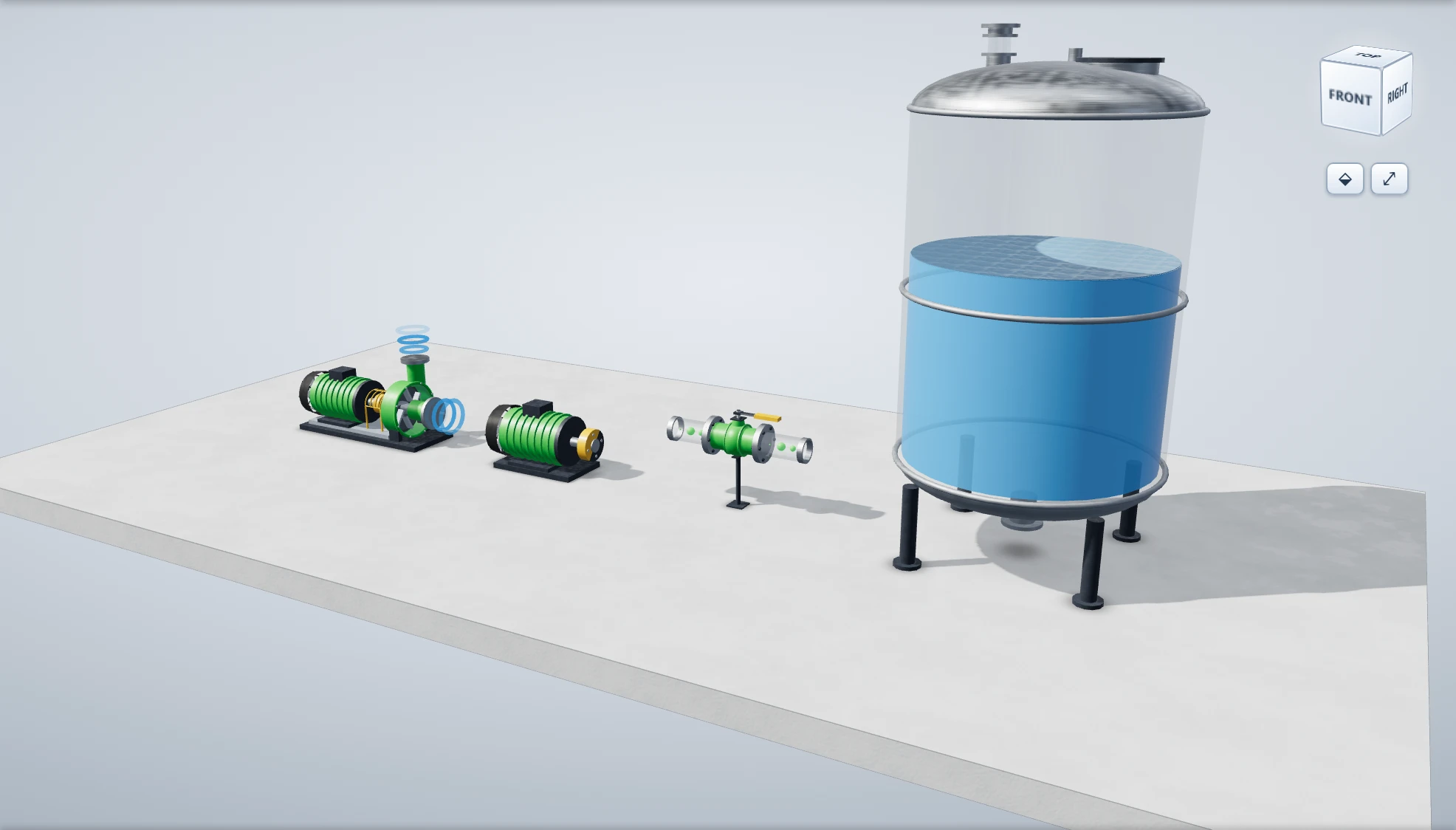
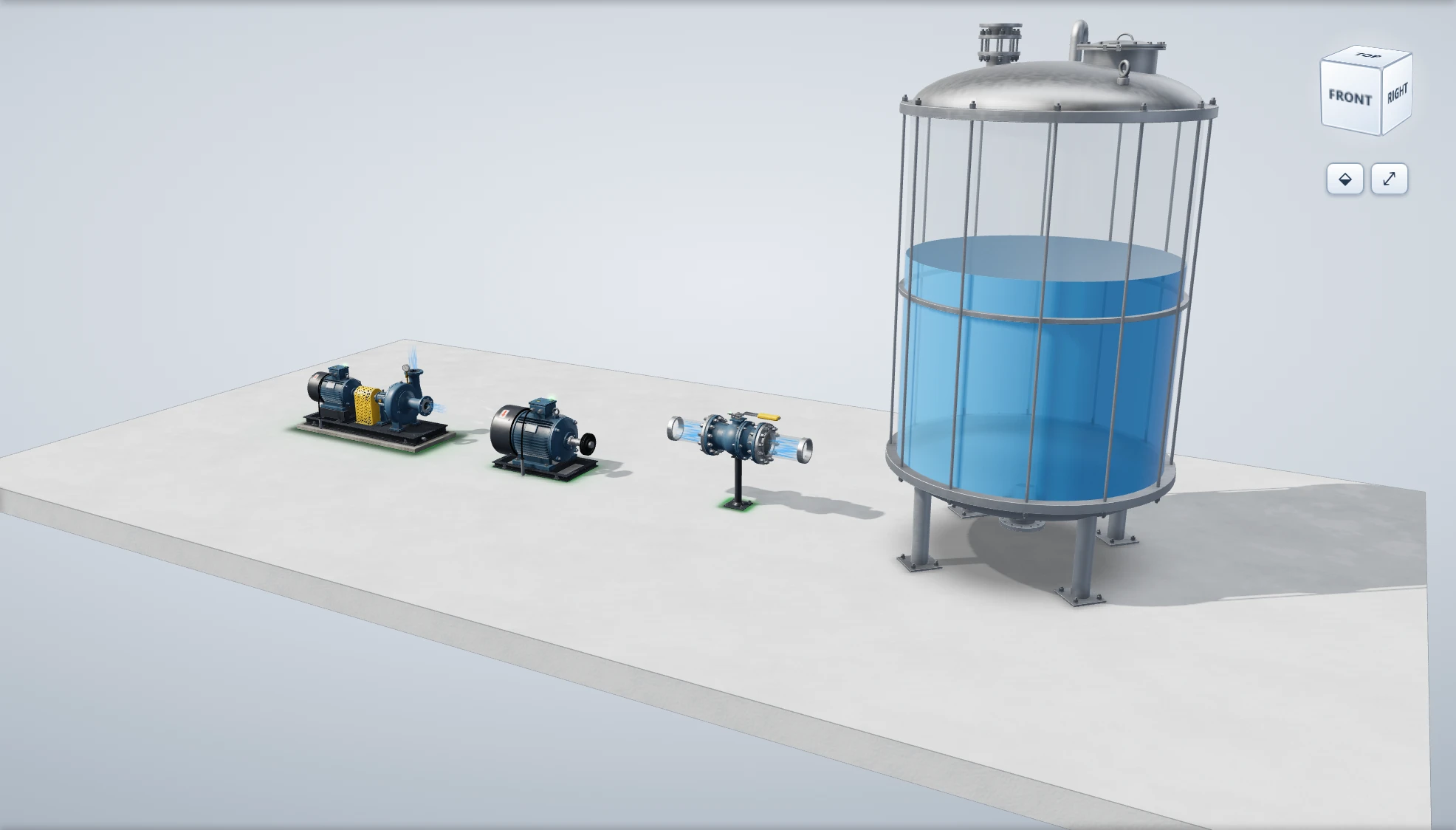
You can change the model in three places: the Model property of the object; the right-click menu for selected objects or Edit›Model; and, for the whole screen, the Switch to Realistic model / Switch to Realistic model buttons in the Switch to Standard model category of the screen properties. The operation is undone in a single step (Ctrl+Z). In this version, 424 of the 438 3D objects have a Realistic model; the remaining 14 (such as basic shapes) intentionally have a single model, and they have no Model property. If an object has no Realistic model, it carries a Standard badge in the library and Standard is used even if Realistic is selected.
3D screen in Live
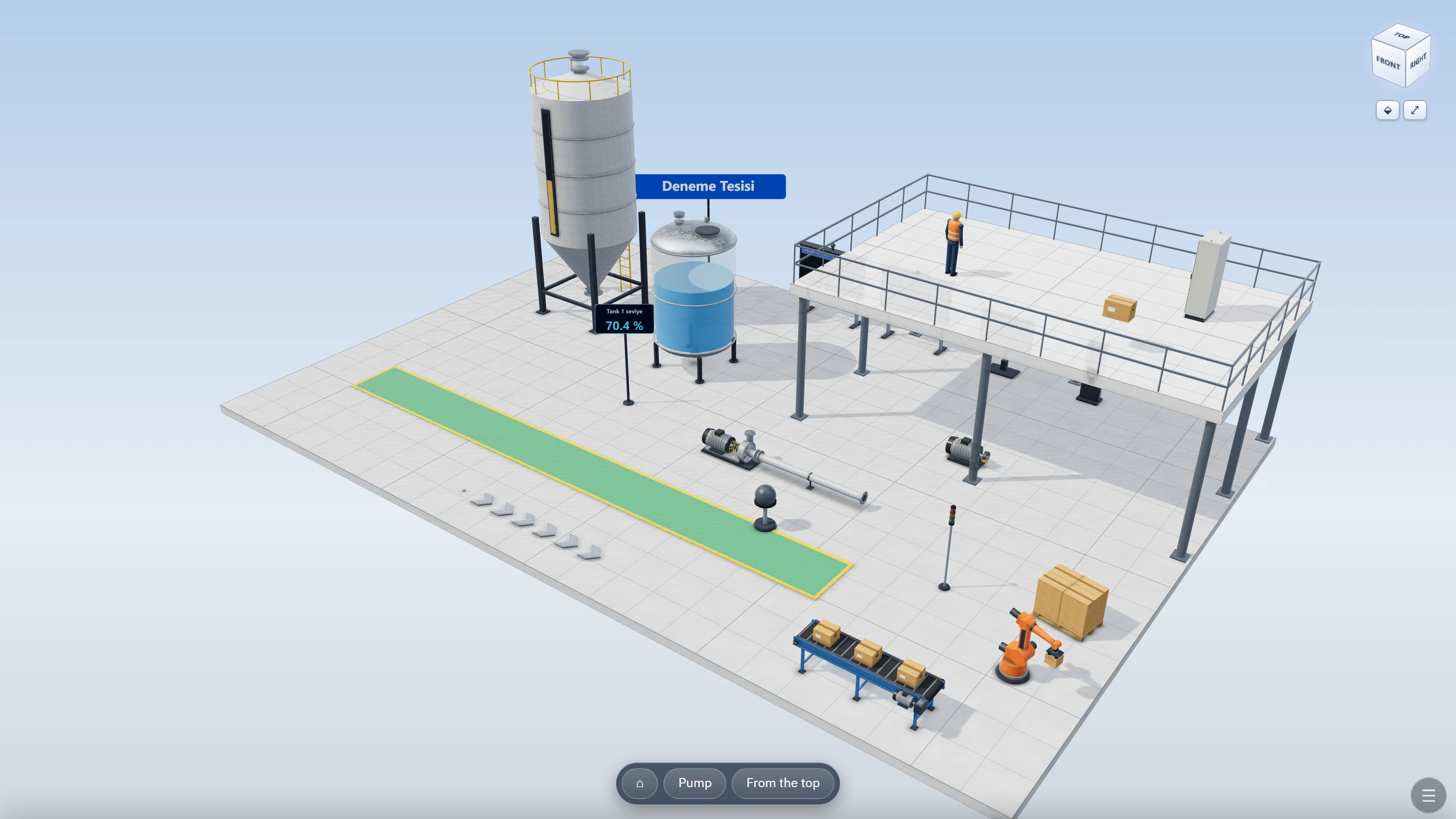
- Navigation. Dragging with the left button rotates the scene, the right / middle button or Shift + drag pans it, and the wheel zooms in to the point the cursor indicates. On a touch screen, one finger rotates, two fingers pan, and pinching zooms in.
- Navigation cube. Clicking a face of the cube at the top right shows the scene from that direction, and dragging the cube rotates the scene; the two buttons next to it are Isometric view and Fit whole scene.
- Camera setting. In the screen properties, the Camera class: Free (the operator rotates / zooms in), Automatic tour (the scene rotates by itself; it stops for a few seconds when the operator touches it), Fixed (saved views only). Frame rate is 60, 30 or 15 frames / s; a lower value puts less load on the processor of a weak computer.
- Tag values. The bound properties of objects are applied in Live in the same way as in 2D; if the object is on a floor, the @y binding drives the height above the floor.
- Events. 3D objects have the events On load, click, on press / on release, on right-button press / release, and on object change; there are no focus and key events. The key events of the screen also work in a 3D screen. If the Operable setting in the screen properties (Security class) is off, object events and ready-made behaviors do not run; the scene can still be navigated.