Dynamization
Monitoring the tag value in Live by binding a property of an object to a PLC tag: binding methods, properties and tag types that can be bound, bit selection, removing the binding and behavior in Live.
What is dynamization
The value you give to a property of an object in the design is static. If you bind the property to a tag, the tag determines the value of the property while Live is running: the tank level comes from the tag, the pump rotates when the tag is 1, the value field shows the value of the tag. This process is called dynamization or animation connection; the connection is stored in the object itself. Converting the value (range table, scaling, bit selection) is explained in the topic Animations.
The binding of an object is made to the tag by ID: if you rename the tag, the binding is not broken. If you delete the tag, the binding remains as ? deleted tag and Check project reports an error.
Ways to bind a tag
- From the Properties tab
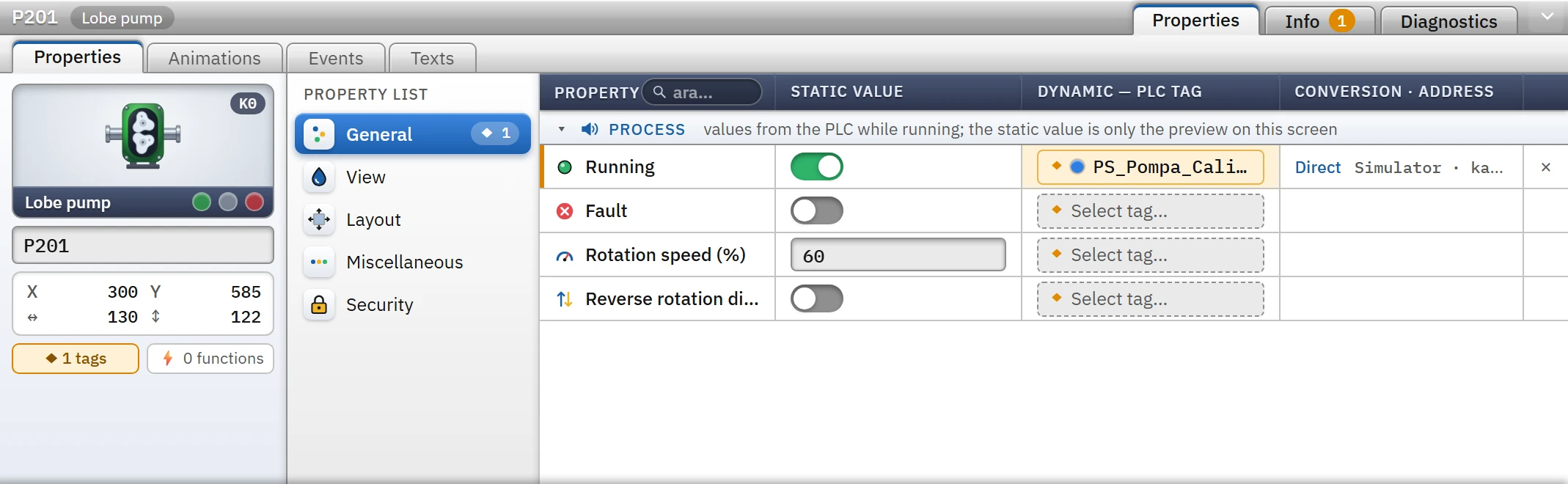
Select the object; in the Inspector, on the Properties tab, click the Dynamic — PLC tag button in the Select tag... column in the row of the property. When bound, the button shows the name of the tag and the color of the connection.
 12345
12345The Running property of the pump is bound to the tag PS_Pompa_Calisiyor. - Static value — when bound, only a design preview.
- Connected tag — clicking the button selects or changes the tag.
- Conversion · address — "Direct"; connection, address, type.
- × — removes the binding.
- Counter — number of bound properties.
- Select the tag
In the search box of the Bind tag window that opens, type the tag name, address or description. Each row shows the color of the connection, the name, type and address of the tag; the title of the window lists the types that can be bound to this property. For a tag that is not in the list, the Open HMI tags button takes you to the tag table.
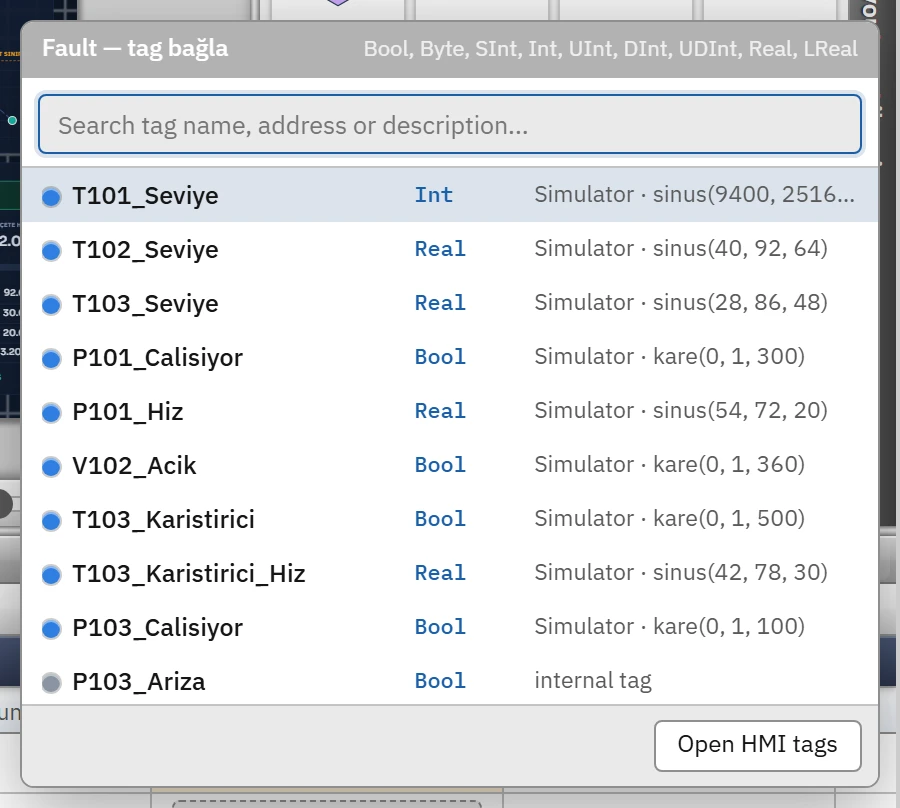
Tag selection window. - Check the conversion
The Conversion · address column of a bound row shows a summary of the binding: Direct, bit 3, 0 … 27648 → 0 … 100 or Range table (2 rows). Clicking the summary opens the details in the Animations tab.
- Remove or change the connection
The × at the end of the row deletes the binding. To change the tag, click the button again and select another tag; the right-click menu contains Change tag…, Conversion settings and Remove binding.
Other binding methods
- Animations tab. All connectable properties of the object (including color, visibility and position) are listed; each row has the same tag button. See Animations.
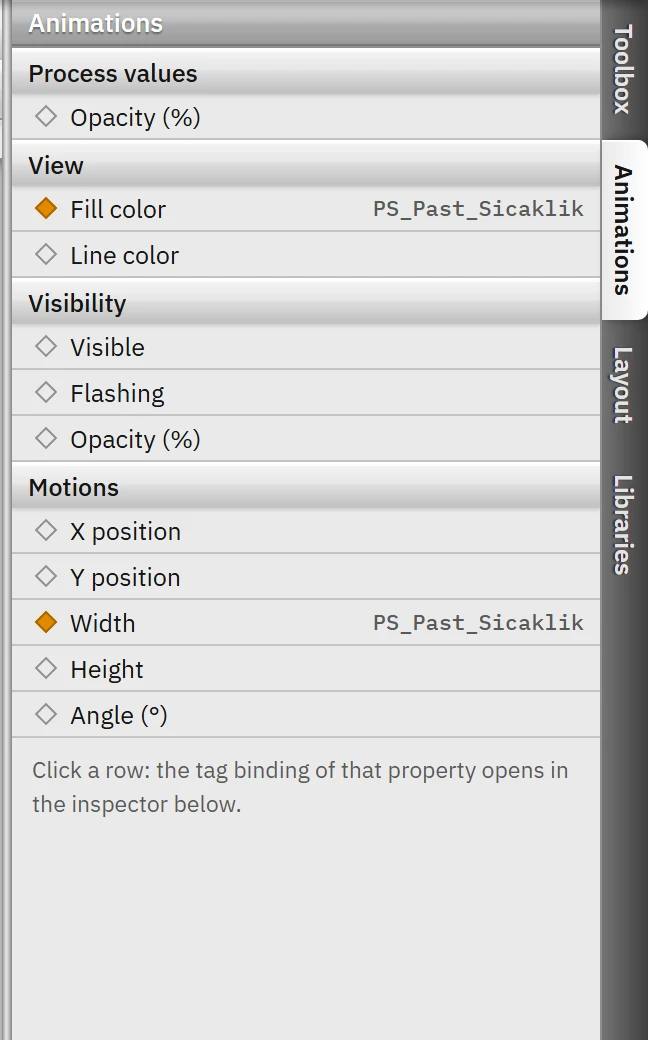
- Animations task card. The Animations card on the right of the editor lists the connectable properties of the single selected object in groups; the tag name is shown next to a connected property. Clicking a row opens the tag connection of that property in the Inspector.
 12
12Animations task card: a filled diamond marks a bound property. - Connected property — the name of the connected tag is shown on the right.
- Group — Process values, Appearance, Visibility, Motions.
- Drag and drop. In the Details view at the bottom left (Tags), drop a tag onto an object on the canvas: the tag is bound to the first suitable process property of the object that is not yet bound (first the Process group, then the others). A summary such as Pompa_1 · Running ← P101_Calisiyor appears in the bottom strip. If there is no suitable property, or if the object is locked, a warning appears; bind properties such as color, visibility and position through the range table in the Animations tab. If you drop the tag on an empty spot, a Signal lamp is created for a Bool tag and an I/O field for other tags, and it is bound to the tag.
- Multiple selection. If you bind a tag to a common property (for example Visible) while several objects are selected, all of them are bound to the same tag.
Properties that can be bound and tag types
The tag types to which each property can be bound directly depend on the type of the property. If you select a numeric tag whose type does not match, Studio automatically converts the binding into a range table.
| Property type | Tag types bound directly | Value in Live |
|---|---|---|
| On / off | Bool, Byte, SInt, Int, UInt, DInt, UDInt | On if the tag is not 0. For an integer tag, a bit can be selected; invert is possible. |
| Number | Byte … UDInt, Real, LReal (Bool cannot be selected) | The value of the tag; scaling is applied if desired. |
| Text | Any type | The value of the tag is converted to text (1 / 0 for Bool). |
| Color | String, WString, DInt, UDInt | A text tag carries a color code in the form #rrggbb; the lower 24 bits of an integer tag are converted to a color as 0xRRGGBB. |
| Selection | String, WString, integer types | The value of the tag is used as the value of the option. If the values of the options are text, use a range table. |
| Image, font, password, Edit… fields | — | Cannot be bound. |
Binding to a bit of an integer tag
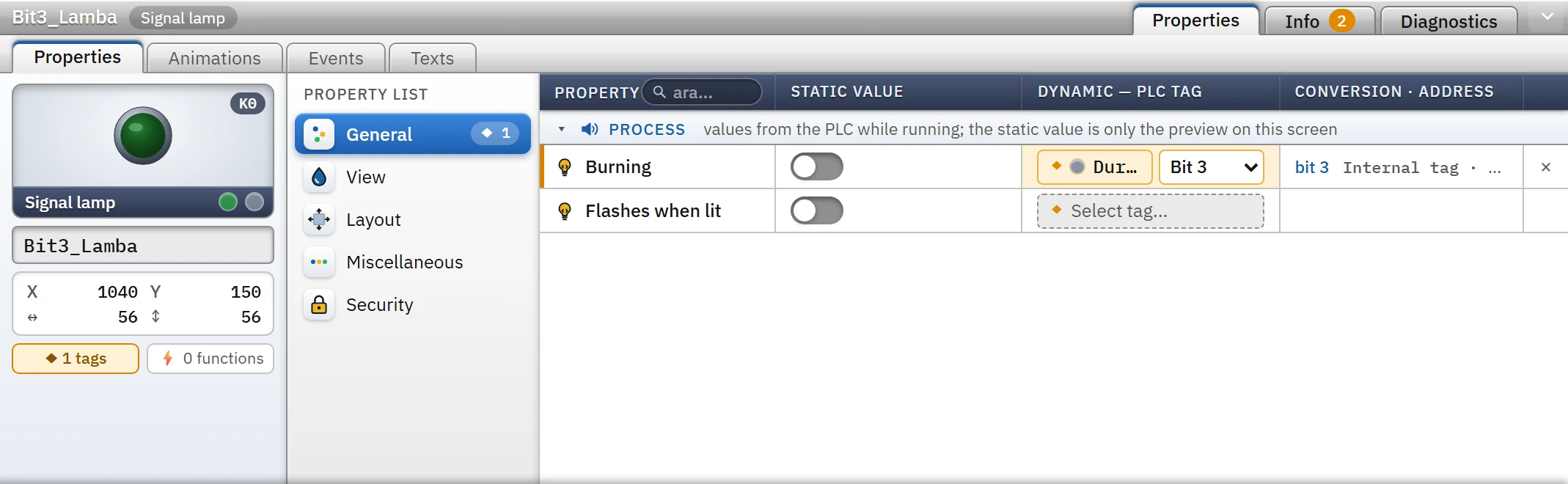
When you bind the on / off property to a Byte, SInt, Int, UInt, DInt or UDInt tag, a Select bit list appears next to the tag button. Many lamps / states can be driven by different bits of one tag. If Select bit is not selected, the property is on while the tag is not 0. The list contains bits 0 – 7 for Byte / SInt, 0 – 15 for Int / UInt and 0 – 31 for DInt / UDInt.
 12
12- Integer tag — Byte, SInt, Int, UInt, DInt, UDInt.
- Bit selector — which bit of the tag drives the property.
Behavior in Live
- Update. When a tag changes, the objects linked to that tag are recalculated and redrawn. If the screen's Update cycle setting (Screen properties › Miscellaneous) is empty, changes are applied within 20 ms; if a cycle is selected, they are applied in batches at that interval.
- If the range table does not match. If the value of the tag falls into no range, the property keeps its design (static) value.
- Unreliable value. If the value of one of the linked tags is not reliable (PLC connection lost, value not read yet, address error), the object is drawn faded gray (grayscale, at 50% opacity); this indication appears on objects drawn with SVG and is not applied to controls (trend, alarm …). If a substitute value is defined for the tag, it is used (Scaling and quality); if there is no substitute value, I/O field shows
####. Simulator and internal tags are always reliable. - Deleted tag. The binding is skipped; the object is drawn in gray.
- Type mismatch. Studio does not allow a direct binding of a mismatched type, and Check project lists a mismatched binding left over from old projects as an error. Even so, Live tries to convert the value: an on / off property is evaluated on a numeric tag as "is it different from 0", and a color property is interpreted on a numeric tag as the lower 24 bits.
- Structure prefix. If the faceplate is opened with a prefix (Motor2), the binding
Motor1.Hizis read asMotor2.Hiz: Faceplate and pop-up window. - Operator input writes in the reverse direction. Objects in which the operator enters a value (I/O field in input mode, Switch, Check box, Slider, Increase / decrease, Selector switch) write to the bound tag; bit selection, inversion and scaling are reversed. Details: Elements.
- Viewer and TV. In monitoring from the browser (read-only), values appear in the same format; if the connection to the server is lost, the objects turn pale gray.
Limitations and points to note
- Only one tag can be bound to a property. If a combination of several tags is needed (e.g. the sum of two tags), perform the calculation in the PLC or write it to an internal tag with a script.
- At runtime, the value of the tag overrides the object's own value: a property value written by a script becomes invalid when the value of the bound tag changes (Scripts).
- The static value of a bound property is only the preview in the design screen; in Live the tag value applies. If the tag has not produced a value yet, the object is drawn in pale gray.
- Before binding, verify the connection and address of the tag in the HMI tags table; Online›Test connections… checks the connection.