Animations
Animations tab: binding every property of an object to a tag; direct, scaled and range-table conversions; visibility and motion animations; how they work in Live.
How an animation works
In FabyaVision there is no separate "animation type" list for animations. Every property of an object (color, text, visibility, position, size, angle, process value …) can be bound to a tag; the conversion in the binding specifies how the tag value is converted into the property. With the same method a tank fills, a pipe flows, a lamp lights, a bar grows, a text changes. For the binding rules, first see Dynamization; this topic describes the Animations tab and the conversions.
| Desired effect | Property to bind | Conversion |
|---|---|---|
| Tank level, bar fill level | A process property of the object such as Level (%); or the Width / Height property of a rectangle | Direct; Scale if the PLC value is not 0 – 100 % |
| Pump, motor and valve state; flow in the pipe; lamp | Running, Open, Flow present, Lit … (Bool) | Direct (optional Invert / bit) |
| Color change according to the value | Color properties (Fill color, Line color, Text color) | Range table |
| State text (RUNNING / STOPPED) | Text property | Range table |
| Show / hide, flashing, transparency | Visible, Flashing, Opacity (%) | Direct or range table |
| Moving, enlarging, rotating an object | X position, Y position, Width, Height, Angle (°) | Mostly Scale |
Object-specific animations, such as the rotation of a pump or the movement of the flow in a pipe, work when they are bound to the object's own process property (Running, Flow present); details by object type are in the topic Process objects.
Animations tab
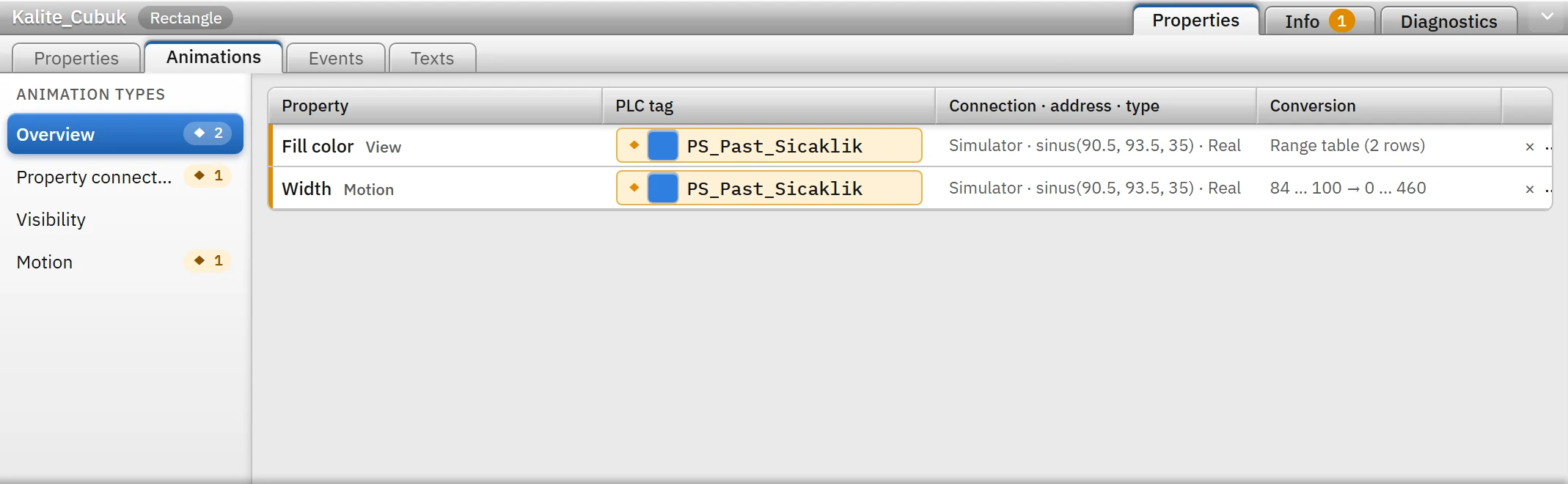
Select the object and switch to the Animations subtab of the Inspector (only one object may be selected for animation). The Animation types list on the left determines which properties are shown in the table on the right.
 1234
1234- Animation types — Overview, Property connections, Visibility, Movement.
- Table — property, PLC tag, connection · address · type, conversion.
- Direct + scaling — the tag range is mapped to the property range.
- Range table — color by value.
- Overview
- Collects all bound properties of the object in a single table; the number next to it is the number of bindings.
- Property connections
- The properties specific to the object type (colors, line, text, process values …).
- Visibility
- Common to all objects: Visible, Flashing, Opacity (%).
- Motion
- Common to all objects: X position, Y position, Width, Height, Angle (°).
The columns of the table: Property, PLC tag (tag button), Connection · address · type and Conversion. When you click a bound row, the conversion card of that connection opens on the right. You can also reach the same tab by clicking a property in the conversion summary on the Properties tab or in the Animations task card on the right of the editor.
Setting up an animation
Example: the bar should be red if the temperature is below 92 °C and green if it is above, and it should lengthen with the temperature.
- Draw and select the bar
Place a rectangle and open the Animations tab.
- Link the width to a tag
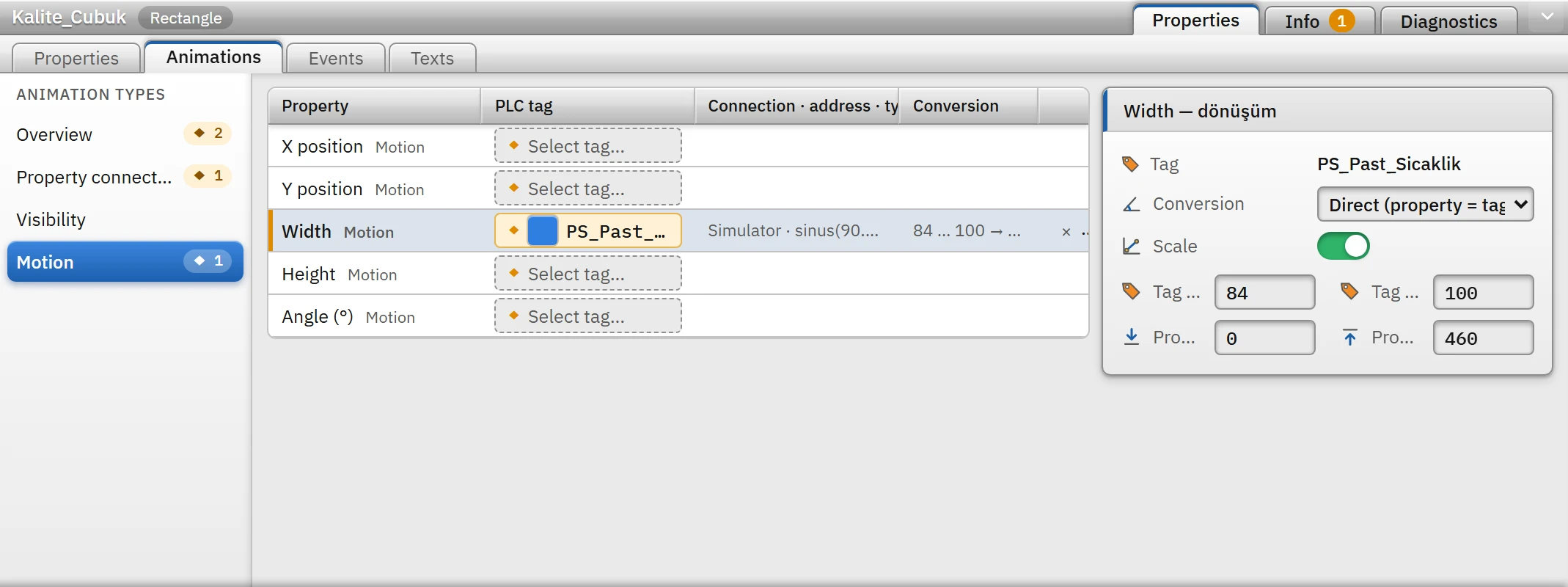
In the Motion group, click Select tag... in the Select tag... row and select the temperature tag. In the card on the right, turn on Scale and enter the four values: Tag min. 84, Tag max. 100, Property min. 0, Property max. 460. When the tag is 84 the width is 0, and when it is 100 it is 460 pixels.
 1234
1234Scaling to the width property: the range 84 – 100 °C is mapped to 0 – 460 pixels. - Motion — X, Y, Width, Height, Angle.
- Conversion — Direct or Range table.
- Scale — when turned on, four limit values appear.
- Tag range → property range: 84 – 100 °C, 0 – 460 pixels.
- Bind the color with a range table
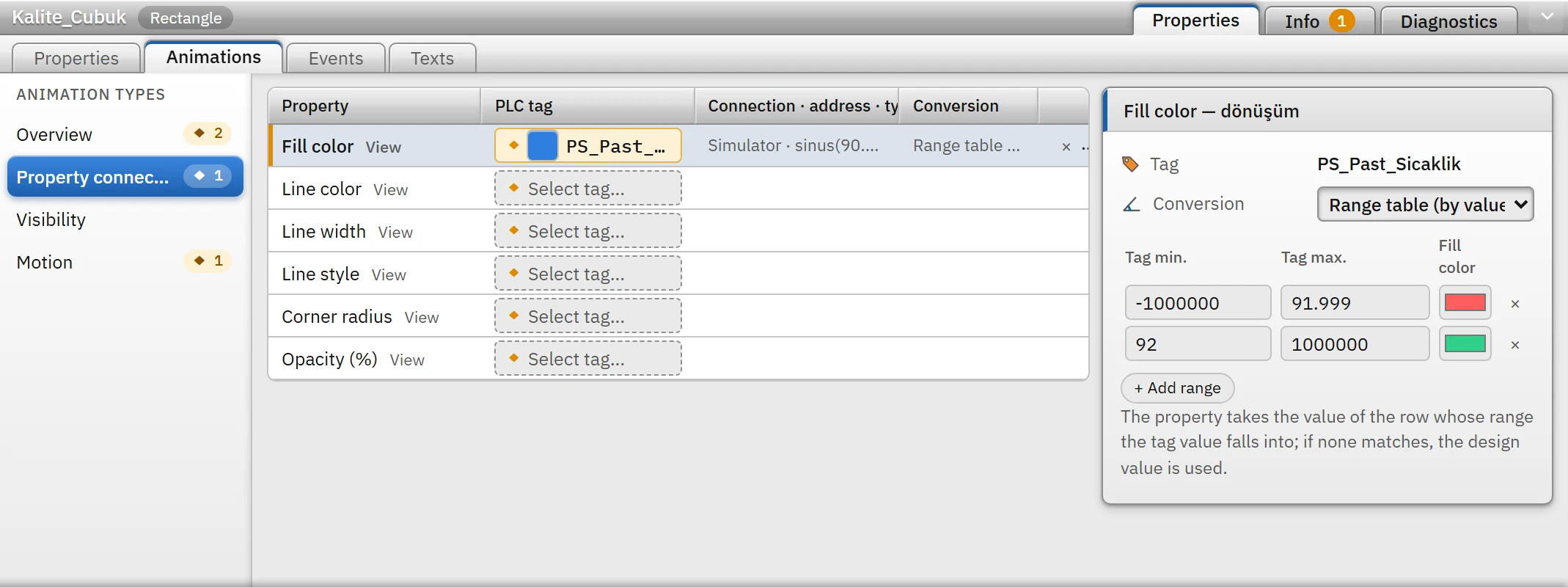
In the Property connections group, select the same tag for Fill color, and select the Range table (by value) option from the Range table (by value) list. Add two rows with + Add range: −1000000 … 91.999 → red, 92 … 1000000 → green.
 123
123Range table: fill color according to the tag value. - Selected connection — details are on the card on the right.
- Range — the minimum / maximum of the tag (limits included) and the value the property will take.
- + Add range — rows are tried from top to bottom; the first match applies.
- Test
Studio does not generate tag values; bound properties appear on the canvas with their static value. To see the effect, choose Online›Start Live (F5); if there is no PLC, bind the tags to the Simulator connection.
Conversions
The conversion of the binding is either the Direct or the Range table option. If the type of the tag cannot be bound directly to the property, only Range table can be selected.
| Conversion | Property type | Settings | Result in Live |
|---|---|---|---|
| Direct | On / off | Bit number (integer tags only, 0 – 31; if empty, no bit), Invert | On if the tag is true or not 0; if a bit is selected, on if that bit of the tag is 1; with invert, the opposite. |
| Direct | Number | Scale: Tag min. (a), Tag max. (b), Property min. (c), Property max. (d) | Without scaling: the value of the tag. With scaling: c + (x − a) × (d − c) / (b − a). Values outside the range are extrapolated linearly, not limited. If a = b, no scaling is performed. |
| Direct | Text, color, selection | — | The value of the tag (depending on the type: see Dynamization). |
| Range table | All | Rows: Tag min., Tag max., the value the property will take | The property takes the value in the row whose range (end points included) the tag value falls into. Rows are tried from top to bottom; the first match applies. If none matches, the (static) value from the design remains. |
When Scale is selected, the ends are initially set to 0 – 27648 (S7 analog raw range) → the minimum / maximum value of the property (0 – 100 if it has none); enter your own values. In the range table, the row value is, depending on the property type, an on / off list, a color picker, a number box, a selection list or a text box; the × at the end of a row deletes the row. If the minimum value of the tag is entered greater than its maximum value, the maximum value is set equal to the minimum.
 123
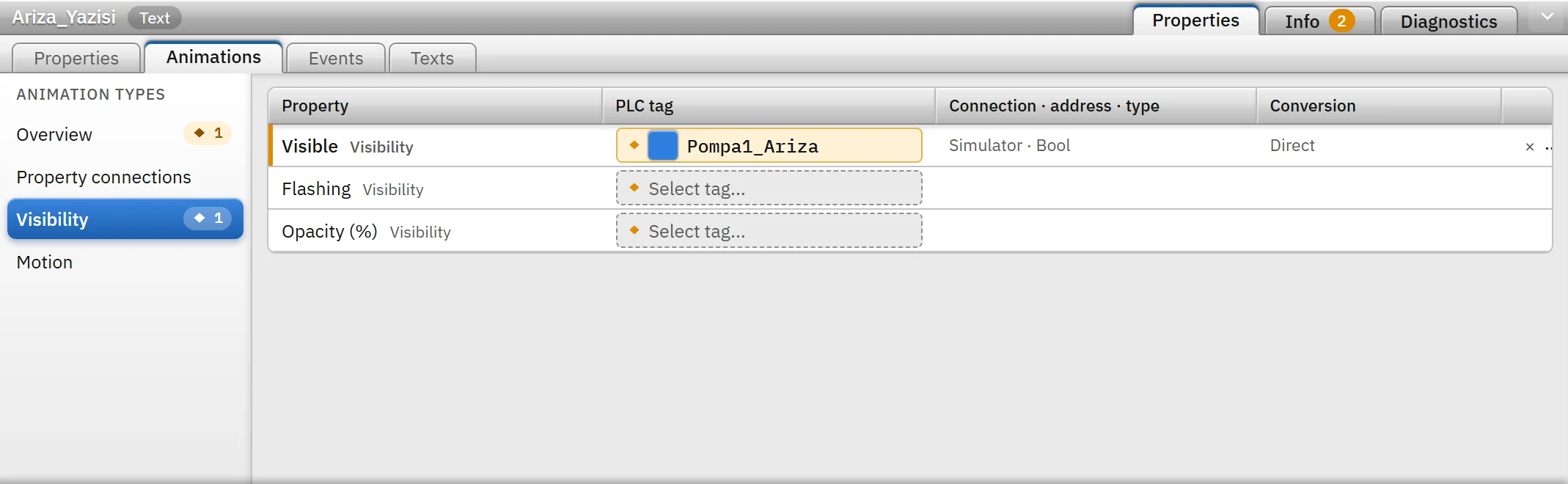
123- Visible — visible if the tag is other than 0.
- Flashing — available on every bindable object.
- Opacity (%) — 0 – 100.
Visibility and movement
- Visible: when off, the object is not drawn at all; it cannot be clicked and does not receive focus.
- Flashing: when on, the object goes out and lights up once per second (0.5 second at full intensity, 0.5 second dimmed).
- Opacity (%): 0 – 100 (values outside are limited). Below 100, the object becomes transparent.
- X position, Y position, Width, Height: the tag value becomes the absolute position / size of the object on the screen (not a relative offset). Use Scale to convert the PLC value to pixels. The unit is the screen pixel.
- Angle (°): rotates around the center of the object, in degrees.
Limitations and points to note
- One tag is bound to a property; for an animation based on a combination of two tags, perform the calculation in the PLC or in a script that writes to an internal tag.
- If the value of the tag is not reliable (connection lost, no value), an object drawn with SVG is drawn entirely in pale gray; this applies to all bound properties of the object (Dynamization).
- If scaling is defined on the tag itself (Scaling and quality), the scale of the connection is applied on top of it; if both are used, the result is the combination of the two.
- Check project reports the following: a binding to a deleted tag (error), a binding with a mismatching type (error), an empty range table (warning: the tag value does not change the property), a bit number that does not exist in the tag (error).
- An animation depends on the value of the tag; for event-based behavior (click, etc.), see Events and functions.