Process objects
Pipe, valve, pump, motor, tank and other equipment objects: the common Running / Fault state model, state colors, level and flow properties, binding to a tag, and how they are animated in Live.
What process objects are
Process objects are objects that draw the equipment of the plant: pipes, valves, pumps, motors, tanks, conveyors, heaters, robots and the like. In the Toolbox they are divided into groups such as Pipe, Valve, Pump, Motors and fans, Tanks and silos, Mixers and mills, Heating and cooling, Conveyors and transport, Instruments and sensors; the full list is in the Object catalog.
These objects show tag values by changing their shape: while a pump is running it turns green and its rotating part moves, a tank fills according to the level, and flow lines travel along a pipe. You only bind the state properties to tags; the object does the drawing.
Common state model
Most equipment objects have the same two state properties. The property names vary by object (Open for a valve, Running for a pump), but the logic is the same:
| State | View |
|---|---|
| Running off, Fault off | Stopped color (default gray); no motion. |
| Running on | Running color (default green) and the motion animation. |
| Fault is on | Flashes between Fault color (default red) and Fault flash color (default yellow); the movement stops. |
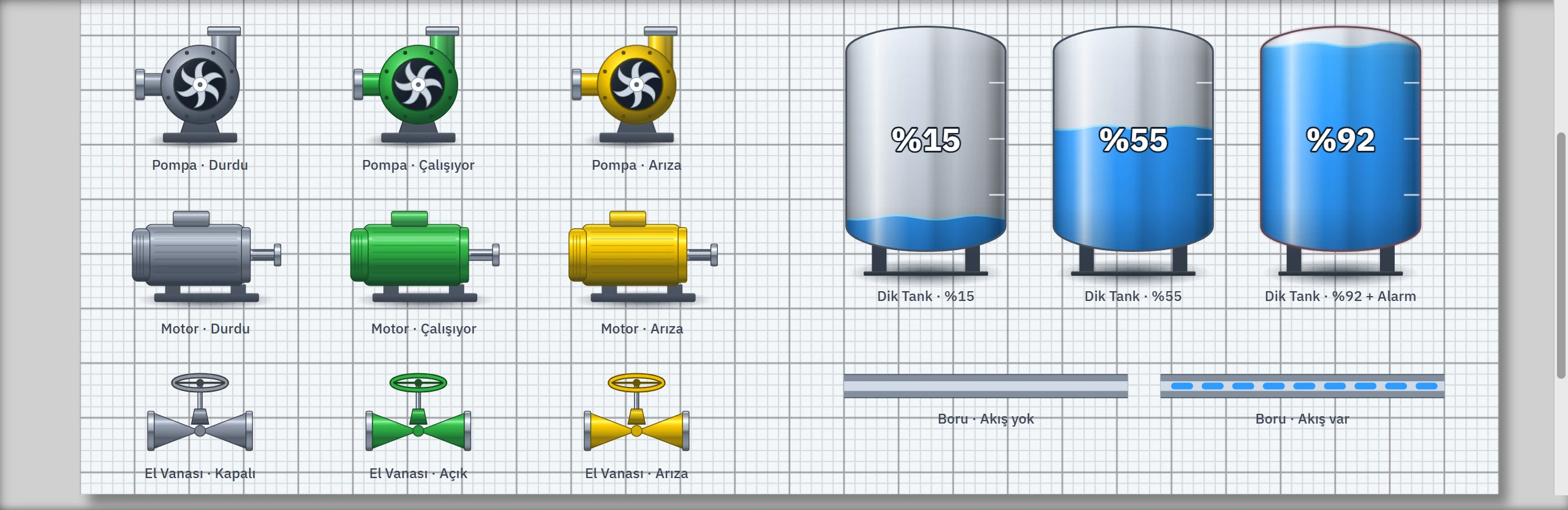
The four colors are changed in the State colors group: Running color, Stopped color, Fault color, Fault flash color (for a valve, On color, Off color …). A color that is not used at all in the drawing is not listed in the Inspector.
Properties by type
| Object | State (process) properties | Appearance properties |
|---|---|---|
| Pump | Running, Fault, Rotation speed (%), Reverse rotation direction | State colors |
| Motor | Running, Fault | State colors |
| Hand valve | On, Fault | On color, Off color, fault colors |
| Pipes | Flow present, Reverse flow direction, Flow speed (%) | Pipe color, Flow color, Flanges at ends |
| Vertical tank | Level (%), Alarm | Surface wave, Content color, Body color, Show value, Legs |
| Signal lamp | Burning, Flashes when lit | Color |
This table shows a typical example of each group; the property groups of the other objects are listed type by type in the Object catalog. When Alarm on the tank is switched on, the tank body gets a red frame.
Binding to a tag
- Select the object.
Click the pump, the tank or the valve on the screen.
- Look at the Process group.
In the Inspector, the Process group in the General category lists the properties that come from the PLC while running.
- Bind a tag.
In the row of the property, click the Dynamic — PLC tag button in the Select tag... column and select the tag. A Bool tag is bound to checkbox (on / off) properties and a numeric tag to numeric properties.
- Add a conversion if needed.
To scale the number or assign colors to a value range, click the Direct link in the row; the Animations tab opens (Animations).
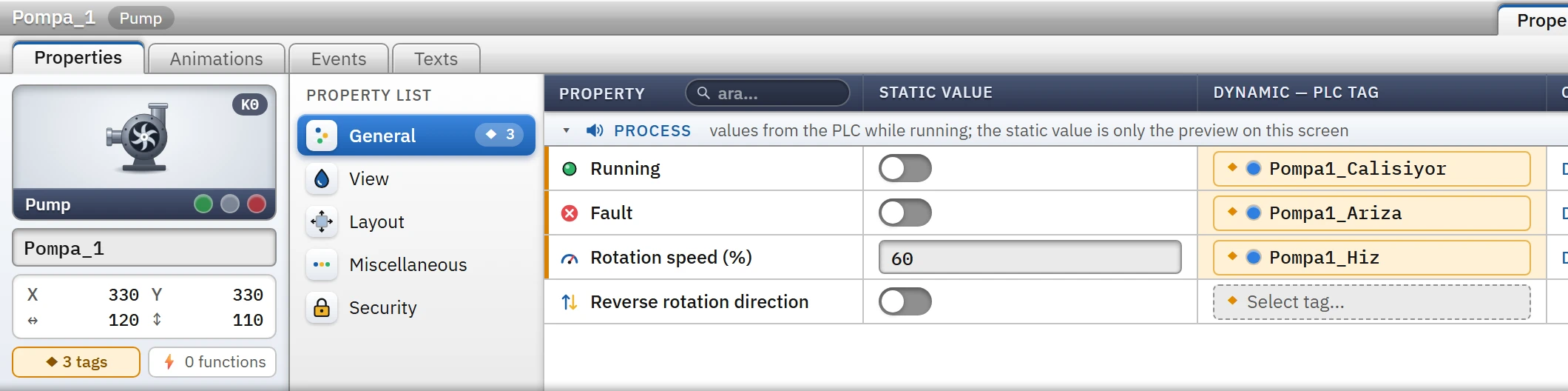
Common properties such as position, size, visibility, flashing and opacity are bound to a tag from the Appearance and Layout categories of every object; this lets you hide or move an object depending on a condition.
Appearance in Live
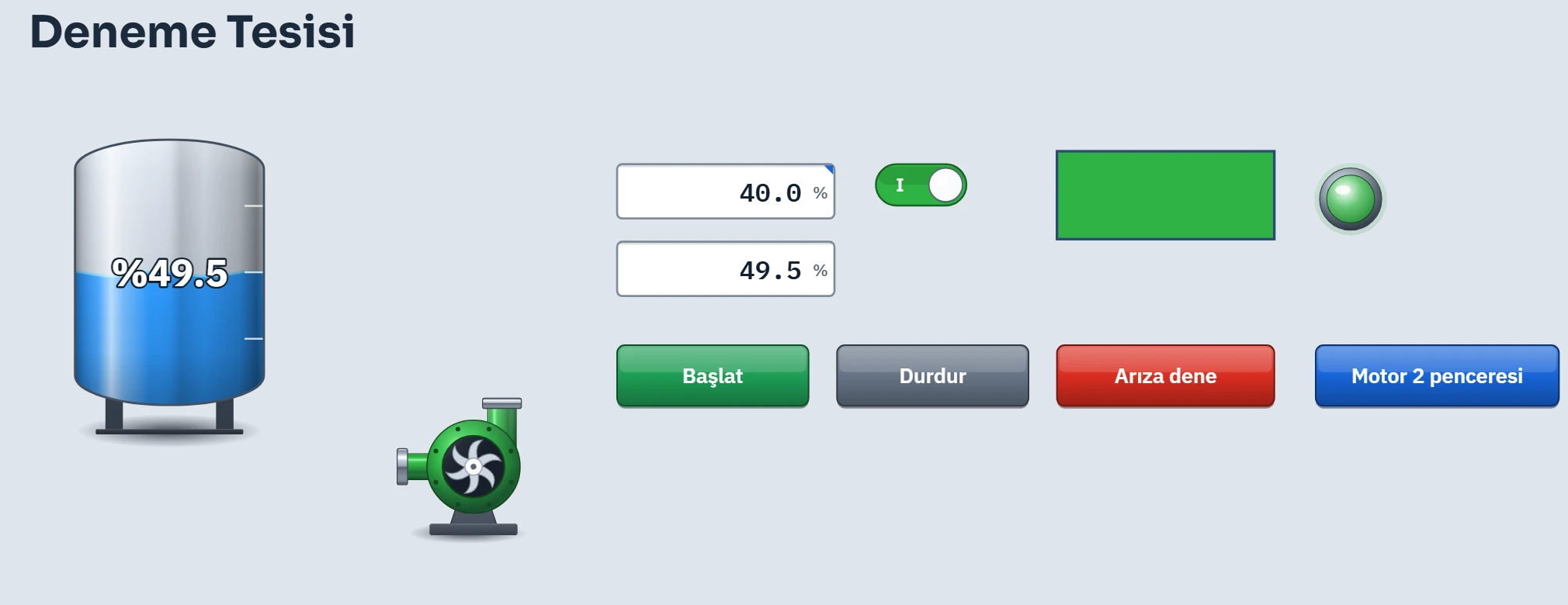
Live redraws the object whenever the value of the bound tag changes. In the figure below, the Start button has set the pump bit to 1: the pump is green and rotating, and the tank level is filling according to the value coming from the simulator.
Object appearance: Realistic and Classic
2D equipment drawings are drawn by default with the Realistic appearance (lit, volumetric, sitting on the floor). Classic is a flat drawing; there is no light or shadow. The setting is at project level, under Live settings in the Object appearance card of the 2D object appearance section; if you want to select it separately for one screen, use the 2D object appearance field in the 2D object appearance category of the screen properties. Objects that are not equipment (shapes, elements, controls) are always drawn flat.
In 3D screens the same equipment has two models, Standard and Realistic; for details, see the topic 3D screens.