Toolbox and object library
The Toolbox in which the 2D objects that can be placed on a screen are grouped: expanding and collapsing groups, search, selecting objects, default sizes and object families.
What the Toolbox is
The Toolbox card on the right of the screen editor shows all objects that can be placed on a 2D screen in groups. The thumbnail of each object is drawn with the object's own drawing engine; that is, it is identical to the appearance you will see on the screen. The methods for adding objects (clicking and drawing, dragging, the Add menu) are described in 2D screen editor; here the box itself is covered. For the complete list of every object, see the Object catalog.
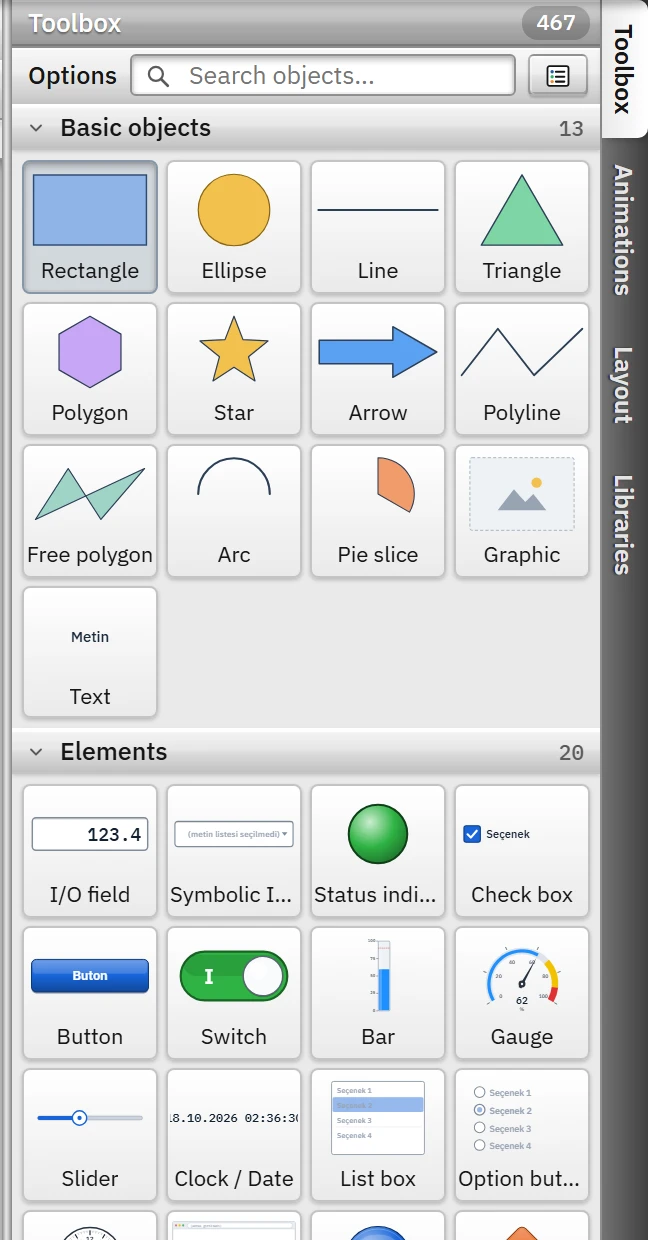 12345
12345- Search box — filters by object name or group name.
- View — large icons / list.
- Group header — clicking it opens / closes the group; the number on the right is the object count.
- Selected tool — click or drag on the canvas; Esc releases it.
- Total — number of objects visible on this screen.
Browsing groups
- Clicking a group heading expands / collapses the group. The number in the heading is the number of objects in the group. The number above the card is the total number of objects visible on this screen.
- When the toolbox is first set up, only the first three groups (Basic objects, Elements, Controls) are expanded; the others come collapsed. The expanded / collapsed state of the first three groups is remembered on this computer; the other groups are collapsed each time Studio starts.
- The list button in the Options row switches the view between large icons and a list.
- When you click an object, the object becomes the drawing tool and a hint appears above the canvas (Pump: click the canvas or drag to set the size). Clicking the same object again, or Esc, releases the tool.
- Hovering over an object shows its full name as a tooltip; long names are shortened inside the tile.
- Right-click: Add to screen (center) places the object in the middle of the visible area; Select as drawing tool is the same as clicking.
Search
As you type in the Search objects... box above the card, only the objects whose name (or group name) contains the text you typed are shown. Groups that do not match are hidden; while a search is active, the expanded / collapsed state of the groups is ignored and all matches are visible. Esc clears the search.
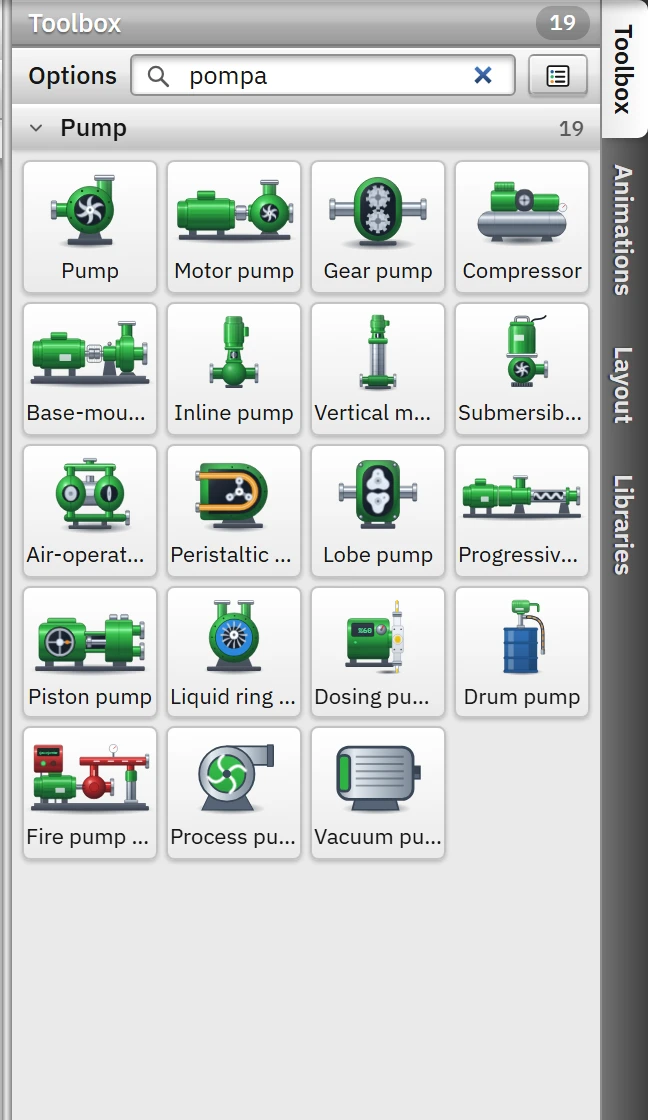 12
12- Search — groups that do not match are hidden; while a search is in progress, groups are expanded even if they are collapsed.
- Group — the number of matching objects in the header.
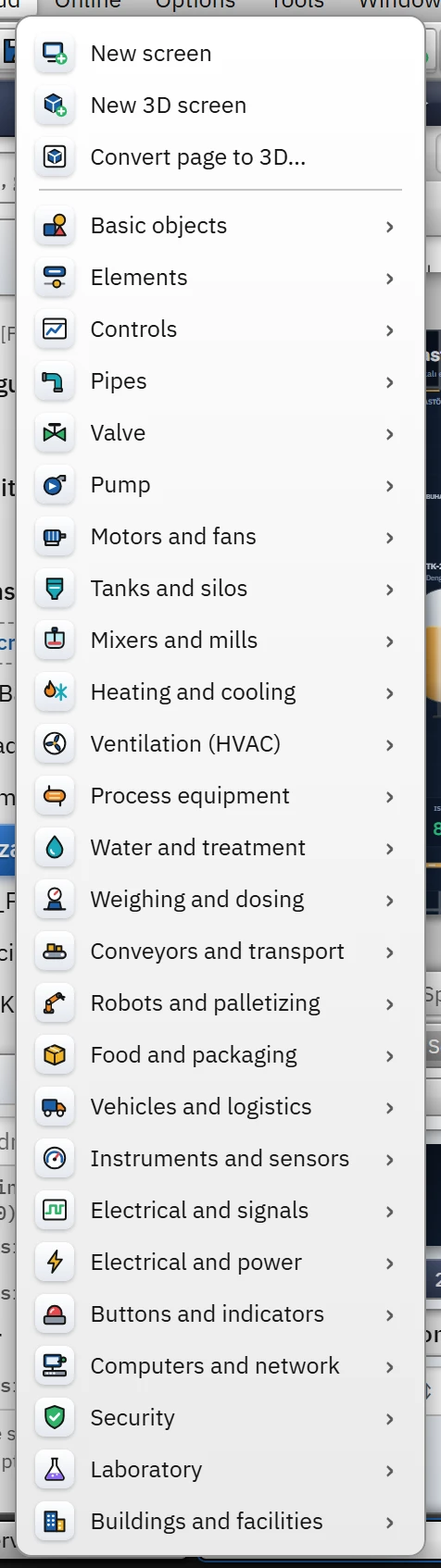
The same groups are also in the Add menu: when you click a group, the menu lists the objects of that group with their thumbnails; when an object is selected, it becomes the drawing tool on the canvas.
Object families
In this version the 2D library contains 488 objects and 28 groups. On a normal screen 467 objects are visible; the remaining 21 objects are available only on design screens (see below).
| Group | Object | Content |
|---|---|---|
| Basic objects | 13 | Rectangle, ellipse, line, triangle, polygon, star, arrow, polyline, freeform polygon, arc, pie slice, image, text. General drawing objects that can be bound to a tag. |
| Elements | 20 | Objects used by the operator: I/O field, buttons, switches, indicators, slider, list box … Details: Elements. |
| Controls | 11 | Screen window, trend, alarm, recipe, report, user view, PLC connection status, IP camera, menu and toolbar, event view. Details: Controls. |
| Recipe, Report | 10, 11 | Visible only on the relevant design screen (Recipe definition, Report definition). On these screens, the recipe elements / report fields are also listed as tiles at the top of the Toolbox. |
| Equipment groups | 23 groups | Pipes (17), Valve (27), Pump (19), Motors and fans (13), Tanks and silos (27), Mixers and mills (23), Heating and cooling (21), HVAC (15), Process equipment (14), Water and treatment (11), Weighing and dosing (12), Conveyors and transport (38), Robots and palletizing (11), Food and packaging (14), Vehicles and logistics (27), Instruments and sensors (23), Electrical and signals (5), Electrical and power (21), Buttons and indicators (23), Computers and network (24), Security (11), Laboratory (9), Buildings and facilities (18). Details: Process objects. |
Groups are arranged in this order in the toolbox.
Default sizes
Each object type has its own default size; an object placed with a single click has this size. Examples (pixels):
| Object | Size | Object | Size |
|---|---|---|---|
| Rectangle | 160 × 100 | Vertical tank | 150 × 230 |
| Ellipse | 120 × 120 | Pipes | 260 × 22 |
| Text | 160 × 36 | I/O field | 130 × 38 |
| Pump | 120 × 110 | Button | 150 × 44 |
| Belt conveyor | 280 × 70 | Screen window | 420 × 280 |
You change the size by dragging while placing the object, or later in the Width and Height fields of the Layout category.
Realistic and classic appearance
Equipment objects can be drawn in two ways: Realistic (lit, volumetric, sitting on the ground) and Classic (flat). The default appearance comes from the Live settings card in the Object appearance section of the project; it can also be selected separately for a screen with Screen properties › Designs › 2D object appearance (Screen properties). The thumbnails of the toolbox are drawn with the appearance of the open screen.
2D and 3D library
3D objects are not in the 2D Toolbox. When a 3D screen is open, the card on the right becomes the 3D Library and the Add menu lists the groups of that library (3D screens).
Limitations and points to note
- You cannot add your own object definition to the Toolbox; you can add the object group you use often to the Libraries card as a copy template (Layers, object list and library).
- The Recipe and Report objects in design screens do not work in other types of screens; Check project reports them as warnings.