Designing recipes
Defining recipes, their elements and ready-made records; group, approval, total rule and PLC transfer settings; recipe objects and design screens.
A recipe is a data set that brings together the production parameters of a product (quantities, temperatures, times …). In Studio you define a recipe in the Recipes section; each element of the recipe is bound to a tag. The records of the recipe (product recipes) can be entered in advance in Studio or are created by the operator in Live and loaded to the PLC. For the operator side, see Operator recipe handling.
The section consists of four tabs: Recipes (definition and elements), Recipe data records, Screen design and Transfer and rules.
Defining recipes and elements
- Add the recipe
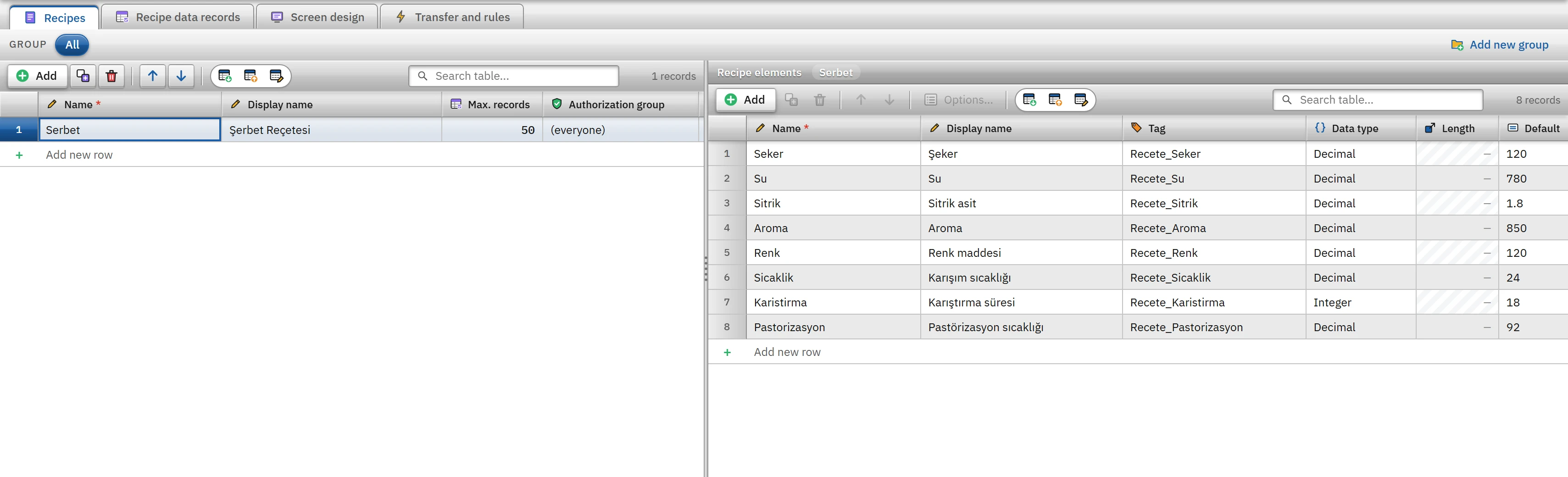
On the Recipes tab, click Add; enter a Name (example:
Serbet) and, optionally, a Display name. - Add the elements
With a recipe row selected, add one row to the Recipe elements table for each parameter. Select the tag to which the value will be written from the Tag list; if no tag is selected, the element cannot be loaded to the PLC (the Problems list warns about this).
- Enter the type and limits
Fill in the Data type (integer, decimal, text), Default, Min and At most fields. Every value entered in the records is checked against these rules.
- Enter the records or create them in Live
For ready-made recipes, use the Recipe data records tab.
 12345
12345- Display name — the recipe name shown in Live.
- Maximum records — the number of records kept in this recipe.
- Element — one value of the recipe (the name is unique).
- Tag — the tag the value is written to.
- Data type — integer, decimal or text.
Recipe columns
| Column | Meaning |
|---|---|
| Name, Display name | Definition name and the name shown in Live. |
| Max. records | The number of records that can be kept in the recipe (1 – 100 000, default 500). When the limit is reached, a new record, a copy or a record from the PLC is rejected. |
| Authorization group | If selected, only users in this group can modify the recipe (save, delete, load to the PLC …). If empty ((herkes)), everyone with the Recipe change authorization can modify it (Using authorizations). |
| PLC transfer, Rules | Calculated summary columns: the DIRECT or HANDSHAKE mode and read-back; number of groups, total rule and approval condition. They reflect the settings on the Transfer and rules tab. |
Element columns
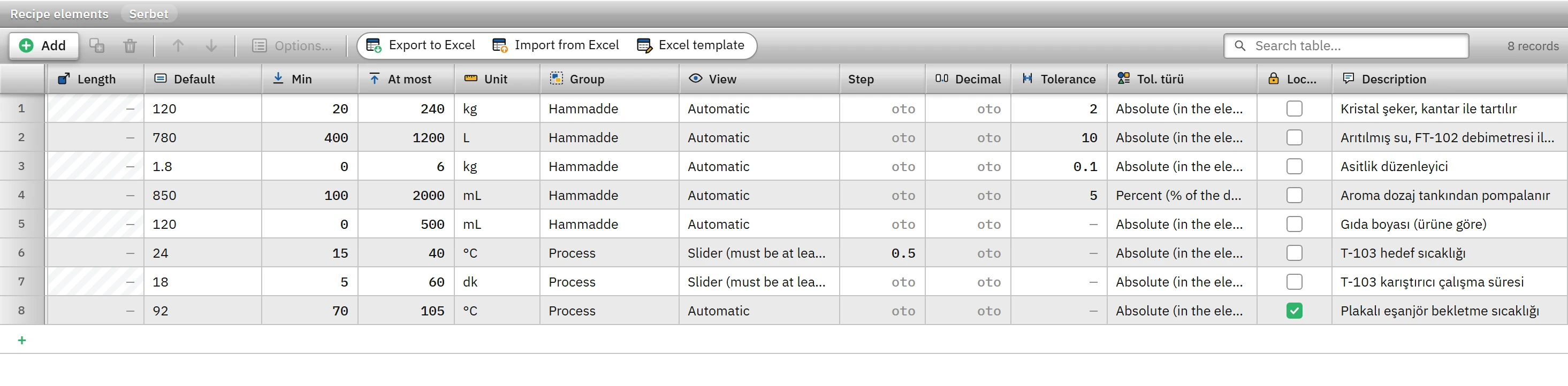
| Column | Meaning |
|---|---|
| Element, Display name | Definition name (unique) and the name shown in Live. |
| Tag | The tag through which the value is written to the PLC and the PLC value is read. |
| Data type, Length | Integer, Decimal or Text. The length (1 – 254) is enabled only for the text type; a text value cannot exceed this length. When the type changes, the default and the limits are adapted. |
| Default | The start value of the new record; the tolerance is also calculated relative to this value. A decimal default is rejected for an integer element. |
| Min, At most | Accepted value range (disabled for text). The minimum cannot be greater than the maximum. |
| Unit | The unit shown in the title and in the box (kg, L, °C …). |
| Group | A group defined in the Transfer and rules tab; in Live it becomes a tab or a heading. |
| View | How the operator enters the value: Automatic, Number box, Slider (between minimum / maximum), Switch (off / on) or Selection list. A slider requires minimum and maximum values and a selection list requires a list of options; otherwise a box is used. |
| Step, Decimal | Step of the increase / decrease button and the slider (empty = automatic, 1 for integers); number of decimal places shown in the box (0 – 6, empty = as is). |
| Tolerance, Tol. type | The tolerance accepted around the target (default) value: Absolute (in the unit of the element) or Percent (% of the default). A record value outside it gets a yellow warning in Live; it is the “counts as equal” margin in the PLC comparison and in read-back. |
| Locked | If checked, the operator cannot change the value; it can be changed only from Studio or from Excel. |
| Description | The description shown below the element in Live. |
The Options… button on the toolbar edits the “value → text” list for the selected element (example: 0 = Kapalı, 1 = Açık). In Live the element's value is selected from this list; the switch appearance uses 0 / 1.
Recipe data records
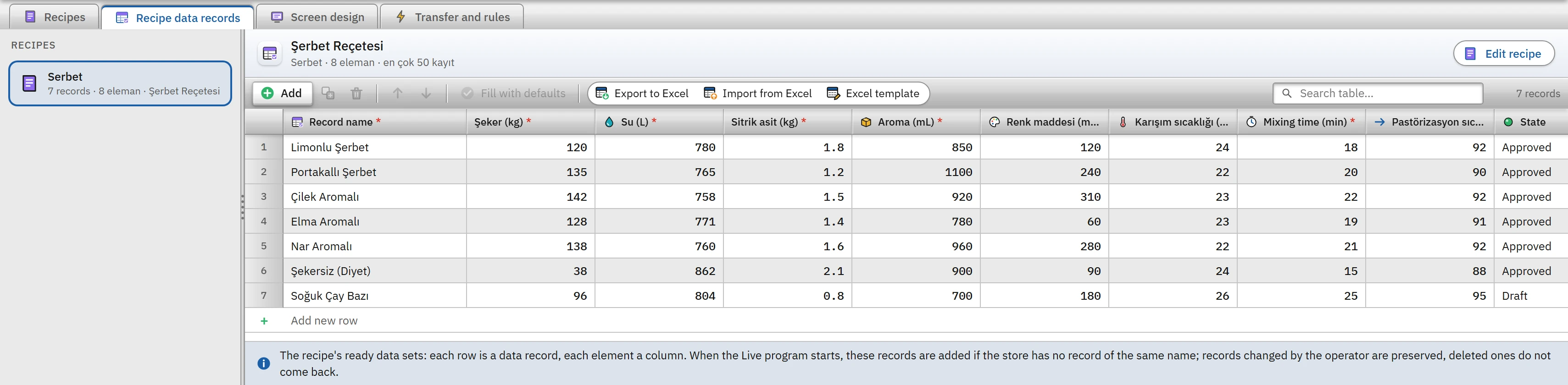
This tab has the recipe list on the left and the records of the selected recipe on the right: each row is a record and each element is a column. The Status column is either Approved or Draft; a new row is created with the default values of the elements; Fill with defaults resets all values of the selected records to their defaults. Each cell is checked against the rule of its element (number, integer, minimum / maximum, text length). The table can be exported to Excel, filled in and imported back (Working with Excel).
Transfer and rules
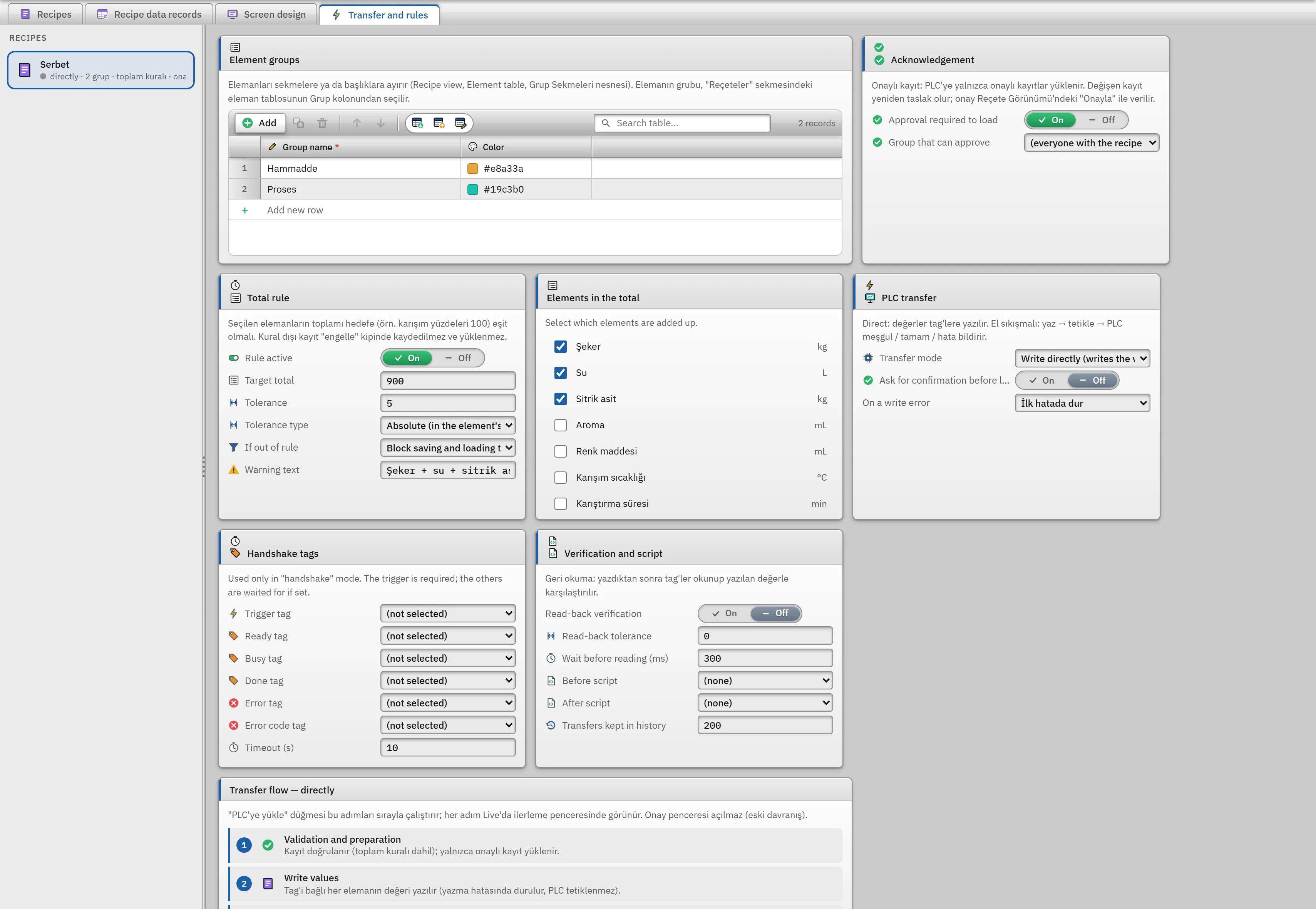
Enter the groups, the approval condition, the total rule and the PLC transfer settings of the selected recipe on this tab.
- Element groups
- Table of names and colors. Elements are bound to the group through the Group column; in Live, the elements are collected under tabs or headings.
- Approval › Approval required for loading
- If on, only Approved records are loaded to the PLC. A modified record becomes Draft again; approval is given in Live with the Approve button.
- Approval › Group that can approve
- If empty, everyone with the Recipe change authorization approves; if a group is selected, only the users in that group.
- Total rule
- The sum of the selected elements must be Target total ± Tolerance (example: mixture quantities 900 ± 5). If out of rule: Block saving and loading to the PLC or Warn only. The placeholders
{toplam},{hedef}and{fark}can be used in the Warning text. The elements to be included in the sum are checked in the list next to it. - PLC transfer
- Transfer mode, Ask for confirmation before loading and On a write error (Stop at the first error or Log the error and continue writing the remaining elements).
- Handshake tags
- Only in handshake mode: Trigger tag (required), Ready tag, Busy tag, Done tag, Error tag, Error code tag and Timeout (s) (1 – 600, default 10).
- Verification and script
- Read-back verification (on / off), Read-back tolerance, Wait before reading (ms) (default 300), Before script, After script and Transfers kept in history (10 – 2000, default 200).
How the transfer works
When the operator clicks Load to PLC, Live performs the following steps in order; only the steps you have configured run, and a preview of this sequence appears below the tab.
- Validation and preparation
The record is checked (including the total rule and the approval condition); in handshake mode the trigger tag must be defined, and all selected tags must exist in the project.
- Script first
It runs if selected; if the script raises an error, the transfer does not start.
- PLC ready
(With handshake) Waits up to the timeout period until the Ready tag is 1 and the Busy tag is 0.
- Write values
The value of every element that has a bound tag is written. If Stop at first error is selected, the PLC is not triggered when a write error occurs.
- Trigger, PLC busy, wait for Done / error
(With handshake) 1 is written to the trigger tag; the transfer is considered finished when the PLC becomes busy and then the Done tag becomes 1 (or, if there is no done tag, when busy changes from 1 → 0). If the Error tag becomes 1, the transfer ends with an error; if there is an Error code tag, the code is added to the message. When the job ends (success, error, timeout, cancellation), the trigger tag returns to 0.
- Read-back verification
The written values are read back after a wait; if the difference exceeds the larger of the read-back tolerance and the element's tolerance, the transfer returns an error.
- After script and result log
The after script runs; the active recipe and the transfer history are updated and written to the event log.
Screen design and recipe objects
The default Recipe view object (Controls group) offers the list, table, comparison and history in one package. If you want your own layout, you design a free 2D screen for this recipe on the Screen design tab. The New design screen window offers these templates: Empty, Form, Master-detail, Operator card, Comparison, Dosing recipe. The screen is opened directly from the navigation menu, or embedded in another screen with the Screen design property of the Recipe view.
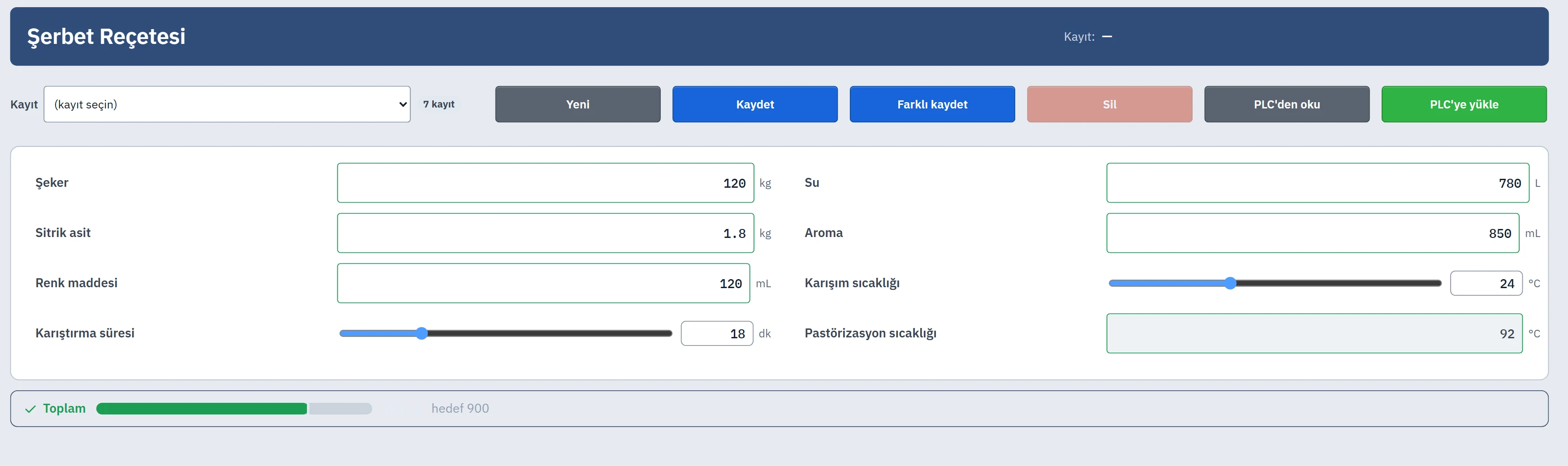
In a design screen, the Recipe group appears in the toolbox:
| Object | Purpose |
|---|---|
| Recipe field | The value box of an element (number box, slider, switch or selection); limit band, PLC value, tolerance color, changed marker. |
| Record selector | Drop-down list or list box; search and status badges. |
| Recipe button | Function buttons: New, Copy, Rename, Save, Save as, Undo, Delete, Approve, Compare, Read from PLC, New record from PLC, Load to PLC, Cancel transfer, Refresh, Export, Import, Export to CSV, Print, Export to Excel, Import from Excel, Excel template. |
| Recipe info | Recipe name, record name, record count, state, active recipe, transfer state, total, number of changed items, approval state, last transfer. |
| Element table, Comparison, Transfer panel, Transfer history, Total indicator, Group tabs | The parts of the view as separate objects. |
Limitations and points to note
- Recipe records are kept not in the PLC but in the data folder of the Live computer (
<Proje>.veri\depo\recete_<kimlik>.json). Values are written to the PLC only with Load to PLC. - The recipe definition should be checked with F7 before it is saved: warnings are issued by the rules for an element without a tag, an element whose default does not match its type, minimum > maximum, the total rule, handshake tags, and an element that has no field on the design screen.
- If Recipes is switched off in the Startup sequence, saving, deleting and loading to the PLC do not work; records are not seeded into the store (Live settings›Startup sequence).
- If the recipe definition is to be sent to the PLC by a script or scheduled task, a script definition is required for the Before script and After script fields.