Scheduled tasks
Defining tasks that run a script at a certain interval, time or day, or when a tag condition is met; running in Live, catching up on missed tasks and the status window.
A scheduled task runs a script for you: for example performing a calculation every second, resetting a counter at the start of a shift, or writing a warning when a tag exceeds a certain value. The task definition does not run the script; it determines when the script runs, and the script does the work. Tasks are in the Scheduled tasks section.
Defining tasks
- Prepare the script
In the Scripts section, write the script the task will run (VBS module or action, C, JavaScript function or Python). For details, see Script editor.
- Add the task
In the Scheduled tasks section, click Add and enter a Name.
- Select the trigger
Select from the Trigger list; the relevant fields appear (table below).
- Connect the script
Select the script from the Script to run list. For a VBS module, a C script and a Python script, the procedure / function to call is selected in the Procedure / function column; if it is empty, the procedure or function with the same name as the script is called.
- Check
F7 lists a missing script, time, tag, date, or day selection as an error or warning.
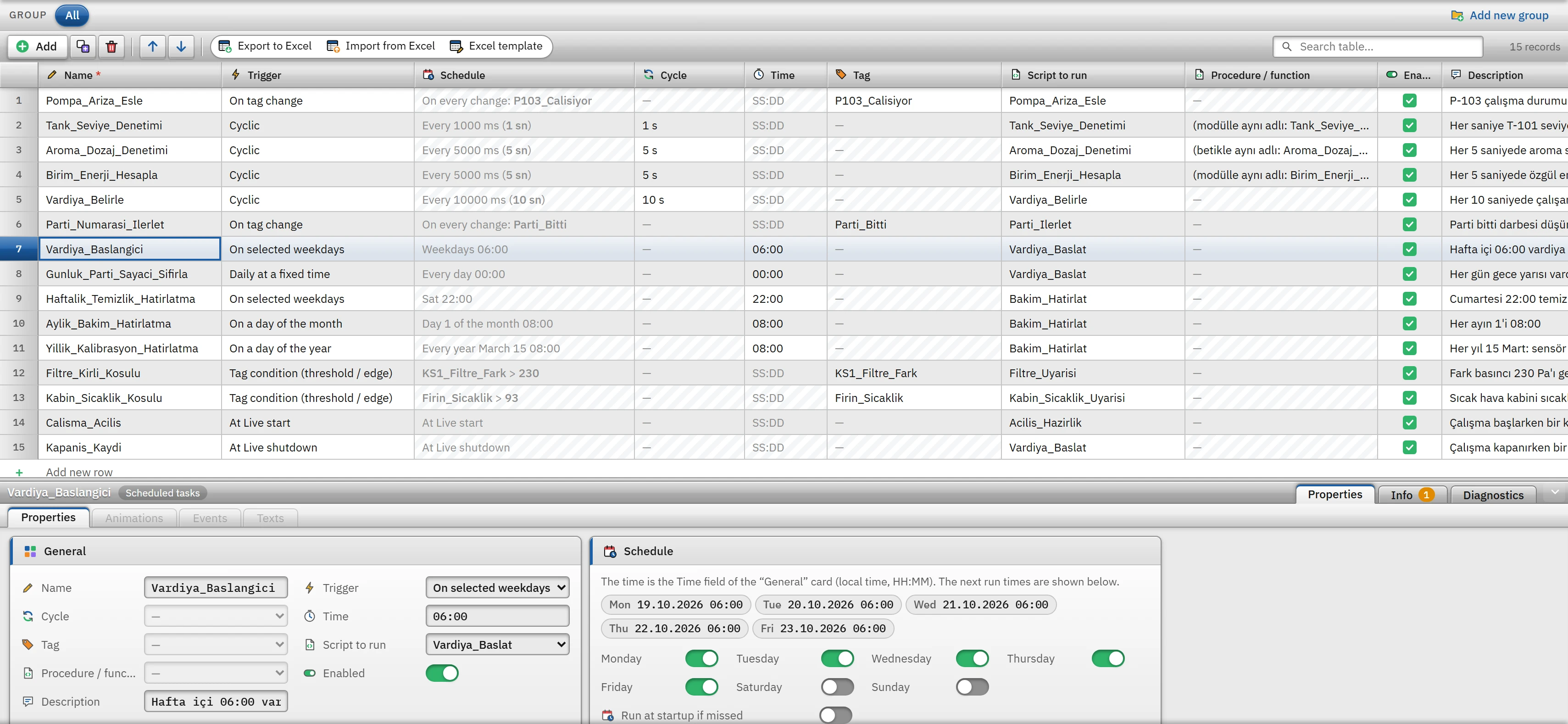 123
123- Trigger — cyclic, timed, weekly, monthly, yearly, one-time, tag, tag condition, startup, shutdown.
- Schedule — the calculated summary.
- Script to run — the work the task does.
Triggers
| Trigger | When it runs | Fields |
|---|---|---|
| Cyclic | Each time the duration of the selected cycle elapses (at most every 100 ms). | Cycle. |
| Every day at a specific time | Every day at that time. | Time (SS:DD, example 07:30). |
| On specific days of the week | At that time on the selected days. | Time; Monday … Sunday switches on the Schedule card. Default: weekdays. |
| On a specific day of the month | Every month on that day and at that time. If the month does not have that day (example 31), it runs on the last day of the month. | Time; Day of the month (1 – 31) or the Last day of the month switch. |
| On a specific day of the year | Every year in that month, on that day and at that time. A task set for 29 February runs on 28 February in a non-leap year. | Time; Month, Day of the month. |
| One-time (date and time) | Once; after it runs, it becomes completed and does not run again. | Time; Date. If the date or time changes, the completed flag is reset. |
| On tag change | Each time the value of the selected tag changes; the new value of the tag is passed to the script as the first parameter (in a VBS module, a Bool value as binary). | Tag. |
| Tag condition (threshold / edge) | Once when the condition starts to be met; it runs again when the condition is lost and then met again. It does not run if the condition is already met when Live starts. | Tag; on the Tag condition card: Condition (Rising edge, Falling edge, When the value changes or a comparison of the value with the threshold >, ≥, <, ≤, =, ≠), Threshold, On every change while met. |
| When Live starts | Once, when the project is opened. | — |
| When Live closes | Once when Live closes; shutdown waits for the task to finish. | — |
For time triggers, the time and date are those of the local calendar of the Live computer. The Schedule card of the selected task lists the next five run times; for a task with no day selected or whose time has passed, a “will not run” warning appears.
Operation in Live
- Time triggers are checked every few seconds; the task starts at most about 5 s after the scheduled time.
- A time that does not exist during the daylight saving time change (for example 02:30) runs once at the moment of the change; a repeated time runs only the first time it occurs. If the clock is set back, the schedules are recalculated, but the same scheduled minute does not run twice.
- If the same script is triggered again while its previous call is still running, this call is skipped (state Skipped).
- Each task run is written to the event log with the type
gorev; the state (last run, result, number of runs and errors) is stored in the file<Proje>.veri\depo\gorev_durum.jsonand is retained when Live is opened again. - If Scheduled tasks is switched off in the Startup sequence, no task (timer, tag, startup) runs.
Missed tasks
If a scheduled time passes while Live is closed or the computer is asleep, the task cannot run at that moment. For tasks with a time trigger, if Run at startup if missed is on, the task is run once when Live opens (it does not run separately for each missed time); if it is off, the missed time is skipped and “missed” is written to the event log. A run triggered at most 2 minutes after the scheduled time is not considered late and runs normally. Past times are not made up for a newly added task; when the definition of a task (day, time, date …) changes, its completed and catch-up state is reset. The time Live was closed is determined from the saved “last alive time” (written about once a minute).
Task status window
In Live, System menu › Tasks… (or the Open the task status window function in the menu bar) shows the state of all tasks: Task (with the script name), Trigger, Last run and its source (Scheduled, Catch-up, Tag change, Tag condition, Cycle, Startup, Shutdown), Result (OK, Error and its message, Skipped, Completed, Running, Inactive, Not run yet; the last missed time and how many were missed), the scheduled time under Next and Number. The window refreshes every second.
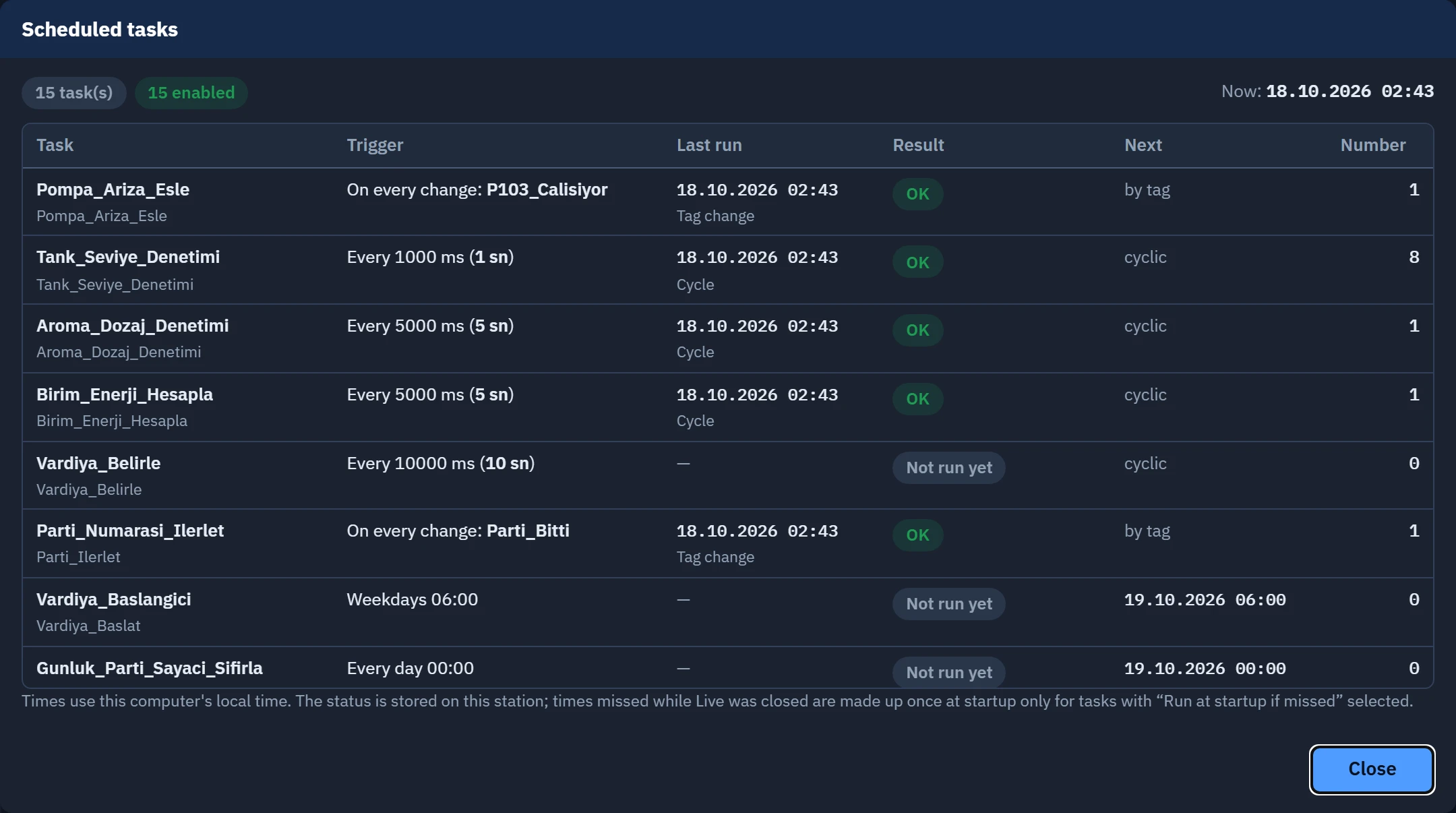
If a script produces an error, the result of the task is Error and the message contains the script, the procedure and the line (for VBS and C scripts; the exception message for JavaScript). An error does not stop the later runs of the task.
Limitations and points to note
- The task does not run if Script to run is not selected or Enabled is off (Problems warns about a task without a script).
- There is no print task (scheduled report printing); silent printing is not supported. To save a scheduled report, a task can set a tag and use the report's trigger tag (Designing reports).
- In browser monitoring (read-only), tasks do not run; tasks run only on the main Live PC.