Script editor
In the Scripts section: adding scripts, the properties of the code area, compiling (F9), the Reference panel, sample code, and importing / exporting files.
Scripts section
In the project tree, the Scripts section has two parts: the table of scripts at the top and, beside or below it, the Script code field of the selected script. The table uses the common behavior of the table editor (adding, duplicating, deleting and sorting rows, groups, Excel).
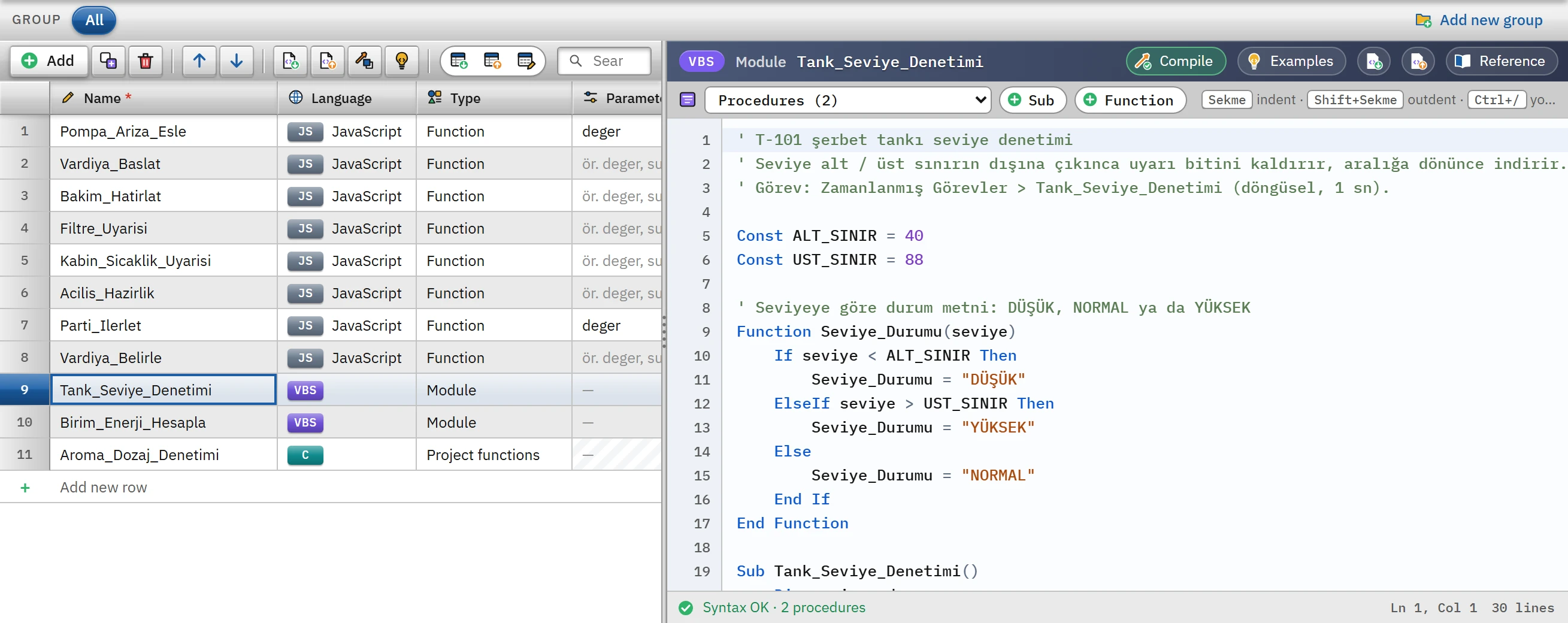 1234567
- Name — name of the script (unique).
- Language — VBS, C, JavaScript or Python.
- Type — depending on the language: Module, Action, Function …
- Compile (F9) — checks the syntax and the rules.
- Reference — object and function panel.
- Procedure list — goes to the selected procedure.
- Status strip — syntax result; on an error it shows the position.
Table columns
- Name
- The name of the script. It starts with a letter or
_; it contains letters, digits and_(Turkish letters are allowed). The name must be unique. In a VBS module and in Python, the name is the default procedure / function name; in a C header file, it is the file name (Ad.h). - Language
- VBS, C, JavaScript or Python. If the code is still in the starting template, the template is regenerated when the language is changed; code you have written is kept.
- Type
- By language: Module / Action for VBS and Python; Project functions / Action / Header file for C; Function / Global module for JavaScript. Details: Scripts overview.
- Parameters
- Used only in JavaScript functions (comma-separated parameter names, e.g.
deger). In the other languages the cell is locked; the parameters are written in the code. - Description
- Free note.
Code area
The code area is the product's own editor and uses no external library.
| Property | Behavior |
|---|---|
| Coloring | Depending on the language, keywords, strings, numbers, comments, and built-in function names are colored separately. |
| Line number | The gutter on the left numbers the lines. A line with an error is marked red, a line with a warning yellow; the message appears when you hover over the mark. |
| Indent | Tab indents the selected lines, Shift+Tab removes the indent. Enter keeps the indentation of the previous line; after blocks such as If … Then, Sub, { it indents one level further. |
| Comment | Ctrl+/ comments or uncomments the selected lines (VBS: ', Python: #, C and JavaScript: //). |
| Live check | The syntax is checked shortly after you stop typing. The lower strip shows Syntax OK or the Line N, column M position and message of the error; clicking the strip jumps to the faulty line. If there are several errors, each click moves to the next one. |
| Procedure / function list | In VBS, C and Python, the list in the tool row lists the procedures and functions in the code (and the classes in Python); selecting one jumps to that line. JavaScript does not have this row. |
| Adding an empty skeleton | The Sub / Function (VBS), Function (C), def / class (Python) buttons on the tool row add an empty skeleton at the end of the code. |
| Saving and undo | The code is applied to the project when you leave the field; one editing session is a single Undo step. |
Compilation (F9)
Compilation does not run the script; it checks the syntax and the rules related to the project. The Compile button or F9 compiles the selected script, and the Compile all button or Ctrl+Shift+B compiles all scripts. The result is listed in the output panel below the code area.
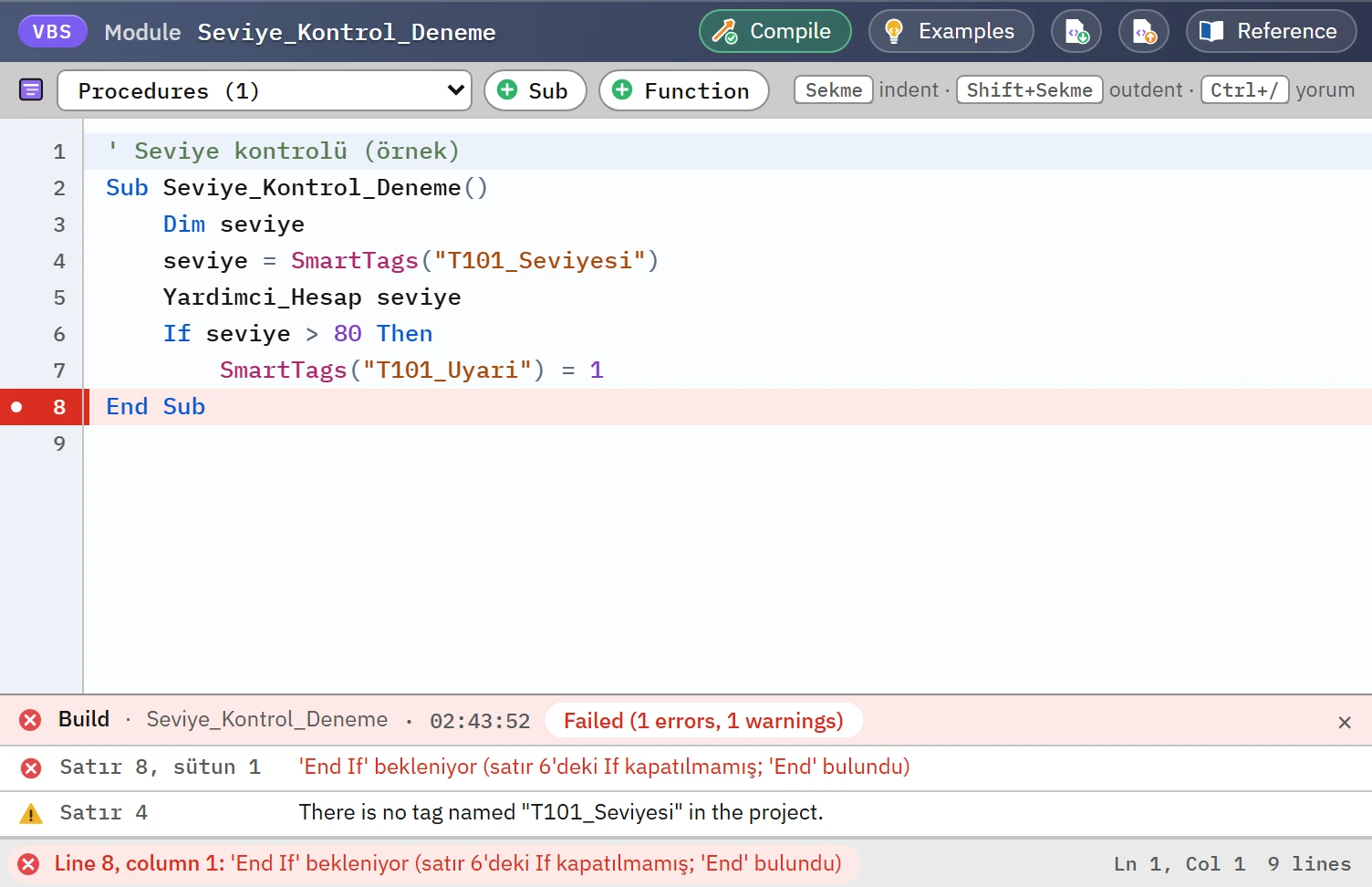 123
123- Summary — the number of errors and warnings, and the result.
- Error — clicking it goes to the row.
- Warning — a tag name that is not in the project.
- The summary line reads Successful or Failed; the numbers of errors, warnings and information messages appear next to it. If there are only warnings, the build is successful.
- When the code is changed, the output is marked outdated: code changed — compile again (F9).
- The × at the top right closes the output panel.
- Compile all selects the first script with errors among the scripts; the output lists all errors first, then the warnings.
| Language | What is checked during compilation |
|---|---|
| VBS | Syntax (errors in the interface language); a procedure or variable name that is not defined in any module; a tag with a constant name that does not exist in the project (Tags("…"), SmartTags("…")); an unsupported CreateObject object; a database / program / file object whose permission is off; unsupported members such as Execute, Eval, GetObject, GetRef and HMIRuntime.Logging; the same procedure name in two modules (error). |
| JavaScript | Syntax (as Live compiles the code; V8 messages are translated into the interface language); a function name that is not under Tag. and Sayfa.; a tag and a screen with a constant name that do not exist in the project; use of HMIRuntime, SmartTags, ScreenItems (these are VBS objects). |
| C | Compilation errors and warnings (including calls to undefined functions); an #include that cannot be found (error); tag, screen and object names that do not exist in the project; file / program functions whose permission is off; functions not supported in this version and DLL functions without an equivalent; the same project function name in two C sources, and an action with an ambiguous entry function (error). |
| Python | Syntax; undefined name; a tag, screen and object that do not exist in the project; use of a database / program / file whose permission is off; a built-in, module or HMIRuntime member that does not exist in this version; mixed indentation; unreachable code; unused import (information). |
The same rules also appear in the F7 Check project list. The first syntax error also marks the Name cell in the table.
Reference panel
In VBS, C and Python, the Reference button opens a panel on the right. The panel is divided into tabs by language; the search box searches all tabs. Clicking a row inserts the example at the cursor position; the part you need to change is selected. Whether the panel is open or closed is remembered. There is no reference panel for JavaScript.
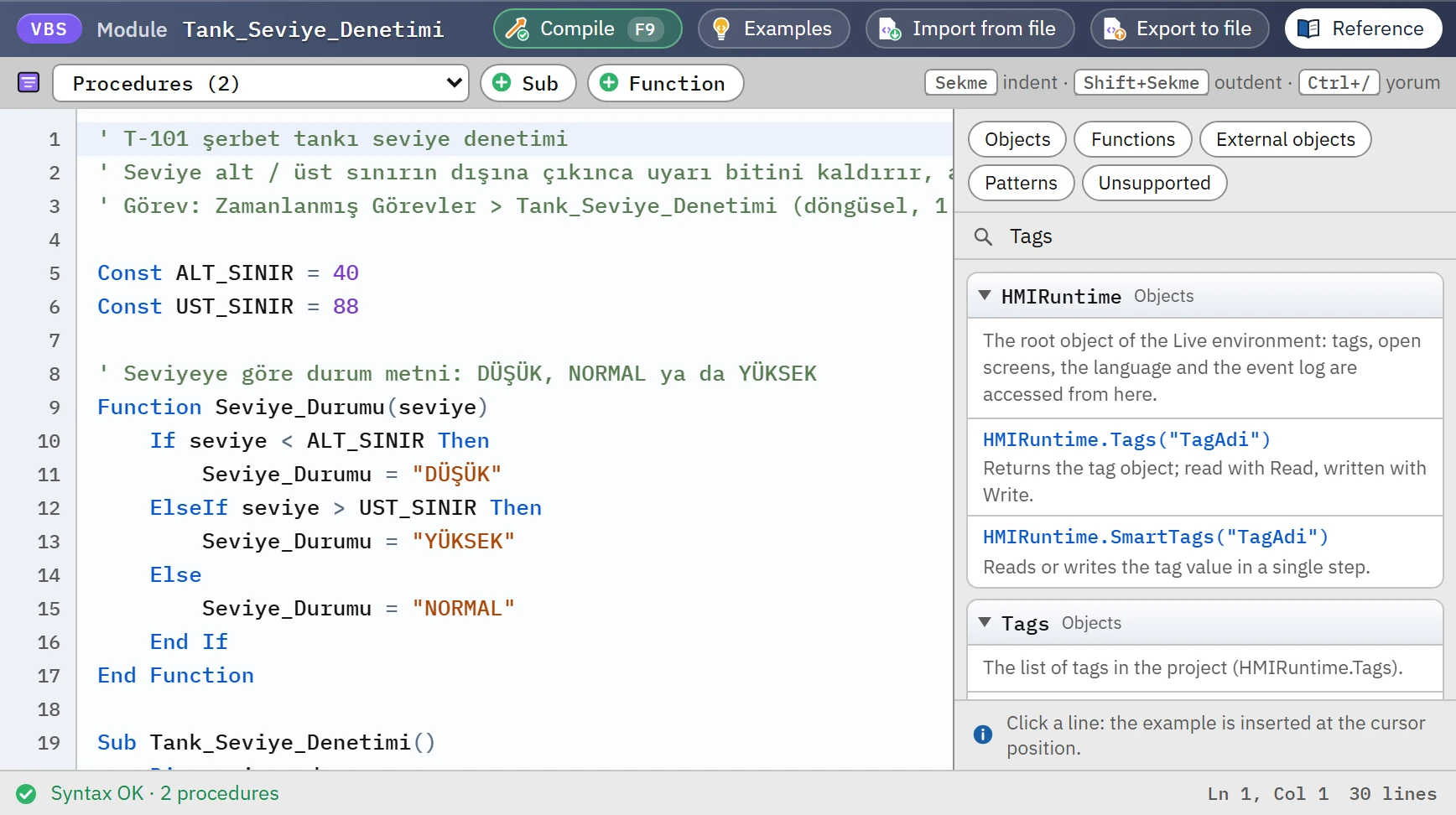 123
123- Tabs — Objects, Functions, External objects, Patterns, Unsupported.
- Search — searches in all tabs.
- Reference row — clicking it inserts the example at the cursor.
| Language | Tabs |
|---|---|
| VBS | Objects, Functions, External objects, Patterns, Unsupported |
| C | Tag functions, Object functions, System, C library, DLL equivalents, Patterns, Unsupported |
| Python | Tag, Screen and object, System, External world, Language, Built-in functions, Library, Patterns, Unsupported |
Groups that require a permission (Database, Program, File) carry a permission on or permission off badge in their headings.
Sample code
The Examples button (Sample code… in the toolbar of the table) opens the gallery of ready-made examples. The gallery contains examples for VBS (30), C (32), JavaScript (17) and Python (51); the examples are grouped by topic (tag reading / writing, condition and loop, calculation, date and time, report, screens and objects, operator, database / file / program, script structure, Python language).
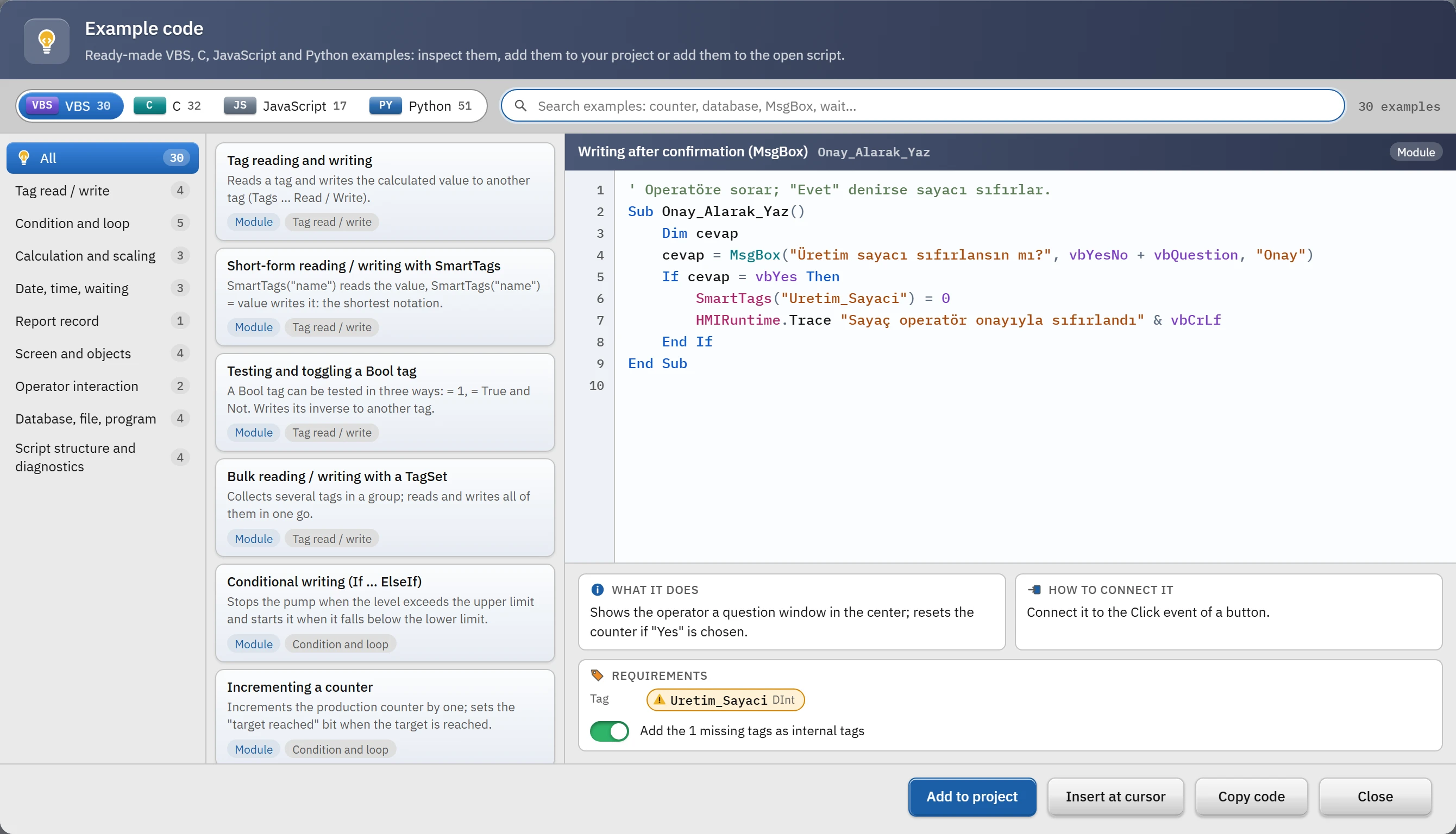 12345
12345- Language — VBS, C, JavaScript, Python.
- Topic groups — filter the examples.
- Example list — badges show the type and the required permission.
- Preview — read-only colored code.
- What it does / How to connect / Requirements
- The preview shows the sample's code and the What it does, How to bind it and Requirements sections (tag, screen, object, report, permission); items missing in the project are marked.
- Add to project adds the example as a new script. If the name clashes, the suffix
_2,_3is added. Optionally, missing tags are added as internal tags. If the example requires a permission that is turned off, Studio asks; the permission is not turned on automatically. The addition is a single Undo step. - Insert at cursor inserts the example into the open script at the position of the cursor; it is enabled only if the open script is in the same language.
- Copy code copies the example to the clipboard.
Annotated listing of the samples: Script examples.
Import from file, export to file
Load from file… in the toolbar of the table adds a script file as a script; files can also be dragged and dropped onto the table. Save to file… writes the selected scripts to a file.
| Extension | Language |
|---|---|
.vbs, .bas, .txt | VBS (if the contents of a .txt file resemble C or Python, it is counted as that language) |
.c, .h | C (becomes a .h header file) |
.js | JavaScript |
.py | Python |
- The suffix
_bmo(module) or_bac(action) at the end of the file name determines the type in VBS and Python and is not included in the script name. If there is no suffix, the type is determined from the code. - If a script with the same name exists, a single question is asked: Overwrite, Add with new name or Cancel. The whole import is a single Undo step.
- The file can be UTF-8 (with or without BOM), UTF-16, or Turkish ANSI (Windows-1254).
Binding a script so that it runs
A script does not run on its own; it is bound to an event, a task or a recipe transfer. In an event, the script and (if any) the procedure are selected in the Run script function; in a task, the Script to run and Procedure / function columns are used. If the selected procedure does not exist in the script, Studio warns in the Problems list (in Python it counts it as a definite error). Details: Where scripts run from.
Limitations and points to note
- There is no autocomplete, breakpoint or step-by-step execution.
- Compilation does not run the script; runtime errors (division by zero, non-existent object) appear only in Live and are written to the event log.
- If the engine of the language cannot be loaded, compilation gives the warning engine not loaded: syntax could not be checked; the code is saved anyway.