Check project and the Problems list
The Check project (F7) command and the Problems list on the Info tab: error, warning and note levels, what is checked, jumping to the record with the problem, and solutions for frequently seen messages.
Studio checks the project continuously: it scans the rules in the tables, the references between records, the tag addresses, the bindings of screen objects and the event functions. It collects what it finds in the Problems list; the list is on the Info tab of the Inspector. This topic describes the levels, the scope of the check and the messages seen most often.
Running the check
- Automatically: the list is refreshed about 0.3 seconds after every change. The counts are shown in the status bar (1 error, 2 warnings or No problems), in the badges of the Information tab and in the mark next to the section with problems in the project tree.
- Manually: Tools›Check project (F7) or the Check project button on the toolbar refreshes the list immediately and opens the Info tab. Changes that are still being typed in the script code are processed first. Tools›Problems list (Info) only opens the tab.
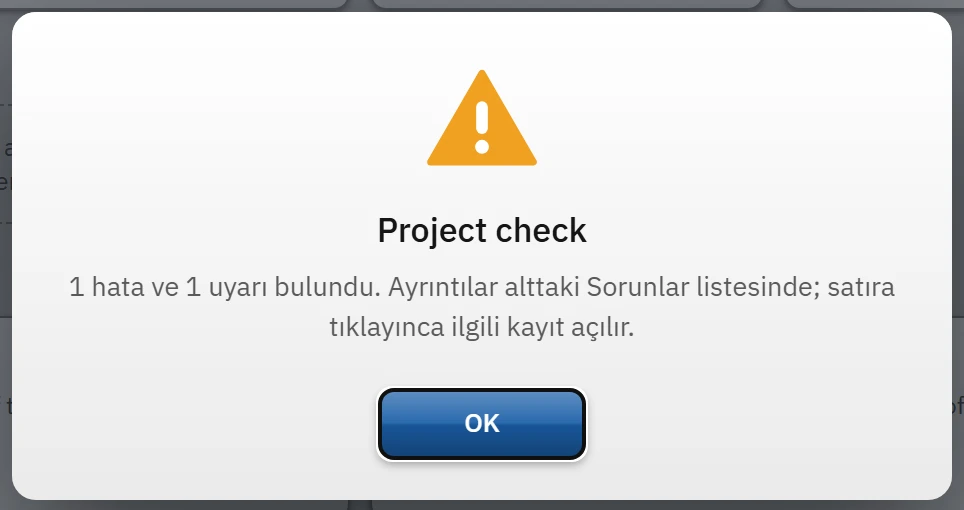
- Result window: if there are no errors and no warnings, the window “No problems were found in the project.” appears; if there are errors, the Project check window states the number of errors and warnings. If there are only warnings, no window appears and the list opens.
Levels
| Level | Icon | Meaning |
|---|---|---|
| Error | red ✖ | A definition that will not work or will work incorrectly in Live: a reference to a deleted tag, an invalid address, a missing required field. Faulty tags and connections cannot be read in Live. |
| Warning | orange ⚠ | A situation that works but most likely does not give the result you want: an alarm with no tag selected never occurs; a user without a password cannot log on. |
| Note | blue ⓘ | It is not a problem but information (for example, the use of a font that does not come with the product). It does not affect the marker in the project tree and does not stop Start Live or Upload. |
The list is ordered as errors, warnings, notes.
Problems list
 123
123- Information — the numbers of errors and warnings.
- Location — section › tab › row.
- Error row — clicking it goes to the relevant record.
- The Location column gives the position of the problem:
HMI Tag'leri › Tag'ler › Motor_Hiz,Sayfalar › Sayfa_1 › Buton_1. In sections with several tabs, the tab name is also written. - Clicking a row opens the relevant section, selects the tab and selects the record in the table; for object problems on a screen, the screen is opened and the object is selected; for problems in script code, the relevant line is shown in the code area.
- Right-click: Go to location, Copy text, Copy whole list (rows with level, location and message separated by tabs; useful when asking for support).
- In the table cells, a problematic value is marked in the error / warning color; the message appears when you hover over it.
What is checked
- Table rules: required columns left empty; columns that refer to a deleted record (for example a tag whose connection has been deleted); the rules of each individual table (the same IP in two connections, a duplicated alarm number, inconsistent lower / upper limits …).
- Addresses: the tag addresses must follow the rule of the connection's driver (S7, OPC UA, Modbus, Allen-Bradley, Mitsubishi, Omron, MQTT, OPC DA, simulator), and the tag type must be supported by the driver. The check is a syntax check: whether the address really exists in the PLC cannot be known in Studio.
- Section rules: Live settings (multiple displays, keyboard key conflicts, language), Remote monitoring (port, access networks, browser users), and recipe, report, log, task and script definitions.
- Screens and objects: properties bound to a deleted tag or to a tag of the wrong type, empty range tables, bit number range, event functions with missing parameters or that refer to a deleted tag / screen / script, references to deleted authorizations and cycles, draft start screen, camera address, alarm view and trend view settings.
- Scripts: syntax, a tag name that does not exist, use of an object whose permission is off (the compilation rules are described in Script editor).
Check before Start Runtime and Upload
Start Live (F5) and Upload check the number of errors after saving the project:
| State | Window | Buttons |
|---|---|---|
| Start Runtime, project has errors | Project has errors: “The project has N errors (Problems list). Faulty tags and connections cannot be read at runtime. Start anyway?” | Start Live, Show problems, Cancel |
| Upload, project has errors | Project has errors: “The project has N errors; upload it anyway?” | Upload, Show problems, Cancel |
| Start Runtime, script compilation error | Compile errors in scripts: the names of the faulty scripts and “A faulty script does not run in Live. Start anyway?” | Show errors, Start anyway, Cancel |
No question is asked if there are only warnings or notes. You can still run a project with errors, but the faulty records do not work in Live.
Common messages
The messages are given with their texts in Studio; <…> is a placeholder.
| Message | Cause | Solution |
|---|---|---|
| <Field> has been left empty. | A required (*) column is empty. | Fill in the cell. |
| <Field>: refers to a deleted record. | The referenced record (connection, cycle, alarm class …) has been deleted. | Select a valid record in the cell or recreate the deleted one (undo: Ctrl+Z). |
| The address <IP> is used in the connection "<connection>". Each connection must have a different address. | The same address exists in two connections. | Correct the address or merge the connections. Connections table |
| "<address>" is not a Siemens S7 address. | The tag address does not match the format of the driver. | See the examples in the address help. Tag addresses |
| Bit number missing: a bit address is written in the "byte.bit" format (e.g. DB1.DBX0.0). | A bit address (DBX) was written without a bit number, or a bit address was given for a type other than Bool. | Add the bit number, or choose a compatible tag type and address. |
| The driver <Driver> does not support the type <type>. | The tag type does not exist in the driver of the connection. | Select one of the types supported by the driver (listed in the Target card in the Inspector). |
| The upper limit (<a>) must be greater than the lower limit (<b>). | The lower limit of the tag is greater than its upper limit. | Correct the limits. |
| No port was entered. | Port is empty for a driver that requires a network. | Enter the default port of the driver. |
| The property "<Property>" is bound to a deleted tag. | The tag of the object property has been deleted. | Bind a new tag to the property or remove the binding. |
| The property "<Property>" cannot be bound directly to the tag "<tag>" of type <type> (…). | The tag type does not match the property. | Select a tag of a suitable type or use the Range table conversion. Dynamization |
| The range table of the property "<Property>" is empty; the tag value does not change the property. | No rows have been added to the range table. | Add a row with + Add range. |
| Event <Event>, function N (<function>): no tag selected. | The function's tag parameter is empty (similar messages: no screen / script selected, no value entered, refers to a deleted screen or script). | Fill in the function parameter on the Events tab. Events and functions |
| No trigger tag selected; the alarm never occurs. | No tag has been selected for the alarm. | Select a tag in the alarm table. Alarm definitions |
| The number <N> is used in more than one alarm. | The alarm number is duplicated. | Make the numbers unique. |
| The user has no password. | No password has been assigned to the user (including admin in a new project). | Assign a password in User administration. User administration |
| The start screen is a draft (…): Live cannot show a screen at startup. | Show in Live is off on the start screen. | Turn it on in the Miscellaneous category of the screen properties or make another screen the start screen. |
| The port must be an integer between 1024 and 65535 (…). | The remote monitoring port is out of range. | Enter a port within the range. Remote monitoring |