Inspector
The Inspector below the main window: properties, animations, events and texts of the selected object or table row; project problems (Info) and connection diagnostics.
The Inspector is the panel at the bottom of the main window. Its content changes according to the selection: an object on a screen or the screen itself, a row in a table; when nothing is selected, a summary of the project is shown. It is used to edit object properties, bind properties to tags and define event functions.
Top tabs
The three tabs at the top right of the panel are always present:
| Tab | Content |
|---|---|
| Properties | Properties of the selected object (or row); the screen editor has four more sub-tabs (see below). |
| Info | The list of the project's errors, warnings and notes. Red (error), orange (warning) and blue (note) count badges appear next to the tab name. Check project |
| Diagnostics | The targets of the connections and the number of tags of each. |
The arrow button in the header collapses / expands the panel. You can set the height of the panel between 110 and 560 pixels by dragging the divider above it. The left header shows the name and type of the selected object (N objects for a multiple selection).
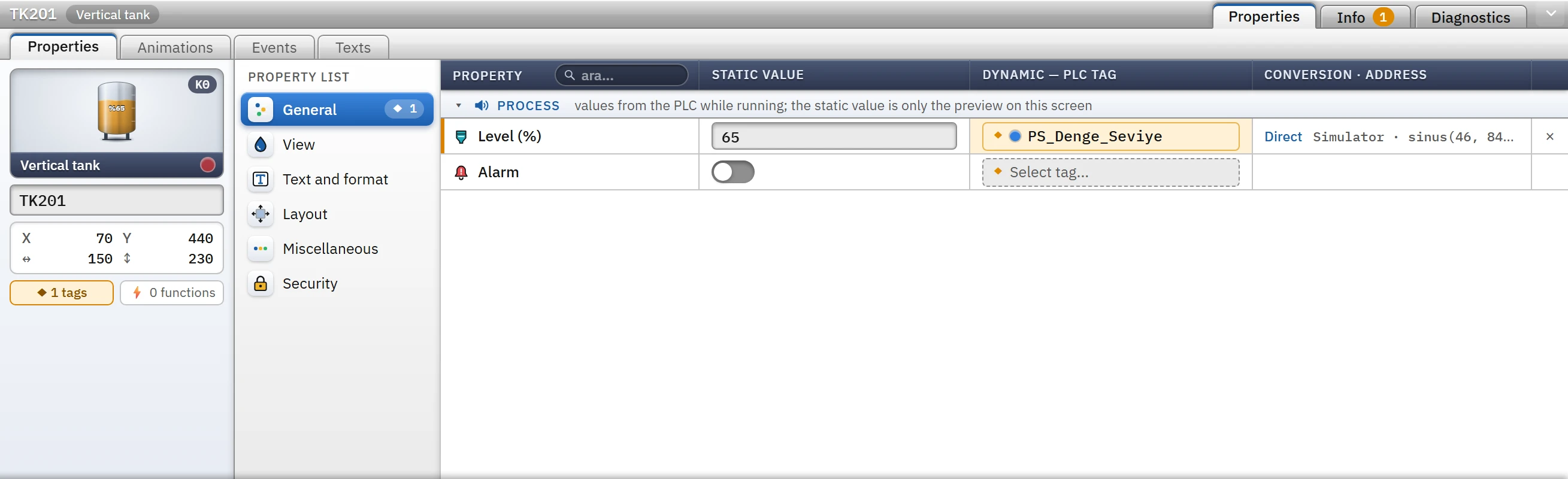 123456
- Upper tabs — Properties, Information, Diagnostics.
- Object tabs — Properties, Animations, Events, Texts.
- Identity card — name, position, and the number of bound tags and functions.
- Property categories
- Static value — design value.
- Dynamic — PLC tag — connected with the ◆ button.
Object tabs (in the screen editor)
While Properties is selected among the top tabs and the screen editor is open, the following sub-tabs are used. In the table sections only Properties works; the others appear disabled.
| Sub-tab | What it does | Details |
|---|---|---|
| Properties | Edits the properties with a list divided into categories; binds the property to a tag. | Object properties |
| Animations | Binds every property of the object to a tag; sets the conversion (direct, scaling, range table). | Animations |
| Events | Binds a list of functions to events such as clicking. | Events and functions |
| Texts | The equivalents of the object's texts in the other project languages (columns Object / Property / Turkish (design language) / other languages). Translation is kept per text: the same text gets the same equivalent everywhere in the project. | Languages and texts |
Properties tab
- Identity card (left): a live drawing of the object, its name (editable), its position and size, ◆ N tags (number of properties bound to a tag) and ⚡ N functions (number of event functions). The state buttons below the drawing (running / stopped / fault) change only the preview of this card; they do not touch the object.
- Property categories (in the middle): General, Appearance, Text and format, Scale and limits, Layout, Miscellaneous, Security. The badge next to each is the number of bound properties in that category. General, Appearance, Layout, Miscellaneous and Security are present on every object; Text and format and Scale and limits appear only on objects that have the relevant property.
- Property table (on the right): the Property, Static value, Dynamic — PLC tag and Conversion · address columns. The static value is the value valid at design time; ◆ Select tag… in the dynamic column binds the property to a tag. When bound, the name of the tag appears in the color of its connection; × removes the binding; clicking the link in the conversion cell opens the Animations tab. The Search… box searches by property name in all categories (Esc clears it).
- General category: the process properties of the object (for example, the level of a tank) are located here, with the note “values come from the PLC at runtime; the static value is only a preview on this screen”.
- Layout and Appearance: position, size, angle; also the Visibility (visible, flashing, transparency) and Motion properties common to all objects can only be bound to a tag; they have no static value.
Tag binding
The ◆ Select tag… button opens a tag selector that lists the tags of a type suitable for the property, with a search box (the accepted types are written at the top); click a row, or use ↑ ↓ and Enter. To change the tag of a bound property, click the same button again; Remove binding in the selector breaks the binding. If the tag type does not match the property directly (for example, a Real tag for a Bool property), the binding is set up as a Range table. When an integer tag is bound to a Bool property, the Select bit list is used to choose which bit of the tag is used. Details: Dynamization.
Animations tab
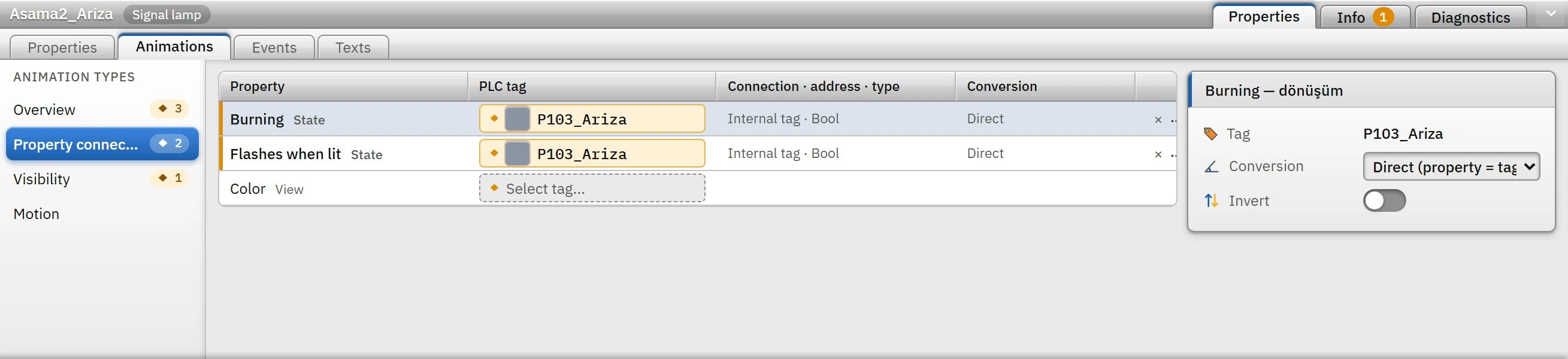 123
123- Animation types
- Property list — use Select tag… to bind a tag.
- Conversion — setting of the selected connection.
On the left are the animation types (Overview, Property connections, Visibility, Motion; with the number of connections next to them), in the middle the property table (Property, PLC tag, Connection · address · type, Conversion), and on the right the conversion card of the selected connection. To define an animation, a single object must be selected; when more than one object is selected, the tab says “Select a single object to define an animation.”
Events tab
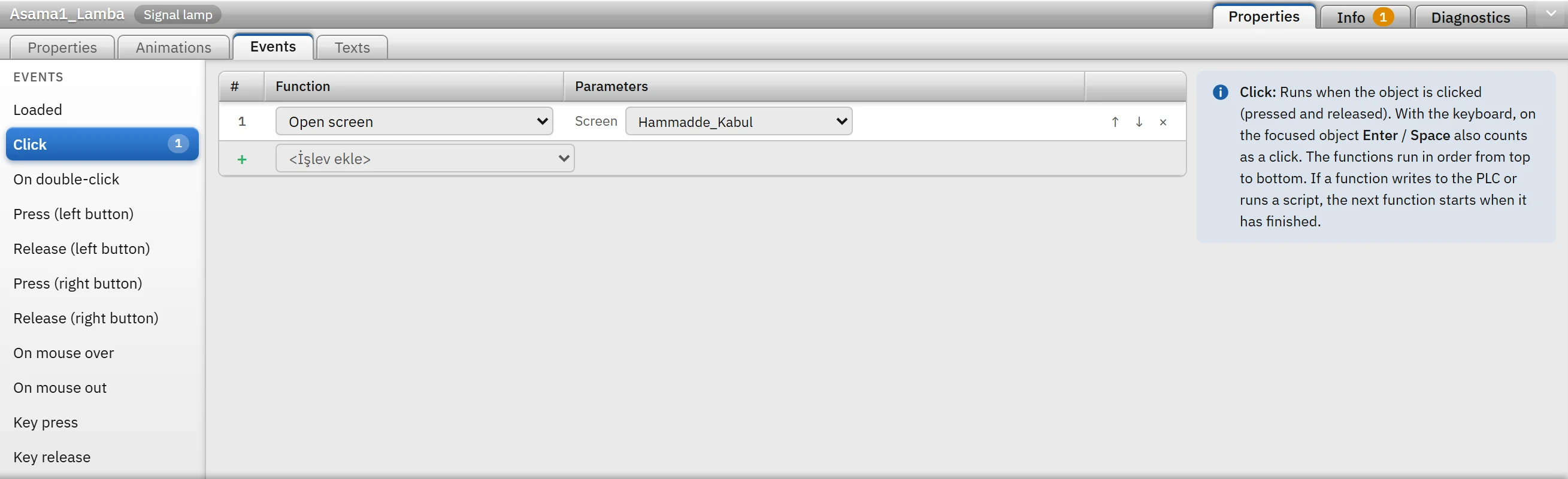 123
123- Events — the number next to it is the number of functions.
- Function list — runs in order.
- Add function
On the left is the event list, in the middle the function table of the selected event, and on the right a note describing when the event runs. There are thirteen events for an object: Loaded, Click, On double-click, Press (left button), Release (left button), Press (right button), Release (right button), On mouse over, On mouse out, Key press, Key release, Activate and Object change (3D objects have no focus, key, double-click or pointer events). There are four events for a screen: Screen opened, Screen closed, Key press, Key release. The functions run in order from top to bottom.
When a screen is selected
When no object is selected on the screen (click an empty spot), the Inspector shows the properties of the screen. Categories: General, Appearance, Layers, Layout, Security, Miscellaneous, Hide / Show, Designs, Web access, User data type. Details: Screen management.
Multiple selection
When you select several objects, the header shows N objects. If the objects are of the same type, the properties of the type are common and the change you make is applied to all of them (it is undone with a single Undo step); if they are of different types, only the common properties (layout, visibility, the model for 3D objects) change together. A tag can be bound in a multiple selection; a single object must be selected for the animation conversion and the event definition.
In table sections
When a table row is selected, the Inspector shows all columns of the row as a form; it goes through the same validation as the edits you make in the table. Some sections add extra cards: in Connections, the driver parameters and the resolved Target (address, port, supported types); in HMI tags, Address resolution (the interpretation of the address according to the driver rule, and examples). If no row is selected, a message appears telling you to select a row from the table to see the properties.
Info tab
Lists the problems found by the project check with the Location and Description columns; each row starts with a severity icon. Clicking a row opens the relevant section and selects the record (for object problems on a screen, the screen is opened and the object is selected). The context menu provides the commands Go to location, Copy text and Copy whole list. The list refreshes itself automatically about 0.3 seconds after every change. For all rules and messages, see Check the project.
Diagnostics tab
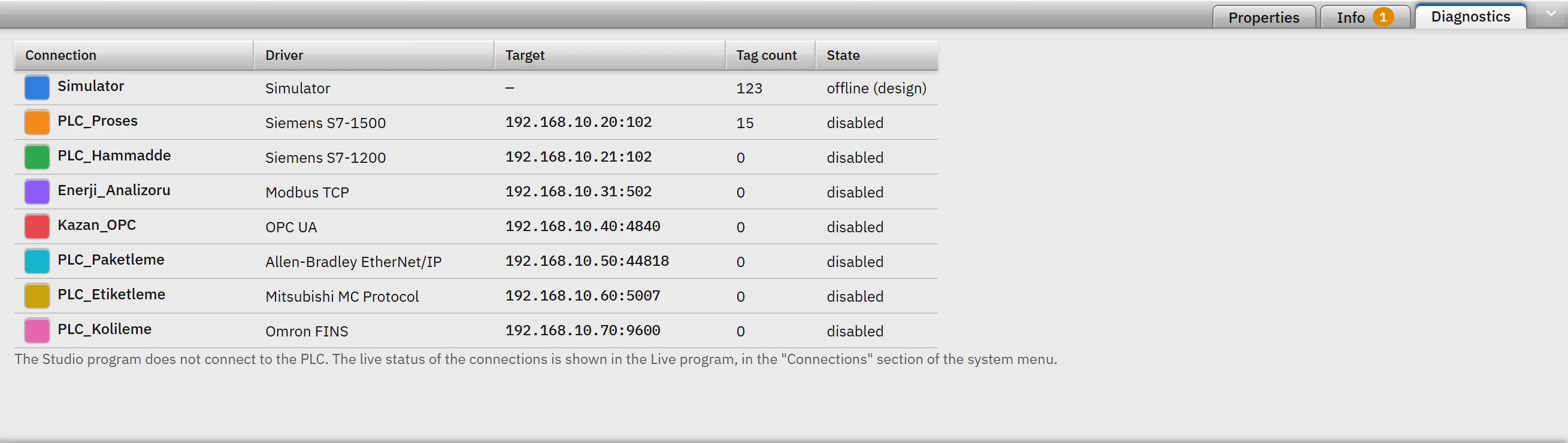
For each connection the Connection (with its color), Driver, Target (address : port), Tag count and State are shown. The state can only be offline (design) or disabled (the Enabled box of the connection is cleared): Studio does not connect to the PLC; the live connection state is seen in the Connections section of the system menu of Live. For a real connection test, see Connection diagnostics.