Screen management
Adding, naming, duplicating, grouping and deleting screens; the upper / lower area that stays fixed on all screens, and the screen transition settings.
Screen types
Every view in the project is a screen. The type of the screen determines how it is used in Live. The type is selected when the screen is created, or later in the Screen type field (Screen properties › General).
| Type | What for | How it is created |
|---|---|---|
| Screen | The normal 2D screen the operator navigates. | Add›New screen |
| 3D screen (scene) | 3D scene that rotates through 360°. Details: 3D screens. | Add›New 3D screen |
| Pop-up window / faceplate | A screen that opens as a window above other screens or is embedded with a Screen window object. Details: Faceplate and pop-up window. | Screen properties › General › Screen type |
| Template (fixed area) | The screen to be shown in the fixed top / bottom area. The first screen Live selects at startup, the screen list of the system menu when the Navigation menu is empty, and the TV display sequence skip screens of this type. | Screen properties › General › Screen type |
| Recipe design screen, Report design screen | A form / paper page bound to a recipe or report. Details: Recipe definition, Report definition. | The New design screen… command of the Recipes / Reports section |
Adding a screen
- Issue the New screen command
Click the Add new screen button on the toolbar, the Add›New screen command, or the Add new screen row under Add new screen in the Project tree. For a 3D scene use the Add new 3D screen button. The Add a new screen to this group icon on a group's row puts the screen directly in that group.
- Know the default values
A new screen is created with the name
Sayfa_1,Sayfa_2… (3D sceneSahne_1…), a size of 1920 × 1080 pixels, a#dfe5ecbackground and a 10-pixel grid. If a screen is open (or another screen of the same type), the new screen inherits its size, background color and grid square. If the command was given from the toolbar or the Add menu, the screen goes into the group of the open screen. - Change the name
The screen opens in the editor. Change its name with Rename (F2) or in the Name field of the Screen properties.
Screen menu
Right-clicking a screen in the project tree (or the tab of an open screen) opens the screen menu.
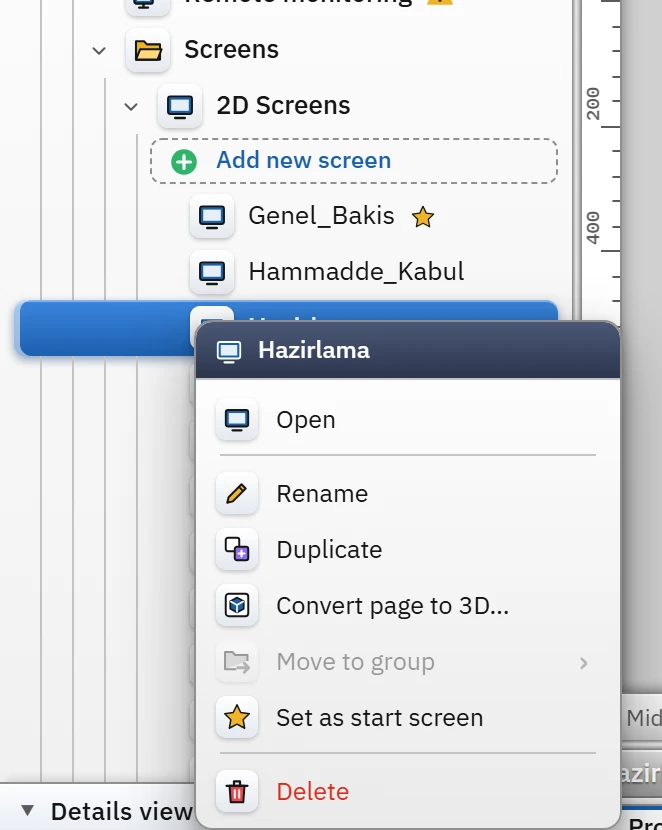
- Open
- Opens the screen as a tab in the editor.
- Rename
- Changes the name. The name may contain letters, digits, spaces,
_and-; it must be unique in the project regardless of upper / lower case. - Duplicate
- Adds a copy of the screen and its objects with the name
Ad_2(Ad_3… if it is already used) immediately after the original. The objects receive new IDs; tag bindings, events and screen properties are copied. - Convert page to 3D…
- Generates a new 3D scene from the 2D screen. Details: Convert page to 3D.
- Move to group
- Moves the screen to a group (or to the root without a group). It is inactive if the project has no group.
- Set as start screen
- Specifies the screen that Live shows at startup (see below).
- Delete
- After a confirmation window, deletes the screen and its objects. At least one (non-design) screen must remain in the project.
What happens when a screen is deleted
References to a deleted screen are cleaned up as follows: the start screen is cleared (Live opens the first screen that can be opened), the selection for the fixed top / bottom area is cleared, the target screen of a Navigation menu item is cleared, and the rows in the TV display sequence are deleted. Screen references in event functions are not cleaned up; Tools›Check project lists them as the error refers to a deleted screen. The Displayed screen value of Screen window objects does not change either; in Live such a window stays empty.
Grouping and order
In a project with many screens you can divide the screens into groups (folders). Right-click the Screens node or a group and select Add new group / Add subgroup. Move a screen by dragging it onto the group row or with Move to group.
- A group name may contain letters, digits, spaces and
_ - .; the same name cannot be used twice in the same place. - Delete group does not delete its contents; the screens and subgroups move up one level.
- Groups are sorted by name in the tree. Screens are listed in the order they were created; a duplicated screen is placed after the original. There is no command that changes the order of screens; the order of the screen list in Live is set in the Navigation menu table.
- Groups are for organization only; they have no effect in Live. Design screens are not placed in groups.
Start screen
A star icon appears next to the start screen in the tree. You select the start screen with the Set as start screen command in the screen menu or in the Live settings › General › Start screen field (Live settings). If the field is empty, the first screen in the project is used.
If the start screen is a draft (if Show in Live is off), Live opens the first openable normal screen in the list; Check project reports this situation as an error. If the start screen requires authorization, Live shows the lock view and the log-on window instead of the screen.
Screen management section
In the project tree, open the Screen management section. It has two tabs: Layout and Navigation menu (details in the topic Navigation menu). Below it there is also a Menus and toolbars section (Menus and toolbars).
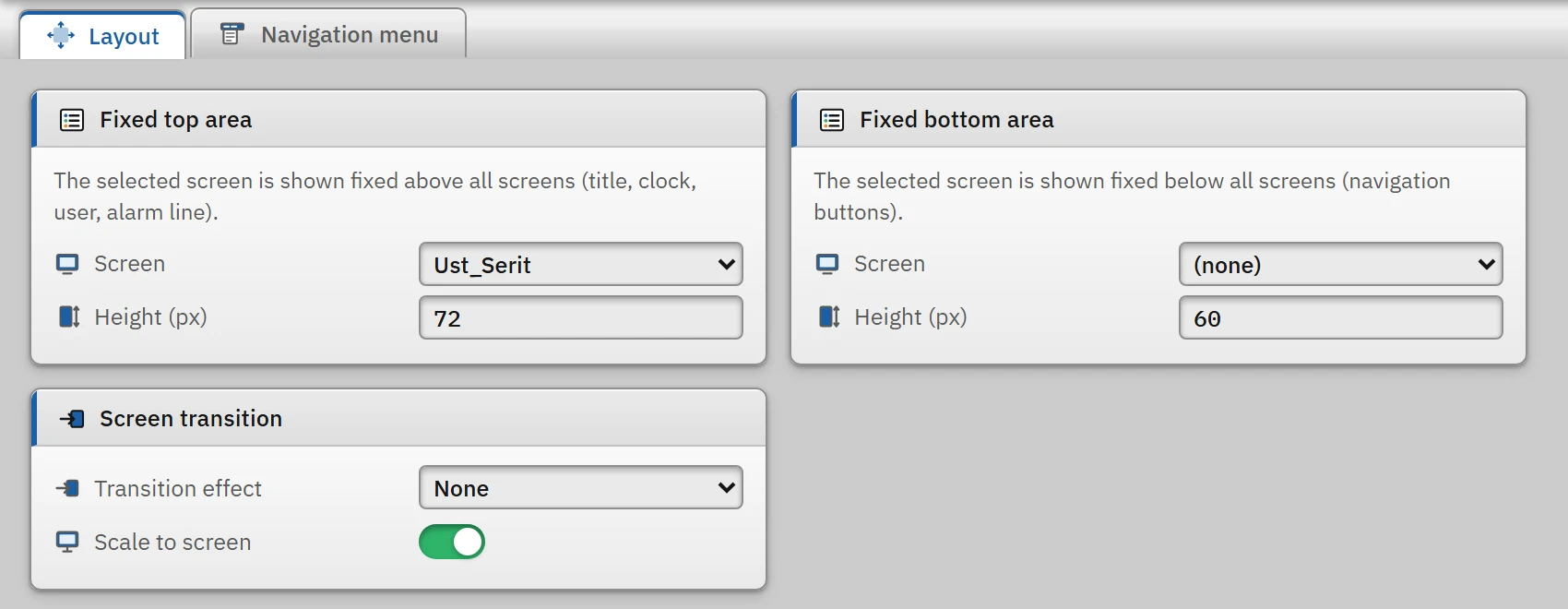 1234
1234- Fixed top area — the selected screen stays at the top of all screens.
- Height — height of the area in pixels (0 – 600).
- Transition effect — None, Fade, Slide.
- Scale to display — the screen is fitted to the display with its aspect ratio kept.
- Fixed top area › Screen
- The selected screen is shown fixed above all screens in Live (for the title, clock, user, alarm row and navigation buttons). If none is selected, the area is not shown.
- Fixed top area › Height (px)
- The height of the area (0 – 600). The screen is fitted into this area while keeping its aspect ratio. If
0is entered, Live uses 80 pixels. - Fixed bottom area
- The screen that stays at the bottom of the display, with the same rules.
- Transition effect
- None, Fade or Slide: the 0.25-second transition applied when the main screen changes. Fixed areas and pop-up windows are not affected.
- Scale to screen
- When on, the main screen is centered in the window. When off, the screen is still fitted to the window but is not centered; it is aligned to the top-left corner.
Limitations and points to note
- The screen name is not the name displayed in Live. In the menu, in the window title and in the TV top bar, the Display name (the screen name if it is empty) is used; see Screen properties.
- When a screen is renamed, the references in event functions and menus are not broken; references are made to the screen ID, not to the name.
- A screen cannot be shown in a Screen window within itself.