2D screen editor
The tools and shortcuts of the 2D editor used to place, select, move, resize, rotate, align and arrange objects on a screen.
Regions of the editor
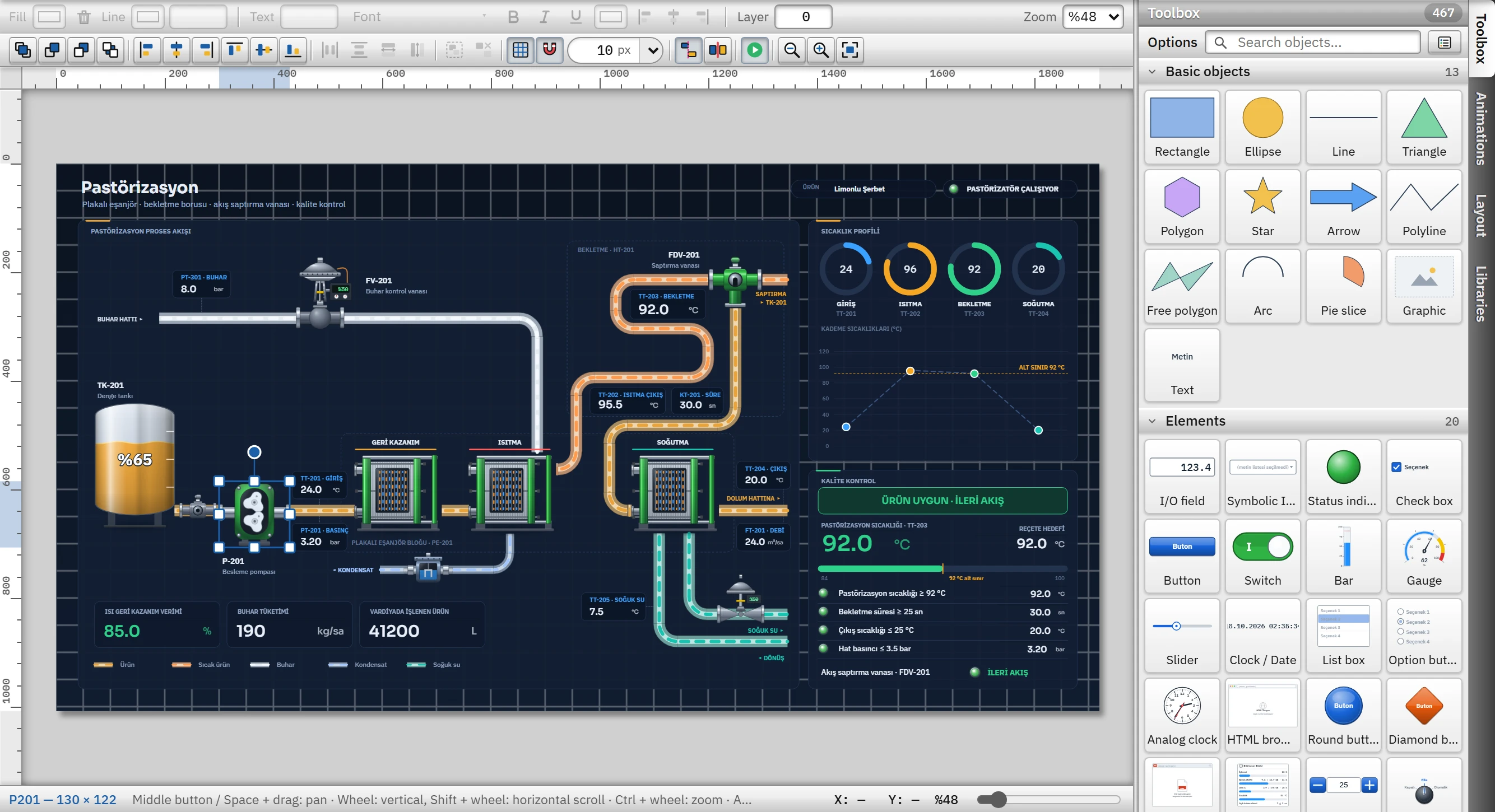
Double-clicking a 2D screen in the project tree opens the screen as an editor in the central area. The Inspector is below it and the task cards are on the right.
 1234567
- Format bar — fill, line, text and layer settings of the selected objects.
- Layout bar — order, alignment, group, grid and zoom buttons.
- Ruler — screen pixels; the extent of the selected object is highlighted.
- Canvas — the screen; objects are selected, moved and resized here.
- Task cards — Toolbox, Animations, Layout, Libraries.
- Toolbox — object groups; click and draw on the canvas, or drag.
- Bottom bar — name and size of the selection, mouse position, zoom.
The boxes in the format bar are written to all selected objects that have the relevant property at once; if none of them has that property, the box stays dimmed. The bold, italic and underline buttons, the font selector and the text alignment are also on this bar.
Placing objects
Objects come from the Toolbox (Toolbox and object library). There are four ways:
- Click to draw. Click the object in the Toolbox, then click once on the canvas: the object is placed with its default size, with the point you clicked as its top left corner. If you draw by dragging, the rectangle you drag becomes the size of the object. Esc deactivates the tool.
- Drag and drop. Drag the object onto the canvas; the point where you drop it becomes the center of the object.
- Select from the Add menu. Add›Pump›… turns the object into the drawing tool; then click the canvas.
- Right-click. On an object in the Toolbox, Add to screen (center) places the object in the middle of the visible area.
A new object gets a unique name on the screen: the type name and a sequence number (Pompa_1, Pompa_2 …). The object is added to the active layer (see Layers, object list and library).
Polyline and free polygon
In these two objects, each click adds a vertex. Enter, a double click or a right click finishes the drawing; Esc cancels. A polyline requires at least 2 vertices and a free polygon at least 3. After finishing, drag the vertices by their handles; if you double-click an edge, a new vertex is added there; Ctrl + click on a vertex deletes it (it does not go below the minimum number of vertices). The vertices of a rotated shape cannot be edited.
Selecting
- Click the object. Shift + click adds to / removes from the selection.
- Draw a lasso by dragging from an empty spot: all objects that intersect the lasso are selected (they do not have to be completely inside). If Shift is held down, they are added to the current selection.
- Ctrl+A selects all objects except locked and hidden objects and objects on a hidden layer.
- Selecting an object in a group selects the entire group.
- A locked object cannot be selected on the canvas; it is selected from the list on the Layout card.
Moving, resizing and rotating
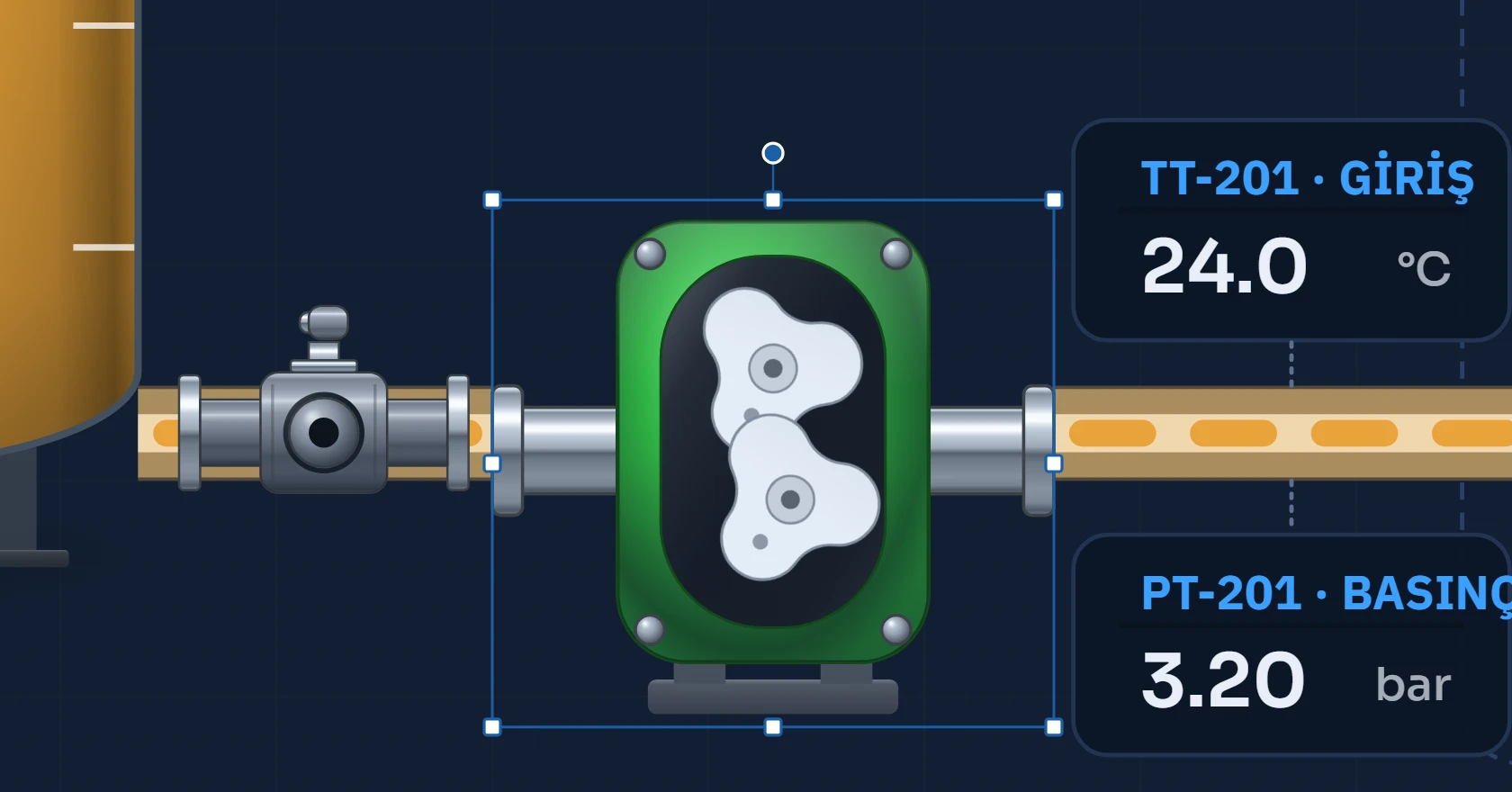 1234
1234- Rotation handle — drag it; with Shift, in 15° steps.
- Corner handle — resizes in two directions.
- Edge handle — resizes in one direction.
- Selection frame — the boundary of the object; drag it to move.
- Moving: drag the object or press the arrow keys (1 pixel). Shift+arrow moves it by one grid square. A drag of less than 3 pixels does not count as a move.
- Resizing: a corner handle resizes in two directions, an edge handle in one direction. The minimum side length depends on the object type (4 pixels for most objects). On a rotated object, the opposite edge stays in place.
- Rotation: drag the circular handle at the top; Shift snaps the angle to 15° steps. The angle can also be entered in the Angle (°) field of the Angle (°) category (0 – 359).
- Numeric input: X, Y, Width, Height and Angle (°) are typed in the Angle (°) category of the Inspector. When several objects are selected, the value you type is applied to all of them (if you type X, all of them get the same X).
Grid, guides and collision
Three helpers work while dragging; while Alt is held down, all three are temporarily switched off.
- Snap to grid
While the Snap to grid button on the layout bar is on, drawing, moving, and resizing snap to the grid square. The square is a property of the screen (2 – 200 pixels, default 10); it is selected from the Grid box on the bar or from the preset values (5, 10, 20, 25, 50, 100). When moving, the first object snaps to the grid, and the others shift by the same amount.
- Alignment guides
When on (default), the edges and center lines of the selection snap to the edges / center lines of other objects and of the screen within 5 screen pixels, and a guide line appears. The guide takes priority over the grid.
- Prevent overlapping
Off by default. When on, a moved object cannot enter another one; it rests against its edge and slides along the wall. The text Obstacle: … appears in the status bar. The arrow keys follow the same rule (Alt+arrow moves freely).
Aligning, distributing and equalizing size
 12345678
- Fill / line color — applied to all objects in the selection.
- Layer — the drawing layer of the object (0 – 31).
- Order — to front, forward, backward, to back.
- Alignment — left, center, right, top, center vertically, bottom.
- Distribute and resize — equal spacing, same width, same height.
- Group / ungroup.
- Grid cell — pixels; snapping uses this interval.
- Alignment guides and prevent overlap.
| Command | Condition | Result |
|---|---|---|
| Left, center horizontally, right, top, center vertically, bottom | 1 or more objects | Several objects are aligned relative to the bounding box of the selection; a single object is aligned relative to the screen. |
| Equal spacing horizontally / vertically | At least 3 objects | The two outermost objects stay in place and the gaps between them are equalized. |
| Same width / same height | At least 2 objects | All take the size of the first object in the selection. |
The same commands are also in the Edit menu (Align, Size) and in the context menu. Locked objects are not affected by these commands.
Order, group and lock
- Order: Bring to front, Bring forward, Send backward, Send to back. The order applies only among objects in the same layer; the layer number decides first, then the order in the list (layer 31 is at the very top).
- Group (Ctrl+G, at least 2 objects) makes the selected objects selectable and movable together; Ungroup (Ctrl+Shift+G) separates them. A group only makes the layout easier in Studio; it has no effect in Live.
- Lock / unlock (Edit menu or right-click): a locked object cannot be selected on the canvas, moved or deleted; it is selected from the list in the Layout card.
- Show / hide (the eye in the Layout card): a hidden object is drawn neither on the canvas nor in Live.
Copying and undo
- Copy / Cut / Paste (Ctrl+C / X / V): uses Studio's own clipboard; nothing is written to the Windows clipboard. The clipboard is kept when the screen is changed, so you can paste objects into another screen. Ctrl+V places the objects offset by 20 pixels each time (consecutive pastes do not overlap); Paste in the right-click menu places the objects where the cursor is.
- Duplicate (Ctrl+D): adds a copy of the selection offset by 20 pixels, without using the clipboard.
- The tag bindings, events and properties of pasted / duplicated objects are copied; their names are reset (they get a type name such as
Pompa_3) and their locks are removed. - Delete (Delete or Backspace) deletes the selected objects that are not locked. Undo / Redo (Ctrl+Z / Ctrl+Y) holds up to 100 steps.
- Add frequently used object groups to the Libraries card as a copy template: Layers, object list and library.
Zooming and panning
- Ctrl + wheel zooms in on the point where the pointer is (10% – 800%). The slider in the bottom bar, the Zoom list on the format bar (25, 50, 75, 100, 150, 200, 400, Fit) and the View › Zoom menu do the same thing.
- Ctrl+0 fits the screen to the window.
- The wheel scrolls vertically, Shift + wheel scrolls horizontally. Pan the screen by dragging with the middle button or while holding Boşluk. If the screen does not fit the view, scroll bars appear.
- The rulers are scaled in screen pixels; the mouse position appears as a line on the ruler and as X / Y in the bottom strip.
- The zoom state of each screen is kept when switching tabs.
- The Animation preview button (play / pause) stops or starts the object animations on the canvas; it does not affect the project.
Right-click menu
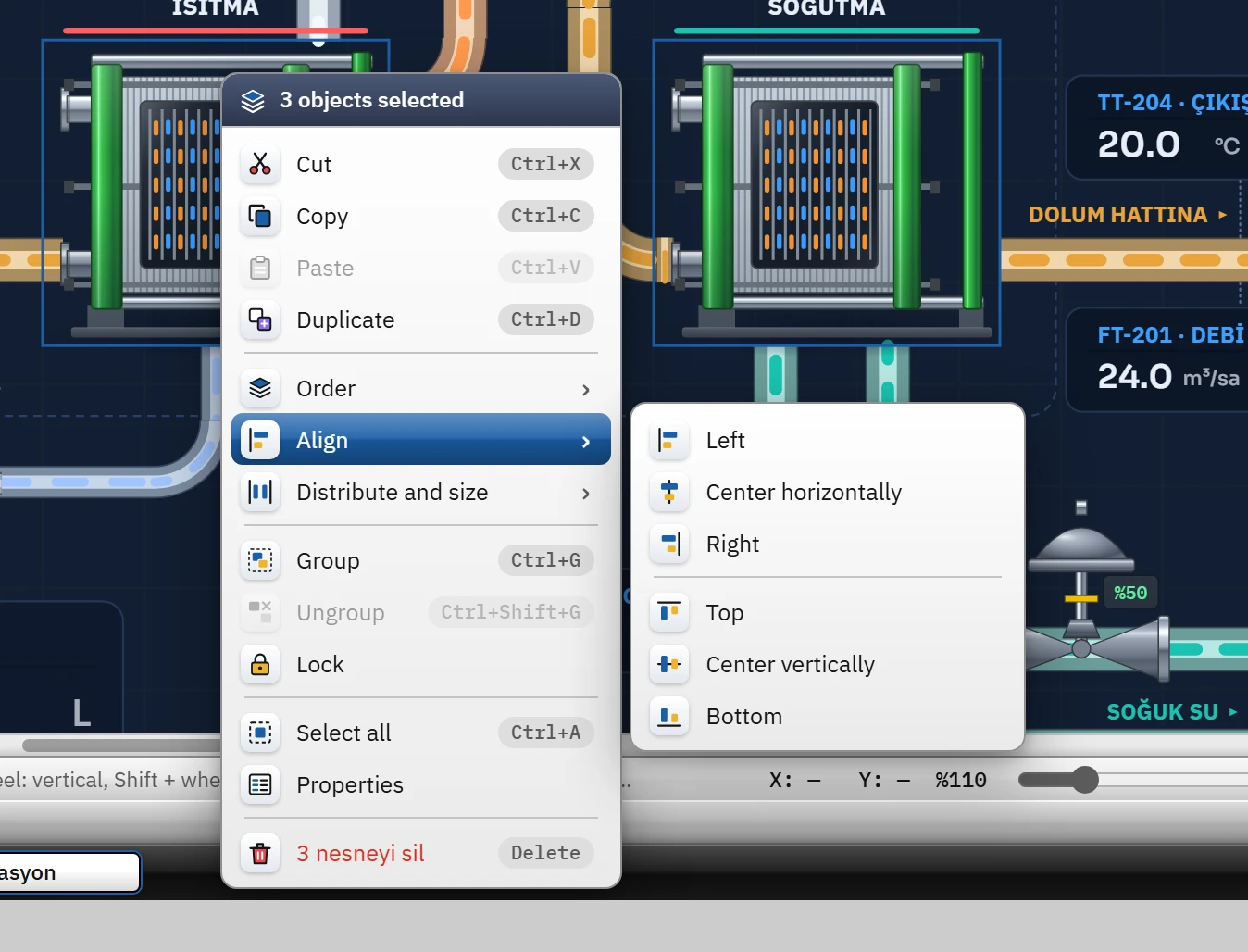
If there is no selected object under the pointer, the context menu shows the commands Paste, Select all, the grid toggles, Fit screen and Screen properties for the screen. If you right-click an object that is not selected, that object is selected first. The Properties command opens the Inspector.
Keyboard shortcuts
| Action | Shortcut |
|---|---|
| Copy, cut, paste, duplicate | Ctrl+C, X, V, D |
| Select all | Ctrl+A |
| Group / ungroup | Ctrl+G / Ctrl+Shift+G |
| Rename | F2 |
| Move the selected object by 1 pixel / one grid square | Arrow keys / Shift+arrow |
| Move without snapping to the grid and guide | Alt + drag (or Alt+arrow) |
| Fit screen | Ctrl+0 |
| Finish / cancel drawing, release the tool, clear the selection | Enter / Esc |
| Delete | Delete / Backspace |
| Undo / redo | Ctrl+Z / Ctrl+Y |
For all shortcuts, see the topic Keyboard shortcuts.
Limitations and points to note
- Keyboard shortcuts work only while the editor is visible and the focus is not in a text box.
- 3D objects are not in the 2D Toolbox; 3D scenes are edited in a separate editor (3D screens).
- Objects on a hidden layer are not visible on the canvas and cannot be selected (Screen properties › Layers).
- Alignment and distribution use the bounding box of the rotated object in its rotated state.