Studio shortcuts for menus, the screen editor (2D and 3D), tables and windows; Live action keys, Tab navigation and project selector keys.
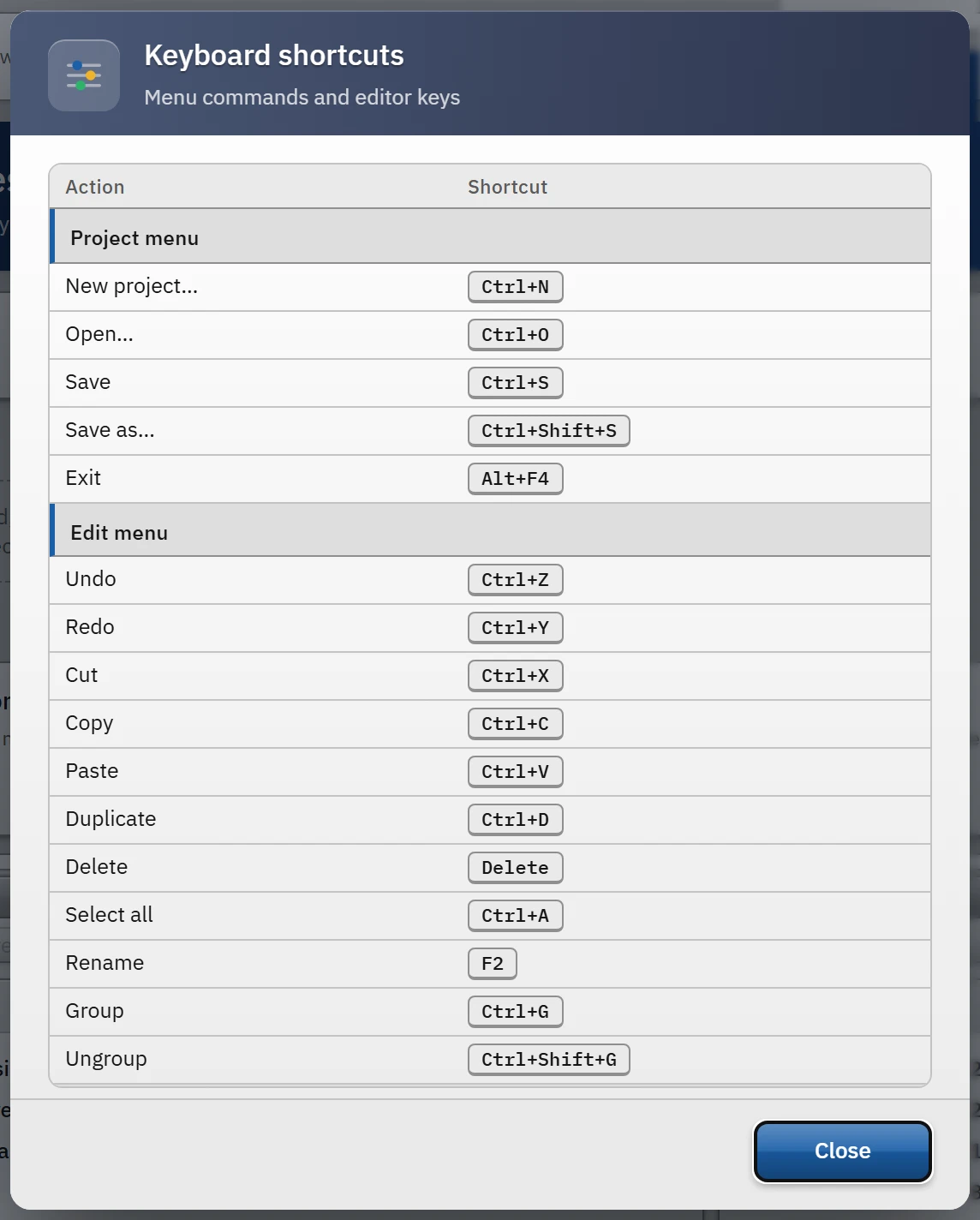
This topic collects the keyboard shortcuts of Studio and Live. Most of the shortcuts in Studio are also shown by the Help›Keyboard shortcuts… window; the first tables below are identical to the contents of this window. Next come the keys that are not shown in the window but work in the code.
Help > Keyboard shortcuts…: menu commands and editor keys in a single table.
Studio: keys in the shortcut window
Groups whose title contains “Menu” are the shortcuts of menu commands; commands that have no shortcut in the menu do not appear in the list. The screen editor, 3D screen editor and table groups are lists written by hand into the window.
Project menu
Action
Shortcut
New project…
Ctrl+N
Open…
Ctrl+O
Save
Ctrl+S
Save as…
Ctrl+Shift+S
Exit
Alt+F4
Edit menu
Action
Shortcut
Undo
Ctrl+Z
Redo
Ctrl+Y
Cut
Ctrl+X
Copy
Ctrl+C
Paste
Ctrl+V
Duplicate
Ctrl+D
Delete
Delete
Select all
Ctrl+A
Rename
F2
Group
Ctrl+G
Ungroup
Ctrl+Shift+G
View menu
Action
Shortcut
Fit screen
Ctrl+0
Full screen
F11
Online menu
Action
Shortcut
Start Live
F5
Tools menu
Action
Shortcut
Check project
F7
Compile script
F9
Compile all scripts
Ctrl+Shift+B
Help menu
Action
Shortcut
Help for this section
F1
Screen editor (2D)
Action
Shortcut
Move object
Ok tuşları
Move by one grid step
Shift + Ok
Move without snapping to grid / guides
Alt + sürükle
Pan the screen
Middle button or Space + drag
Zoom in / out
Ctrl + tekerlek
Fit screen
Ctrl+0
Finish / cancel drawing
Enter or Esc
Delete vertex (polyline)
Ctrl + tık
Clear selection / drop tool
Esc
Delete
Delete or Backspace
3D screen editor
Action
Shortcut
Move object
Ok tuşları (Shift: 4 kat, Ctrl: 1 cm)
Raise / lower
Page Up or Page Down
Rotate 15° left / right
Q or E
Focus on selection
F
Home view
Home
Orbit the scene
Boş yeri sürükle
Pan
Right button or Shift + drag
Zoom in / out
Tekerlek
Fit scene
Ctrl+0
Tables
Action
Shortcut
Edit cell
Double-click or Enter
Finish / cancel editing
Enter or Esc
Next cell
Tab
Studio: keys not listed in the window
General
Action
Shortcut
Condition
Redo
Ctrl+Shift+Z
When no text box has focus; same as Ctrl+Y
Rename
F2
When there is no text box or open window. In the screen editor, if a single object is selected, it moves to the Name box in Properties; otherwise it renames the open screen
Confirm in the window (dialog box)
Enter
Presses the main (highlighted) button of the window. In multi-field form windows it does not press while a multi-line box, drop-down list or button has the focus
Close the window
Esc
Presses the last button of the window (Cancel, Close)
Navigate an open menu
↑↓HomeEnd; → opens the submenu, ← closes it; Enter or Space selects; Esc closes
While a menu is open. Pressing any other key closes the menu
Clear project tree search
Esc
While the search box has focus
Screen editor (2D)
Action
Shortcut
Copy, cut, paste, duplicate, select all
Ctrl+C, Ctrl+X, Ctrl+V, Ctrl+D, Ctrl+A
Group, ungroup
Ctrl+G, Ctrl+Shift+G
With collision checking on, move without getting caught on obstacles
Alt + arrow keys
Scroll vertically / horizontally
Wheel / Shift + wheel
Pan the screen (manually)
Dragging while Space is held down, or with the middle button
The keyboard keys work only while the screen editor is open and the focus is not on a text box or an open window. When you move the selected object with the arrow keys and the collision check hits an obstacle, “Obstacle: … — Alt + arrow: free move” is written to the lower strip of the editor. Panning, zooming and the Alt hint are also always visible in the same strip.
3D screen editor
Action
Shortcut
Copy, cut, paste, duplicate, select all
Ctrl+C, Ctrl+X, Ctrl+V, Ctrl+D, Ctrl+A
Delete object
Delete / Backspace
Move without collision checking
Alt + arrow keys
Clear selection / drop tool
Esc
Tables
The table shortcuts are summarized in the window in three lines; all the keys that work in the code are the following (when the table has focus, outside cell editing):
Action
Shortcut
Navigate between cells
↑↓←→; Tab / Shift+Tab next / previous cell
Page by page; first / last row
PageUp / PageDown; Ctrl+Home / Ctrl+End
Start editing the cell
Enter, F2, double-click; in a check box Space; in a text / number cell, pressing a character key
Finish / cancel editing
Enter (accepts the value; if it is invalid, the cell stays open) / Esc
Each project can bind a specific operation to a single key while Live is running: Live settings › Keyboard. The keys that can be assigned are F1–F12, Ctrl+F1–F12 and Shift+F1–F12. In a new project no action is assigned to any key; you choose the keys yourself.
Action
What it does
Log on / Log off
Opens the login window / logs off
Save screenshot
Saves an image of the window and writes it to the event log
Acknowledge all alarms
Acknowledges alarms (the authorization check applies)
Minimize / restore window
Minimizes the Live window; the same key restores it
Forward, Back
Navigates through the history of opened screens
Store screen, Recall stored screen
Marks the open screen; later quickly returns to that screen
Start screen
Opens the start screen
An assigned key is processed before the screen and object key events and does not go to the browser.
Also works while a text box has focus. It does not work while a notification, question or input window is open, or on the Select project page.
If the same key is assigned to several actions, the first action in the table runs. Holding the key down does not repeat the action.
Does nothing in browser monitoring (Remote monitoring) and in the TV view.
The same page also has the Block Windows keys option: while Live is in the foreground, the Windows key, Alt+Tab, Alt+Esc and Ctrl+Esc do not work; Ctrl+Alt+Del cannot be blocked. The Alt + F4 block on the Live settings › Window tab prevents the window from being closed with Alt+F4; the program can still be closed with the Exit Live command in the System menu. The window properties apply only while General › Startup › Open in full screen is off (Live settings).
Navigating the objects on a screen
Tab / Shift+Tab move forward and backward through the controllable objects in sequence. The order is set in Studio with Screen properties › Miscellaneous › Edit tab order….
Enter or Boşluk triggers the focused object (the one whose frame is visible).
Esc releases the focus.
The alarm, event, trend, recipe and report controls have their own keys (for example, in a trend ← / → scroll the time window, + / - zoom, Boşluk freezes or returns to live); for these, see the topic of the relevant control.