Live settings
The Live settings section and the General tab in Studio: Live startup, appearance, session rules, operator action logging and script permissions. The effect of each field.
What are the Live settings
Live settings is the section below Device configuration in the project tree. The settings here are written to the project file and applied when Live opens the project. The section has five tabs:
| Tab | What is set | Topic |
|---|---|---|
| General | Startup, multi-screen, appearance, object appearance, session, operator action log, script permissions | This topic |
| Window | Title bar, border, status bar, cursor, window functions to block | Window, startup, additional application, keyboard |
| Startup sequence | Which services start at startup | same topic |
| Additional applications | Programs that start together with Live | same topic |
| Keyboard | Action keys, blocking the Windows keys | same topic |
The settings for monitoring from the browser and TV are in the separate Remote monitoring section (Remote monitoring). The language and font options are in the Languages and texts › Project languages table (Languages and texts).
The settings apply to the Live computer: if different computers need different settings, upload a separate project to each computer. Station-specific preferences such as the on-screen keyboard, interface language and font size, however, are changed in Live from the System menu and stored on that computer.
General tab
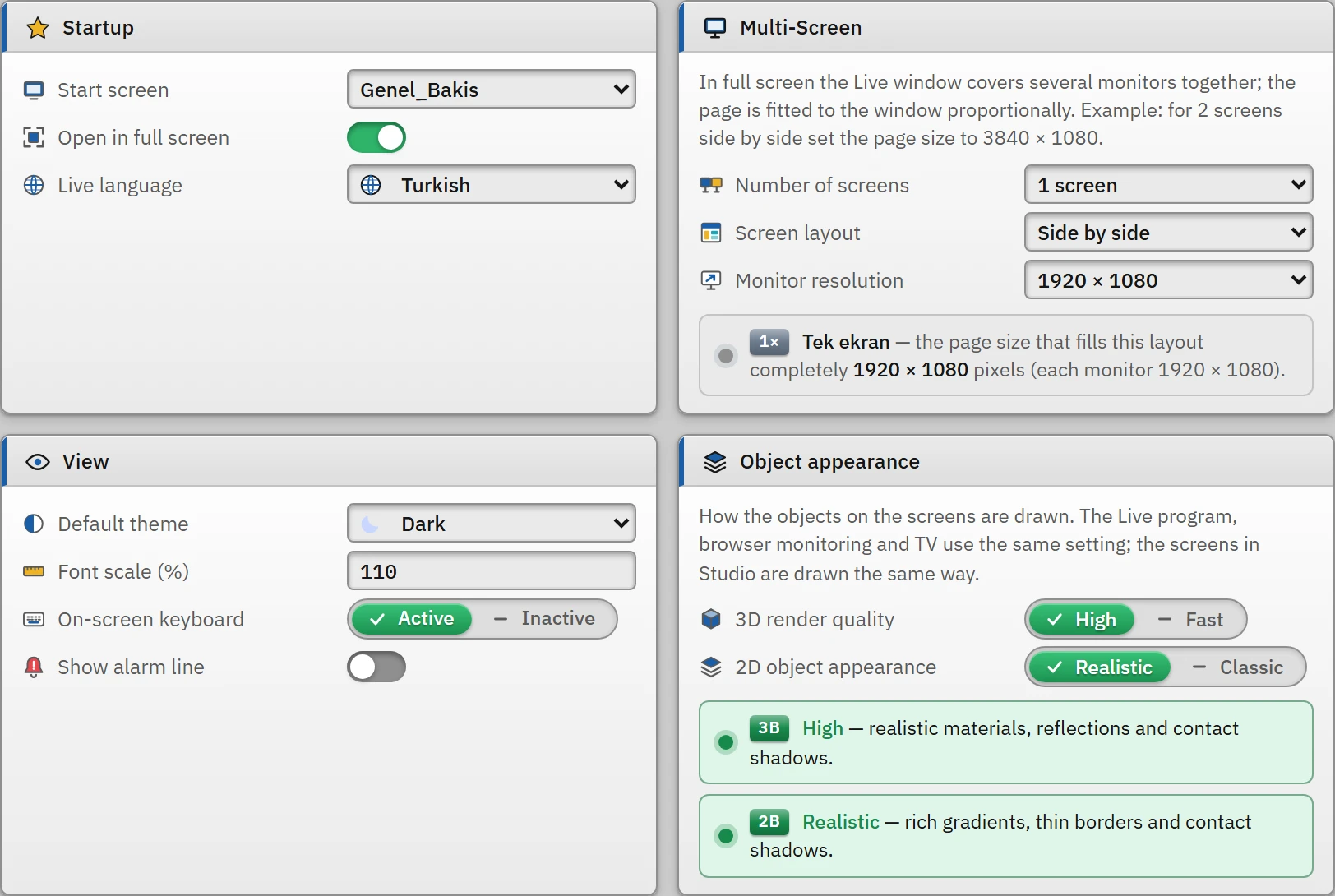 123
123- Startup — start screen, full screen, language.
- Multi-Screen — the number of monitors and their layout.
- Appearance — theme, on-screen keyboard, alarm row.
Startup
- Start screen
- The screen shown when Live starts. If none is selected ((first screen)), the first screen in the project that can be opened is opened; a draft screen cannot be the start screen. If the start screen requires authorization, a lock card and a Login button appear in place of the screen; when an authorized user logs on, the screen opens automatically.
- Open in full screen
- If on, Live opens as a borderless window covering the display. If off, a normal maximized window opens and the title / border settings on the Window tab are applied.
- Live language
- Startup language (from the languages in the project). If the language is not enabled in Live, the first of the enabled languages is used.
Multi-Screen
- Number of screens
- The number of monitors the Live window covers together in full screen (1, 2, 3, 4, 6, 8). Monitors are ordered from left to right; starting from the monitor on which the Live window opens, that many monitors are covered; if fewer monitors are connected, all of them are covered. Applies only while full screen is on. Details: Multi-screen and TV.
- Screen layout, Monitor resolution
- Only for calculating the recommended screen size in Studio (e.g. 2 displays side by side, each 1920 × 1080, gives 3840 × 1080). The strip on the tab shows the recommended size and whether the start screen matches this ratio. Live uses the real monitor positions.
View
- Default theme
- Light, Dark or Automatic (by time). With Automatic, the theme is chosen when the project opens, based on the time: dark in the 19:00 – 07:00 period, light at other times. While running, the theme is changed with the Toggle light / dark theme function placed on the menu / toolbar; the system menu has no theme button (it exists only in browser monitoring).
- Font scale (%)
- The field exists, but Live does not use this value (see the Limitation below).
- On-screen keyboard
- The project default. In Live, the switch in the system menu overrides it for this computer. See On-screen keyboard.
- Show alarm line
- While there is an active alarm, the alarm line is shown at the bottom of the display.
Object appearance
- 3D render quality
- High: realistic material, reflection and contact shadow. Fast: plain appearance; smooth on older graphics cards (the Realistic models of the objects can still be used).
- 2D object appearance
- Realistic: rich gradient, thin edge, contact shadow. Classic: the previous plain drawing.
Live, monitoring from a browser, TV and the screens in Studio use the same appearance.
Session
- Require authorization to exit
- If on, closing the program and Change project… require the exit authorization; if there is no session, the log-on window opens. For the definition of authorizations, see Users and authorizations.
- Session timeout (min)
- The session closes automatically this many minutes after logon; if 0, it does not close. The time is counted from logon: it is not reset even if the user performs actions.
Operator action log
- Write operator actions to the event log
- On by default. The operator's tag writes (input field, button, slider, check box, recipe loading, event functions) are recorded with the type
operatoras who, when, which tag, old → new value, from which object and the result (written / rejected / unauthorized), and can be seen in the Event view object. When it is off, attempts at unauthorized operations are not written either. - Also log script / task writes
- Off by default. The writes made by scripts, scheduled tasks, automatic events such as screen opening, and alarm acknowledgment / report feedback bits are also recorded. In scripts that write frequently, it makes the log grow.
Browser monitoring
The card in this group only shows the state of monitoring and provides a button to switch to the Remote monitoring section; the settings are made there.
Script permissions
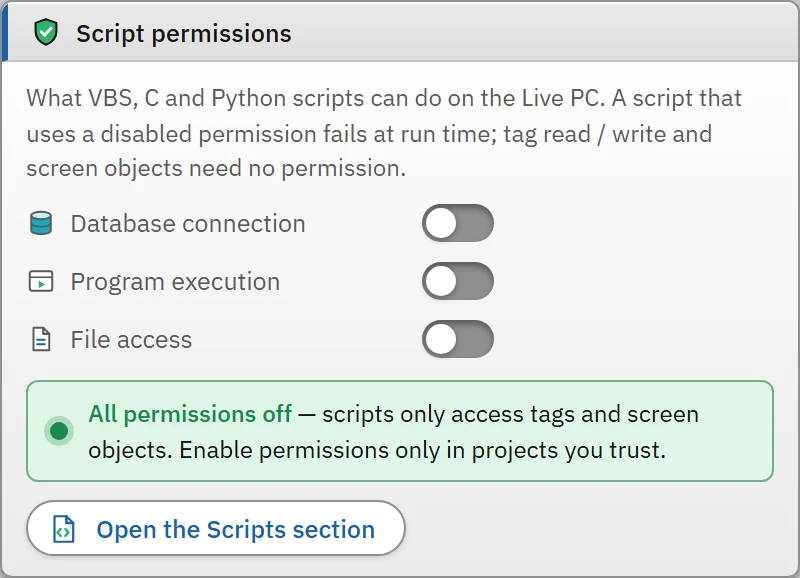
There are three permissions; all are off by default. While a permission is off, VBS, C and Python scripts get an error when they perform that operation; reading / writing tags and screen objects do not require a permission.
 1
1- Status strip — the permissions that are enabled and the calls whose permission is disabled.
- Database connection
- VBS
ADODB.Connection/Recordset/Command, Pythonscada.dbandpyodbc: query via ODBC. - Program execution
- VBS
WScript.Shell, CProgramExecute/WinExec/ShellExecuteA, Pythonscada.run. Additional applications also depend on this permission. - File access
- VBS
Scripting.FileSystemObject, Cfopen/fprintf/remove…, Pythonopen,os,shutil,pathlib: reading, writing and deleting files, creating folders.
The strip below the card lists, by name, the permissions that are on and the scripts that use a permission that is off (these scripts raise an error when they run). Turn permissions on only in projects you trust: scripts perform these operations on the Live computer without asking the operator. Details: Scripts overview.
Limitations and points to note
- The window, keyboard and additional application settings apply only in the local Live window; they do not apply in browser monitoring or on the TV. For these, see Window, startup, additional application, keyboard.
- Multi-screen is applied only in full screen; the TV display (second display) does not open on the covered monitors.
- Changes are not reflected in a running Live immediately: save the project, upload it to Live, and reopen the project in Live.