On-screen keyboard
The on-screen keyboard of Live for touch panel computers: how to open and close it, in which fields it appears, the letter and number layouts, and keeping the field being typed in visible.
What it is used for
On a touch panel PC without a physical keyboard, when a text or number field is touched, Live opens its own keyboard at the bottom of the display. The keyboard has the Turkish Q layout; in number fields it turns into a numeric keypad. It works in all fields of Live, including input fields, the password box in the login window, and the fields of the recipe and report windows.
Enabling and disabling
- Project default
- In Studio: Live settings › General › View › On-screen keyboard: Active or Inactive. It is active in a new project.
- Station preference
- In Live, system menu › Station › On-screen keyboard switch. The switch takes effect immediately and is stored on that computer; it takes precedence over the project default. This way the on-screen keyboard can be turned off on a computer that has a physical keyboard.
In browser and TV monitoring the on-screen keyboard never opens. A change to the setting is written to the event log with the type ayar (On-screen keyboard: Active / Inactive).
When it opens
The on-screen keyboard opens when the cursor enters one of these fields: text, number, password and search boxes, and multi-line text fields. It does not open in read-only or disabled fields. If you move to another field while the keyboard is open, the keyboard adapts to that field; if you touch outside the field (outside the keyboard, on a place where you cannot type), it closes. If the field already has focus and the keyboard has been closed, touching the same field again reopens the keyboard.
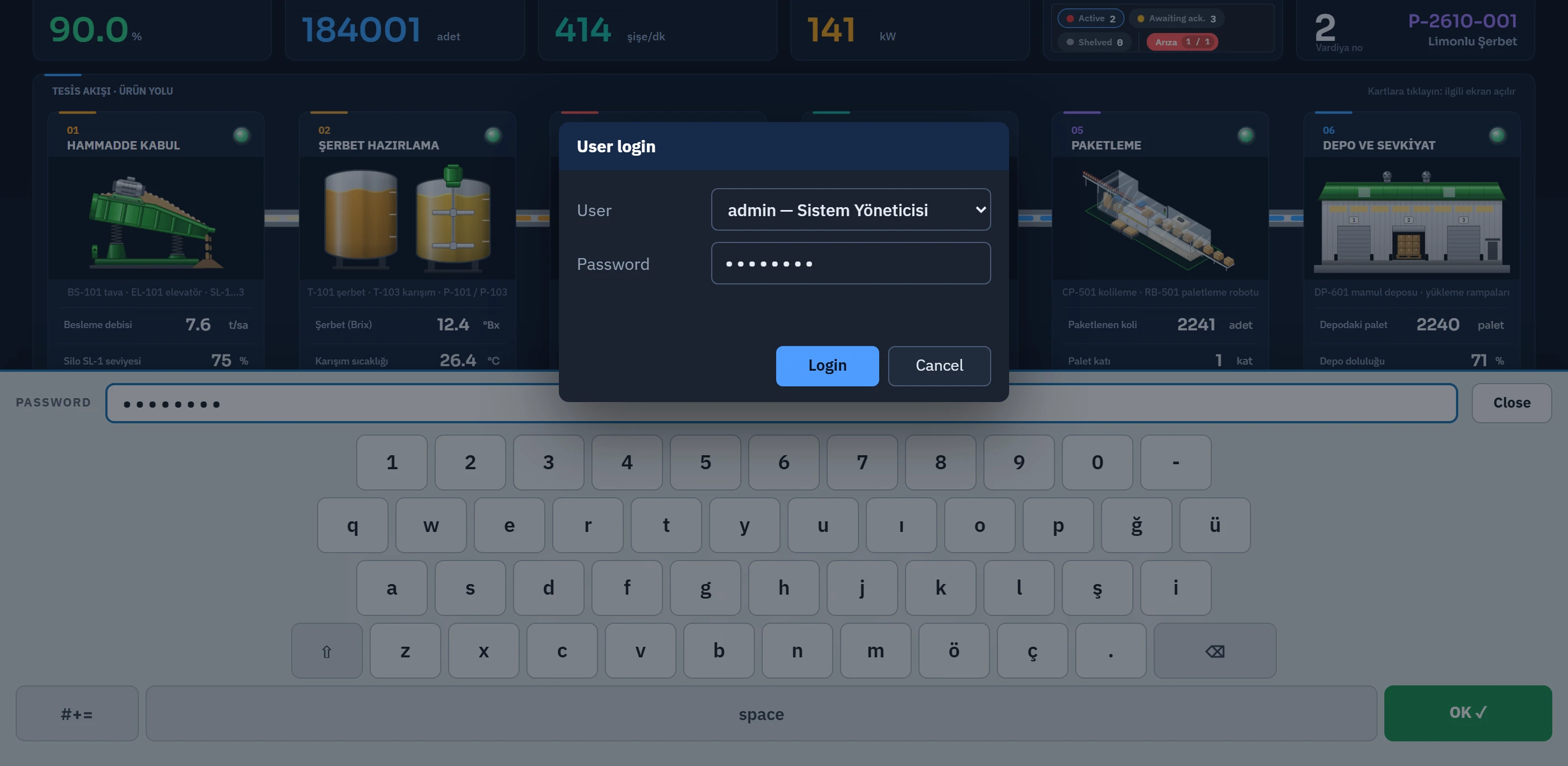 1234
1234- Field name and value — a password is shown as dots.
- ⇧ — uppercase / lowercase.
- #+= — special characters.
- OK — sends Enter.
Layouts
| Field type | Layout |
|---|---|
| Text, password, search, multi-line field | Letter layout: the number row and the letters of the Turkish Q layout (including the special Turkish letters). ⇧ switches between upper and lower case (it stays selected until pressed again), ⌫ deletes. #+= opens the special character page (punctuation and signs such as ! @ # $ _ \ / : ;); ABC returns to the letters. boşluk types a space. |
Number field (type=number or numeric input) | Numeric keypad: 0 – 9 and delete. Decimal number fields also have a comma key. |
- The OK ✓ key sends Enter to the field (completes the action in fields such as search or input) and closes the keyboard. Enter is not sent in a multi-line field.
- Close at the top right closes the keyboard and removes focus from the field.
- The top row of the keyboard shows the field name (label) and the value typed so far; in a password field the value is shown as dots. The value is updated even if it is entered from a physical keyboard or a barcode reader.
- If the field has a length limit (
maxLength), any excess is not entered.
The field does not stay under the keyboard
If the field being typed in ends up under the keyboard, the screen (or window) is scrolled up as far as needed and returns to its place when the keyboard closes. The field is scrolled by at most its own height so that it does not overflow past the top of the display. If the window or screen layout changes (e.g. a section is opened), the field is realigned above the keyboard.
Limitations and points to note
- The layout is Turkish Q only; there is no other keyboard layout or language selection.
- The on-screen keyboard works only in the local Live window; a user watching from a browser uses the keyboard of their own device.
- Because the on-screen keyboard opens when a text field is touched, it never appears on screens that contain no field. On computers with a physical keyboard, if you do not want the keyboard to open when a field is selected, turn it off from the system menu.