Elements
Fields that display and enter values, buttons, switches, indicators, lists, clock, browser, PDF and PC information: the objects through which the operator talks to the PLC. What each element does, which property is bound to a tag and how it is used in Live.
What the Elements are for
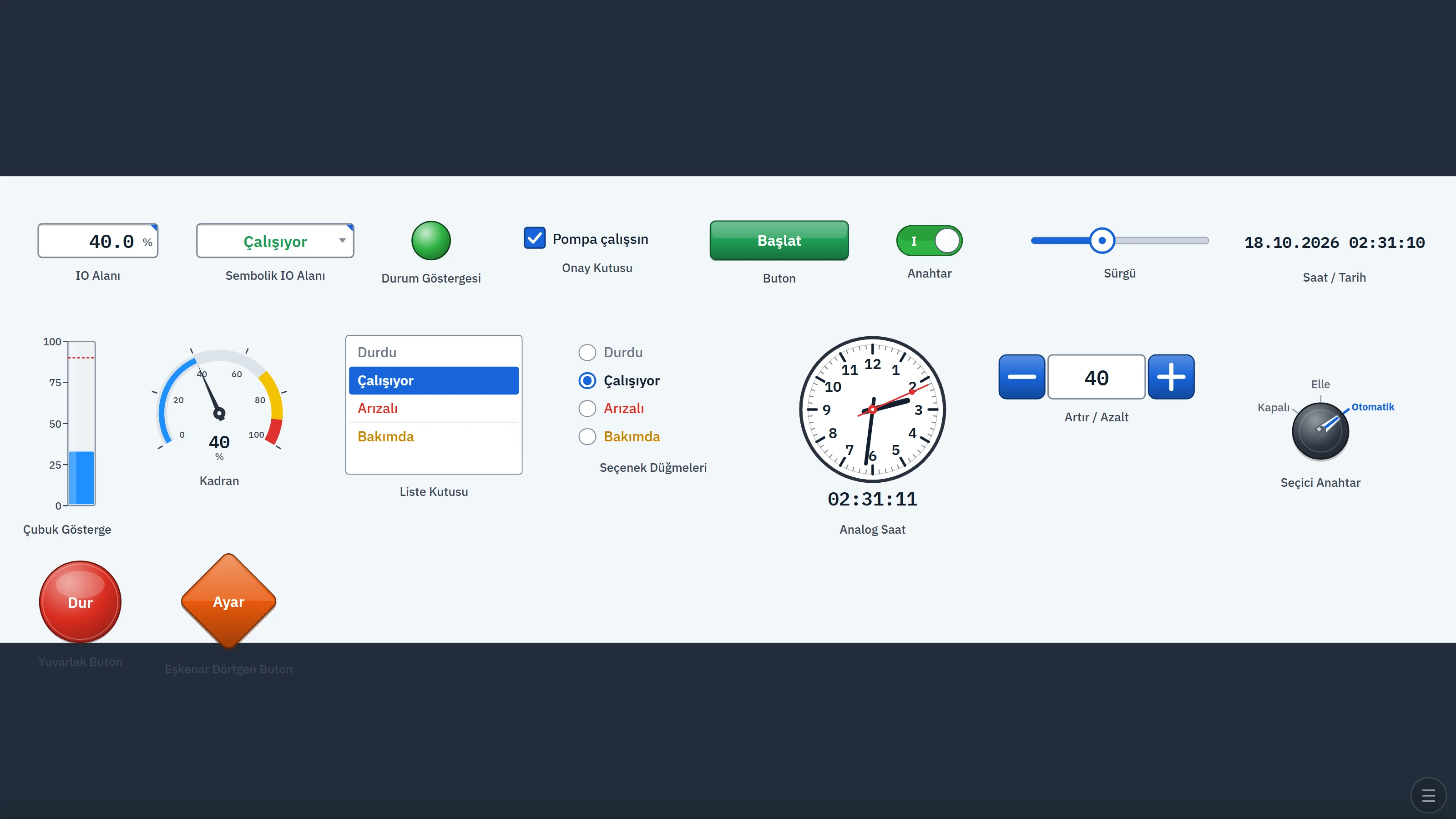
Elements are the objects with which the operator reads values on the screen, enters values and issues commands. The Toolbox group in the Toolbox contains 20 objects; the 3D library contains 10 more elements (I/O field, Symbolic I/O field, Status indicator, Check box, Button, Switch, Gauge, Slider, Clock / Date, Bar) with their 3D counterparts.
After placing an element on the screen, you do two things: you bind the main value property of the element to a tag (read for display elements, written for input elements) and, if needed, you define on the Events tab what it should do.
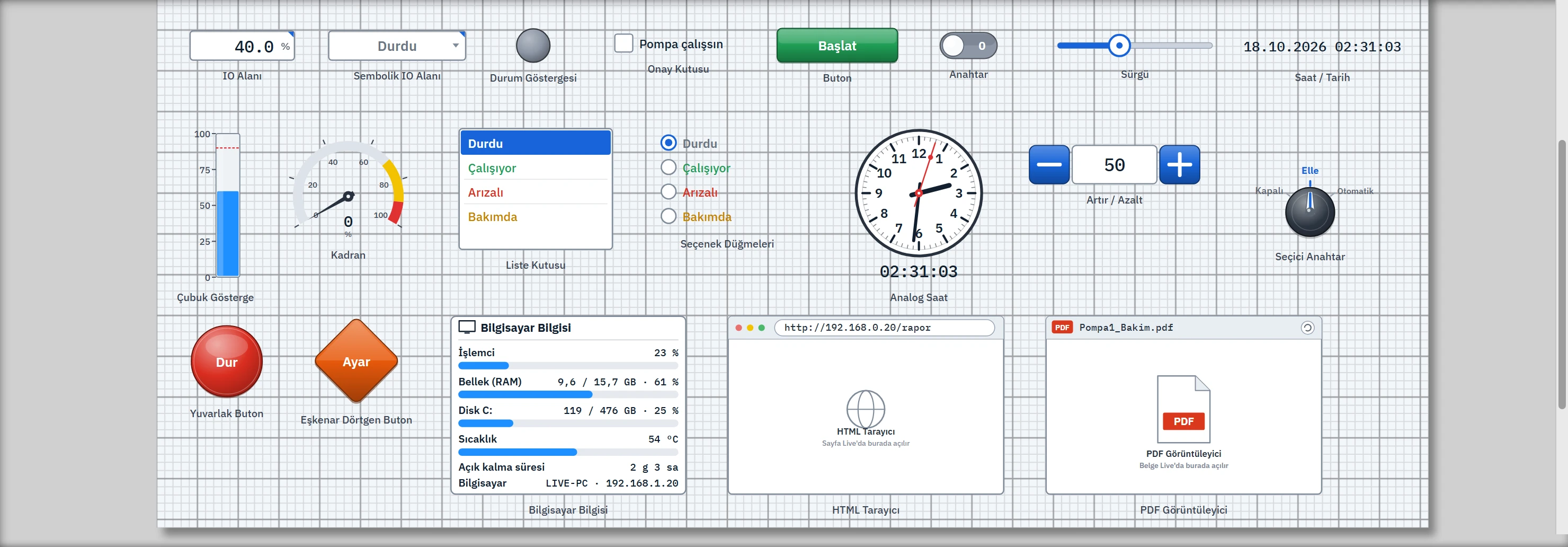
Element reference
| Element | What it does | The operator in Live |
|---|---|---|
| I/O field | Shows the value of the bound tag. Mode: Output (display only), Input (operator enters), Input / Output. Display format: Decimal, Hexadecimal (16#), Binary (2#), Text; also Decimal places and Unit. | Clicking a field in input mode opens a Write / Cancel window. |
| Symbolic I/O field | Writes the text that corresponds to the value from the Text list (if it is not in the list, ? değer). | In input mode, clicking opens the list buttons; the value of the selected entry is written to the tag. |
| Status indicator | Draws a lamp (circle or square) in one of four colors for the values 0, 1, 2, 3; if Graphic list is selected, it shows a picture. | Only displays. |
| Check box, Switch | Shows the on / off state of the bound tag. | Clicking inverts the tag. If no tag is bound, clicking does nothing. |
| Button, Round button, Diamond button | Three forms, same properties: Text, font, Button color (can be bound to a tag). What the button does is set on the Events tab. | Runs the events; appears pressed while held down. |
| Bar, Gauge | Draws the value in the range Scale minimum – Scale maximum. On the bar, when Alarm limit is exceeded, the bar changes to the Alarm color; on the gauge, Warning limit draws a yellow band and Alarm limit a red band. | Only displays. If the bar's height is greater than its width, it is drawn vertically; otherwise horizontally. |
| Slider | A value bar that slides within a range. | Dragging writes the value (with a precision of 0.1); while the slider has focus, the arrow keys change it by 1% of the range. |
| Increase / decrease | [ – ] value [ + ]. Works with Step, Scale minimum and Scale maximum. | Each press changes the value by one step and holding it down repeats; at the limit the button is dimmed and nothing is written. Clicking the value opens the value window. |
| Selector switch | Rotary switch with 2, 3 or 4 positions; Position starts at 0. A text is assigned to each position. | Clicking a position label selects that position; the left / right half of the switch moves to the previous / next position. |
| List box, Option buttons | Shows the entries of the Text list as a list or as radio buttons; the selected row is determined from the tag value. | When a row is selected, the value of the entry is written to the tag. If no tag is bound, the selection is kept only on the screen. |
| Clock / Date, Analog clock | Shows the time of the computer; if requested, the Analog clock shows the time held in a tag on a 12-hour dial. | Only displays. |
| HTML browser | Embeds an http:// / https:// address in the screen. Security: Normal, Strict, View only; Automatic refresh (s). | It is refreshed with the refresh button in the address bar. |
| PDF viewer | Shows a PDF from a folder on the Live computer or a PDF from a web address (Opening page, Zoom). | Pages are browsed and printed with the browser's PDF toolbar. |
| PC information | Shows the processor, memory, disk, temperature, uptime, name / IP and Live memory information of the Live computer as a Bar list or Ring gauges. | Only displays; the values arrive from the main program every 2 seconds. |
Tag binding
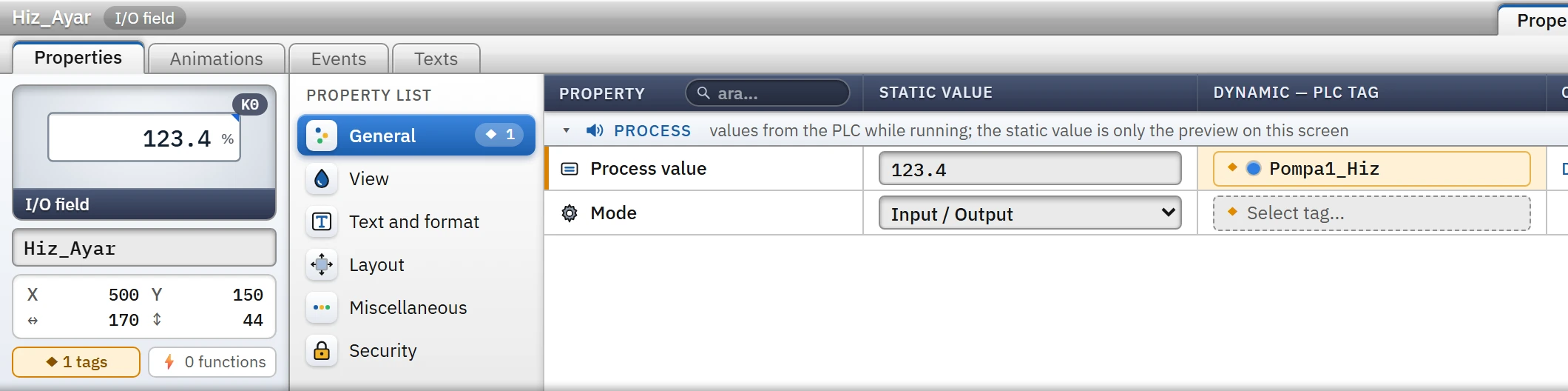
In the element's Inspector, the Process group in the General category collects the values that come from the PLC at runtime: Static value is only the preview in Studio, and the Dynamic — PLC tag button in the Select tag... column binds the value to a tag. For the binding rules, see Dynamization.
 12345
12345- Tabs — Properties, Animations, Events, Texts.
- Property list — categories: General, Appearance, Text and format …
- Static value — the preview value in Studio.
- Dynamic — PLC tag — in Live, the value is driven by this tag.
- Mode — Output, Input or Input / Output.
Operation in Live
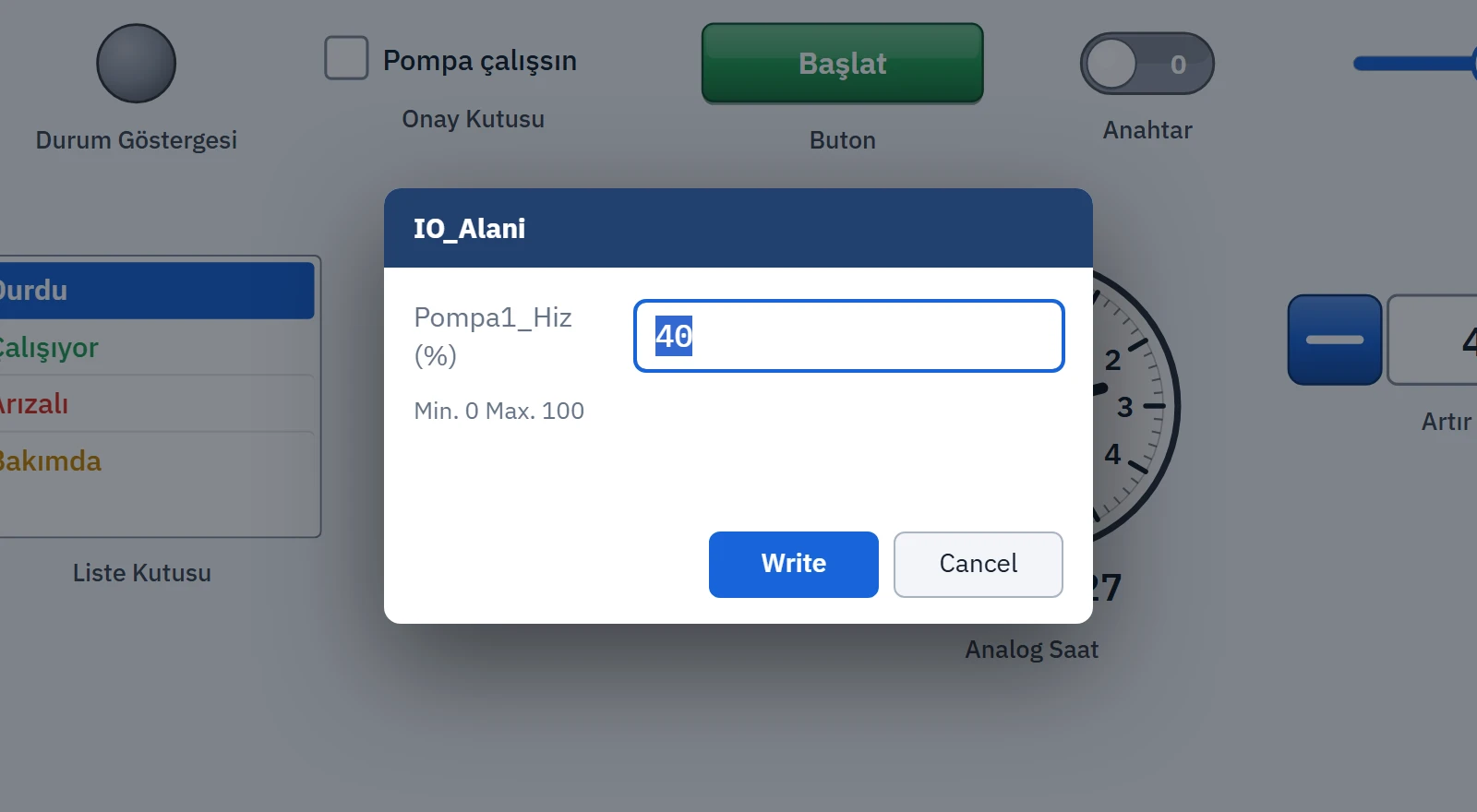
Clicking an I/O field opens the value window. The window shows the name of the tag, the unit (if any) and the lower / upper limit of the tag. You can enter a hexadecimal number with 16# and a binary number with 2#. A value outside the limits is not written; an error message appears in the window.
If the quality of the bound tag is bad (the value cannot be read) and no substitute value is defined for the tag, the I/O field displays #### instead of the number (Scaling and quality). The authorization and the Operable settings for operator input are assigned in the Security category; on screens with operation switched off and on the TV, no element writes. For keyboard use, the objects are navigated with Tab, and the focused button is triggered with Enter or Space.
Event example: Start button
What the button does is determined by the function list on the Events tab. When the button below is clicked, it runs two functions in sequence: first it sets the Pompa1_Calisiyor bit to 1, and when that is finished it writes 1 to Hat_Durum.
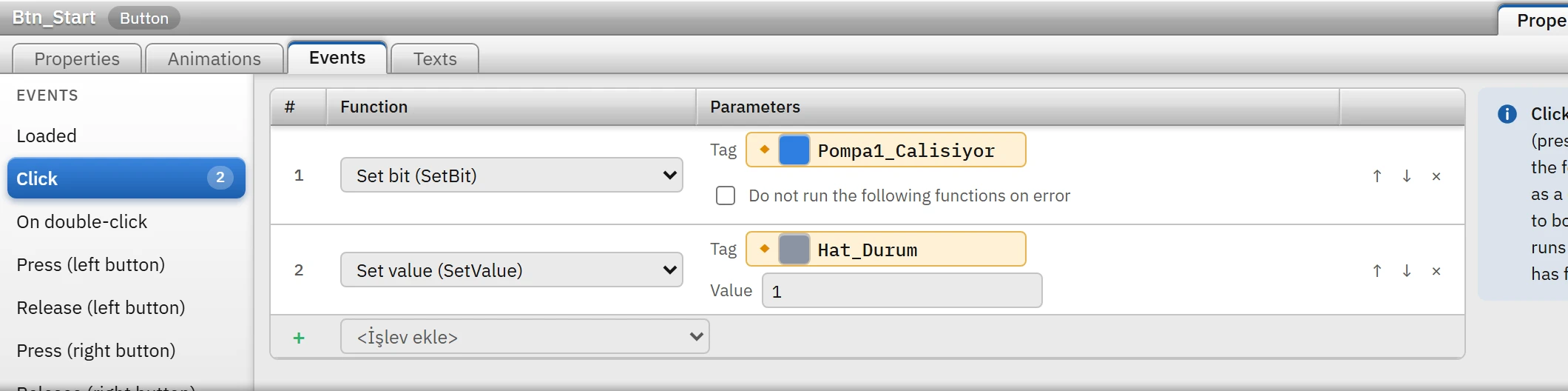
The event types and the function list are described in the topic Events.