Convert page to 3D
Converts an existing 2D screen into a new 3D screen using their equivalents in the 3D library: Professional mode builds a plant from the process diagram, Exact mode places every object in 3D at the same position. The 2D screen does not change.
What it is used for
If you already have a 2D screen drawn as a process diagram or a switchboard, you do not have to place all the objects again from scratch in 3D. Convert screen to 3D places the objects of the 2D screen on a new 3D screen, using their counterparts in the 3D library. The 2D screen is not changed; the result is a separate screen named <sayfa adı>_3B. You then correct it manually in the 3D editor.
Conversion steps
- Open the screen.
Open the 2D screen you want to convert, or right-click the screen in the project tree / tab.
- Select the command.
Add›Convert page to 3D… or Convert page to 3D… in the context menu. If the screen is a 3D screen or a recipe / report design screen, the command does not work; on a screen without objects, the warning There are no objects on the page to convert appears.
- Select the translation type.
Conversion type: Professional: build the plant (equipment + piping + indicators) or Exact: every object as it is. The summary lines are rewritten according to the type (the formats below).
- Deal with objects that have no counterpart.
Object types that have no equivalent in the 3D library are listed in the table. For each type, select an Action: Skip (default; the object is not placed, and its name and the reason are written in the result report) or Placeholder box (a plain gray box with the size of the 2D object, 0.6 m high, that keeps the object's name; bindings and events are not carried over). If there is a suggestion of a similar 3D object for a type, the Use nearest equivalent option also appears; in the current version there is no suggestion for any type.
- Review the settings.
New page name is
<ad>_3Bby default (made unique with a number if necessary). Scale (pixels / metre) determines how 2D positions are converted to the ground plan; its start value is calculated from the equipment on the screen (40 – 250). To carry over: Tag bindings and events; in the Professional type only, also Indicators (I/O field, ring gauge, lamp) and Plant equipment (floor pad, fence, lighting, ready-made views). - Confirm.
Click Confirm and convert. The new 3D screen is created and opened, and the Conversion Completed window summarizes the result. Ctrl+Z undoes the conversion in a single step.
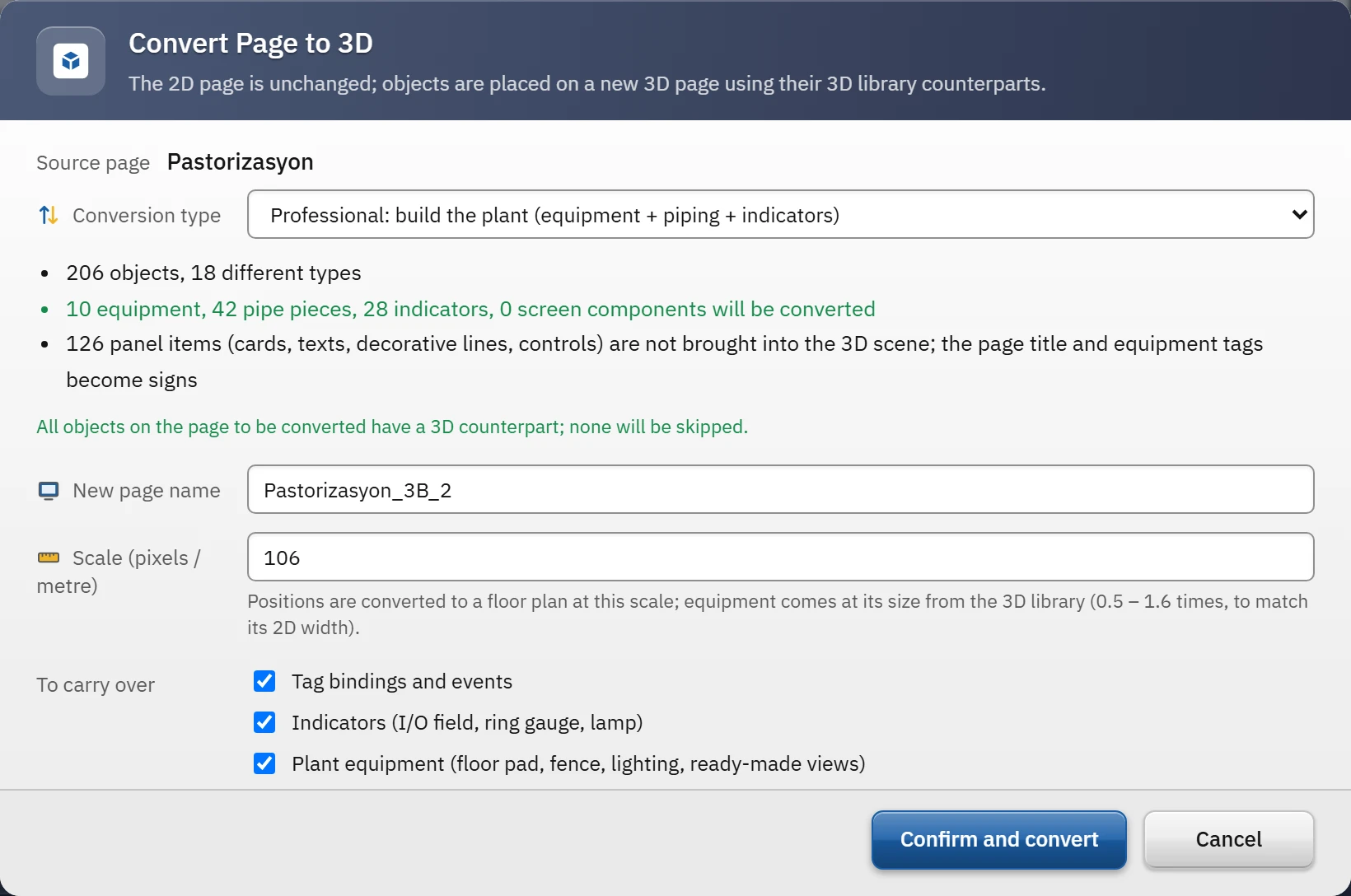
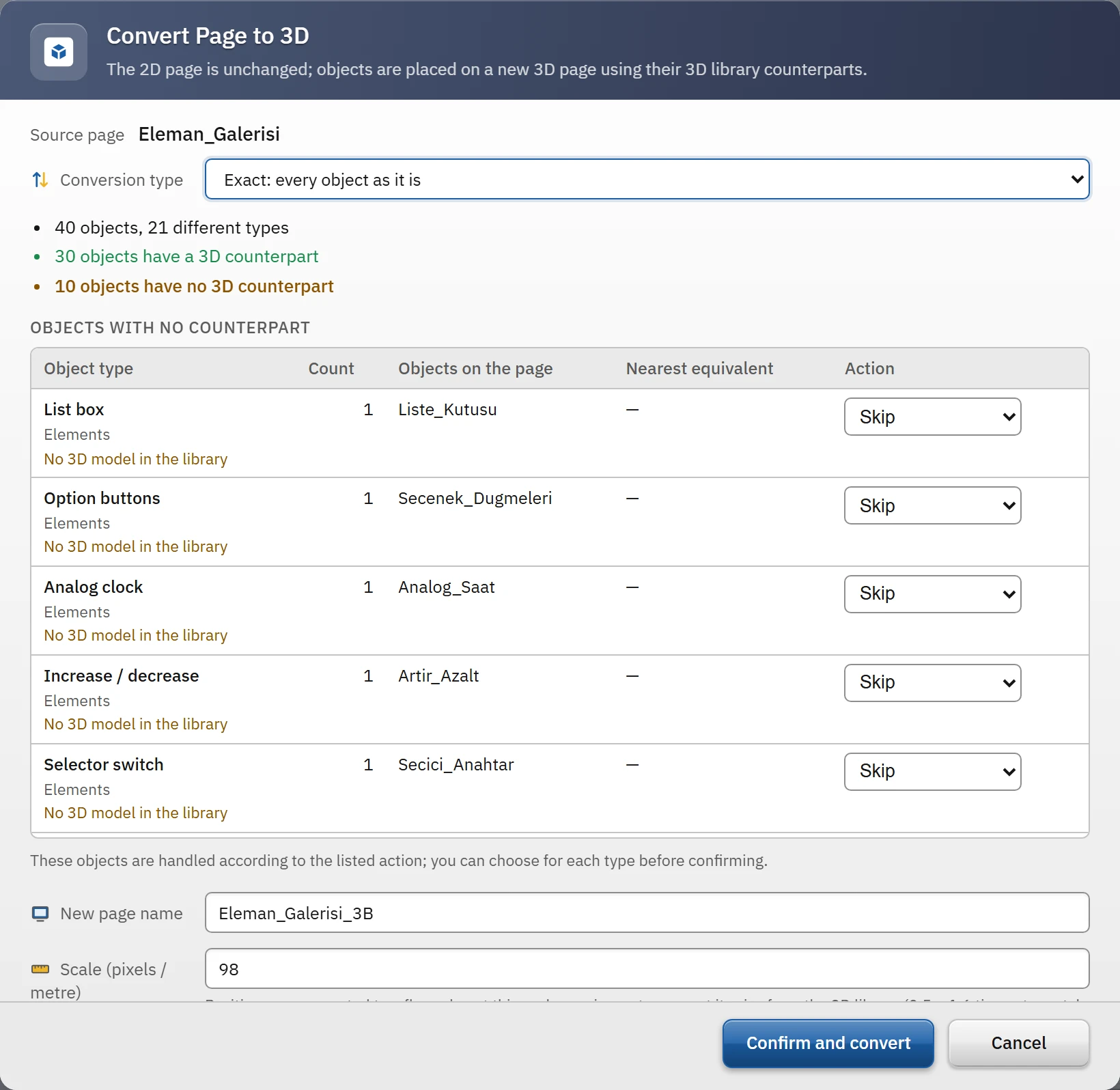
Professional mode
Professional mode reads the 2D screen as a switchboard and process diagram and builds a plant from the diagram. Objects are handled according to their role:
| Role | What happens |
|---|---|
| Equipment | Objects such as tank, pump, valve and mixer come in with their real dimensions from the 3D library (scaled by a factor of 0.5 – 1.6 to fit the 2D width), and their (x, y) position becomes (x, z) on the ground. |
| Pipes | Pipes, elbows, T pieces and cross pieces are converted into 3D pipe parts; free ends are extended or shortened up to the footprint of the nearest equipment; a valve and a pump on the line sit on the axis of the line. |
| Indicator | Indicators such as the I/O field, ring gauge and lamp are assigned to the relevant equipment by tag name or common prefix and are lined up in front of the equipment as signs on posts; those that cannot be assigned are collected in the information row in front of the plant. |
| Sign | The screen title and equipment labels (such as TK-201) become 3D signs. |
| What is not included in the scene | Cards, panels and shapes, the text inside the card, decorative lines and controls (button, menu, list, recipe / report components) are not placed in the scene; their numbers are written in the result report. |
| Plant equipment | Ground area (concrete, yellow edge), fence, four lighting poles and three preset views (General, From the top, Front). |
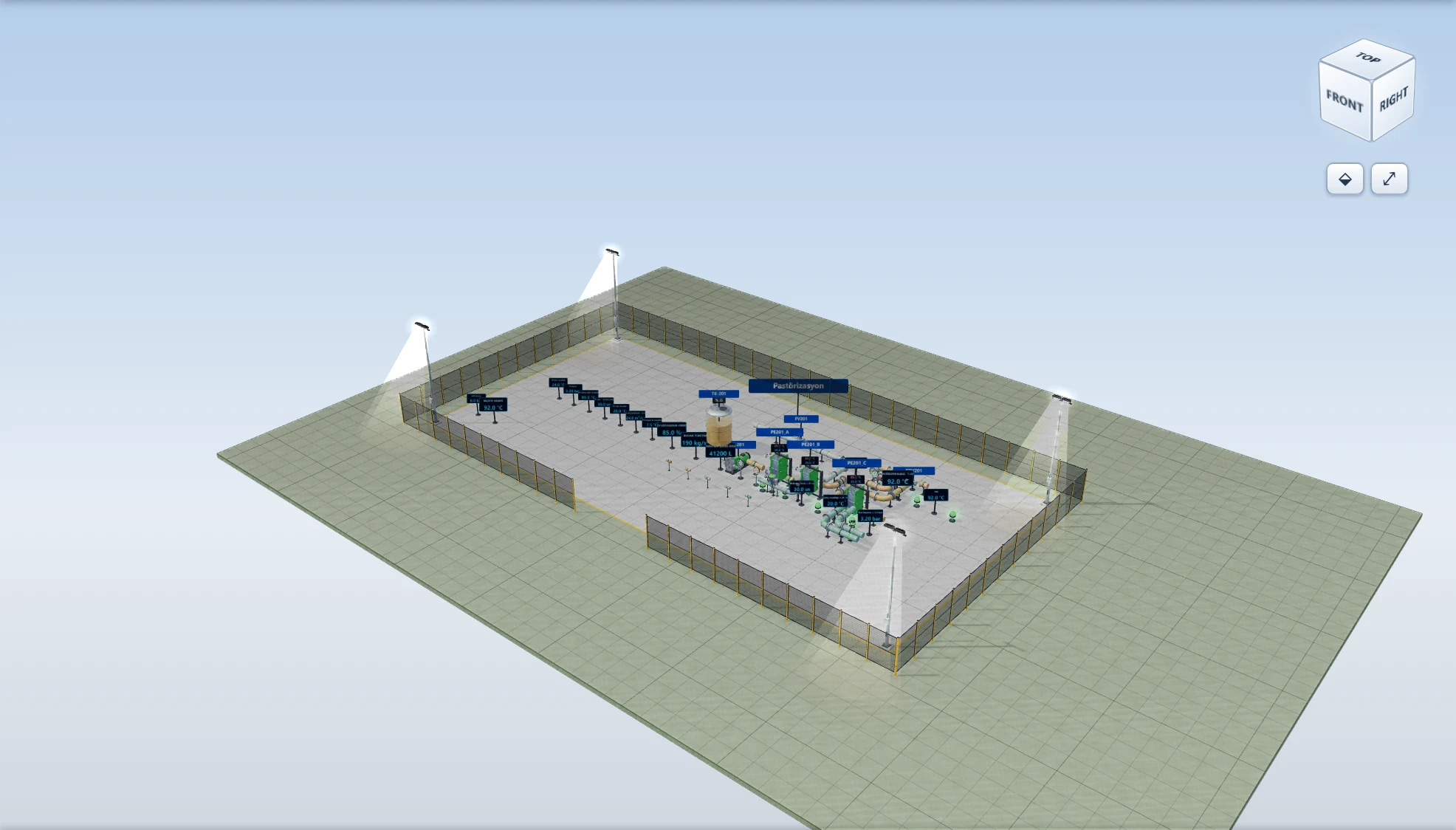
The result window of a sample conversion reports the following: 76 objects converted; of the 38 pipe pieces, 12 free ends were connected to equipment and 3 equipment items were seated on the line; 26 indicators were placed in front of their equipment and 2 objects in the information row; 8 signs and 10 plant fittings were added; 109 panel items were not brought into the scene; 78 tag bindings were moved, 2 bindings could not be moved. The bindings that could not be moved are also listed separately with the object name and property name.
Exact mode
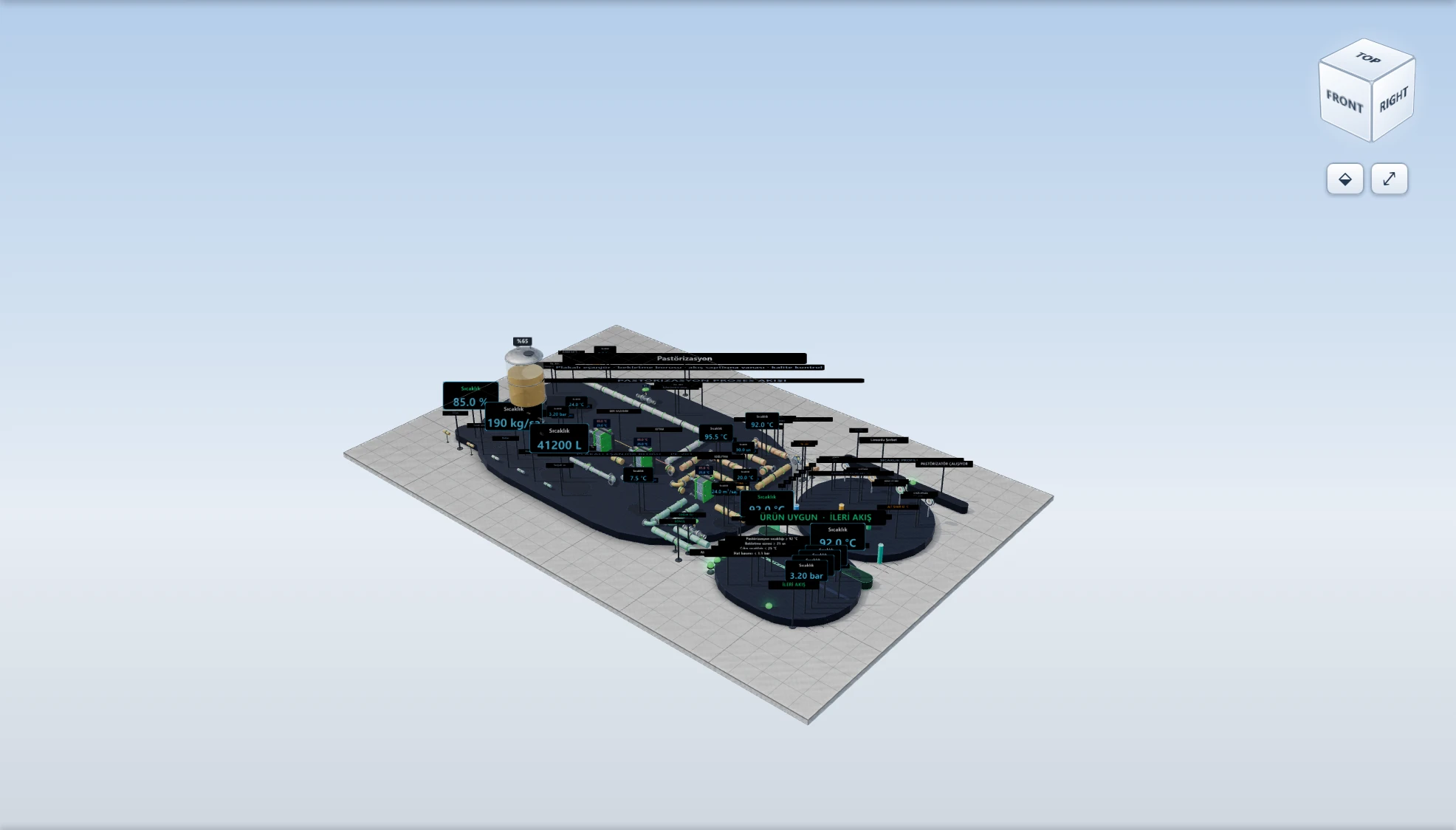
Exact mode places every 2D object, with its counterpart, in the 3D screen at the same position: the center (x, y) of the object becomes (x, z) meters on the ground, the height is 0, and the rotation angle is carried over unchanged. Equipment arrives at its real size from the library; objects whose size depends on the drawing (shapes, line, pipe, conveyor, image, text, building elements) take the size of their 2D boxes. The ground is built as the area covered by the objects plus a margin (at least 20 × 14 m). Use this mode only when the 2D screen needs to be transferred like a ground plan.
Rules common to both modes
- Mapping
- First the same key is looked up in the 3D library (
tank→3b.tank), then the manual mapping table, then the 2D counterpart declared by the 3D type, then the same display name. If none exists, the object has no equivalent. - Items with no equivalent
- In this version, 454 of the 488 2D object types have a 3D counterpart. All 34 types without a counterpart are user-interface components: 21 recipe / report design components, Menu bar, Toolbar, Event view and ten elements (List box, Option buttons, Analog clock, HTML browser, Round button, Diamond button, PDF viewer, PC information, Increase / decrease, Selector switch). All equipment, pipe, indicator and shape types have a counterpart.
- Properties
- Properties with the same name and type are copied; those whose name changes are mapped (for example, the
yaziof a Text object becomesmetinon the 3D plate). The flow and lighting states are transferred to thecalisiyorproperty if their 3D counterpart has it. - Names
- Object names are unique in a 3D screen; a second object with the same name gets
_2,_3… appended. - Tag bindings and events
- The X binding is converted to meters and the Y binding is moved to Z; properties with no 3D equivalent and width / height bindings are not carried over and are listed in the result window. Events are copied unchanged.