Object properties
Properties tab of the Inspector: property categories, field types, common properties, property search, editing with multiple selection, and dynamic properties marked with ◆.
Properties tab
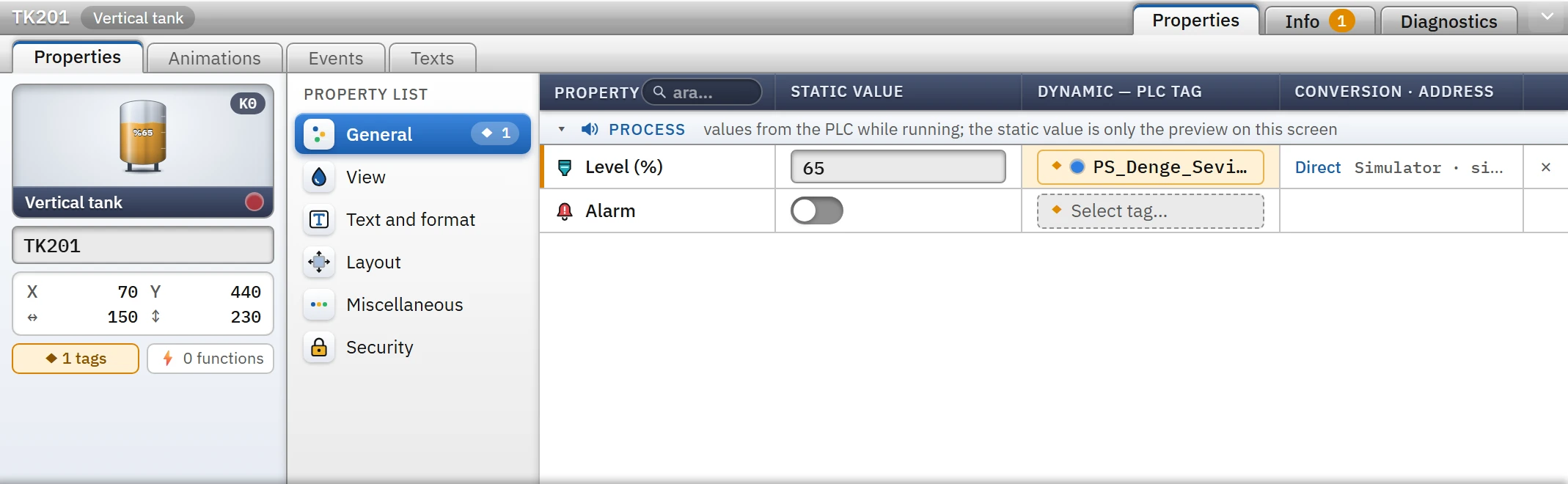
When an object is selected on the canvas, the Properties tab of the Inspector shows the properties of that object (for the general structure of the Inspector, see Inspector). The tab consists of three sections.
 1234567
- Real-time preview — the actual drawing and the type of the object.
- Name — unique on the screen; starts with a letter.
- Counter — number of properties and event functions bound to the tag.
- Category list — properties are divided into categories; ◆ is the number of bound properties.
- Static value — the value given at design time.
- Dynamic — the button that connects the property to a PLC tag.
- Conversion · address — summary of the connection.
- Identity card (on the left)
- The live preview and the type of the object, the Name box, position and size, the number of bound tags and event functions. The green / gray / red buttons below the preview (running, stopped, fault) only change the drawing inside the card; they do not touch the object. The K0 badge is the layer of the object.
- Class list (center)
- Divides the properties into categories. The ◆ 1 next to a category shows the number of properties bound to a tag in that category.
- Property grid (on the right)
- Four columns: Property, Static value (the value you set at design time), Dynamic — PLC tag (the tag binding button), Conversion · address (connection summary). The Dynamic column is described in the topic Dynamization.
The value in a field is applied when you leave the field or press Enter; every change is undone with Ctrl+Z.
Property categories
The group of a property determines in which category it appears. Text and format and Scale and limits are listed only for objects that have the relevant property; the other categories exist for every object.
| Class | Contents |
|---|---|
| General | Process properties of the object that are fed from the PLC (Process group: Running, Fault, Level (%), Process value …); the Camera settings on an IP camera; the Data / State group on controls such as trend / alarm. |
| View | Colors, line and fill, state colors, image, columns and toolbar in controls. At the end of this category is the Visibility group common to all objects (Visible, Flashing, Opacity (%)). |
| Text and format | Text, font size, alignment, display format, unit, the Text group (font, weight, italic, underline, strikethrough). |
| Scale and limits | Indicator scale (min / max), warning and alarm limit; filter, behavior, time and axis settings for controls. |
| Layout | X, Y, Width, Height, Angle (°). Each can be bound to a tag (the object moves at runtime; see Animations). |
| Miscellaneous | Studio group: Layer, Locked, hiding, Group (read-only state). Live group: Tooltip text, Tab order no., Not reachable by Tab. |
| Security | Operable and Required authorization. |
 123
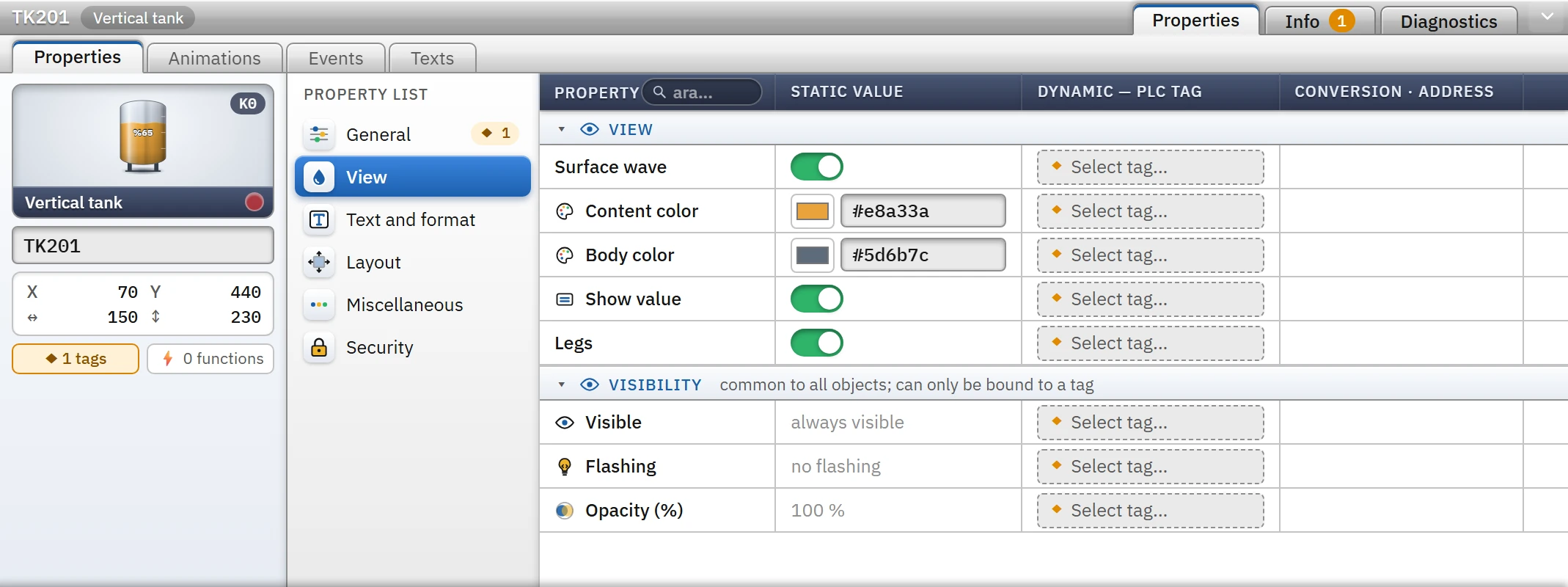
123- Color — color picker or
#rrggbbcode. - On / off — switch.
- Common properties — Visible, Flashing, Opacity can only be bound to a tag.
Field types
| Type | Field | Rule |
|---|---|---|
| Number | Number box | If the property has a minimum / maximum limit, the value you enter is clamped to this range; input that is not a number is not applied. |
| Text | Text box | Text properties can be translated in a multilingual project (Languages and texts). |
| Color | Color picker + #rrggbb field | You can also type rrggbb in the box. The ∅ button next to some colors sets "no color (transparent)". |
| On / off | Switch | Yes / no properties. |
| Selection | Drop-down list | The options can come from the project (screen, tag, recipe, report, text list …). |
| Font | Font button | Opens a searchable list (see below). |
| Graphic | Select graphic... | PNG, JPEG, SVG, GIF, WebP, BMP; 3 MB at most. The image is embedded in the project file; × removes it. |
| Password | Password box | The stored value is not displayed; leaving the field empty does not change the value, × deletes it. The value is not stored as plain text in the project file, but this is obfuscation, not encryption. |
| Edit… | Button | Opens the detailed window specific to the object (e.g. trend curves, alarm columns). |
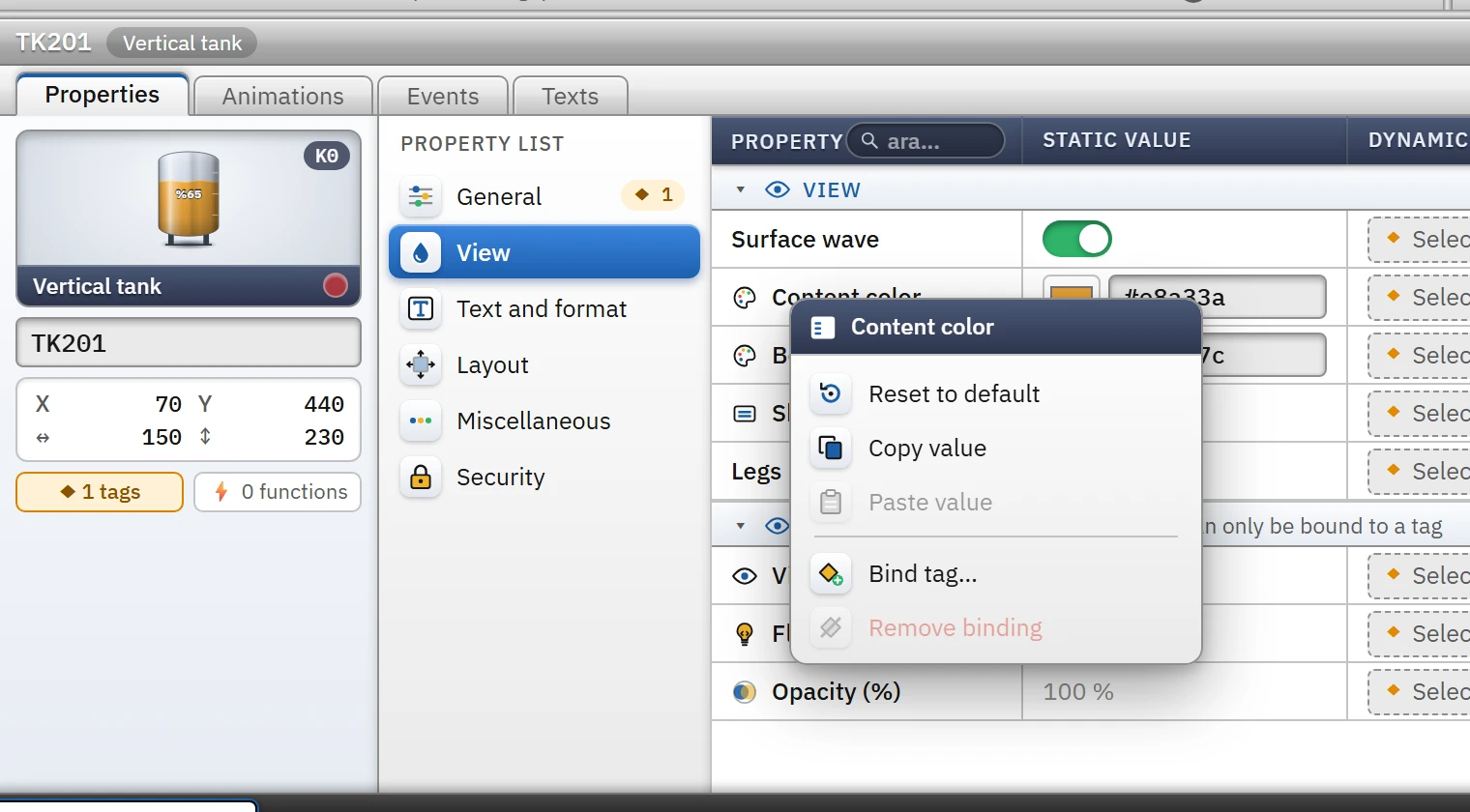
Right-clicking the row of a property opens a menu: Reset to default, Copy value, Paste value (only to a property of the same type), Bind tag… / Change tag…, Conversion settings and Remove binding.
Font picker
Every object that draws text has a Text group: font, weight, italic, underline, strikethrough. The same settings can also be reached from the format bar above the canvas. The picker has two sections: the embedded families that come with the product (IBM Plex Sans, IBM Plex Mono, Sora, Roboto, Roboto Condensed, Inter, Oswald, Orbitron, Share Tech Mono) look the same on every computer; the families installed on this computer appear only if they are also installed on Live and on the monitoring devices. If a non-embedded family is selected, a warning appears below the field and Check project gives an information message; if the family does not exist, the default font is used. An empty value means the default font (IBM Plex Sans).
Common properties
Properties present in every object:
- X, Y, Width, Height, Angle (°)
- The Layout category. The unit is pixels. For details of the screen and the 2D editor, see the 2D screen editor.
- Layer
- 0 – 31; 0 is drawn at the bottom, 31 at the top. Layers can be hidden at screen level: Layers, object list and library.
- Locked
- A locked object cannot be selected, moved or deleted on the canvas; it is selected from the list on the Layout card.
- Hidden in Studio
- Hides the object: a hidden object is not drawn either on the canvas or in Live. The label is written in this form in this version of Studio (see the limitation below).
- Tooltip text
- Shown in Live when the mouse pointer is over the object.
- Tab order no., Not reachable by Tab
- Navigation order with the Sekme key in Live. Tab order is used only when the screen's Tab order no. setting is Manual (0 = automatic position). Details: Screen properties.
- Operable
- If it is off, the events of the object (click, etc.) do not run in Live.
- Required authorization
- If selected, only users whose group has this authorization checked can operate the object. If no session is open, the log-on window appears; in a session without the authorization, an error message appears. Authorizations are defined in User administration; application details are in the topic Using authorizations.
- Visible, Flashing, Opacity (%)
- The Visibility group of the Appearance category. It has no static value; it can only be bound to a tag (Animations).
Property search
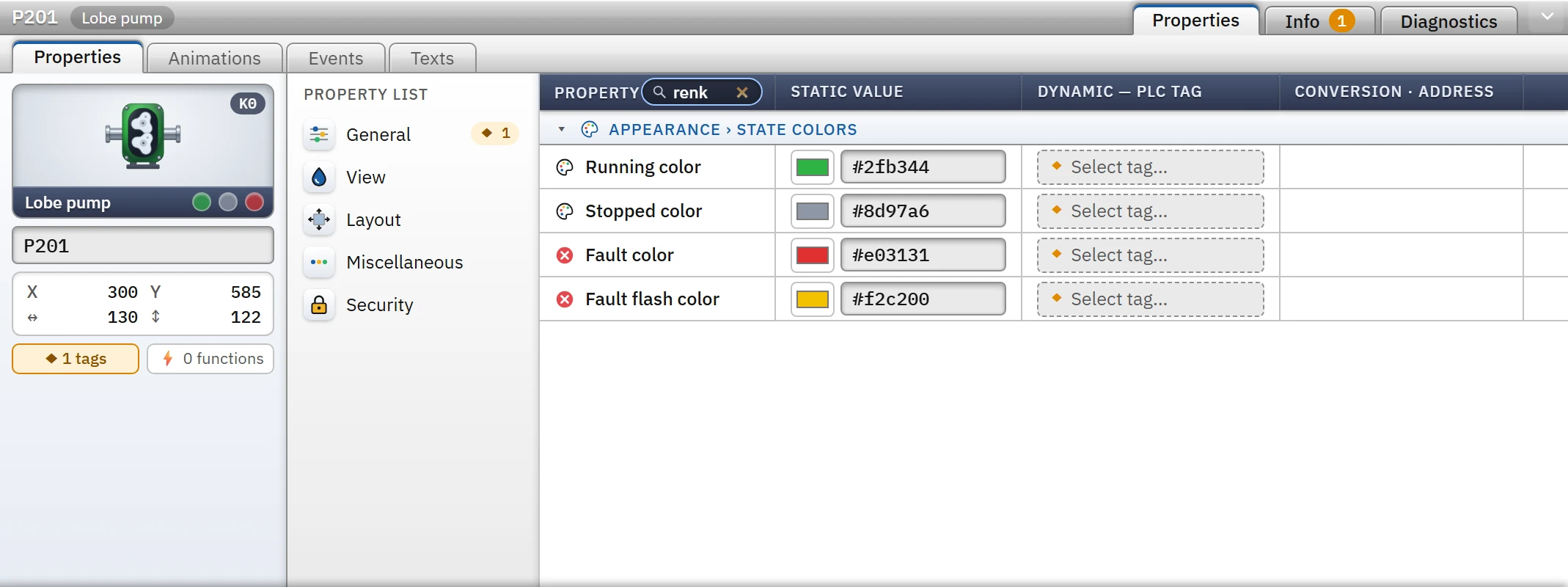
The text you type in the search... box in the header of the property grid is looked up in the property name, the group name and the category name, across all categories. For example, typing color brings up all the … color rows in the State colors group. The name of the category is also written in the group header of the matching rows. Esc clears the search; clicking a category on the left clears it too.
 12
12- Search — looks at the property name, group and class name in all classes; Esc clears it.
- Group header — the category and group of the matching row.
Properties with multiple selection
- If all the selected objects are of the same type, the properties of that type are shown; the value is that of the first object in the selection, and the value you enter is applied to all of them.
- If they are of different types, only the common properties (Layout, Miscellaneous, Security and Visibility) are shown.
- Name can be edited only for a single object. The Animations and Events tabs also require a single object (when no object is selected, the Events tab shows the events of the screen).
- The boxes in the Layout category show the value of the first object of the selection (the position and size on the identity card, in contrast, are the outer frame of the selection); when a value is entered in a box, all objects take that value.
Object name
The object name must start with a letter; it may contain only letters (including Turkish letters), digits and _, and must be unique on the screen. Scripts reach the object by this name, so give meaningful names (such as Tank1_Seviye_Gosterge).
Limitations and points to note
- Image, font, password and Edit… fields cannot be bound to a tag; — appears in the column.
- The static value of process properties is only a preview in the design area when a tag is bound. If no tag is bound, this value is also used in Live.
- The properties of 3D objects are shown in the 3D editor's own Inspector, in meters (3D screens).