Layers, object list and library
The Layout card (layer bar and object list), drawing order and hiding with layers, and storing frequently used object groups as copy templates with the Libraries card.
Layers
Each object belongs to a layer between 0 and 31. Objects are drawn first by layer number (0 at the bottom, 31 at the top), and within the same layer by their order in the list (the Order commands only act among objects in the same layer). Layers serve two purposes: grouping objects in the drawing order and showing / hiding a group of objects together (such as detail layers, maintenance notes, close-up views).
- The layer of an object is set in the Layer box on the format bar or in the Properties › Miscellaneous › Layer field. While objects are selected, the box changes their layer.
- When no object is selected, the same box sets the active layer of the objects to be drawn next (it can also be selected from the layer bar below).
- To name layers and hide layers, use the Screen properties › Layers category.
Layout card
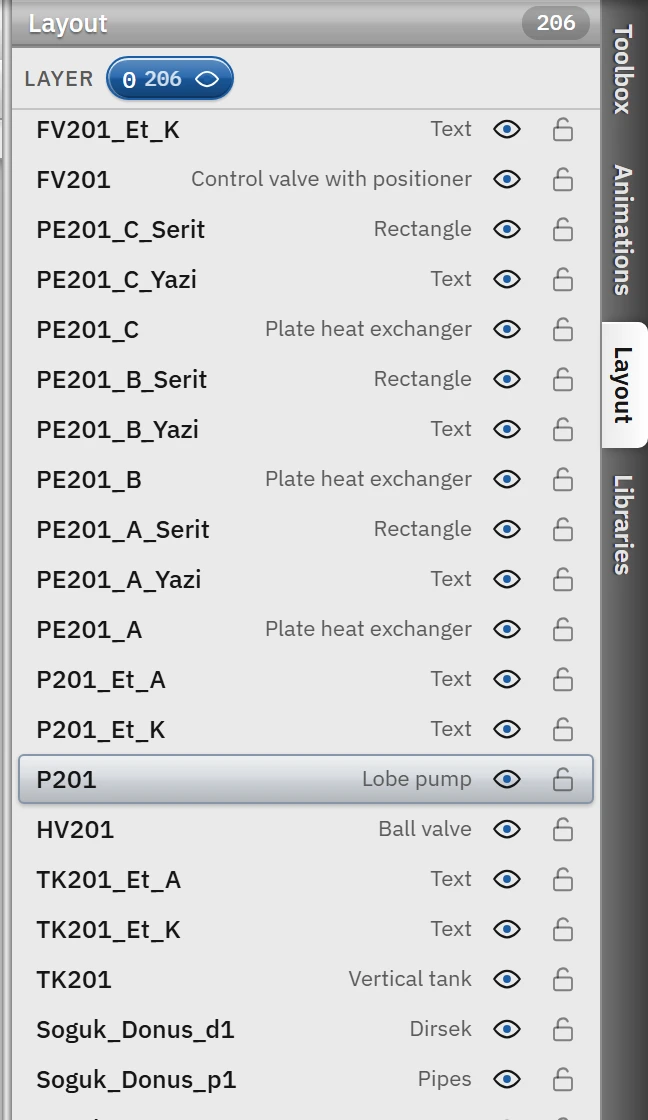
Select Layout from the vertical tabs on the right of the editor. The card has the layer bar at the top and the list of all objects on the screen below it.
 1234
1234- Layer bar — when a layer is clicked, new objects are added to it; the eye hides it in Studio.
- Object list — the object on top is also at the top of the list; a row selects the object.
- Eye — hides / shows the object.
- Lock — a locked object cannot be selected on the canvas.
- Layer bar
- Lists the layers used on the screen (and the active layer) as buttons; the small number on a button is the number of objects in that layer. When you click a button, that layer becomes the active layer and new objects are added to it. The eye on the button hides / shows the layer in Studio (it is the same setting as Visible in Studio under Screen properties › Layers). The objects of a hidden layer are not drawn on the canvas and cannot be selected; Live is not affected.
- Object list
- The topmost object is also at the top of the list (the reverse of the drawing order). Each row shows the object name, its type, its layer if it is not zero (L2) and the group badge if it is grouped (G1). Clicking a row selects the object; Shift or Ctrl + click adds to / removes from the selection. The right-click menu is the same as the object menu on the canvas and additionally contains the Show / Hide command.
- Eye
- Hides / shows the object. A hidden object is not drawn either on the canvas or in Live; when a selected object is hidden, it is removed from the selection. The row fades.
- Lock
- A locked object cannot be selected, moved or deleted on the canvas; it can be selected only from this list. The lock can also be changed with the Locked field in the Miscellaneous category.
Layers in Live
- Initial state: layers with Visible in Live turned off open hidden in Live.
- Changing at runtime: add the Show / hide layer function to the event of a button: the layer changes with Show, Hide or Invert. The change lasts until Live is closed and is not written to the project (Function reference). The same function is used for the Detail and Note buttons on the Properties screen of the Ornek_Tesis project.
- By proximity: with Screen properties › Hide / Show, the layer appears or disappears when you get closer.
Libraries card
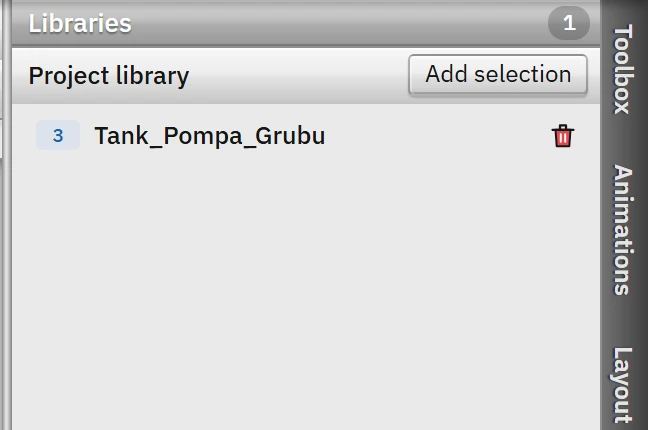
You can prepare a frequently used group of objects (for example tank + valve + pump + their labels) once and add it to the library of the project as a copy template. Templates are stored in the project; they are carried along with the project file.
 12
12- Add selection — makes the selected objects a template for copies.
- Template — drag it onto the screen or double-click it.
- Select the objects
Select the objects to be turned into a template on the canvas.
- Add to the library
Open the Libraries tab on the right of the editor and click Add selection, then give the template a name (suggested name: the name of the object for a single object, and something like
Sablon_1for several objects). If there is no selection, a warning appears. The template is saved relative to the top-left corner of the selection. - Place it on the screen
Drag the template onto the canvas (the point where you release it becomes the upper-left corner of the template), double-click its row (it is placed in the center of the visible area) or right-click and choose Add to screen (center). The inserted copies are selected. If the layer of the object in the template is 0, the copy is placed on the active layer.
- Delete
The trash can in the row or Delete from library in the right-click menu deletes the template from the library; copies previously placed on screens are not affected.
Copies follow the same rules as Duplicate / Paste: objects are copied together with their tag bindings, events and properties, their names are regenerated from the type name, and their locks are removed. A copy template is not a live link: you cannot change the template afterwards (delete it and add it again if necessary), and copies placed on a screen do not remain linked to the template.
Limitations and points to note
- The tag bindings of a template are stored by tag ID. If you have deleted the tag, the binding of the objects placed from the template becomes ? deleted tag; for tags with a structure instance prefix (faceplate), use a window screen instead of a template (Faceplate and pop-up window).
- The library belongs only to the open project; there is no command to transfer it to another project. Duplicating the screen (Screen management) is more suitable for copying an entire screen.
- The active layer belongs to the Studio session; it is not written to the project file.
- The layer bar shows only the layers that have objects on this screen (and the active layer); to select an empty layer, type its number in the Layer box on the format bar.