Screen properties
Screen properties shown in the Inspector when no object is selected: name, type, size, background, layers, authorization, tab order, update cycle, hiding by zoom level, appearance and web access.
Accessing the screen properties
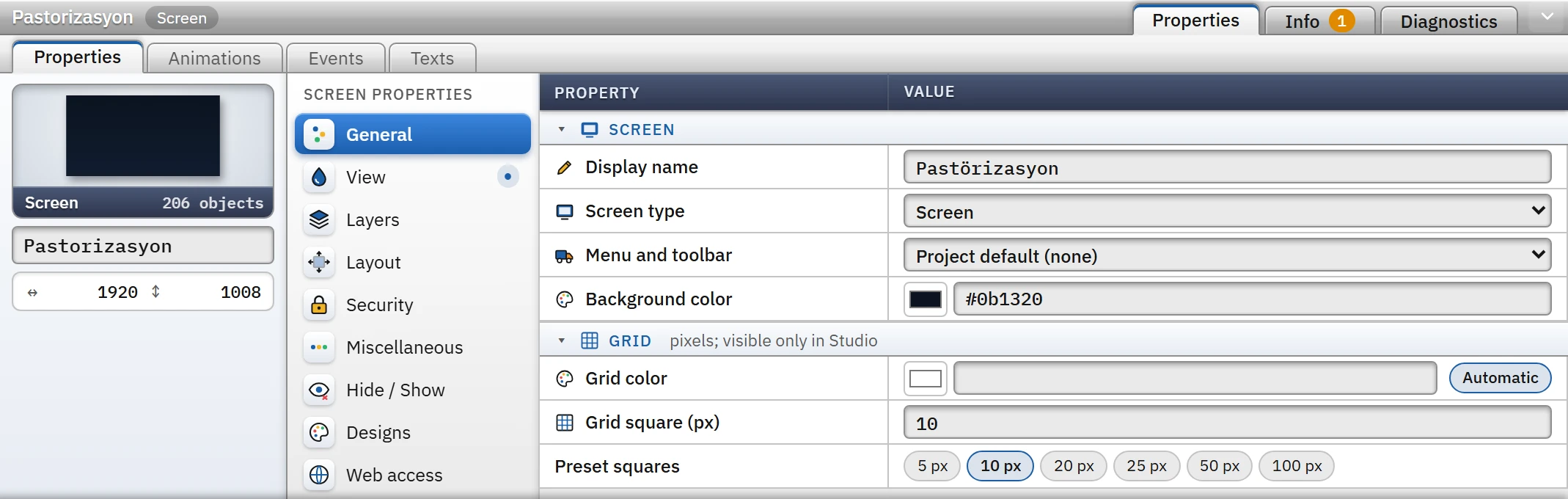
In the screen editor, click an empty spot or press Esc to clear the selection; the Properties tab of the Inspector shows the properties of the screen (the right-click menu also has a Screen properties command). The card on the left gives the thumbnail, name and size of the screen; if the screen is a draft, is closed to the web or requires authorization, the card shows the draft, web off and authorized badges. In the category list, a dot or a number appears next to a category that has a setting different from the default.
 1234
1234- Screen card — thumbnail, name, size (pixels).
- Category list — the screen properties are divided into categories.
- Screen type — screen, pop-up window, template, design screen.
- Display name — shown in Live in the menu and in the title.
In 3D screens the properties are different (Scene, Floor, Camera …); see 3D screens.
General
- Display name
- The name shown in Live in the menu, the window title, the TV top bar and the navigation. If empty, the screen name is used. It can be translated in the Languages and texts section.
- Screen type
- Screen, Pop-up window / faceplate, Template (fixed area), Recipe design screen, Report design screen. For the types, see Screen management. When the type is changed to a design screen, the Recipe / Report selection appears.
- Menu and toolbar
- Only on a normal screen. The menu / toolbar configuration shown at the edges of the display while the screen is open: Project default, None (not shown on this screen) or a configuration (Menus and toolbars).
- Background color
- The solid background color of the screen. The pattern, gradient and image are in the Appearance category.
- Grid color, Grid square (px), Preset squares
- The grid, visible only in Studio. The square is 2 – 200 pixels; snapping to the grid and the Shift+arrow step use this spacing. The Automatic color selects a light or dark line depending on the background.
View
The screen background: Background color, Pattern (Solid color, Gradient (top to bottom), Horizontal stripes, Vertical stripes, Diagonal hatch, Grid, Dotted), Pattern color (for a gradient, Gradient bottom color) and an optional Background image. For the image, Layout: Normal (top left, actual size), Center, Stretch (cover the screen), Fit (keep ratio), Fill (keep ratio, crop overflow), Tile (repeat); Opacity (%) sets the transparency of the image. The image can be PNG, JPEG, SVG … (up to 3 MB) and is embedded in the project file. The background is drawn in Live and in browser monitoring as in the design; the grid is not drawn.
Layout
 12
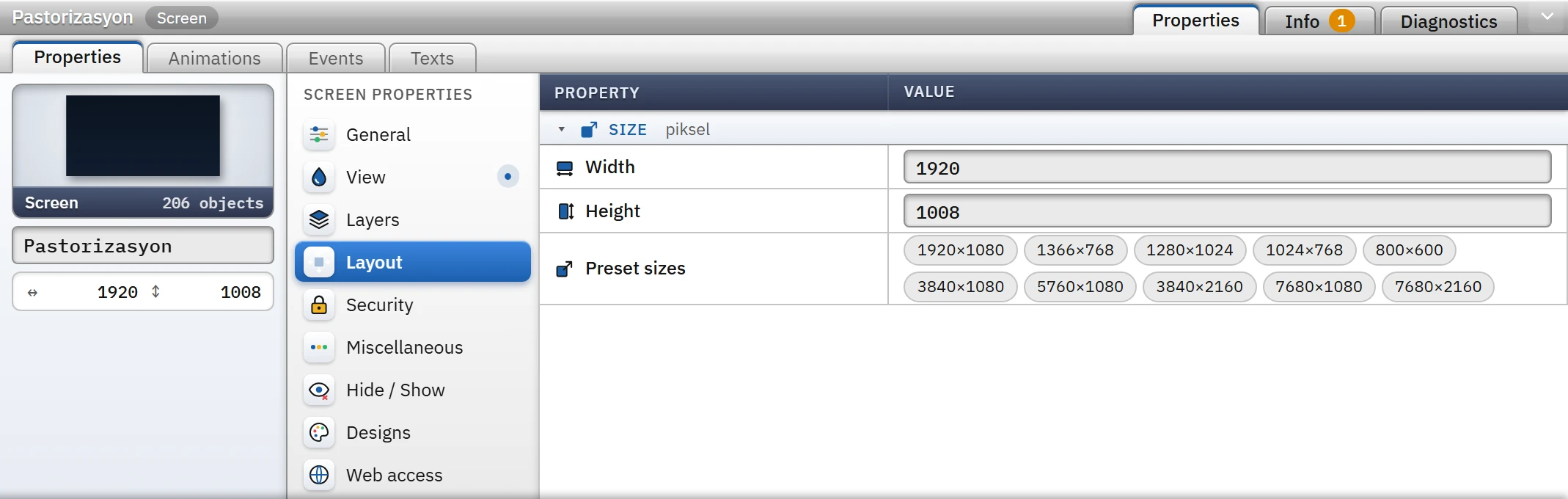
12- Width / height — pixels (20 – 20000).
- Preset sizes — single- and multi-monitor sizes.
Width and Height are in pixels, between 20 and 20000. The Preset sizes buttons apply single-monitor sizes (1920×1080, 1366×768 …) and multi-screen sizes (3840×1080: 2 monitors side by side, 5760×1080 …). If Live settings › Multi-Screen is selected in the project, the size matching that layout comes first and is highlighted. In a multi-screen setup, if the aspect ratio of the start screen does not match the layout, the screen is fitted proportionally and gaps remain on the monitors; Check project reports this as a warning.
Layers
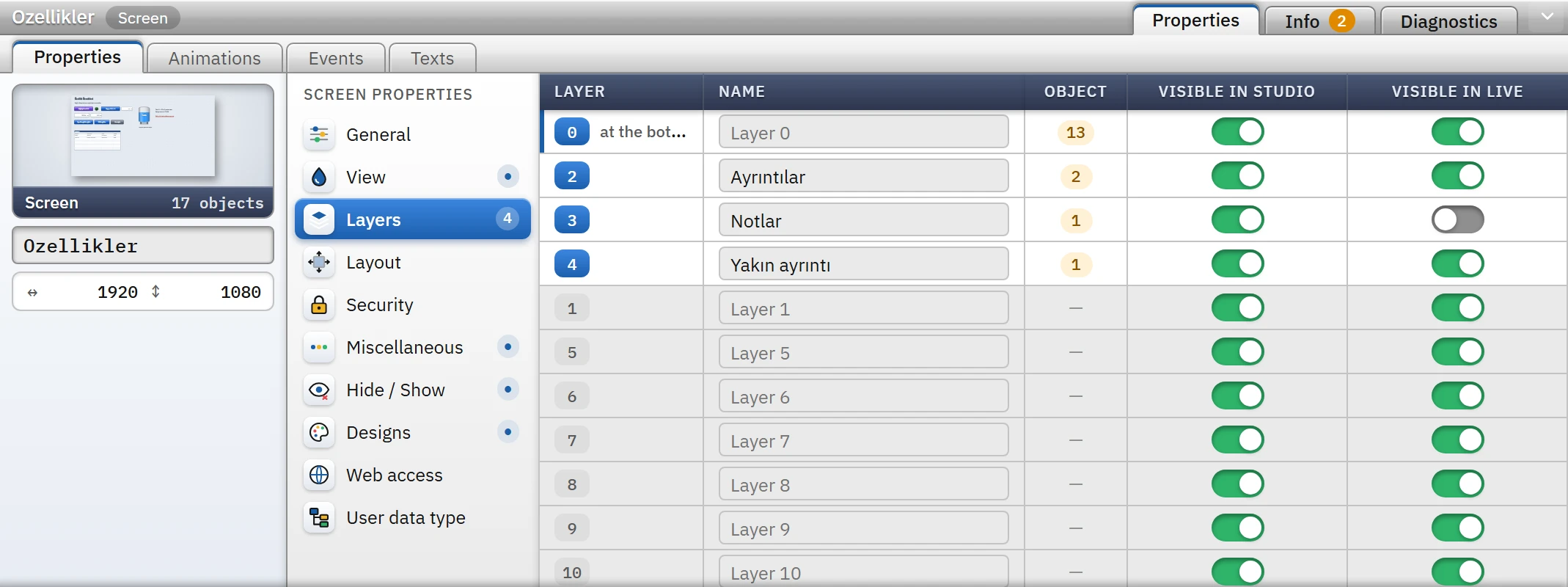
Layer numbers are 0 – 31; objects are drawn from the lowest number to the highest. The table lists the 32 layers, with the occupied layers at the top. If Visible in Studio is off, the objects of the layer are hidden on the canvas and cannot be selected (the same setting as the eye in the Layout card). If Visible in Live is off, the layer is hidden initially in Live; it is turned on at run time with the Show / hide layer function. You can name a layer in the Name field. Details: Layers, object list and library.
 123
123- Name — the name you give to the layer (optional).
- Visible in Studio — if switched off, the objects are hidden on the canvas.
- Visible in Live — if off, the layer is hidden at start in Live.
Security
 12
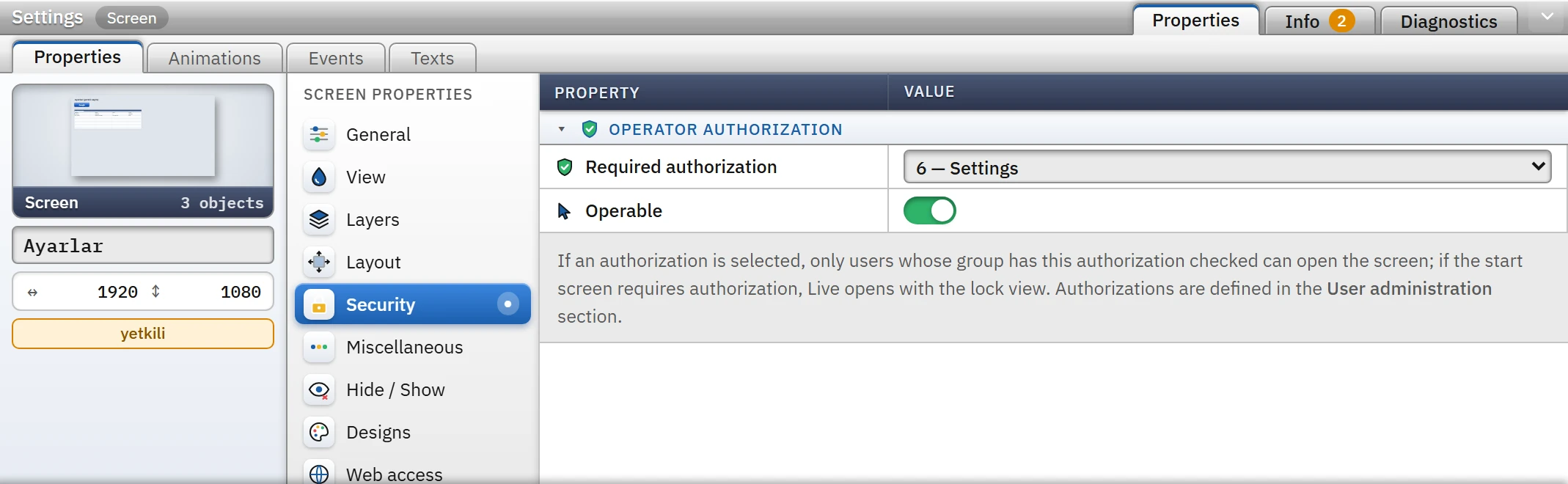
12- Required authorization — if empty, anyone can open it.
- Controllable — if off, the screen can only be monitored.
- Required authorization
- If empty, everyone can open the screen. If an authorization is selected, only users whose group has this authorization checked can open the screen: if no session is open, the log-on window appears; if the authorization is not sufficient, a notification appears. If the start screen requires an authorization, Live shows a lock view and a Log on button instead of the screen; when an authorized user logs on, the screen opens. Authorizations are defined in User administration; for how to apply them, see Using authorizations.
- Operable
- If it is off, the events and inputs of the objects on the screen do not work; the screen can only be viewed (the buttons and input boxes of HTML controls do not work either).
Miscellaneous
- Tab order
- Automatic (top to bottom, left to right) or Manual (given order). Determines the order in which the Tab key moves through operable objects in Live. The Edit tab order… button opens a window that can be dragged; while the window is open, order numbers appear at the corner of the objects on the canvas, and if you change the order by dragging, the screen switches to Manual mode. Marking an object as Not reachable by Tab removes it from the navigation.
- Update cycle
- The interval at which tag changes are applied to the screen in bulk. If empty (Immediately on change), every change is drawn immediately. To thin out drawing on a screen with heavy changes, select a time defined in the Cycles section.
- Extended zoom
- When on, the operator zooms in (100% – 800%) with Ctrl + wheel (or with two fingers) and pans by dragging; a double click or the 1:1 button in the corner resets the view. It does not work if it is blocked in Live settings; it is not available on the TV.
- Show in Live
- If it is off, the screen is a draft: it does not open in Live, is not listed in menus, and the Open screen function shows a notification. The start screen cannot be a draft.
Hide / Show
To show detail when zooming in on large screens, turn on Enabled. The zoom level is the scale of the screen on the display (fit-to-window scale × extended zoom), as a percentage. For each layer in the table, the layer is hidden below Min. zoom level (%) or above Max. zoom level (%); an empty value means no limit. Hide small objects (pixels) does not draw objects that appear smaller than this number of pixels on the display (0 = off). Only layers that contain objects are listed.
Designs
- 2D object appearance
- Project setting (Live settings › Object appearance), Realistic (lit, volumetric) or Classic (flat). Makes a separate selection for the equipment drawings of this screen.
- Object shadows
- Places a soft shadow under all objects; on a screen with many objects it can slow down drawing.
- Control highlight
- On by default: over an object that can be operated, the mouse pointer turns into a hand cursor and the object lights up slightly (Live only).
Web access
If Viewable from browser / TV is off, the screen is not shown when monitored from a browser or from network TVs: it is not in the viewer's screen list, and the TV display sequence skips this screen. The main Live display is not affected (Remote monitoring).
User data type
Makes the screen the faceplate of a structure (UDT): Structure (UDT) and Design instance. Details: Faceplate and pop-up window. Report design screens also have a Print category (Report definition).
Limitations and points to note
- Changing the screen size does not change the position of the objects; place the objects yourself according to the new size. Live fits the screen proportionally to the window (Screen management › Scale to screen).
- A screen property that refers to a deleted authorization, cycle or structure is listed as an error in Check project (for a deleted authorization: nobody can open the screen); if the background image is not found, a warning is given.
- If a slow Update cycle is selected, the animations on the screen are also refreshed at that interval.