Users, groups and authorizations
Defining users, groups and authorizations in the User administration section; storage of passwords; logging on, logging off and session duration in Live.
In Live, the User administration section determines who can perform an operation (alarm acknowledgment, recipe change, control …). There are three concepts: the user (who logs on), the group (the set of authorizations under which users are collected) and the authorization (a numbered permission for an operation or a field). A user belongs to a group; authorizations are given to the group. How authorizations are applied to objects, screens and menus is covered in Using authorizations.
Defining users, groups and authorizations
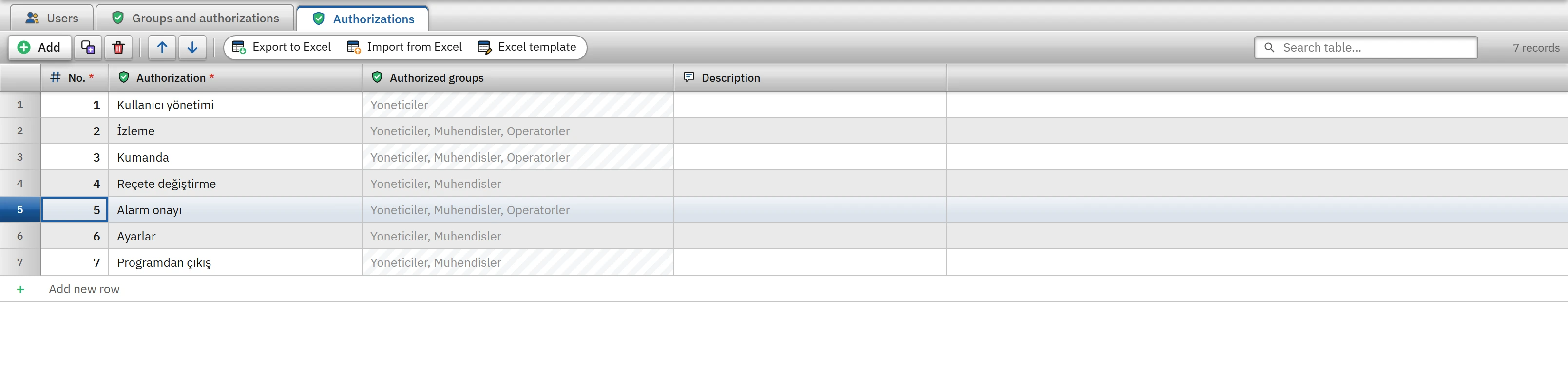
The section consists of three tabs: Users, Groups and authorizations and Authorizations. A new project starts with three groups (Yoneticiler level 9, Muhendisler level 5, Operatorler level 1), seven predefined authorizations and the admin user. The password of the admin user is empty.
- Review the authorizations
The predefined authorizations are listed on the Authorizations tab; if necessary, add your own authorization (for example,
Reçete onayı) with Add. - Create the group
On the Groups and authorizations tab, add a group with Add; there is a checkbox column for each authorization. Tick the authorizations the group will have.
- Add the user
On the Users tab, click Add; enter User name, Full name, Group and Password.
- Check
F7: a warning is given for an enabled user without a password (Check the project).
Users
 1234
1234- User name — letters, digits, “.”, “_”, “-”.
- Group — takes its authorizations from the group.
- Password — stored as a hash.
- Enabled — if off, it is not listed at login.
- User name
- Required and unique; may contain only letters, digits,
.,_and-. In the Live login window the user is selected from a list; in a silent login by script the name is searched without distinguishing upper and lower case. - Full name
- It appears next to the name in the login window and in the User view.
- Group
- The user's group; the user receives authorizations from this group.
- Password
- The password entered in the cell is not stored as plain text in the project file: a SHA-256 hash together with a random salt (
sha256:<tuz>:<özet>) is written. The cell shows only••••••••(“no password” if there is no password); the stored password cannot be displayed. Entering an empty value while editing does not change the existing password. There is no rule for the password length. - Enabled
- A disabled user does not appear in the log-on list in Live.
Groups and authorizations
 12
12- Level — level number of the group (0 – 9).
- Alarm acknowledgment — authorization column: if checked, the group has this authorization.
Predefined authorizations:
| No. | Authorization | Effect in Live |
|---|---|---|
| 1 | User administration | Not checked by the code; can be used as an object / screen / menu authorization. |
| 2 | Monitoring | Not checked by the code; can be selected in the authorization fields. |
| 3 | Control | Not checked by the code; can be selected in the authorization fields. |
| 4 | Recipe change | Recipe save, delete, load and approval operations. |
| 5 | Alarm acknowledgment | Acknowledging, shelving and commenting on alarms. |
| 6 | Settings | Entering / changing a connection password; adding a firewall permission from the Remote monitoring window. |
| 7 | Exit program | Closing the program from the System menu, only if Require authorization to exit is on. |
The No. column is the order in the new project. Level (0 – 9) is the level number of the group. When you add a new authorization on the Authorizations tab, a new column is added to the Groups and authorizations table.
Authorizations
 123
123- No. — number of the authorization (unique).
- Authorization — the name selected on objects and screens.
- Authorized groups — calculated from the Groups table.
No. (1 – 999) is unique for each authorization; the Authorization name appears in the authorization lists of objects, screens and menus in the format No — Ad; Authorized groups is calculated and cannot be changed.
Logging on and off in Live
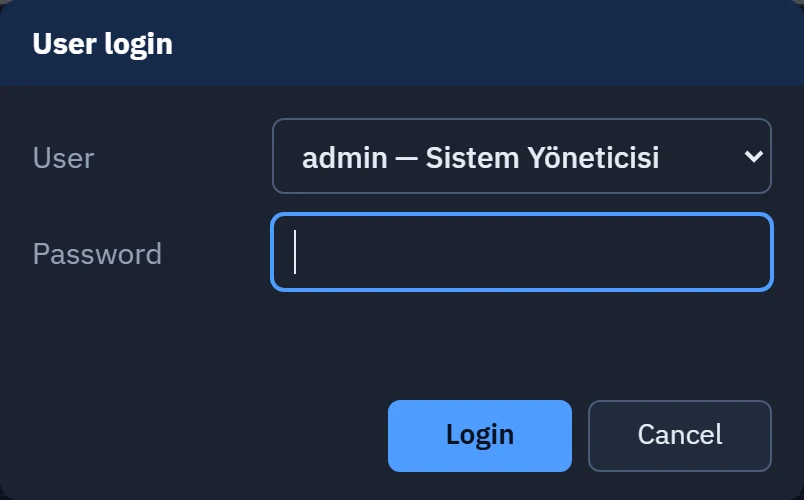
- Login: opens automatically when an operation that requires authorization is performed (if no one is logged on). It is also opened by the Login button in the System menu, the Login button in the User view, the User login event function, or a key assigned in Live settings › Keyboard. The user name is not typed; it is selected from the list of enabled users. For a user without a password, the password field is left empty. If the password is wrong, the message “Password is incorrect.” appears; there is no limit on the number of attempts.
- Logging out: the Exit button in the System menu, the Exit button in the User view, the Logout event function, or an assigned key. On logout the session is closed; if a screen that requires authorization is open, the lock view appears.
- Session duration: if Live settings›General›Session›Session timeout (min) is greater than 0, the session closes by itself that many minutes after log-on. The time runs from the log-on; performing actions does not extend the time.
0= does not close. - System menu: shows the user and group of the open session (at the very top of the System menu).
- Logging: every log-on and log-off is written to the event log with the type
oturum(“user logged on”, “session closed”).
User view
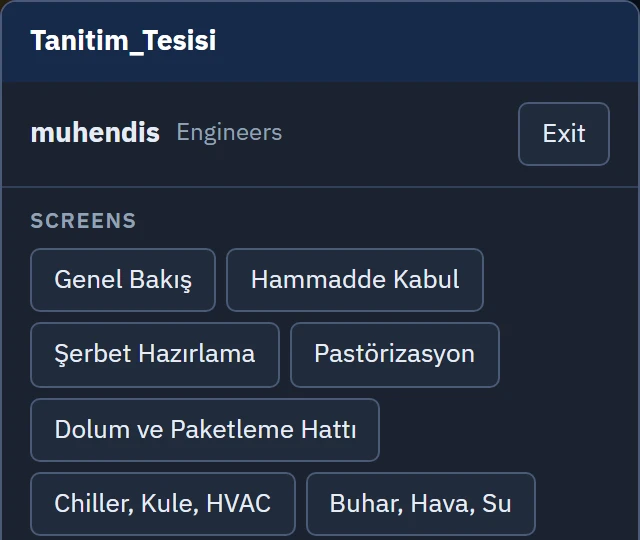
The User View object (Controls group) shows the user and group of the open session, has Log on and Log off buttons and presents the list of active users (user name, full name, group).
Limitations and points to note
- Live has no password change, account lockout, password validity period or Windows / Active Directory logon; no password policy is enforced.
- User, group and password information is in the project file; to add a user or change a password, you must edit the project in Studio and load it into Live again (Uploading the project to Live). Even though the password digest is salted, someone with access to the project file can copy the digest and try to guess passwords; protecting the file is your responsibility.
- The
adminuser has no password by default; before using it in the field, set a password or deactivate the user. - Authorizations depend on the session on the Live computer. For someone monitoring from the browser, the “authorized session” is the session that is open on the Live computer; control from the browser is not possible.