Operator recipe handling
Selecting, editing, saving and approving a recipe record in Live; reading from the PLC, loading to the PLC, comparing and Excel operations.
This topic is for the operator who works in Live with the Recipe view (or with the recipe design screen prepared by the designer). Some of the buttons may have been switched off in the design. For how a recipe is defined, see Designing recipes.
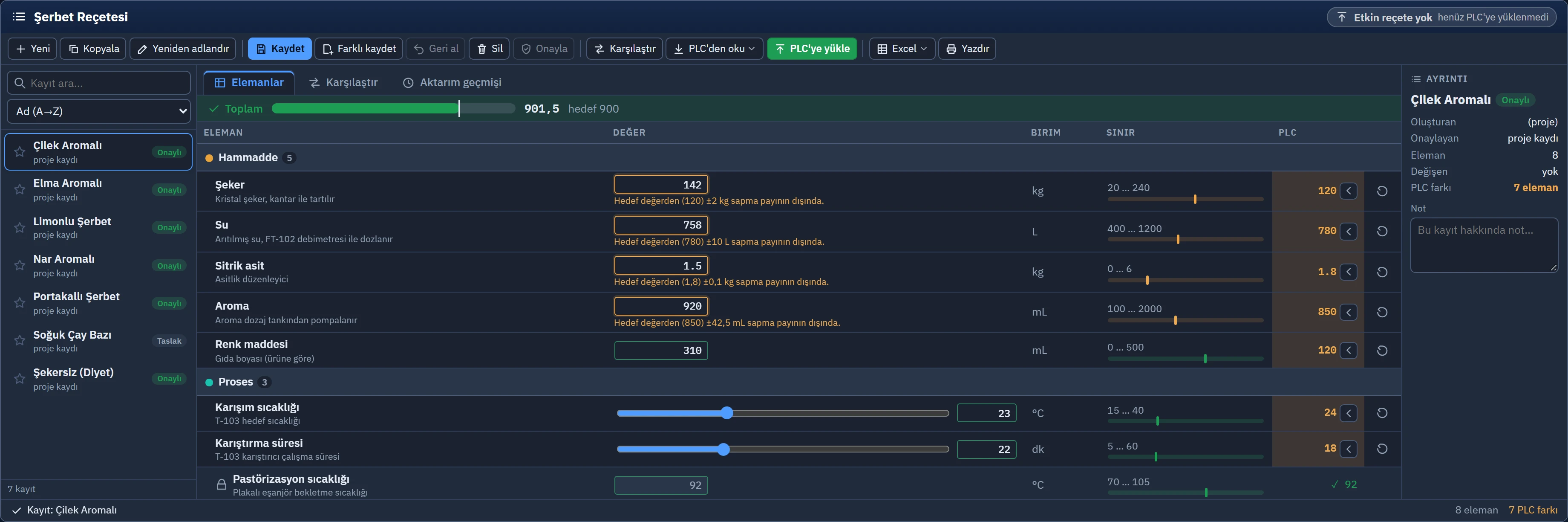
Getting to know the screen
- Record list (left): search box, sorting (Name (A→Z), Name (Z→A), Last change), favorite star and status badges (Approved, Draft, Active, ● for an unsaved change).
- Elements tab: each row shows the element name, the value box (number box, slider, switch or selection list), the unit, Limit (minimum / maximum and where the value lies) and PLC (the current value of the tag in the PLC). Groups appear as tabs or headings.
- Total bar: if a total rule is defined, the total of the selected elements and the target are shown. If the total matches the target, a ✓ mark appears; if not, a warning icon appears and the bar turns to the warning color if the rule is Warn only, or to the error color if it is block.
- Details card (right): who created, changed and approved the record and when; the numbers of elements, changed items and PLC differences; the Note field (at most 500 characters).
- Active recipe indicator (top right): the name, time and user of the record most recently loaded to the PLC successfully. The badge shows whether the values in the PLC are still identical to that record.
- Bottom bar: status text (“Ready”, “Saved: …”, error message), the number of elements and the number of PLC differences.
Entering and validating values
When you select a record, the values of the elements fill the boxes. A value you type into a box is validated immediately; if it is invalid, the reason is shown below the row, and saving or loading to the PLC is blocked:
| State | Message |
|---|---|
| No number | “…: enter a number.” |
| Decimals in an integer element | “…: must be an integer.” |
| Out of limits | “…: must be at least N.” / “…: must be at most N.” |
| Text too long | “…: can be at most N characters.” |
| Total rule | The warning text in the design; if block is selected, saving and loading stop; if warn is selected, it only warns. |
If the deviation margin (tolerance) from the target value is exceeded, a yellow warning appears below the box: “Outside the deviation margin of ±2 kg from the target value (120).” Elements with a lock icon cannot be changed. The ↺ button at the end of the row returns the element to its default value; the ‹ button in the PLC column takes the value in the PLC into the box.
Record operations
| Button | What it does |
|---|---|
| New | Creates a new record with the values in the boxes (the default value if invalid); asks for a name. The same name cannot be used twice. |
| Copy | Copies the saved values of the selected record under a new name (suggested name <ad>_kopya). |
| Rename | Renames the selected record. If the record is the active recipe, the name in the active record is updated too. |
| Save | Writes the values in the boxes to the selected record. If no record is selected, it works like Save as. If the recipe requires approval and a value has changed, the record becomes Draft and the previous approval is deleted. |
| Save as | Saves the values in the boxes under a new name. |
| Undo | Discards the unsaved changes in the boxes. |
| Delete | Deletes the selected record after asking for confirmation. |
| Acknowledge | Sets the record to Approved (if there are unsaved changes, save first). |
Saving, copying and renaming are subject to the Max. records number defined in the recipe. Every operation is written to the event log (of type recete).
Working with a PLC
Reading from the PLC
Read from PLC offers two options: Take the values into the boxes (the PLC values of the elements bound to a tag are filled into the boxes; locked elements are skipped) and Save as new record… (stores the PLC values, including locked elements, as a new record).
Loading to the PLC
- Prepare the record
If the recipe has an approval condition, the record must be Approved and saved; otherwise the message “… record is not approved (draft): it cannot be loaded to the PLC before it is approved.” appears.
- Press the Load button
Load to PLC: if Ask for confirmation before loading is on in the design, a summary window appears first. The window shows how many elements will be written, how many changes there are, and the values to be loaded next to the current PLC values; yellow warnings (tolerance, total rule) are also listed here.
- Follow the progress
The transfer is shown step by step in the progress window (validation, PLC ready?, write the values, trigger, wait for completion, read-back …). If necessary, you can stop it with Cancel; in handshake mode, the trigger tag is reset.
- Read the result
On a successful transfer, the notification “… record loaded to the PLC (N elements)” appears and the record becomes the Active recipe. On an error, timeout or cancellation, the reason is written; the Transfer history tab shows who, when, which record, the result, the duration and (if any) the PLC error code.
Comparison and history
- The Compare tab compares two sources element by element: a saved record, the values in the input boxes, the current values of the PLC, the active recipe or the defaults. Differences are highlighted and the number of differences is shown; there is a filter that shows only the differences.
- The Transfer history tab lists the transfers to the PLC from newest to oldest. The history is limited to the number set under Transfers kept in history in the design (default 200); it is also written to the
recete_aktarimlog.
Excel, CSV and printing
The Excel button opens these options: Export to Excel (all records), Excel template (an empty file with the headers and limit validations prepared), Export to CSV and (if the user is authorized) Import from Excel…. When importing from Excel, the file is read first and a preview is shown: a record whose name already exists is updated, a new name is added; every value is checked against the element's rule and invalid rows are not imported. The headers of the file are the same as in the Recipe data records table in Studio; the same file can be used in both programs. Print prints the recipe form of the selected record (if none is selected, of the values in the boxes).