Working with Excel
Exporting Studio tables to Excel, obtaining a template and importing from Excel; exporting the alarm, trend, recipe, report and event lists to Excel / CSV in Live.
FabyaVision reads and writes Excel files by itself: Excel does not need to be installed. The files are in the standard .xlsx format and can be opened with Excel, LibreOffice or a similar program. It is used in two places: in Studio, for bulk editing of project tables; in Live, for exporting lists and records (and importing in recipes).
Studio: editing tables with Excel
The toolbar of each table and the Excel submenu of the right-click menu contain three commands:

| Command | What it does |
|---|---|
| Export to Excel | Writes all rows of the table to an .xlsx file. The file name is generated from the project and table names (example: <Proje>_Analog_Alarmlar.xlsx). |
| Import from Excel | Reads an .xlsx (or .csv) file, maps it to the table, shows a preview; applies it if you confirm. |
| Excel template | Empty file without data rows: column headers, drop-down lists and a Description sheet. Fill it in and import it with Import from Excel. |
Structure of the file
- The first row contains the column headers; do not change the headers. The order of the columns may vary; unrecognized columns are skipped on import. Headers are matched regardless of upper / lower case, Turkish characters and spacing (example:
Kayıt adı=kayit adi). - Columns whose header ends with
*(orange) are required; a file without a required column is rejected. - Drop-down lists (Excel data validation): in selection columns (alarm class, tag, connection …) the allowed values are listed; long lists are written to a hidden
Listelersheet. Number columns have minimum / maximum validation. - Description sheet (last sheet): for each column, whether it is required, its type, the allowed values or range, an example and a description.
- Columns with a gray header (for example, the calculated Schedule and Rules) are for information only; they are ignored on import.
How the import works
- Matching key
Every table has a key column (for example No. for alarms, Record name for recipe records, Text in the design language for text translation). A row whose key is in the table is updated; a row whose key is not in the table is added. For tables that have no key column, an Order column is added to the file: a row that is filled in updates the row at that position in the table, and an empty one is added at the end.
- Preview
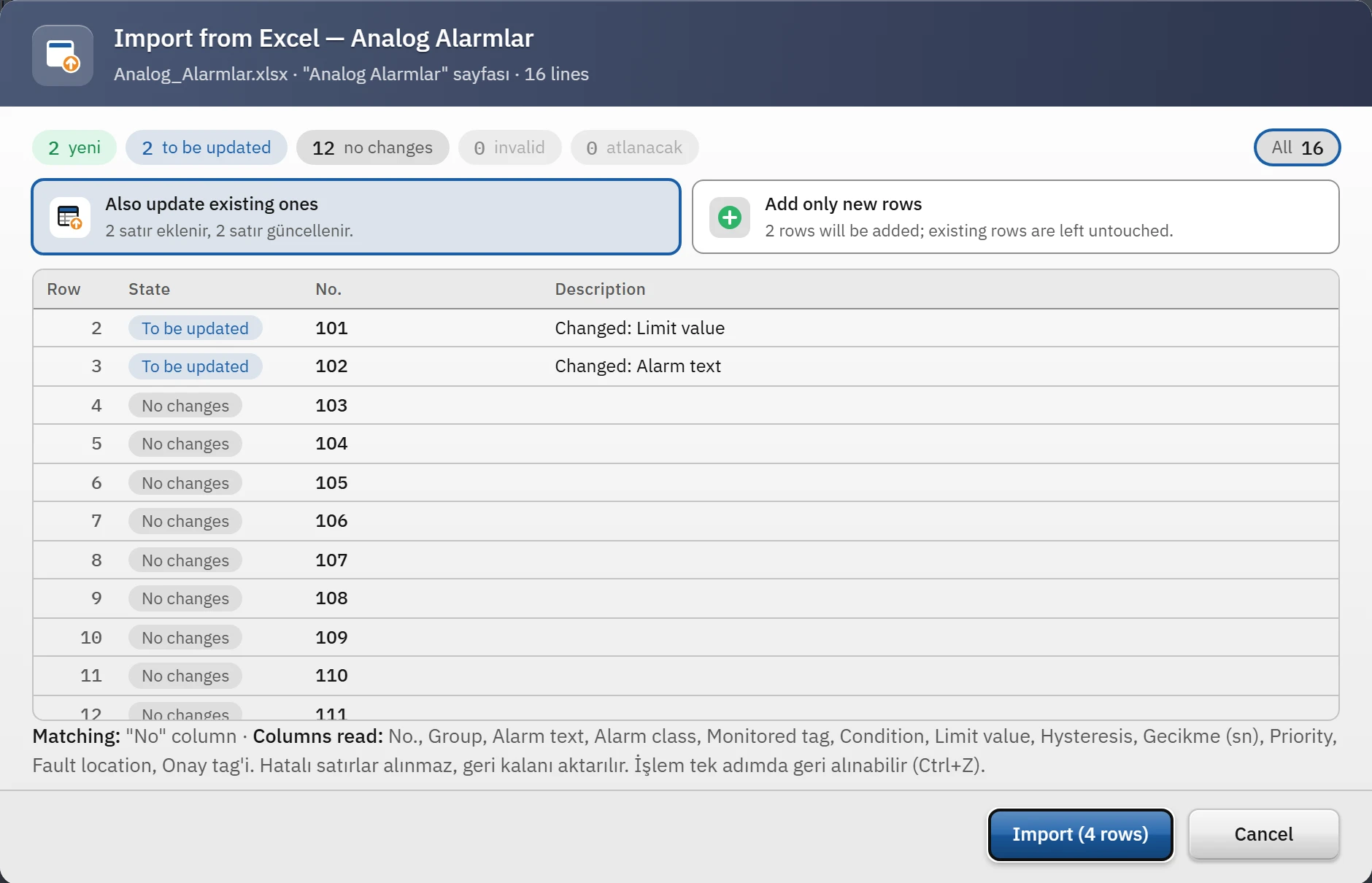
Import from Excel opens a window showing the numbers of new, to be updated, unchanged, invalid and to be skipped rows; the status of each row and (for updates) which fields will change. By clicking the counters you see only the rows in that status. The columns that were read and the unrecognized columns are listed at the bottom.
- Select the mode
Also update existing ones (adds and updates) or Add only new rows (existing rows are left untouched).
- Import
The Import (n rows) button applies the import. Rows with errors are not taken; the rest are imported. The whole import is a single undo step (Ctrl+Z).
Cell rules
| Column type | Empty cell | Invalid value |
|---|---|---|
| Text, number | Deletes the current value. | The row is considered invalid and is not imported; the reason is shown in the preview (for example: text instead of a number, a value out of range, an invalid tag name). |
| Checkbox (on / off), color | Does not change the value. | The color must be in the form #rrggbb. |
| Selection (list) | Means “Not selected”. | A value that is not in the list causes an error. |
Live: Excel and CSV outputs
| Checked by | Button | Content |
|---|---|---|
| Alarm view | Excel, CSV | All alarm rows in the filter; the date and time are combined in a single Time cell. The file name is Alarmlar_<tarih>.xlsx (formerly Alarm_Gecmisi_…). |
| Trend view | Export to Excel, Export to CSV, Save as image | Trend sheet (time + each curve) and Summary sheet (sample count per curve, minimum, maximum, average); thinned out after 250 000 rows. |
| Recipe view | Excel menu | Export to Excel, Excel template, Export to CSV and Import from Excel…. The file uses the same headers as the Recipe data records table in Studio; on import, a record whose name already exists is updated, a new name is added, and every value is checked against the element's rule. |
| Report view | Excel, CSV, PDF / Print | The report records in the list (No, Time, User, fields, approval information). There is no import. |
| Event view | Excel | The filtered event list: Time, Type, User, Text, Tag, Old, New, Result, Source. |
In Live, a save window asks where to save the file; when monitoring from a browser, the file goes to the browser's download folder.
Limitations and points to note
- Only
.xlsxis read (CSV too); the old.xlsand corrupt files are rejected with a clear error message. - The exported file contains no formulas: the values are written, and text columns have the “text” format (values such as
0015or2.10are not converted to numbers). - The row limit is the same as that of Excel (1 048 576).
- Recipe and report CSV files are semicolon-delimited UTF-8 with BOM; Turkish Excel opens them directly. In alarm and trend CSV files, the delimiter is selected in the design (semicolon, comma, tab).
- There is no Excel object (such as
Excel.Application) in scripts; scripts can read and write text / CSV files with the file access permission (Script object model reference).