Alarm view
The control that lists alarms on the screen: columns, tabs, pre-filter, toolbar, sound and export settings.
The Alarm view is a control that displays the defined alarms on a screen. A single object contains the current alarm list, the alarms awaiting acknowledgment, the shelved alarms and the alarm history; acknowledging, filtering and exporting are also built into the object. The same object runs with the same code in Live, in browser monitoring and on TV. For use by the operator, see Operator alarm handling.
Placing on the screen
- Add the object
In the screen editor, drag Alarm view from the Alarm view group of the toolbox onto the screen. The default size is 980 × 440; enlarge it according to your own design.
- Open its properties
Select the object; on the Properties tab of the Inspector, the settings are divided into categories: General (start view, tabs, pre-filter, history), Appearance (columns, toolbar, theme, panel) and Scale and limits (filter bar, behavior, sound, export).
- Check the preview
Studio displays the object by drawing sample rows with the alarms of the project. To see real alarms, run the project in Live.
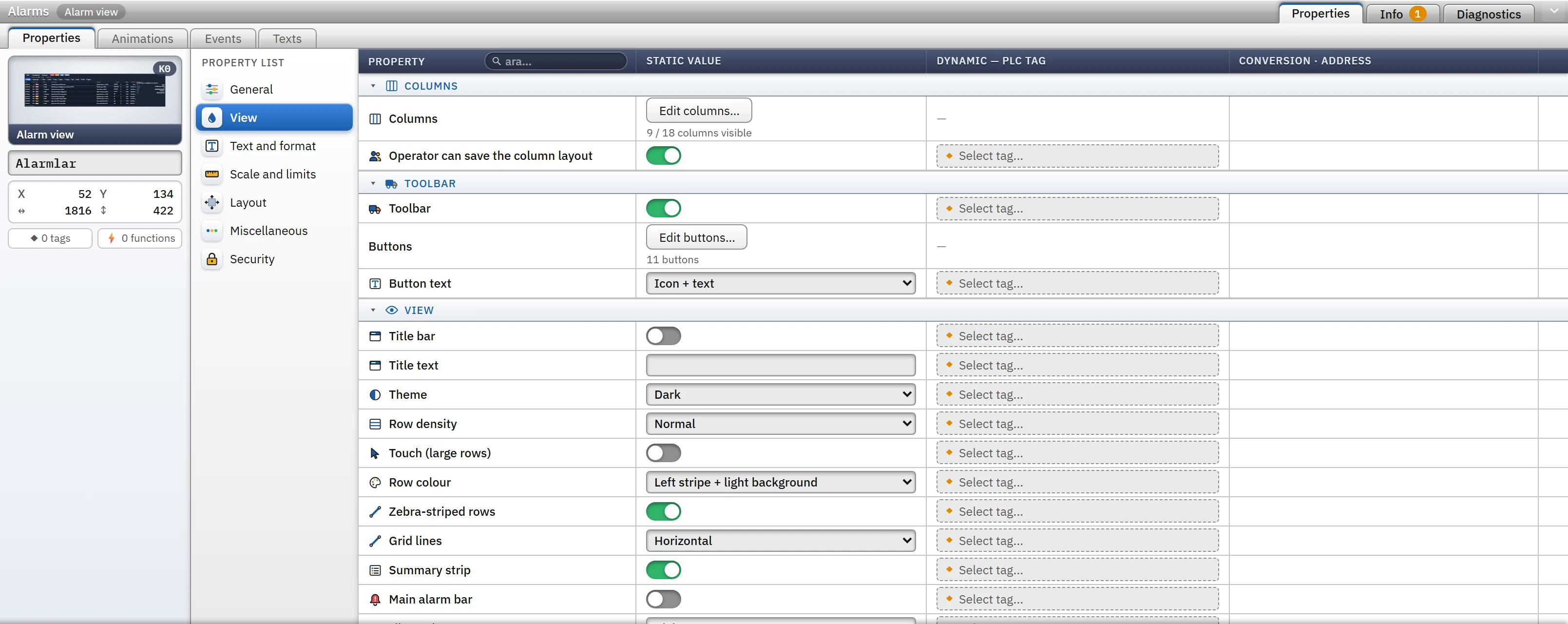
Property groups
| Group | Key features |
|---|---|
| State | Initial view (current alarms, awaiting acknowledgment, alarm history, shelved alarms), Tabs, Pre-filter (mandatory), History range (today, yesterday, last 7 days, this month, last 30 days), History format, Maximum history rows (default 5000, maximum 100 000). |
| Columns | Columns window; Operator can save the column layout. |
| Filter | Filter bar (search box, class / state / priority / fault location filters, date range in the history), Open initially. |
| Toolbar | Toolbar, Buttons window, Button text (icon + text, icon only, text only). |
| Appearance | Title bar, Title text, Theme (light, dark, follow the application theme), Row density, Touch (large rows), Row colour, Zebra-striped rows, Grid lines, Summary strip, Main alarm bar, Detail panel (none, right, bottom), Panel size (px), Long text wraps to two lines. |
| Behavior | Default order (priority then newest, newest at top, newest at bottom), Auto-scroll on new alarm, Unacknowledged alarm blinks, New alarm row is highlighted, Multi-select (Ctrl / Shift), Double-click (acknowledge the alarm, open the detail, nothing), Ask for confirmation before the action, Shelving durations (min), Reason required when shelving. |
| Sound | Audible alert, Audible classes, Sound type, Volume (%), Repeat until acknowledged. |
| Export | File name, CSV separator (semicolon, comma, tab), Exported columns (the visible ones or all). |
Columns
The Edit columns… button in the Edit columns… property opens a window with 18 columns. Each column has a show / hide switch, the order (▲ ▼ buttons or dragging), the header, the width (pixels, a percentage such as 20%, or empty = flexible), the alignment, the format and a Order option. The preview strip at the top shows the header row live. The Show all, Default columns and Old layout (6 columns) buttons apply settings in bulk.
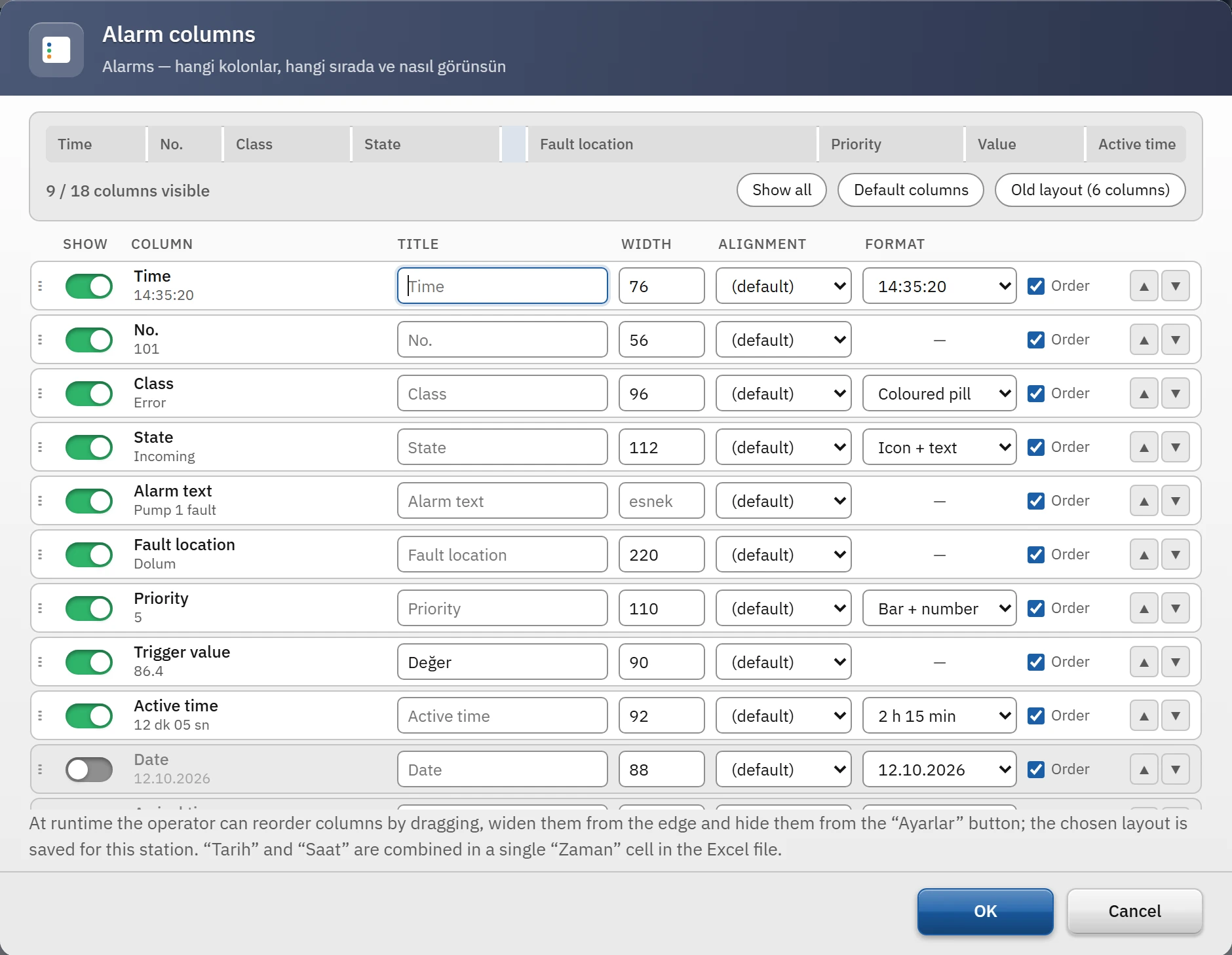
| Column | Content | Format options |
|---|---|---|
| Date, Time | Date and time of the event | Date: gg.aa.yyyy, yyyy-aa-gg, gg.aa.yy; time: with seconds, with minutes, with milliseconds |
| Arrival, Departure, Acknowledge time | The time the alarm came in, went out and was acknowledged | Full, time only, date only |
| No., Class, State | Alarm number, class, Incoming / Outgoing / Acknowledged | Class: colored chip or plain text; state: icon + text, icon only, text only |
| Alarm text, Fault location | Text in the definition and error location | — |
| Priority | Alarm priority | Number or bar + number |
| Trigger tag, Trigger value | The name of the tag that causes the alarm and its value at the moment the alarm occurred | — |
| Active time | The time the alarm stays active (increases live while it continues) | 2 sa 15 dk, seconds, 02:15:20 |
| Acknowledged by, Comment, Help text, Repeat | The acknowledging user, the operator's comment, the help text in the definition, how many times the alarm has occurred during this run | — |
Eight columns are visible in a new object: Date, Time, No., Class, State, Alarm text, Fault location, Active time.
Tabs, pre-filter and buttons
- Tabs: in the Edit tabs… window you choose which of the Current, Awaiting ack., History and Shelved lists are shown, as well as their order and title. If no tab is selected, the tab bar is not drawn; the operator sees only the list of the start view.
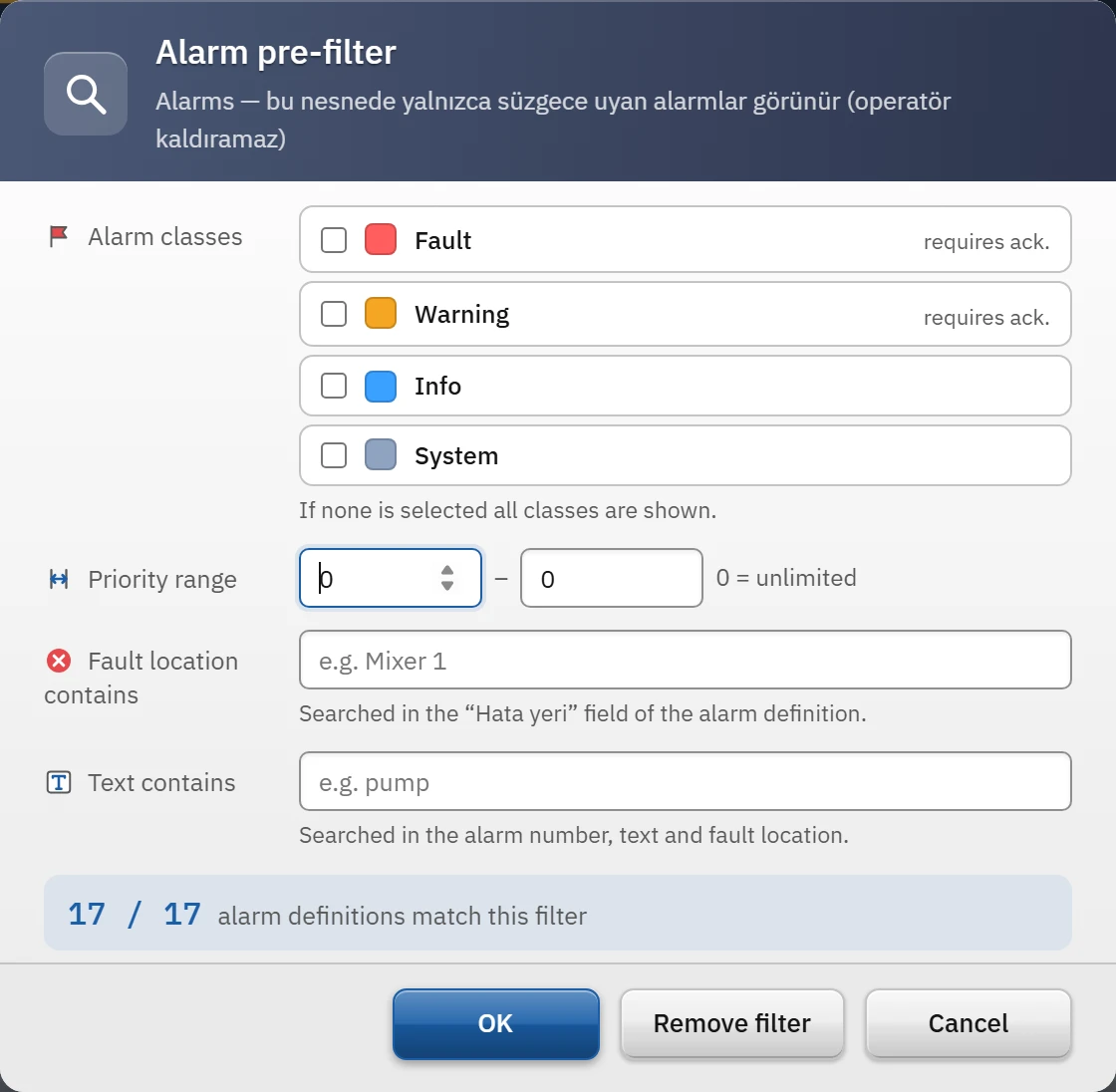
- Pre-filter (mandatory): makes the object show only certain alarms; the operator cannot remove it. It has criteria for alarm class (multiple), priority range (
0= unlimited), fault location and text contains. At the bottom of the window, the number of alarm definitions that match the filter is shown live. Example: placing only the alarms whose fault location containsMikser 1on a mixer screen. - Buttons: in the Edit buttons… window you choose which of the 14 buttons are shown and in which order: Acknowledge, Acknowledge all, Silence, Shelve, Comment, Details, History / Current, Filter, Refresh, Freeze, Excel, CSV, Print, Settings. Acknowledge, Acknowledge all, Shelve and Comment are inactive in browser monitoring.
- Audible classes: you choose which classes sound a tone on a new alarm; if none is selected, all classes that require acknowledgment sound a tone.
Row colors
The row takes the Incoming / Outgoing / Acknowledged colors of the alarm's class (Alarm classes). The Row colour property offers the following options: Whole row in the class colour, Left stripe + light background, No colour (state icon only).
Sound
When Audible alert is on, a short sound is played for a new incoming alarm awaiting acknowledgment. The sound is generated on the speaker of the Live computer (no sound file is needed). If Sound type is By priority, low priority plays a single beep, medium priority a double beep, and high priority (7 and above) a siren. When Repeat until acknowledged is on, the sound repeats every 8 seconds as long as an alarm awaiting acknowledgment persists; the Silence button cuts the sound until the next new alarm.
Export
The Excel and CSV buttons export all rows in the filter, not just what is visible on the screen. The date and time columns are combined in the file into a single Time cell. If the file name is empty, Alarmlar_<tarih>.xlsx (Alarm_Gecmisi in the history) is used. The file is written to the location selected in Live with the save dialog.
Events
Three events run on the Events tab of the object: Click (when an alarm row is selected), On double-click (when a row is double-clicked) and Object change (when an alarm is incoming, outgoing, acknowledged or shelved). The first two are operator actions and run only if Operable is on for the object and the required authorization is present; Object change runs unconditionally. For the list of functions, see the topic Events and functions.