Defining alarms
Defining digital and analog alarms and alarm classes in the HMI alarms section; the effect of each column in Live.
Alarm definitions are in the HMI alarms section and consist of three tabs: Discrete alarms, Analog alarms and Alarm classes. The tables work in the same way as all table editors (adding rows, editing cells, Excel; see Table editor). For how alarms work in Live, see Alarm system.
Defining a discrete alarm
A discrete alarm is triggered when a specific bit of a tag reaches the value you want. The trigger tag must first be defined in the HMI tags table.
- Open the tab
In the project tree, open HMI alarms, select the Discrete alarms tab and press the Add button. The new row is given a No. that is one more than the highest number in the table.
- Enter the text
Alarm text is the message the operator will see. Enter a short text that describes the event (example:
Transfer Pompası P-103 arızası). - Select the class
Alarm class determines the color of the alarm, whether it requires acknowledgment, and whether it is written to the log.
- Select the trigger tag and the bit
Select the tag from the Trigger tag list, the bit number within the tag (0 – 31) in the Bit field, and the On 1 or On 1 option in the On 0 field.
- Fill in the optional fields
Priority, Fault location, Acknowledgment tag and Help text are explained in the table below.
- Check
Check the project with F7; if an alarm row has a problem, it appears in the Problems list (see Check the project).
 123456
- No. — alarm number (unique).
- Alarm text — the message the operator will see.
- Alarm class — determines the color, acknowledgment and logging.
- Trigger tag — the monitored tag.
- Bit — the bit number within the tag.
- Trigger — when the bit becomes 1 or 0.
Defining an analog alarm
An analog alarm compares the value of a numeric tag with a limit. The steps are the same as for a discrete alarm; on the Analog alarms tab you fill in the Monitored tag, Condition, Limit value, Hysteresis and Delay (s) fields. The monitored tag cannot be of type Bool, text or DateTime.
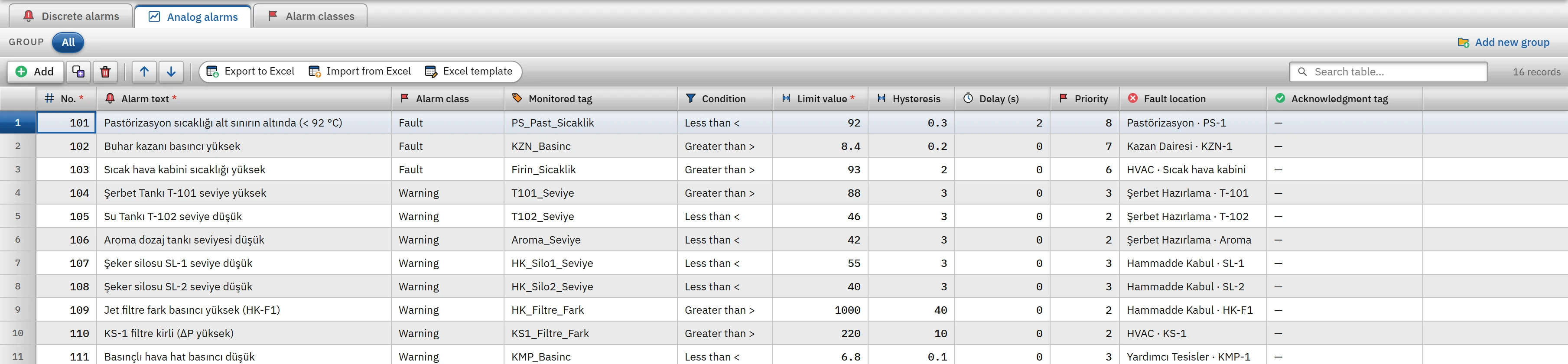 12345
12345- Condition — comparison with the limit.
- Limit value — the threshold of the alarm.
- Hysteresis — the margin required for the alarm to go out.
- Delay (s) — the alarm is triggered if the condition lasts this long.
- Priority — a larger number is more important.
How the condition, hysteresis and delay work
- Condition:
Büyükse >,Greater or equal ≥,Küçükse <,Less or equal ≤,Eşitse =,Farklıysa ≠. - Hysteresis is applied after the alarm has been triggered: for the
>and≥conditions, the alarm goes out when the value falls below limit − hysteresis; for the<and≤conditions, it goes out when the value rises above limit + hysteresis. It prevents the alarm from being triggered and going out continuously while the value fluctuates around the limit. For the=and≠conditions, hysteresis has no effect. - Delay (s): if the condition is not met continuously for this time, the alarm is not triggered; if the condition ends before the time has elapsed, the counter is reset. Maximum 3600 s. A discrete alarm has no delay.
Alarm columns
| Column | Discrete | Analog | Description |
|---|---|---|---|
| No. | yes | yes | Alarm number (1 – 999999). It must be unique in the same table; it is the mapping key in the Excel import. It appears in the alarm list and in the log in Live. |
| Alarm text | yes | yes | The message the operator sees (required). |
| Alarm class | yes | yes | A class in the Alarm classes table. |
| Trigger tag / Monitored tag | yes | yes | If not selected, the alarm is never generated (Problems warns you). A discrete alarm requires the type Bool or Byte, SInt, Int, UInt, DInt, UDInt. |
| Bit, Trigger | yes | — | The bit number cannot exceed the number of bits of the tag type (Bool: 0, Byte / SInt: 0 – 7, 16 bit: 0 – 15, 32 bit: 0 – 31). |
| Condition, Limit value, Hysteresis, Delay (s) | — | yes | The comparison described above. |
| Priority | yes | yes | 0 – 16. A higher number is more important: the list is sorted first by priority, then by recency; the alarm row shows the alarm with the highest priority. If the Sound type property of the alarm view is set to By priority, the type of the audible warning also depends on it (7 and above siren, 3 – 6 double beep, below that single beep). |
| Fault location | yes | yes | Free text (example: Mikser 1). It appears as a column in the alarm list; it is searched in the filters and in the pre-filter of the Alarm view. |
| Acknowledgment tag | yes | yes | When the operator acknowledges the alarm, 1 is written to this tag; the PLC learns of the acknowledgment from this bit. Live does not reset the tag; the PLC program must reset it. |
| Help text | yes | none | Text that describes the cause of the alarm and what to do. It appears in the detail panel of the Alarm view, in the Help text column and in the tooltip of the text cell. |
Alarm classes
A class groups the alarms that are to behave in the same way. Each alarm belongs to exactly one class. A new project comes with four classes ready: Hata (requires acknowledgment, flashes), Uyari, Bilgi and Sistem.
 12345
12345- Color — main color of the class.
- Row appearance — row colors for Incoming / Outgoing / Acknowledged.
- Acknowledgement required — remains in the list until it is acknowledged.
- Flashes — an alarm row awaiting acknowledgement.
- Logged — state changes are written to the journal.
- Name
- The name of the class; it appears in the class filter and in the summary strip of the Alarm view.
- Color
- The main color of the class. If the state colors are left empty, they are derived from this color (the Incoming background is the main color; the Outgoing colors are its light and dark shades).
- Row appearance
- Calculated preview: the text and background colors of the INCOMING, OUTGOING and ACKNOWLEDGED rows.
- Incoming / Outgoing / Acknowledged: text and background
- The colors of the alarm row in that state. The row colors are used by the Row colour property of the Alarm view.
- Acknowledgment required
- If checked, the alarm stays in the list until the operator acknowledges it, even after the condition has cleared. Alarms awaiting acknowledgement are collected on the Awaiting ack. tab.
- Flashing
- The row of an alarm awaiting acknowledgment blinks (if Unacknowledged alarm blinks is on in the alarm view).
- Logged
- If checked, the alarm events of the class are written to the alarm log; the History tab shows these records.
Limitations and points to note
- The uniqueness of the alarm number is checked separately in each table; using the same number in the digital and the analog table does not produce an error in the Problems list. To avoid confusion, keep the number ranges separate (in the sample project, digital 1, analog 101 – 116).
- The discrete and analog alarm tables can be grouped (Group bar); Alarm classes cannot be grouped.
- An alarm whose class has been deleted works without a class in Live: it does not require acknowledgment, is shown in the default red color and is written to the log. Before deleting a class, move its alarms to another class.
- Alarm texts, fault locations, help texts and class names are collected as translatable texts in the Languages and texts section.