Languages and texts
Defining the project languages, translating the translatable texts in the project, and switching the language in Live; font by language.
To run a project in several languages, first define the languages in the Project languages table, then enter the equivalent of every text in the project in the Project texts table. In Live, the operator changes the language from the System menu (or with a button); the texts are redrawn immediately in the new language. This topic describes the project language; the user-interface language of the Studio and Live shell is separate (below).
Defining languages
- Know the design language
The first language in the table is the design language: you write the screen texts, alarm messages and list texts in this language. A new project has a single language.
- Add a language
On the Project languages tab, click Add; enter the Language code (two lowercase letters:
tr,en,de…; optional regionen-US) and the Language name. - Enter the translations
On the Project texts tab, fill in the column of the new language (below).
- Select the start language
Live settings›General›Startup›Live language is the list for the language that Live uses at startup.
 1234
1234- Language code — tr, en, de …
- Enabled in Live — a language that is off cannot be selected.
- Order — the order followed when switching languages.
- State — design language or number of translations.
| Column | Meaning |
|---|---|
| Language code, Language name | A required, unique code and the name shown on the button in Live. |
| Enabled in Live | A disabled language cannot be selected in Live; the language button and the Change Live language function skip it. |
| Order | The order followed when switching the language (from smallest to largest, 0 – 99). If empty, the table order is used. |
| Default font | Used, while this language is selected, for screen texts that have no font of their own assigned (example: a suitable family for Russian or Chinese). The font of the object itself always takes precedence. |
| Menu font | Used in the Live shell (menus, alarm line, status bar, windows, on-screen keyboard, project selection window) while this language is selected. |
| State | Calculated: DESIGN LANGUAGE for the design language, “n / m texts translated” for the others. |
Translating the project texts
In the Project texts table, Studio itself collects the translatable texts of the project; you do not add rows. Each row has the Text in the design language, the Used in field (read-only), which shows where the text occurs, and a translation column for each additional language. An untranslated cell shows “not translated”.
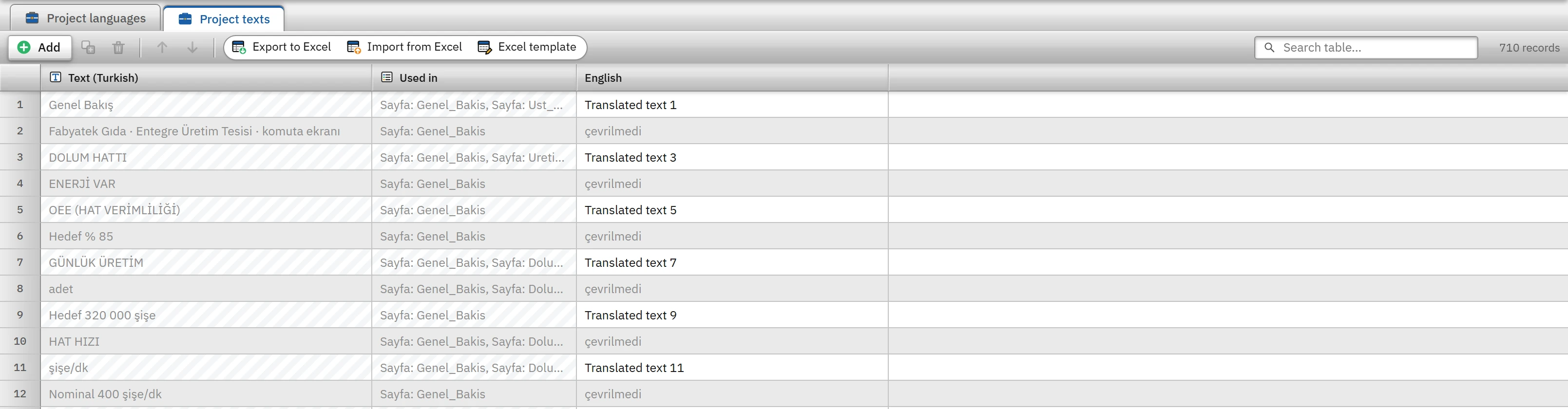 123
123- Text (Turkish) — the text in the design language; it is not changed.
- Used in — the screen / section where the text occurs.
- English — the translation is entered here.
Texts are collected from the following sources: display names of screens, text properties and tooltips of objects, view names in 3D screens, alarm texts / help texts / fault locations, alarm class names, text list entries, navigation menu names, menu and toolbar items, display names of recipes and elements, display names of reports and fields. Texts shorter than two letters or containing no letters (numbers, a single symbol) are not collected. Tag names, connection names, user names, file paths and properties marked “not translated” (file name, CSV separator, etc.) are not translated.
Translation with Excel
To give the translation to a translator: export the table with Export to Excel, fill in the language columns and import it back with Import from Excel. Matching is done on the text in the design language; only the translation columns are updated, and no new rows are added. Do not change the Text column: a changed row will not match (Working with Excel).
Changing the language in Live
- System menu: if more than one language is active, language buttons appear in the Language section; the selected language is applied immediately.
- Event function: the Change Live language (value = language code) function can be bound to a button. If no language code is given, the next enabled language is activated (Events and functions). Scripts can also change the language.
- If a language that is not enabled is requested, the notification “Language
kodis disabled in the Live settings” appears and the language does not change; for a code that is not in the project, the notification “Languagekodis not defined in the project” appears. - Untranslated text appears as it is in the design language.
- In monitoring from a browser, each browser selects its own language and stores it in its own browser; it does not change the language of the Live computer.
Limitations and points to note
- At least one language in the project must have Enabled in Live selected; if none is enabled, the Problems list reports an error and the design language is used. If Live language points to a disabled language, Live starts with the first enabled language (a warning is given).
- The language code can consist only of two lowercase letters (and an optional
-XXregion);trandTRare not the same, and the uppercase form is not accepted. - The texts written to the alarm log and to the report records (alarm message, class name) are in the design language at the moment they are recorded; no translation is kept in the log.
- Dynamic texts (the text value of a tag, a message from the PLC) are not translated.