Alarm system
How the system that generates alarms from tag values, shows them to the operator and writes them to the log works in general: alarm types, states and where they are seen.
The alarm system monitors the value of a tag; when the condition is met, it creates an alarm record, shows it to the operator and writes every state change to a log file. You define alarms in Studio; Live evaluates them while it runs. The operator sees alarms in the Alarm view object, in the alarm line at the bottom of the display and in the Alarms window of the System menu.
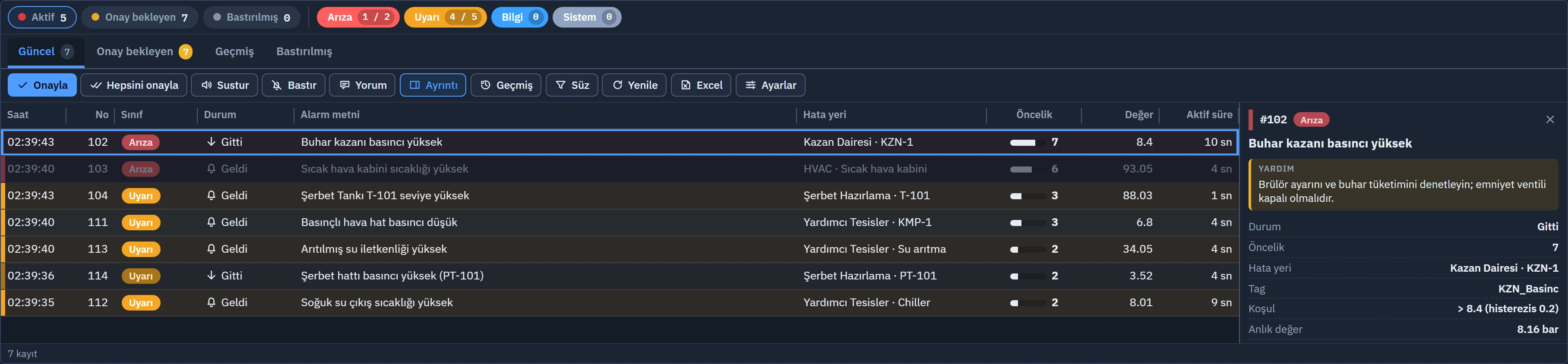
How an alarm arises
The HMI alarms section in Studio contains two types of alarm and a class table. For detailed definition steps, see the topic Defining alarms.
| Type | When an alarm comes in | When it goes |
|---|---|---|
| Digital alarm | When the selected bit of the trigger tag reaches the value in the Trigger field (1 or 0). For a Bool tag, Bit must be 0. | When the bit leaves the trigger value. |
| Analog alarm | When the value of the monitored tag meets the Condition and Limit value; if there is a Delay (s), the condition must hold without interruption for this duration. | When the value moves back from the limit by the amount of Hysteresis. |
An alarm is re-evaluated only when the value of the tag changes and the value is valid. If the value of the tag has not been read yet or its quality is bad (connection lost), the state of the alarm does not change: the alarm does not come in and, if it has already come in, it does not go out.
Alarm states
The state of each alarm in Live is one of the following three designations; a shelved alarm additionally appears as Shelved.
| State | Meaning |
|---|---|
| Incoming | The alarm condition is still present. If its class is Acknowledgment required, it means it is waiting for acknowledgment. |
| Outgoing | The condition has cleared but the alarm has not been acknowledged; it stays in the list. It is seen only in classes with Acknowledgment required checked. |
| Acknowledged | The operator has acknowledged the alarm. If the condition persists, the alarm stays in the list; if the condition has cleared, it leaves the list. |
| Shelved | The operator has shelved the alarm (removed it from the list for a set period). It comes back when the period ends or when it is unshelved manually (Operator alarm handling). |
In classes where Acknowledgment required is not checked, the alarm leaves the list automatically when the condition clears; no acknowledgment is needed.
Where alarms are shown
- Alarm view object: the full-featured list you place on a screen (Alarm view).
- Alarm line: the strip at the bottom of the display that shows the number, text and fault location of the first alarm in priority order. Clicking it opens the Alarms window. It is switched on and off with Live settings›General›View›Show alarm line.
- System menu: the Alarms (n) button opens the same window.
- Monitoring from a browser: the list is visible; acknowledgment, shelving and comments can be made only from the Live computer (Remote monitoring).
How an alarm is recorded
Each state change (incoming, outgoing, acknowledged, shelved, shelving ended, comment) of the alarms whose class has Logged checked is written as one row to the alarm log. The log is kept in the data folder of the project as monthly files: <Proje>.veri\gunluk\alarm_yyyyMM.log. Each row is a single-line JSON and carries the alarm number, class name, text, fault location and the acknowledging user. The history list is read from this log.
Live also keeps the last 2000 events in memory during the session.