Operator alarm handling
Monitoring, acknowledging, shelving, commenting on, filtering and viewing the history of alarms in Live; required authorizations and limits.
This topic is for the operator who uses the Alarm view running in Live. What you see depends on which buttons and columns the designer has enabled; all options are described here.
Reading the list
- The summary strip at the top shows the Active, Awaiting ack. and Shelved counters and the counter of each class (
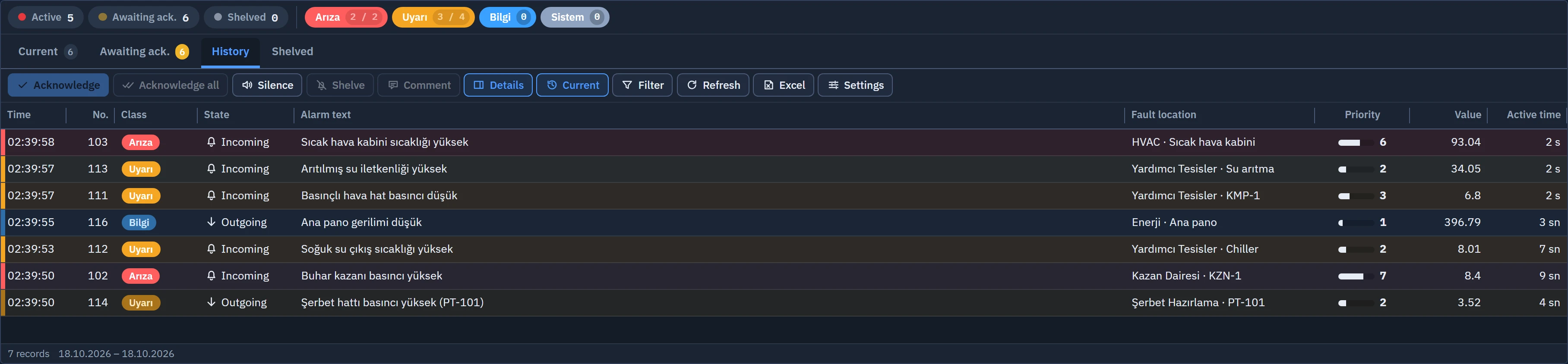
aktif / onaysız). Clicking a counter opens the corresponding list; clicking a class button filters by that class. - Tabs: Current (active alarms and alarms awaiting acknowledgment), Awaiting ack., History, Shelved. The number on a tab is the number of alarms in that list.
- Row color and state: the color comes from the class and the state of the alarm (Incoming, Outgoing, Acknowledged). A newly arrived row is highlighted for three seconds; a row awaiting acknowledgment flashes if Flashing is set in its class.
- Details panel: opens on the right (or at the bottom) when a row is clicked. It shows the alarm text, help text, state, priority, fault location, tag, condition, current value, trigger value, incoming / outgoing / acknowledgment times, the time active and the time to acknowledgment, who acknowledged, the comment and the alarm's Recent events list (at most 8 events from the last 30 days). If a screen uses the alarm's tag, a button bearing the screen name opens that screen.
- Main alarm bar (if enabled in the design): shows the active alarm with the highest priority in a large bar; if it is awaiting acknowledgment, there is an Acknowledge button.
Alarm acknowledgment
- Log on
To acknowledge, the Alarm acknowledgment authorization must be checked in your user's group. If no session is open, Live opens the log-on window; if a session is open but the authorization is missing, it shows a notification (Using authorizations).
- Select the alarm
Click a row. Hold Ctrl to select individual rows and Shift to select a range; Ctrl+A selects all visible rows.
- Confirm
Click the Acknowledge button, press Enter or (if so selected in the design) double-click the row. If the designer has turned on the Ask for confirmation before the action option, a confirmation window appears.
Acknowledge all acknowledges, in a single operation, all alarms visible in the filter that are awaiting acknowledgment. Alarms are not acknowledged in the History tab. The acknowledgment is written to the alarm log with the acknowledging user; if the alarm has an Acknowledgment tag defined, 1 is written to that tag.
Shelving an alarm
Shelving removes an alarm that keeps coming and is unimportant at the moment from the list for a set time. The shelved alarm leaves the list and the counters and moves to the Shelved tab; it comes back when the time expires or when it is removed manually.
- Select the alarm
In the current list, select one or more alarms; click the Shelve button (authorization: Alarm acknowledgment).
- Enter the duration and the reason
In the window, fill in the Time field (default options 5 minutes, 15 minutes, 1 hour, 4 hours, 8 hours; 1 hour is preselected; the list can be changed at design time,
0= “Until removed manually”) and the Reason field. If a reason is mandatory at design time, it cannot be left empty.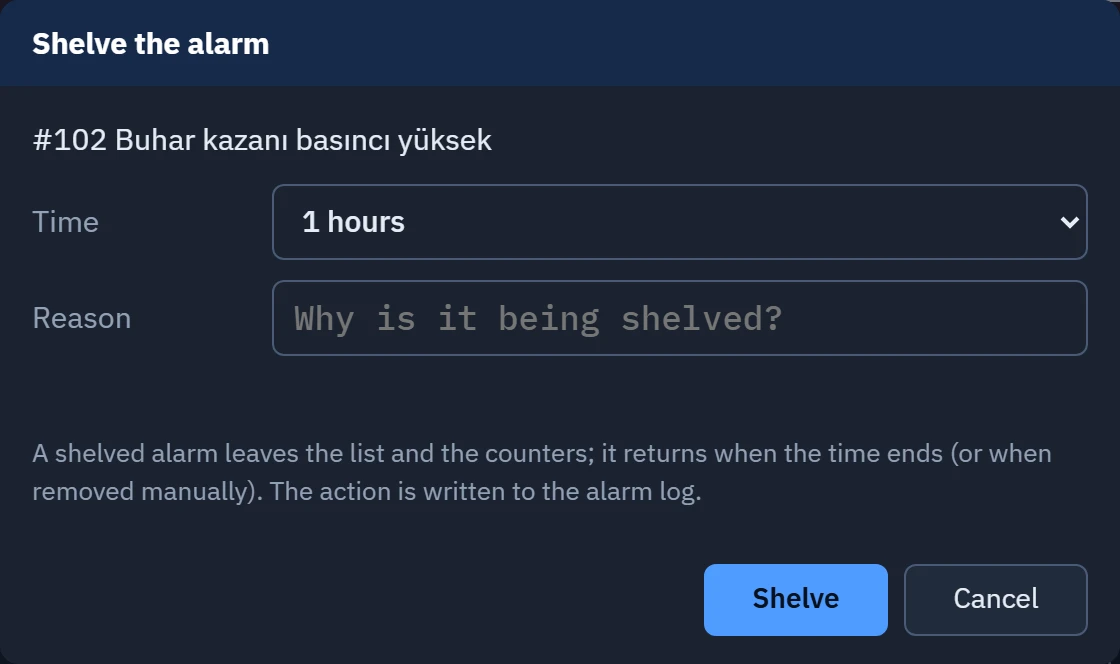
Shelve alarm window: duration and reason. - Remove it if necessary
When you select alarms in the Shelved tab, the button becomes Unshelve. The button does this whenever all the selected alarms are shelved.
Shelving is written to the log together with the user who shelved the alarm and the reason. The shelving end time appears in the detail panel.
Writing comments
Select a single alarm, click Comment and type your note of up to 500 characters (authorization: Alarm acknowledgment). The latest comment appears in the details panel and in the Comment column; every comment is also written to the log. When the alarm occurs again, the comment of the previous occurrence is not carried over.
Filtering, sorting and search
| Tool | What it does |
|---|---|
| Filter button | Opens or closes the filter bar. |
| Search box | Requires every word separated by a space to occur in the alarm number, class, text, fault location, comment, tag name, acknowledging user or state text. Esc clears the search. |
| Class, State, Priority, Fault location | Filters by class (multiple selection), state (Incoming, Outgoing, Acknowledged), priority range and fault location. The selected filters appear below the filter bar as removable chips. |
| Time | In the current list, Last hour, Last 8 hours or Today. |
| Clear filter | Removes the filters you set; the pre-filter set by the designer (locked chip) remains. |
| Column header | Click to sort; a second click reverses the order, and a third returns to the default order. Shift+click sorts by several columns. |
History
The History tab (or the History button) reads the alarm log. From the range list at the top, select Today, Yesterday, Last 7 days, This month, Last 30 days or Custom range; for a custom range, enter the start and end and press Apply. Depending on the designer's History format selection, each state change becomes a separate row, or each alarm is paired into a single row as incoming, outgoing, acknowledgment and active duration.
Other tools
- Freeze: freezes the list; new alarms do not shift the rows, and “List frozen · n changes waiting” is shown at the bottom. Resume updates the list.
- Mute: silences the audible warning until the next new alarm.
- Refresh: reads the list (in the history, the log) again.
- Excel / CSV: exports all rows in the filter to a file; Print prints the page.
- Settings (or right-click on the column header): shows / hides columns and lets you choose the row density (Compact, Normal, Wide). The layout is stored with Save for this station or Save for my user (name); Return to the design layout deletes the stored record. Columns can be reordered by dragging their headers and widened by dragging their edge.