Operator trend handling
Watching the trend live in Live, scrolling, zooming, cursor and A / B measurement, selecting the time range and exporting.
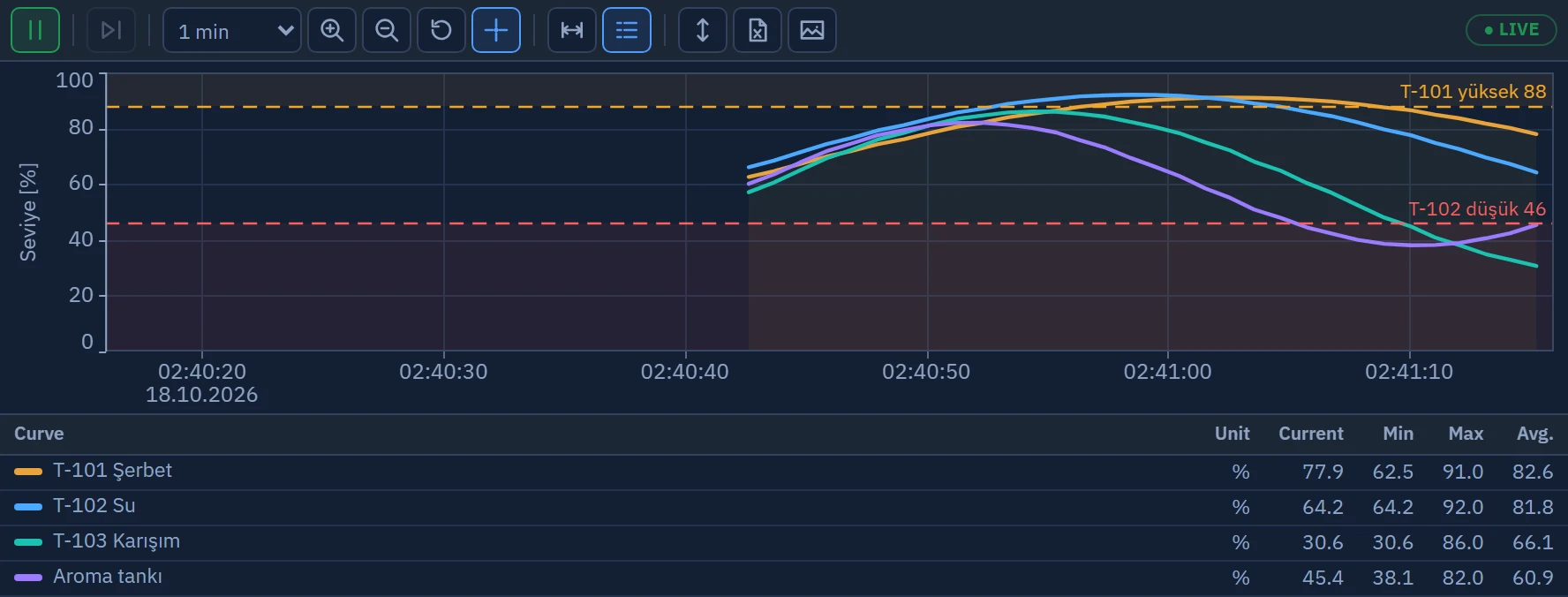
In Live, the Trend view runs live by default: the right edge is the present moment and the window scrolls by itself. As soon as you drag or scroll the view, live monitoring stops; Back to live resumes it. All of the buttons below depend on the toolbar selection made by the designer; if you cannot see a button, it was switched off in the design.
Time window
| Action | How to do it |
|---|---|
| Stopping / resuming live monitoring | The Live / Freeze button at the far left, or Boşluk. When paused, the badge shows PAUSED; Back to live or End returns to live. |
| Scrolling back in time | Drag the plot area horizontally; ← → shift the window by 10%. The Previous window / Next window buttons shift it by 90% of the window. |
| Choosing the window length | Select a preset duration from the Time range selector list (for example, 1 min, 10 min, 4 h, 7 days). The Custom… option opens the Absolute range window, in which you enter “Last N seconds / minutes / hours / days” or the start and end. |
| Zoom in / zoom out | Mouse wheel (towards the time where the cursor is), the Zoom in / Zoom out buttons (×1,5) or the + / - keys. On a touch screen, spread or pinch with two fingers. |
| Zooming with a box | Turn on the Zoom to box button, or hold down Shift and drag a rectangle in the drawing area; the selected time range and (if the box height exceeds 6 pixels) value range are fitted to the window. |
| Returning to the start | The Reset button, a double-click on the plot area, or Home: the window returns to the duration and live mode set at design time, and the Y axes return to the range set at design time. |
The time window can be at least 2 seconds and at most 62 days. If the right end of the window approaches the current moment, the trend switches back to live mode. If the designer has entered a time for Automatic return to live, the trend returns to live that many seconds after scrolling stops.
Y axis
- The wheel over the axis strip, or Ctrl + wheel in the plot area, zooms the value range of that axis in / out.
- Dragging the axis strip shifts the range up or down.
- Clicking the axis strip selects the first curve of that axis and fits the axis to the range of the visible data; double-clicking clears the setting you made manually for that axis.
- The Fit axes button fits all axes to the range of the visible data in a single step.
Cursor and measurement
- Turn on the cursor
While Cursor (crosshair) is on, move the mouse over the curves. The tooltip box and the Cursor column in the value table show the values at that moment (which ones are shown is selected at design time with Cursor values).
- Turn on the measurement cursors
Click the Measurement cursors (A / B) button; then click point A first and point B second in the plot area. Further clicks move the nearest cursor; you can also adjust the cursors by dragging the cursor handles.
- Read the result
The measurement panel shows the times A and B, the duration between them (Δt), and for each curve the values A, B, difference (Δ), minimum, maximum, average and integral (∫, unit × s if the range does not exceed one hour, unit × h if it does). The ✕ in the corner of the panel removes the cursors.
Legend and curve selection
The value table at the bottom (or on the right) shows the unit of each curve, its current value, its cursor value and its minimum, maximum and average values in the visible range; which columns are shown is set in the design. Clicking a row selects the curve. For curves that may be hidden, the hide button in the row removes the curve from the plot / brings it back. The Legend button shows and hides the table; the Grid button shows and hides the grid.
Settings window
The Settings button (if Operator settings window is turned on in the design) opens a small settings window for the operator: visibility, color, thickness and line style for each curve; automatic scaling, minimum and maximum value for each axis. OK saves the changes for this station, Restore defaults deletes the saved settings. When monitoring from a browser, this button is disabled.
Export and printing
| Button | Result |
|---|---|
| Export to Excel | A two-sheet .xlsx: on the Trend sheet each row is a time and each column is a curve (raw values, with scale factor and offset applied); on the Summary sheet, per curve, the number of samples, minimum, maximum, average, and the time of the first and last sample. If the number of rows exceeds 250 000, the samples are thinned out. |
| Export to CSV | The same table as CSV. The delimiter is selected in the design (semicolon: decimal comma; comma: decimal point). |
| Save as image | A PNG image of the trend's title, plot and value table (the measurement panel is not included). |
| Opens the trend image in a full-screen preview and requests the print dialog; use the Print and Close buttons in the preview, or Esc. |
Depending on the Data to export selection in the design, Excel and CSV contain either only the visible range or all loaded data. The file name has the form <Dosya adı>_<tarih> (default Trend_20261017.xlsx); the location is chosen in the save dialog. Hidden curves are not written to the file.