Trend view
The control that plots tag values against time: curves, Y axes, limit lines, time window, legend and toolbar settings.
The Trend view plots the value of one or more tags on a time axis. You can feed the curves from the data log (you can scroll back through the history) or directly from live tags. You prepare the object in Studio with properties and three detail windows (Curves, Y axes, Limits); the operator uses it in Live (Operator trend handling).
Trend preparation
- Add the object
In the screen editor, drag Trend view from the Trend view group of the toolbox onto the screen and resize it.
- Define the curves
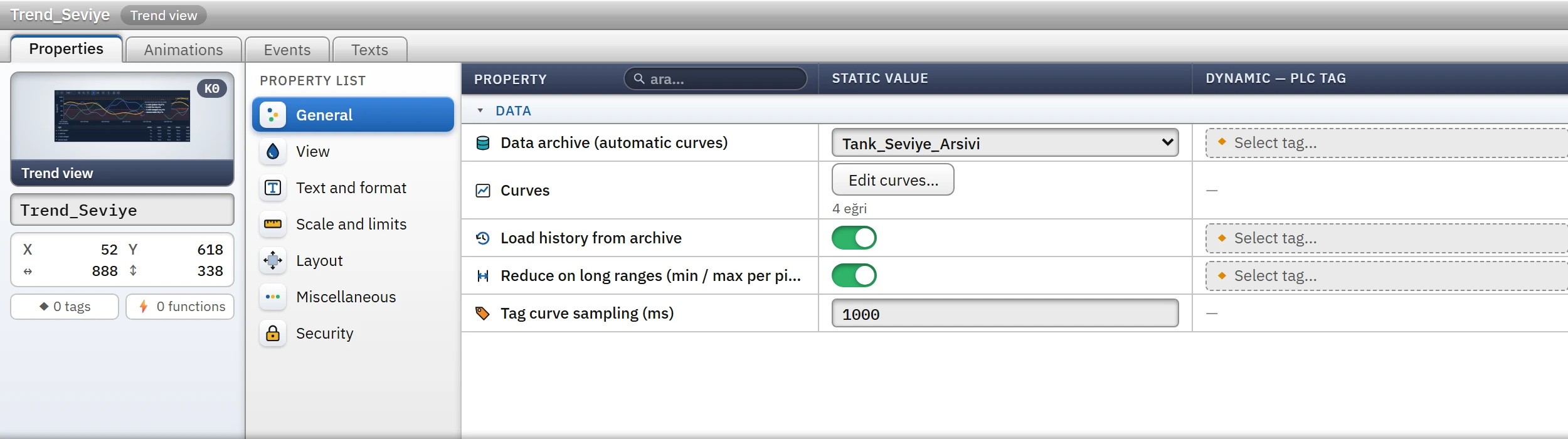
There are two ways: (a) Select an archive from the Data archive (automatic curves) list; while the Curves list is empty, all tags of the archive become one curve each, with the Curve name and Curve color defined in the archive. (b) Define the curves one by one in the Edit curves… window; in this case the archive selection is not used.
- Select the time window
Time range (min) is the length of the visible window (default 10 min). If Live monitoring is on, the right end of the window is the present moment and the window scrolls by itself.
- Add the axes and limits
If the curves have different scales, add axes with Edit Y axes… and bind the curves to them; for threshold lines, use Edit limits….
- Check
Check project (F7) lists curve, axis, limit and time range errors.
Curves window
On the left of the window is the curve list (Add, duplicate, delete, move up / down, Add from archive…), on the right the settings of the selected curve, and below a live preview identical to the plot in Live. Add from archive… adds all tags of an archive that have not been added yet in one go.
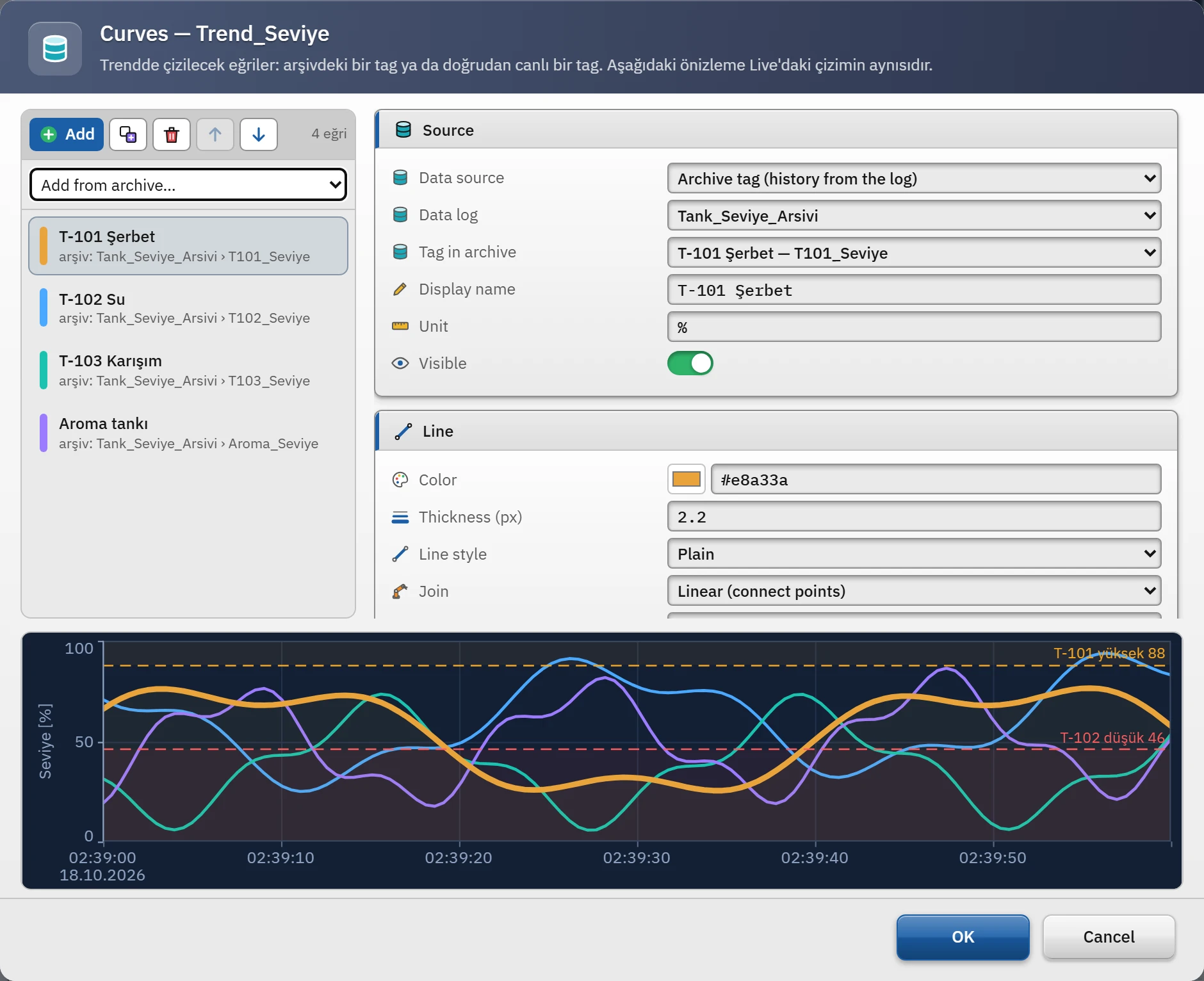
| Section | Field | Meaning |
|---|---|---|
| Source | Data source | Archive tag (history from the log) or Live tag directly (data collected only while open). |
| Data archive, Tag in the archive | In the archive source: which archive and which tag of the archive. | |
| Tag | The tag for the direct source. | |
| Display name, Unit | The name and unit shown in the legend. If the name is empty, the curve name in the archive or the tag name is used. | |
| Visible | If it is off, the curve is not drawn (the operator can turn it on from the legend). | |
| Line | Color, Thickness (px) | Line color and thickness (0,5 – 10). |
| Line style | Plain, Dashed, Dotted. | |
| Join | Linear (connects the points), Step (the value is held until the next one), Smooth. | |
| Point marker, Marker size | None, circle or square marker. | |
| Fill area below, Fill opacity (%) | Fills the area under the curve with a semi-transparent color. | |
| Axis and scale | Linked Y axis | An axis from the Y axes window; if no axis is defined, the single shared axis. |
| Decimal places | Number of decimal places in the legend and tooltip (-1 = automatic). | |
| Scale factor, Scale offset | Displayed value = raw value × multiplier + offset (example: converting mA to bar). | |
| Behavior | Break line on bad quality | While the tag value is invalid (connection lost), the line is interrupted; if off, the last value continues to be drawn. |
| Break line at gap (s) | If the gap between two samples exceeds this time, the line is not joined. 0 = automatic: for a cyclic archive tag 3 times the cycle time (at least 10 s), for a direct tag curve 5 times the sampling interval (at least 5 s); off for archive tags with the On change and With trigger tag methods. | |
| Operator can hide | Allows the operator to hide a curve from the legend. |
Y axes and limits
In the Edit Y axes… window, the following options are available for each axis: Name, Unit, Side (left or right), Axis color (neutral, matching the curve, custom color), Auto-scale (based on the data in the visible range), Min / At most, taking these two values from a tag (Min. value from tag, Max. value from tag; a PLC or script can change the range), Decimal places, Horizontal grid, Logarithmic (values must be greater than zero) and Reversed (large value at the bottom). Axis layout can be Shared area (axes side by side) or Separate bands (each axis in its own strip). If you define no axis, a single axis is used with the properties Y axis min, Y axis max and Y axis auto-scale.
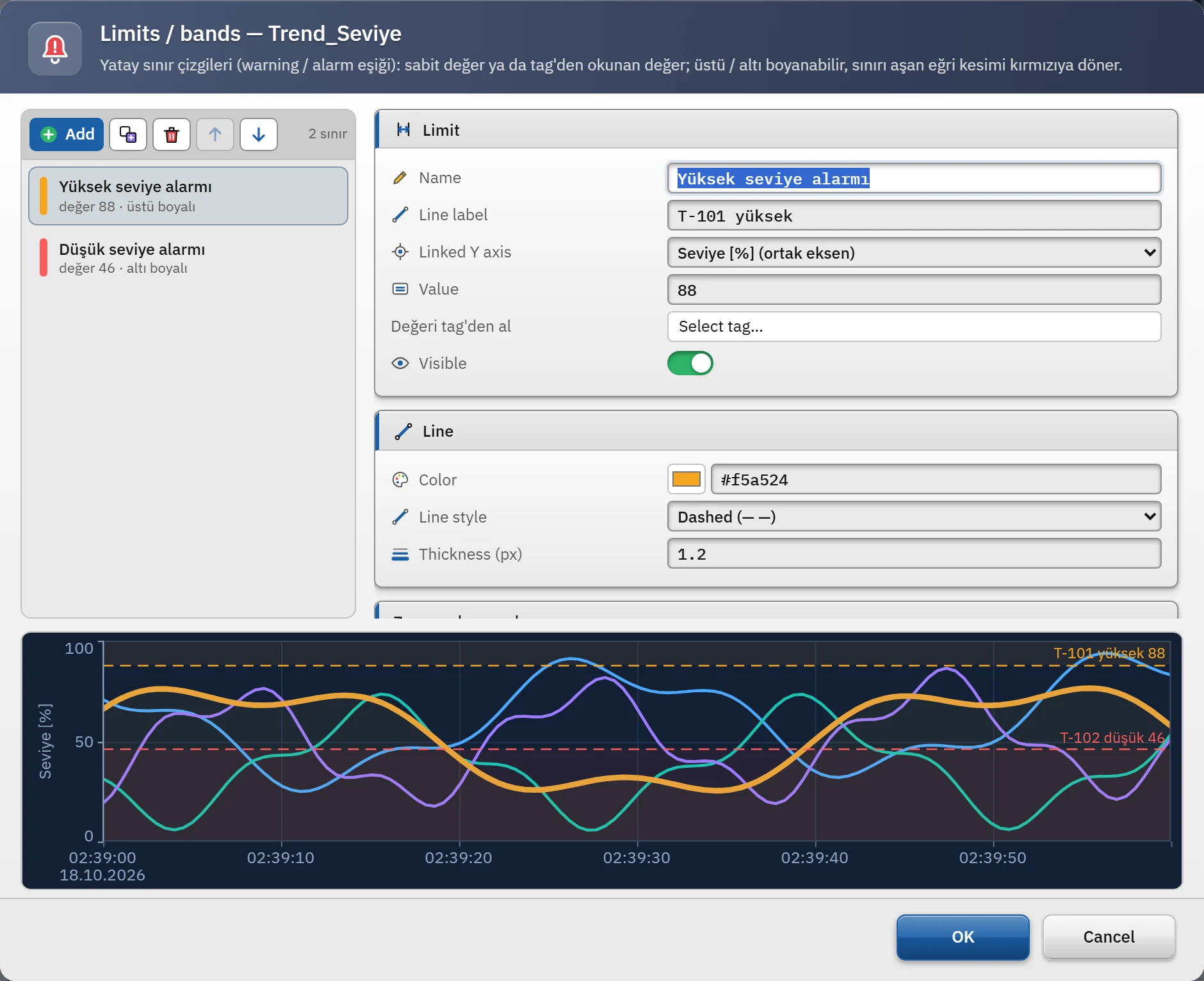
The Limits window adds horizontal lines (a warning or alarm threshold). For each limit, you define the Name, Line label, Linked Y axis, Value or Take value from tag (the limit takes the current value of the tag, for example an alarm threshold), Color, Line style, Width, Painted zone (none, above the limit, below the limit), Zone opacity and Paint exceeding curve segment red.
Property groups
| Group | Properties |
|---|---|
| Data | Data log, Curves, Load history from archive (if off, only live samples), Reduce on long ranges (when the number of samples exceeds the number of pixels, the first, smallest, largest and last value are drawn for each pixel column; peaks are not lost), Tag curve sampling (ms) (100 – 3 600 000). |
| Time | Time range (min) (0.05 – 89 280 min, i.e. 3 s – 62 days), Live monitoring, Time range type (Last N minutes (sliding) or Absolute range (start – end)), Start (absolute) and End (absolute) (GG.AA.YYYY SS:DD), Preset range list (min) (default 1,5,10,30,60,240,720,1440,10080,44640), Time format, Major grid, Minor grid, “Now” line, Day / night band (+ Day start, Day end), Shift boundaries (if 06:00, 14:00, 22:00 is entered, a dotted line and a label V1, V2 … are drawn at each boundary). |
| Axes | Y axes, Axis layout, Y axis min / max / auto-scale, Limits / bands. |
| Appearance and format | Title bar, Title text, Theme (automatic, light, dark), Background color, Plot area color, Grid color, Text color (when empty, according to the theme), Border, Corner radius (px), No-data text, Font size. |
| Legend | Legend / value table, Legend position (bottom, right), Right legend width (px), column options: unit, current value, cursor value, minimum, maximum, average (the last three refer to the visible range). |
| Toolbar | Toolbar, Toolbar position (top, bottom), Buttons window, Large buttons (touch), Text on buttons. |
| Interaction | Mouse wheel zoom, Drag to pan, Cursor (crosshair) and tooltip, Cursor values (tooltip box only, legend table only, both), Measurement cursors (A / B), Operator settings window, Automatic return to live (s, 0 = off). |
| Export | File name (default Trend), Data to export (the visible range or all loaded data), CSV separator (semicolon: decimal comma; comma: decimal point). |
Time range, Live monitoring, Y axis min / max and Title text are dynamic properties; if bound to a tag, a PLC or script can change the trend window (Dynamization).
Toolbar buttons
In the Select buttons… window, each of the 19 buttons can be switched on or off separately: Live / Freeze, Back to live, Previous window, Next window, Time range selector, Zoom in, Zoom out, Reset, Zoom to box, Cursor (crosshair), Measurement cursors (A / B), Grid, Legend, Fit axes, Settings, Export to Excel, Export to CSV, Save as image, Print. Their use is described in Operator trend handling.
Limitations and points to note
- The visible time window can be at least 2 seconds and at most 62 days.
- Reading history from the archive is limited to at most 12 pages per archive (50 000 rows per page). With very long ranges the oldest data may not be plotted; in that case the trend shows the note “The whole history could not be loaded (log read limit)”.
- Text tags cannot be plotted in a trend.
- The trend reads only the local record files of the archive; it does not read from CSV or SQL Server. Months deleted after their retention period expires do not appear in the trend either (Data archives).
- Curve event: the object's Click event runs when a curve is clicked.