Transferring tags with Excel
Import many tags by exporting them to CSV or Excel (.xlsx) and editing them, or by filling in the template: column mapping, validation, preview, skipped rows and one-step undo.
Two ways
The tag list can be imported and exported in two formats. The commands are found in the Tools menu and (for Excel) in the toolbar of the HMI tags › Tags table:
| Path | Commands | When |
|---|---|---|
| Excel | Tools›Export tags (Excel)…, Tools›Import tags (Excel)…, Tools›Tag template (Excel)…; in the table Export to Excel, Import from Excel, Excel template | When all columns of the table (including length, read cycle and group) and a template with drop-down lists are needed. |
| CSV | Tools›Export tags (CSV)…, Tools›Import tags (CSV)… | To receive a simple list coming from another tool (PLC project, external system). |
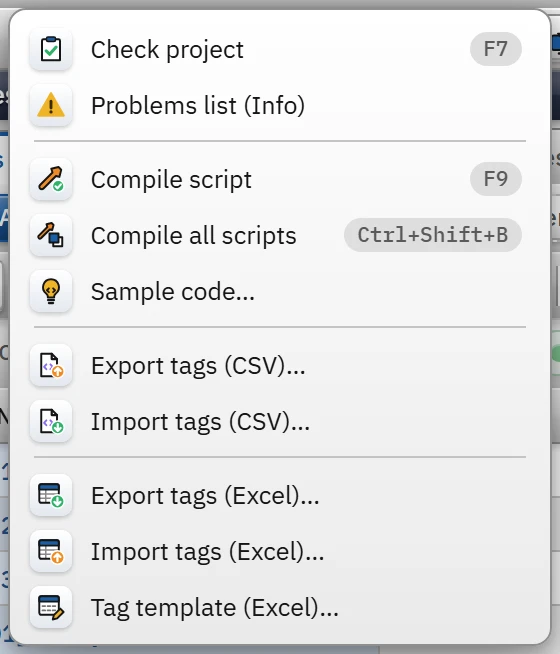
The Excel commands in the Tools menu open the HMI tags › Tags table (removing the group filter) and run the table's own Excel command; they are therefore identical to the buttons in the table.
Step by step with Excel
- Get the template
Tools›Tag template (Excel)… writes an empty workbook: column headers, drop-down lists for Connection and Data type, and a Description sheet that explains each column. If you want to edit the existing tags, export the whole table with Export to Excel (the filter and group selection are ignored, all rows are written).
- Fill in
The first row contains the column headers; do not change the headers. The column order may vary; unrecognized columns are skipped. Header matching ignores differences in upper / lower case, Turkish characters and spaces. Mandatory column headers are marked with
*. - Import it
Select the file with Tools›Import tags (Excel)…. Studio finds the sheet in the file that matches the table (the sheet named Tags; if there is none, the visible sheet with the most matching column headers) and opens the preview window. The file window also opens CSV files.
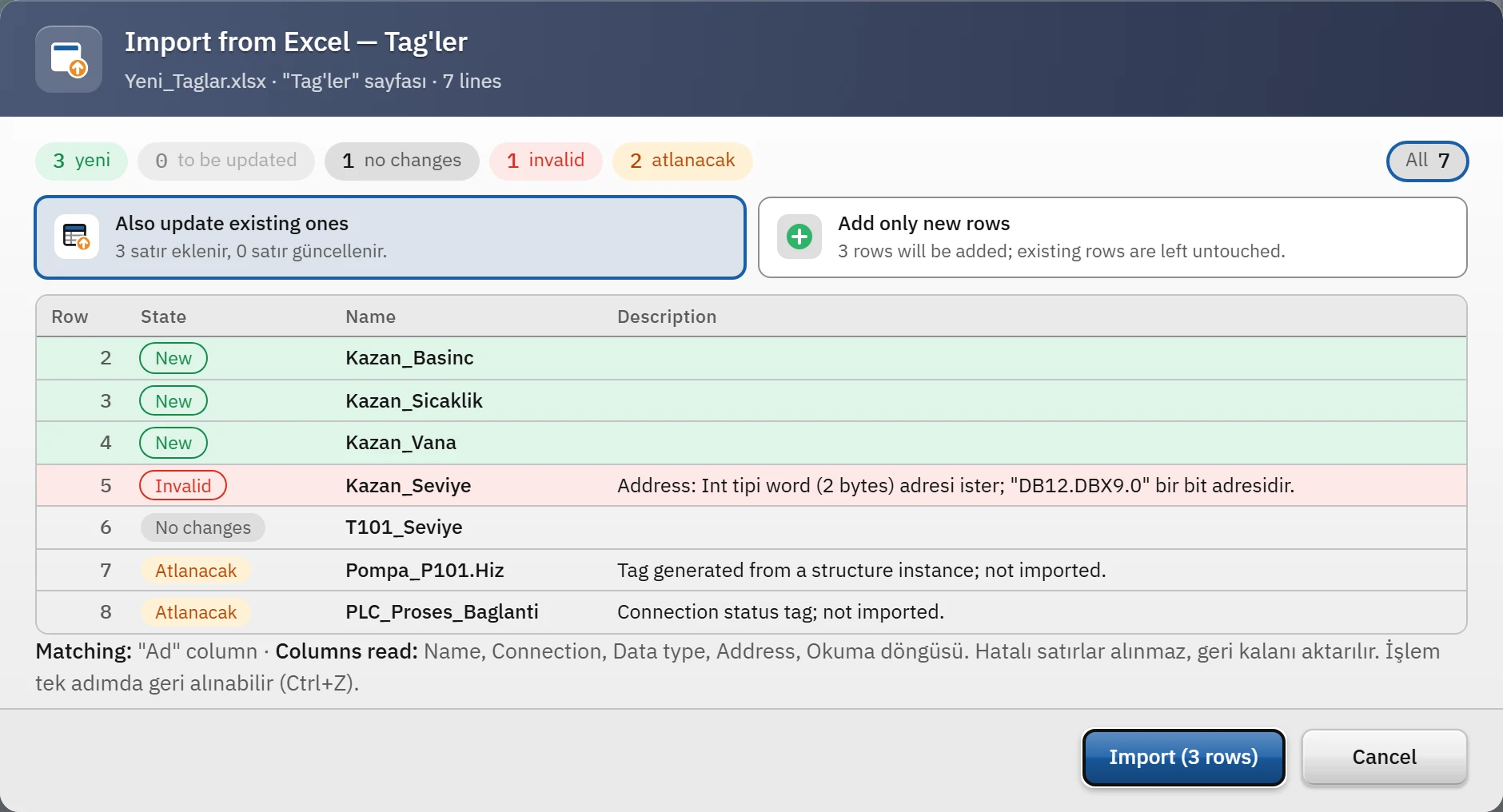
Preview: the number of new, to-be-updated, unchanged, faulty and skipped rows, and the status of each row. - Read the preview
The chips at the top give the row counts; clicking a chip filters the list to that status. Select the Also update existing ones or Add only new rows option. The reason for faulty rows is given in the Description column.
- Import
Click Import. Rows with errors are not taken; the rest are imported. The whole operation is a single undo step: Ctrl+Z undoes all of it.
Excel mapping and validation rules
- The matching key is the Name column (case does not matter): a tag with the same name is updated, and one that does not exist is added. If the same name appears twice in the file, the second row is in error.
- A column that is not in the file is not updated. Only the columns that match the headers in the file are processed.
- Connection is matched by the name of the connection; a name that does not exist in the project is an error. An empty connection cell turns the tag into an internal tag and deletes its address. Acquisition cycle is also matched by the name of the cycle; a name that does not exist is an error.
- The Address is validated against the driver of the connection in the same row and the data type, using the same rules as manual typing, and is taken over in its correct notation (Tag addresses). If the data type does not exist in the driver, the row is erroneous.
- A new row is created with the same defaults as the Add button; the values in the file are written over them.
- Empty cell: in a text or number column it deletes the value; in a selection column (connection) it means an internal tag; for Data type, an empty cell leaves it unchanged.
- If a row contains an error, that row is not imported at all; the other rows are not affected.
Skipped rows
The following tags are exported but not imported; in the preview they appear as Will be skipped:
- Tags generated from a structure instance (Tag generated from a structure instance; not imported.): these are generated from the structure and instance definitions (Structures).
- Connection status tags (Connection status tag; not imported.): generated automatically for each connection (Connection diagnostics).
Other Excel tables
The Structures (UDT), Structure instances and Scaling and quality tabs and the Connections and Cycles sections have their own Excel buttons. The Scaling and quality table only updates existing tags (it does not add tags); in the Connections table, the driver parameters are not written to Excel. General rules: Import / export with Excel.
Transfer via CSV
- Export it
Tools›Export tags (CSV)… writes all the tags of the project under the name
<Proje adı>_Taglar.csv: delimiter;, UTF-8 (BOM), which Excel opens directly. Columns:Ad; Bağlantı; Veri tipi; Adres; Döngü (ms); Başlangıç; Birim; Alt sınır; Üst sınır; Açıklama; Grup. - Import it
Tools›Import tags (CSV)…: the delimiter can be
;or,(it is detected from the header row). The first row must contain at least the Name column, otherwise you get the error "Name" column not found in the file. The preview window shows the numbers of new, to-be-updated, erroneous and skipped rows, and the first 20 rows.
The CSV rules are similar to those of Excel, with some differences:
- The headers are flexible, for example: Name / Tag / TagName, Data type / Type, Cycle / Cycle (ms) / Read cycle, Start / Start value, Group / Folder.
- In CSV, a tag name may contain only letters, digits and
_(a period is not accepted). - A number (ms) or a cycle name is entered in the Cycle cell; if no cycle matches, the tag is silently bound to the 1 s cycle (no error is reported).
- A row is erroneous if the connection name is not in the project, the data type is not recognized or the address does not fit the driver. If the connection is empty, the tag becomes internal (the address is ignored).
- In numeric fields the decimal separator can be
,or.; Upper limit must be greater than Lower limit. - The Group path has the form
Hat_1 / Dolum; a group that does not exist (and its parent groups) is created on import. - The Length and scaling fields are not in the CSV; the length of a
Stringtag becomes 32 (an existing length is kept, if any). - The operation is undone in a single step (Ctrl+Z).