Structures (UDT) and structure instances
For many devices with the same structure (pump, motor, valve), define the members once; give a base address for each device and the tags and their addresses are generated automatically.
What it is used for
A plant has dozens of devices with the same structure: each pump has running, fault, speed, current and pressure values. Instead of writing a separate tag and address for each one, you define the structure (the member list) once and add a structure instance for each device (name, connection, base address). Studio generates the tags named Ornek.Uye and their addresses for each instance.
There are three concepts:
- Structure (UDT)
- The list of members: name, data type, address relative to the start of the structure. It is defined on the Structures (UDT) tab.
- Structure instance
- Applying a structure to a device: name (
Pompa_P101), structure, connection and base address (DB30). It is defined on the Structure instances tab. - Generated tag
- Automatic tag for each instance × member:
Pompa_P101.Hiz. It appears in the Tags table with the STRUCTURE badge.
Step by step
- Define the structure
On the HMI tags › Structures (UDT) tab, create the structure with Add and type its name (e.g.
Pompa_Yapisi). The Usage column shows N members · M instances. - Add the members
Select the structure; the Structure members table opens below. For each member, enter Name, Data type, Relative address, if needed Length (String), Unit and Description.
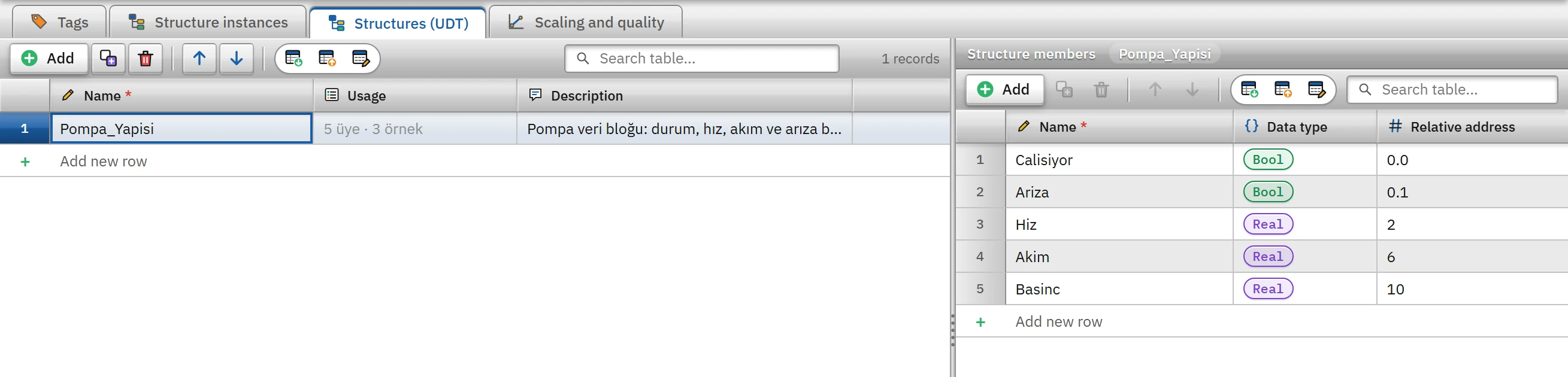
Structures (UDT) tab: Pompa_Yapisi and its members; the relative address is the byte (and bit) offset from the start of the structure. - Add an instance
On the Structure instances tab, click Add; enter Name (device name), Structure (UDT), Connection and Base address. The Generated tags column shows the number of generated tags and their first names.
 123
123Structure instances tab: each instance is a device; the base address differs from instance to instance. - Structure (UDT) — the structure from which the instance is generated.
- Base address — varies by instance (DB30, DB31, DB32).
- Generated tags — the number and names of the automatically generated tags.
- Use the tags
Tags with a YAPI badge are created in the Tags tab; they are bound to screen objects and alarms like other tags.
How a relative address and a base address are combined
The address of the generated tag is calculated from the base address of the instance and the relative address of the member; the result is always checked again against the driver rule of the connection.
| Driver | Base address | Relative address | Member type | Generated address |
|---|---|---|---|---|
| Siemens S7 | DB10 | 2 | Real | DB10.DBD2 |
| Siemens S7 | DB30 | 0.1 | Bool | DB30.DBX0.1 |
| Siemens S7 | DB10.DBX20.0 (structure starting at byte 20) | 0.3 | Bool | DB10.DBX20.3 |
| Modbus, Mitsubishi, Omron | 40001, D100 | 2, 4 | — | 40003, D104 (the number is added) |
| OPC UA | ns=3;s="Motor1" | Hiz (member name) | — | ns=3;s="Motor1".Hiz |
| Allen-Bradley | Motor1 | Hiz | — | Motor1.Hiz |
| MQTT | hat1/durum | motor.hiz | — | hat1/durum#motor.hiz |
| Simulator | not used | sinus(0, 100, 10) | — | the relative address is the signal itself |
- In S7, the relative address is written as
baytorbayt.bit; Studio adds the size letter (DBW,DBD…) from the type of the member. For long types (LReal,String…), the formDB30.DBX24.0is produced. - The base address can also be a marker such as
M100. - For connections whose driver is symbolic (OPC UA, Allen-Bradley), the member name is appended with a dot.
- If the base address is empty and the connection is not a simulator, Check project gives the warning Base address is empty; the member addresses remain incomplete.
Generated tags
- Locked fields: the name, connection, data type, length and address come from the structure and cannot be changed manually. Acquisition cycle, Start value, Lower / Upper limit, Unit and Description can be edited (unit and description start from the member definition and can then be changed in the tag). The read cycle is 1 s by default; scaling and a substitute value can also be defined.
- Group: the tag is placed in the group of its instance; moving the instance to a group also moves its tags.
- Deleting: a generated tag cannot be deleted on its own; This tag was generated from a structure instance; it cannot be deleted on its own. To remove it, delete the structure instance. When you delete the instance, its tags are removed as well.
- Excel and CSV: generated tags are exported but not imported (Tag generated from a structure instance; not imported.); structures and instances are transferred from their own tabs.
Propagation of the change
Every change made to a structure or to an instance is immediately reflected in all instances: when a new member is added, a new tag is generated for each instance; when a member is deleted, its tag in all instances is also deleted; when a member's name, type or relative address changes, the name, type and address of the tags are updated; when an instance's connection or base address changes, the connection and address of all tags of that instance are updated. Objects and alarms bound to the tag of a deleted member give the error bound to a deleted tag in the Check project list; before deleting a member in a structure, check where it is used.
Use with a faceplate
The real benefit of a structure is that one faceplate can be reused for all instances:
- Prepare the window screen
Design a normal screen and bind its objects to the tags of an instance (e.g.
Pompa_P101.Hiz). - Link the screen to the structure
With the screen selected, in the Inspector, in the User data type category, select the structure in the Structure (UDT) field and, in Design instance, the instance to which you bind the objects.
- Open the window
Add the Open pop-up window (with tag prefix) function to the event of a button, or add a Screen window object to the screen, and type the name of the instance in the Tag prefix field (if a structure is selected, it is chosen from the list):
Pompa_P103. Live reads the bindingPompa_P101.Hizon the screen asPompa_P103.Hiz.
If it is opened without a prefix, the screen's Design instance is used. The prefix replaces the part before the first dot in the tag name; if there is no tag corresponding to the prefix, that property stays unbound (the object appears with bad quality). Details: Faceplate and pop-up window.