Faceplate and pop-up window
Opening the same window screen for different devices with a tag prefix (faceplate), pop-up window functions, and the Screen window object embedded in a screen.
What it is used for
If you have many devices of the same type (10 motors, 20 pumps …), you do not draw a separate detail screen for each one. A faceplate is a screen that is drawn once and shows different tags depending on the device it is opened for: the Motor 2 window button opens the window with the prefix Motor2, and the same window shows the value of Motor2.Hiz. The faceplate screen can also be used as a pop-up window (for example for confirmation or parameter entry) or embedded in another screen with the Screen window object.
Creating a faceplate
Prerequisite: the tags of the device must be defined with a structure (UDT) (Structures (UDT)). For example, the Motor structure has the members Calisiyor and Hiz; the structure instances Motor1 and Motor2 produce the tags Motor1.Calisiyor, Motor1.Hiz, Motor2.Calisiyor ….
- Create the window screen
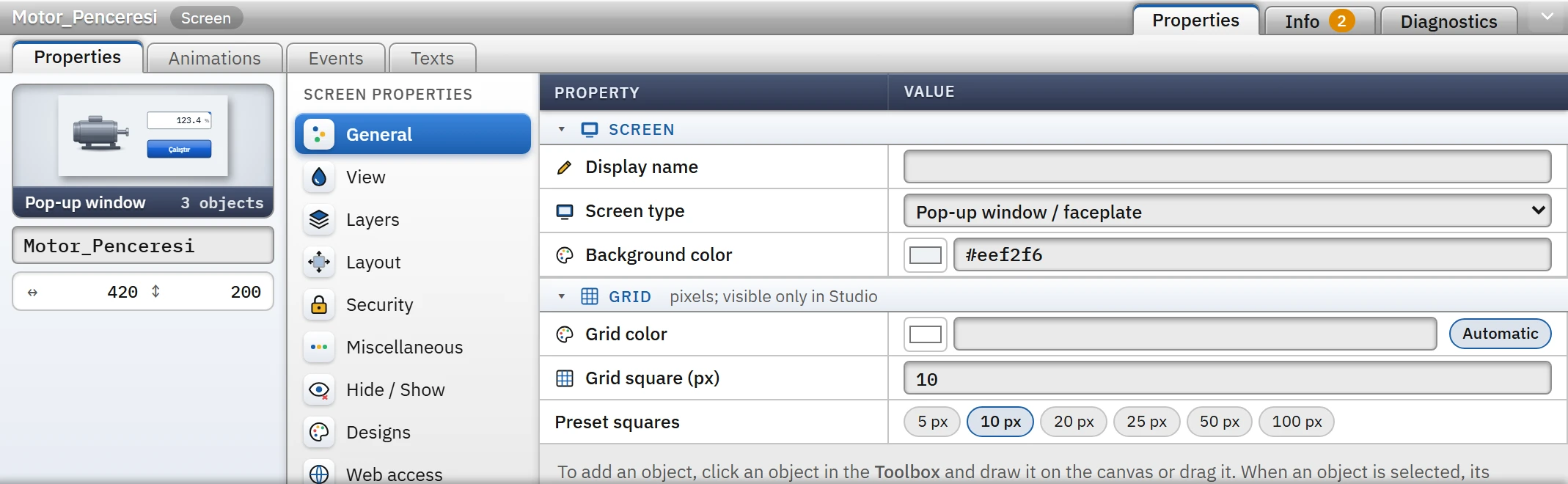
Add a new screen (Screen management), set its size to the window size (for example 420 × 200) and select Pop-up window / faceplate in the Pop-up window / faceplate field.
 12
12Screen type Pop-up window / faceplate; the User data type category appears in the side list. - Screen type — "Pop-up window / faceplate".
- User data type — binds the screen to a structure.
- Link the screen to the structure
In the Screen properties › User data type category, select the structure as Structure (UDT) and the instance you will use during design (
Motor1) as Design instance. Bind the objects on the screen to the tags of that instance (Dynamization). The Instances of the structure row lists the instances with which the window can be opened.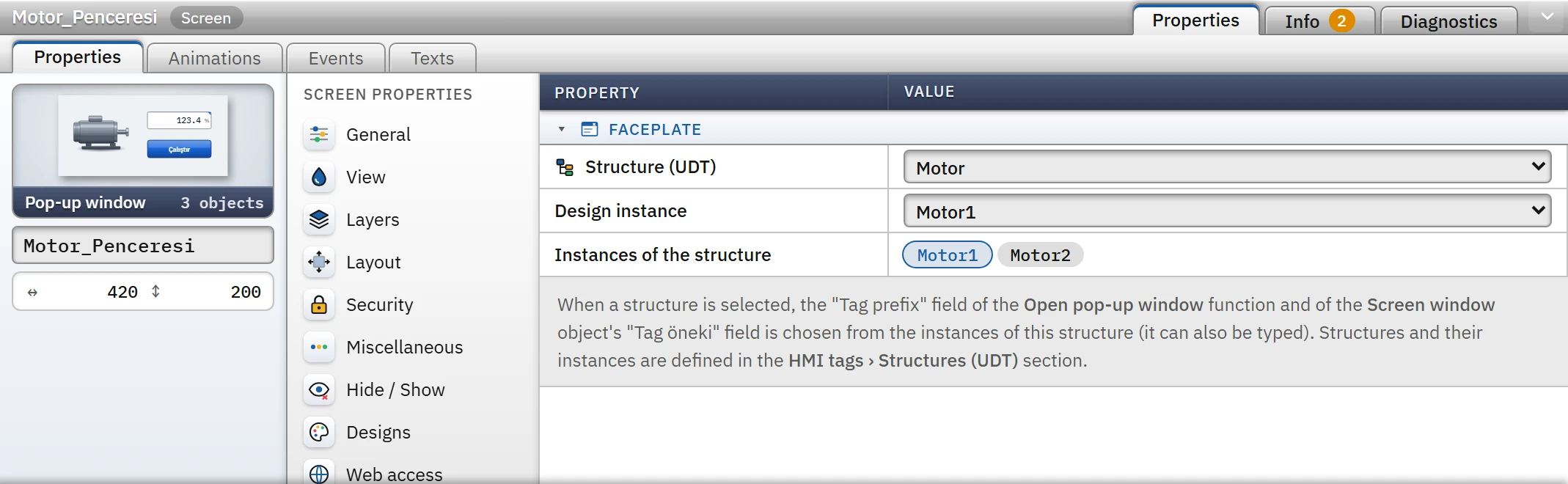 123
123Faceplate: structure Motor, design instance Motor1. - Structure (UDT) — the screen becomes the faceplate of this structure.
- Design instance — the instance the objects are bound to; it is used if no prefix is given.
- Instances of the structure — the window opens with one of them.
- Prepare the opening button
Add the Open pop-up window (with tag prefix) function to the Open pop-up window (with tag prefix) event of the button that will open the window; select the window screen as Screen and the instance name (
Motor2) as Tag prefix. Because a structure is selected, the prefix is chosen from the instances of the structure; it can also be typed in manually.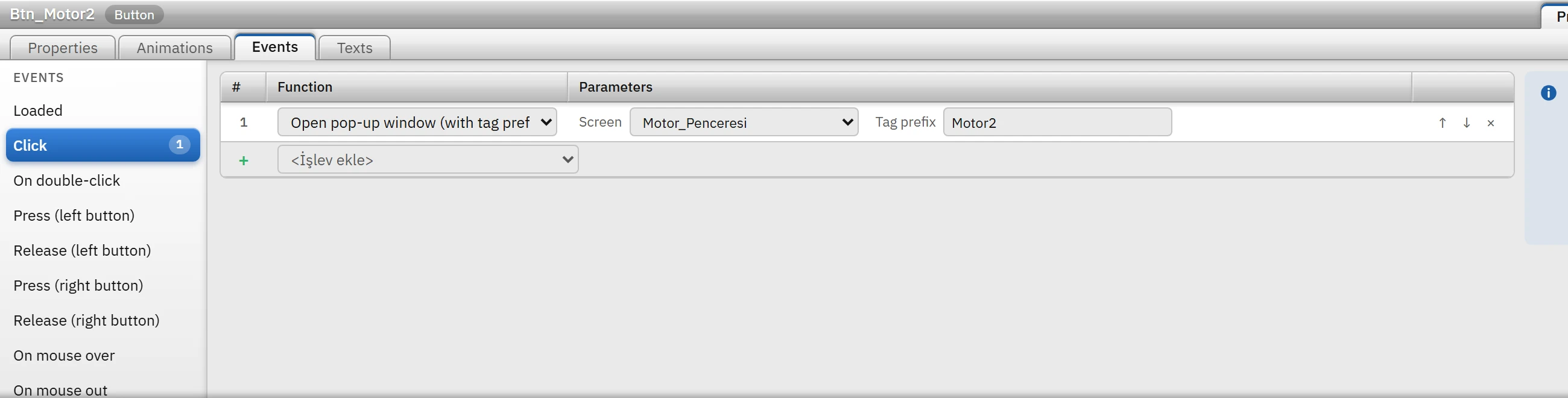 123
123The button opens the Motor_Penceresi screen with the prefix Motor2. - Function — Open pop-up window (with tag prefix).
- Screen — the window screen to open.
- Tag prefix — Motor2.Hiz is read instead of Motor1.Hiz.
- Try it in Live
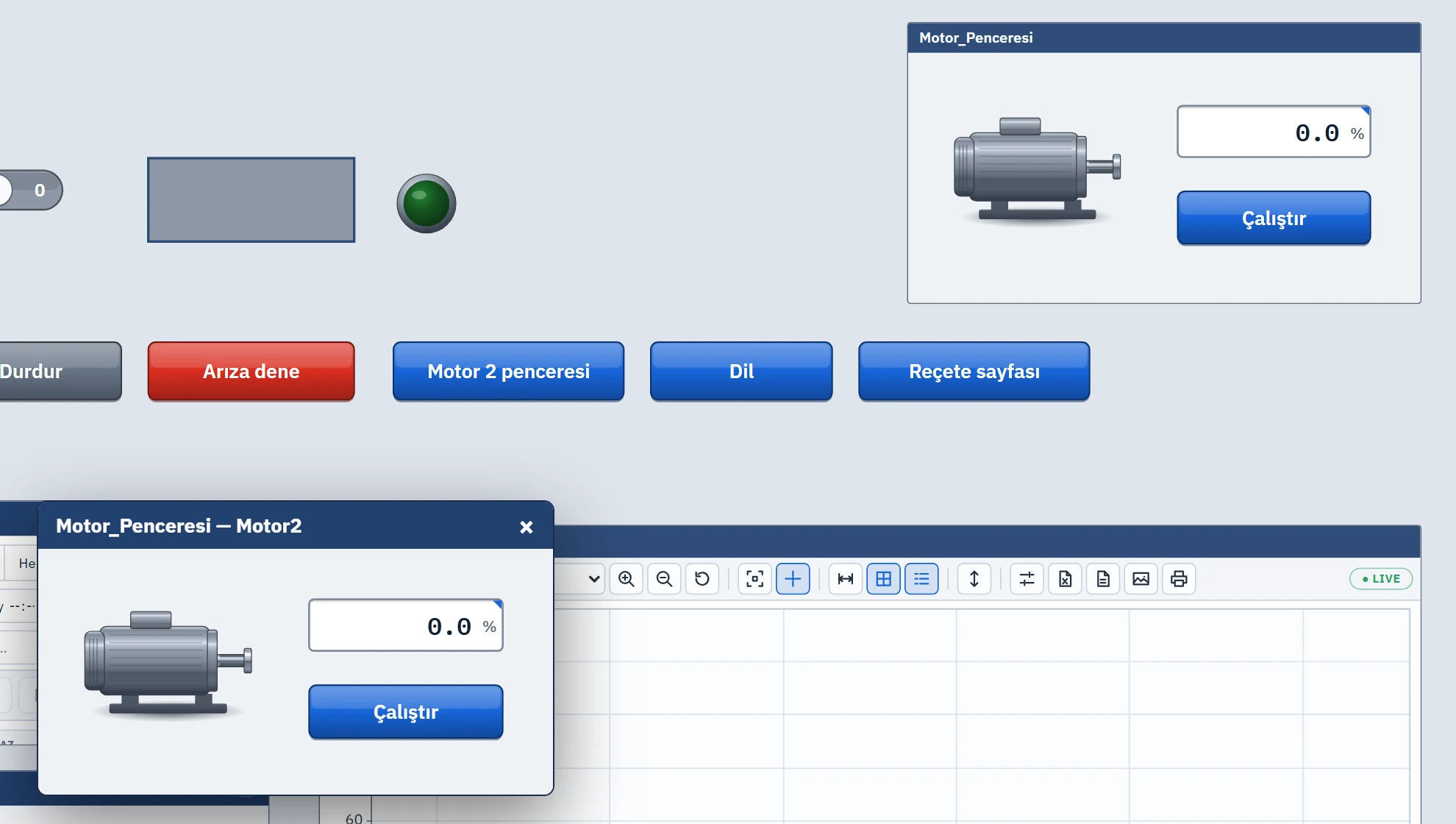
Clicking the button opens a window; its title shows the name of the screen and the prefix.
 1234
1234The Motor 2 window in Live (center) and the same screen embedded in a screen (top right, with the Motor1 prefix). - Title — the screen name, together with the tag prefix.
- Close — closes the window; the window can be dragged by its title bar.
- Faceplate — the tags Motor2.Hiz and Motor2.Calisiyor are shown.
- Screen window object — the same screen is embedded inside the screen with the Motor1 prefix.
How the tag prefix is resolved
- If a binding on the window screen is bound to a dotted tag such as
Motor1.Hiz, Live takes the part after the dot and puts the given prefix in front of it: with the prefixMotor2,Motor2.Hizis read. The same rule applies to the tags of the event functions on the window screen (a button inverts the bitMotor2.Calisiyor). - Tags without a dot (shared tags, located in a single place) are not affected by the prefix; the same tag is read in every window.
- If the tag found with the prefix does not exist in the project, that binding is regarded as unreliable: the object is drawn pale grey. The prefix name must be exactly the same as the name of the structure instance.
- The prefix is determined in this order: the Tag prefix in the function row; if it is empty, the prefix of the view that contains the event opening the window (the prefix is inherited when a window is opened from a window); and if that does not exist either, the screen's Design instance. If none exists, the tags are used as written.
- The Open screen function can also open a window screen; as its prefix it carries the prefix of the event's view. If you need to specify a prefix, use Open pop-up window.
Behavior of the pop-up window in Live
- The window opens with a title bar (screen name — prefix) and a close button. It is moved by dragging the title bar. Several windows can be open: each new window opens slightly offset, and the window that is clicked comes to the front.
- The window is not modal: the screen behind it remains usable.
- The size of the window is reduced in proportion to the current scale of the main screen; a window that is too large to fit on the display is fitted to it.
- The window closes with the Close pop-up window function, with the × in the title bar, or when the authorization is lost. The Screen opened / Screen closed events of the window run when the screen opens / closes.
- If the Required authorization field of the window screen is filled in and the user does not have the authorization, the window does not open: if no user is logged on, the log-on window appears; otherwise a notification appears. A draft screen does not open.
- In browser monitoring (read-only), windows can be opened; they are not opened on TV displays because events do not run there.
Screen window object
The Screen window (Toolbox › Controls) runs another screen inside this screen. It has three uses: embedding a faceplate in the screen (top right in the figure above), making a part of the screen a changeable area (different screens are shown with buttons), and placing a 3D scene in a 2D screen.
- Displayed screen
- The screen that will run in the window. A screen cannot be displayed within itself (directly or indirectly); such a window stays empty.
- Tag prefix
- It is the prefix of the tags of the displayed screen (
Motor1). If empty, the prefix of the view in which the object is located is used. You can bind the prefix to a tag (the value of the text tag becomes the prefix); when the value changes, the screen is rebuilt with the new prefix. If the displayed screen is the faceplate of a structure, the field offers the instances of the structure as suggestions. - Title bar, Title text
- If the title bar is on, a title is written at the top of the window; if the Title text is empty, the name of the screen is used instead. The title text can be bound to a tag.
- Fit screen to window
- When on, the screen is fitted to the object while keeping its aspect ratio; when off, the screen is scaled to fill the area, aligned to the top left, and the overflowing part is cropped.
- Close button
- See the limitation below.
If you want the content of the embedded window to be variable, add the Show screen in screen window function to the event of the button: select the object as Screen window and the new content as Screen. If the window is on another screen (for example, if the navigation buttons in the fixed upper area should change the window on the main screen), it is selected in the list from the Screen: … group; it works while that screen is open.
Limitations and points to note
- If the type field of the window screen is not Pop-up window / faceplate (that is, it is Screen), Open screen opens it as the main screen, not as a window, and the previous screen is added to the navigation history.
- The Screen opened event of the screen inside the window runs in the view that carries the prefix; the tags in the event are also resolved with the prefix.
- The prefix is stored as plain text in the function row and in the Screen window object. If you rename a structure instance, also check the prefix (
Motor2) in the functions that open the window. - The window screen and the objects in it are no different from other screens: layers, animations and events work in the same way (Object properties, Animations, Events and functions).
- For a general introduction to control objects, see the Controls topic.