Connection diagnostics
How to tell whether a connection is working: Test connections and the Diagnostics tab in Studio; connection states, the status tag, reconnection behavior and the effect of tag errors in Live.
Which tool shows what
Studio never connects to a device; the actual state of a connection is known only in Live. The two tools in Studio are preparation only:
| Tool | Where | What it shows |
|---|---|---|
| Test connections | Studio, Online›Test connections… | Whether a TCP connection can be opened to the device's IP address and port |
| Diagnostics tab | Studio, Inspector | The target and the number of bound tags of each connection (no live state) |
| System menu › Connections | Live | The state and last error message of each enabled connection |
| PLC connection status | Live, a control placed on the screen | Connection, driver, address, state and error |
| Status bar | Live (if Live settings › Window › Status bar is on in Studio) | The PLC: 3 / 4 connected summary; active connections other than the simulator are counted |
| Connection status tag | Live, tags | Whether the connection is established (Bool); used in animations, alarms and scripts |
| Event view | Live, a control placed on the screen | Connection established / lost entries |
Test connections
- Run the command
Online›Test connections… (also available in the context menu of the connection row). The test starts automatically when the window opens.
- Read the result
All connections are tested together; up to 2 s is waited for each. For each connection, the table shows Status (Connected / Connection failed), Connection, Driver, Target, Duration and Description.
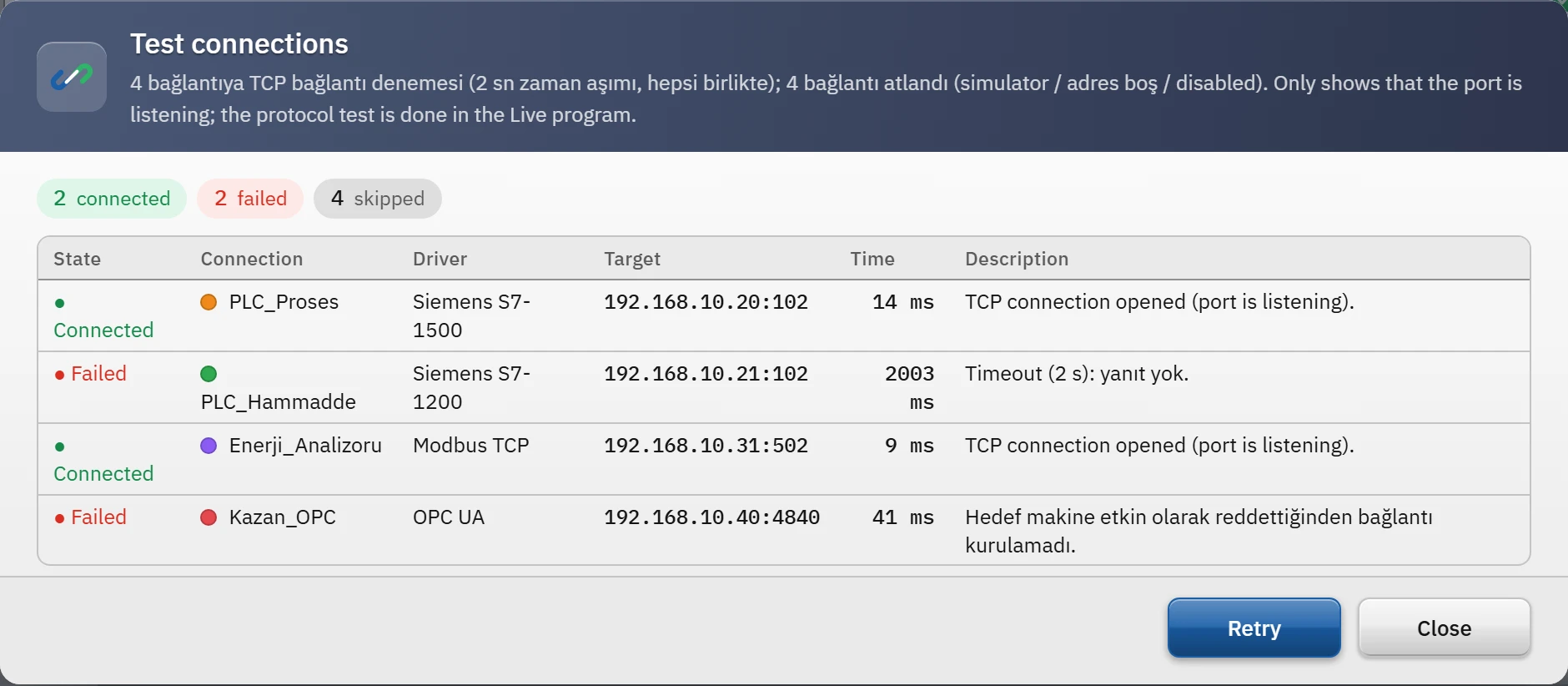
Test connections window: the TCP attempt result, duration and description for each connection. - Refresh if necessary
After correcting the device or the network, click Retry.
Diagnostics tab
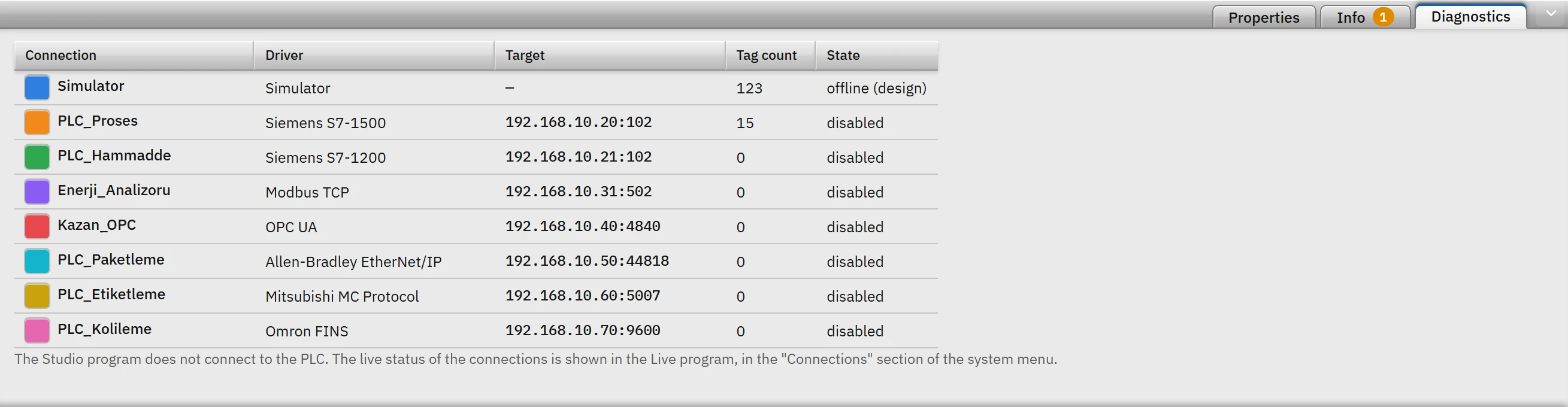
In Studio, the Diagnostics tab at the top right of the Inspector lists the driver, the target (adres:port, the full address for OPC UA), the number of bound tags and the state of each connection. In Studio the state can only be offline (design) or disabled (Enabled turned off). Use it to quickly check how many tags are bound to a connection and that the target is written correctly.
Connection states in Live
| State (on screen) | Meaning |
|---|---|
| Connected | Connected to the device; the tags are being read. |
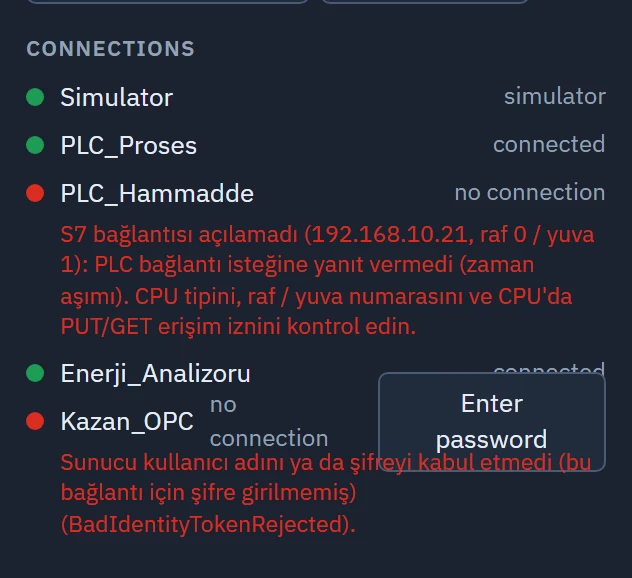
| No connection | The connection could not be established or was lost. This state is also shown at startup until the first attempt is finished. The last error message is written below the state. |
| No driver | The driver ID of the connection is not recognized or the driver could not be created; the connection is never attempted. |
| Inactive | Enabled is off in the table; Live does not establish the connection. It is visible only in the PLC connection status control (if the display of inactive connections is on); the system menu does not list inactive connections. |
| Simulator | Simulator connection; it always counts as good. |
The System menu is opened with the ☰ button at the bottom right of the Live window; the Connections section shows one row for each enabled connection and, if there is no connection, the error message below it. Connections that ask for a user name / password have an Enter password button next to them (Connection security).
Connection status tag
For each connection, Studio automatically generates an internal Bool tag named <Bağlantı adı>_Baglanti (its description is … connection status (1 = connected)). Live writes the value as follows: 1 if the connection is Connected or Simulator; 0 when it is No connection, No driver or Inactive.
- The connection, type and address of the tag are locked; only Live writes its value. Writing to the tag gives the error the connection status tag cannot be written.
- When the connection is renamed, the tag name follows (unless you changed the name manually); when the connection is deleted, the tag is deleted as well. If you delete the tag, it is not generated again.
- These tags are skipped when importing with Excel and CSV (Transferring tags with Excel).
- Use: to light a warning lamp (animation), trigger an alarm or check the connection state in a script when the PLC connection is lost.
Reconnection behavior
Each connection runs in its own thread; a device that does not respond does not delay the other connections.
| State | What happens |
|---|---|
| Connection could not be established or was lost | The driver retries after 1 s, 2 s and 5 s, then every 10 s. If the connection drops after having been up for 10 s or longer, the wait starts again from 1 s. |
| When the connection is re-established | Unreadable tags are retried from the beginning and all values are transmitted once more. |
| Writing while the connection is down | Rejected: Bağlantı kopuk: <bağlantı adı>. Writes already in the queue are rejected with the message Bağlantı koptu: <bağlantı adı> when the connection is lost. |
| A tag cannot be read | The error is reported once, the tag is removed from the tag read set (the others continue to be read) and is retried every 30 s. When it can be read again, the quality recovers. |
| The device does not respond | When the Timeout expires, the connection is considered lost and the reconnection described above begins. A TCP connection attempt waits for the timeout or 3 s, whichever is shorter. |
Tag errors and quality
Even if the connection is established, a single tag may not be readable: wrong address, nonexistent data block, access permission. In this case only that tag gets bad quality; the connection stays Connected. An object bound to a tag with bad quality is drawn in faded gray, and a numeric field shows #### (if a substitute value is defined on the tag, the substitute value is shown). Alarm evaluation and reports do not use a value with bad quality; if Break line on bad quality is on in the trend curve, the line is broken. The same effect is seen on all tags of the connection when the connection drops.
In scripts, quality is a numeric code (details: Scaling and quality): 192 good, 84 value outside the tag limits but usable, 8 no connection, 4 undefined (no tag), 0 bad. In C scripts, the status bits are additionally given as 0x0001 no connection, 0x0080 waiting for the initial value, 0x0200 address error, 0x0400 no tag.
Connection event logging
Live writes a change of the connection state to the event log as a system entry; the Event view control shows these with the following texts: Connection established, Connection lost, Connection could not be established, Driver not supported, Connection unstable. The entry also carries the error message (if there is one). So that frequent fluctuations do not fill the log:
- A state is not written unless it lasts at least 2 s.
- If the first connection attempt at startup fails, the Connection could not be established entry is written after 8 s.
- If there are more than 5 changes within 60 s, a single Connection unstable entry is written; when the state remains unchanged for 30 s, the final state is recorded.
Only unexpected driver errors are written to the program's own log (logs\Live_yyyyMMdd.log); a lost connection is not written here (Log files).
Troubleshooting order
- Enabled?
Enabled must be checked in the connection; an Inactive connection is never attempted.
- Does it reach the network?
If Test connections does not report Connected, the problem is the address, port, cable, network or firewall.
- Are the driver and parameters correct?
If Live shows No connection even though the test passed, look up the error message in the system menu in the Common errors table of the relevant driver topic.
- Connection exists, but the tags are gray?
Verify the tag addresses and data types in Studio; check the access settings of the device concerned (PUT/GET on S7, External Access on Allen-Bradley).
- Has the project been uploaded?
If you changed the connection settings, save the project and upload it to Live; the connections are established when the project is opened.