Log files
The program logs of Studio and Live (the logs folder), the project's event log and the Event view, what is written, how long it is kept, and what to collect for support.
Two separate kinds of log
FabyaVision writes two different things; do not confuse them.
| Program log | Event log | |
|---|---|---|
| Written by | The Studio and Live programs themselves. | Running project (Live only). |
| Contents | Program messages: startup, WebView2, project path, server and camera, unexpected errors. | Events of the operator and of the project: session, settings, recipe, report, system, script, operator action, connection. |
| Where | Studio\logs\Studio_yyyyMMdd.log and Live\logs\Live_yyyyMMdd.log | <Ad>.veri\gunluk\olay_yyyyMM.log (next to the project file) |
| How to read it | Text editor. | An Event view object in Live; the file is also plain text. |
| Retention | Files older than 30 days are deleted when the program starts. | Not deleted automatically. |
Program log (logs folder)
Each program writes one file per day to the logs subfolder in its own folder. In a default installation the path is C:\Program Files\Fabyatek\FabyaVision\Studio\logs and …\Live\logs; the installation allows normal users to write to these folders. Files whose last modification date is older than 30 days are deleted every time the program is opened. Uninstalling the program also deletes the logs folders; if a problem is being investigated, copy the logs first.
Each line starts with a timestamp: 2026-10-17 09:30:12.345 ileti (year-month-day hour:minute:second.millisecond, followed by two spaces). The file is UTF-8. A log that cannot be written does not stop the program; the write error is silently ignored.
Opening the folder
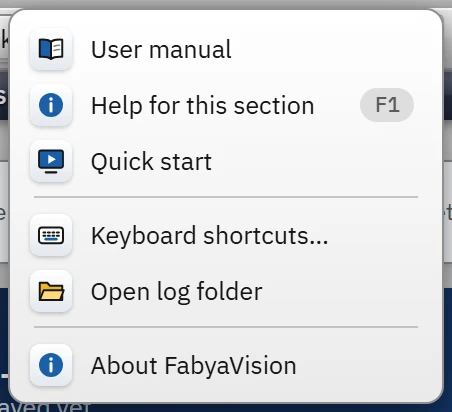 1
1- Open log folder — opens the logs folder in Windows Explorer.
- Studio: Help›Open log folder. The command opens the folder in Windows Explorer. It works only inside the Studio program; Studio opened in a browser cannot do this and shows an information window.
- Live: Live does not have this command. Open the
Live\logsfolder yourself in File Explorer (default: the program folder, see Files and folders of Live).
What gets written
Line texts are written without Turkish characters (e.g. baslatilamadi). Look for the following starting patterns.
| Line (beginning) | Meaning |
|---|---|
WebView2 Runtime: <sürüm> Proje: <yol> | Once at every start. Live also writes the path of the opened project on this line. You can find the WebView2 version here. |
HATA WebView2 Runtime yok: … · HATA WebView2 baslatilamadi: … | WebView2 is not installed or could not be started (Troubleshooting guide). |
WebView2 sureci coktu: RenderProcessExited · BrowserProcessExited | The rendering process crashed (Live reloads the screen) or the main browser process terminated. |
Proje secildi: <yol> (Live) · HATA Proje okunamadi: <yol>: … | The selected project. Error details for a project that cannot be read. |
Komut satirindaki proje yolu gecersiz: … | The project file given on the Live command line was not found. |
Yeni proje olusturuldu: … · Proje Live programina yuklendi: … -> … (revizyon N, kisi@makine) (Studio) | Project operations in Studio. |
HATA Surucu dongusu (<bağlantı adı>): … · Surucu olusturulamadi (<sürücü>) | Unexpected driver error. A connection loss is not written here (it is written to the event log). |
Uzak sunucu basladi: port N, … · Uzak sunucu N portunda baslatilamadi (…) | The state of the browser monitoring server and the addresses it listens on. |
Uzak sunucu: <IP> adresinden erisim reddedildi (erisim: …) | A client outside the access network rule (HTTP 403). |
Uzaktan izleme: giris <kullanıcı> - <IP> · Uzaktan izleme: <IP> adresinden 5 hatali giris; 60 sn kilitlendi. | Login of the browser user and the failed-login lockout. |
Guvenlik duvari izni eklendi: TCP <port> (<exe>) | The result of the Add firewall permission button. |
Kamera sunucusu basladi: 127.0.0.1:<port> · Kamera kaynagi acildi: … · Kamera sunucusu baslatilamadi | The camera streaming server and its sources. |
TV ekrani acildi: ekran N (WxH). · Coklu ekran: N / M monitor kaplandi (WxH). | Decisions about the second-display TV and the multi-monitor setup. |
Ek uygulama "<ad>": … · Ek uygulamalar baslatilmadi: program calistirma izni kapali … | The state of the additional applications started when Live opens. |
Arsiv SQL (<kimlik>): baglanti / yazma hatasi: … · Arsiv CSV (<ad>): yazilamadi, yeniden denenecek: … | Failure to write the data archive to its SQL or CSV target. The rows wait and are not lost. |
Arsiv bakimi: N eski aylik dosya silindi (K KB) · Rapor bakimi: … | Old monthly files deleted according to the retention setting. |
Alt+F4 engellendi (pencere ayari). | The Alt+F4 block took effect in the Live window. |
Ekran görüntüsü kaydedildi: <yol> · Ekran görüntüsü alınamadı: … | The result of the screenshot key. |
HATA <başlık>: <istisna> · HATA (yakalanmamis): … | Unexpected program error. The details may span several lines (exception and call trace). |
Event log
The event log belongs to the project: while Live is running, it appends events to the file <Ad>.veri\gunluk\olay_yyyyMM.log (the month is the local month at the moment the record is written). The file is UTF-8; each line is a single-line JSON record:
{"z":1760689812345,"t":"betik","k":"operator1","m":"Tank_Seviye_Denetimi / Yok_Boyle_Prosedur: \"Yok_Boyle_Prosedur\" prosedürü bulunamadı"}- z
- Time: Unix milliseconds.
- t
- Type ID:
oturum,ayar,recete,rapor,sistem,betik,operator. - k
- The user who was logged on at the time of the record (empty if none).
- m
- Text.
- d
- Optional detail: for value writes, the tag, the old and new value and the result; for connection events, the connection name and the error.
Connection events are stored in the file with the type sistem and with the connection information in the d field; the Event view shows them as a separate Connection type.
Event types
| Type | Sample entries |
|---|---|
| Session | The user's log-on and log-off. |
| Setting | Opening / closing the on-screen keyboard, and changing the interface language and font size. |
| Recipe | Adding, saving, deleting and approving a recipe record, loading it to the PLC (with the result), printing, importing from Excel. |
| Report | Creation, approval and deletion of report records, failure to save. |
| System | Live started: <project>, services that are off in the startup sequence, additional applications, screenshot, archive and report maintenance. |
| Script | Script errors, warnings, and the output of Trace / printf / print. |
| Operator | Tag writes made by the operator (tag, old → new value, result, source) and unauthorized action attempts. |
| Connection | Connection established, Connection lost, Connection could not be established, Driver not supported, Connection unstable (with the error message). |
Event view object
 123
123- Type filter — Session, Setting, Recipe, Report, System, Script, Connection.
- Script error — script / procedure, message.
- System record — Live has started.
- The Current view shows the records of the session and the last 1000 records of the log; a new event is added at the top of the list.
- The History view reads Today, Yesterday, Week, Month, All or a manually entered date range; at most the last 20000 records are shown.
- There are type buttons, user and text search, and paging. Excel saves the entire filtered list as
olay_gunlugu_….xlsx(Time, Type, User, Text, Tag, Old value, New value, Result, Source). - The object shows the types selected by the project designer; a type may be hidden on the screen. If the file contains the entry but the object does not show it, check the object's type selection.
How frequently written entries are limited
Traceandprintfoutput: the same text is written to the event log only once every 10 seconds.- Script errors and warnings: the same text is written once per 60 seconds; the repetitions in between are counted in the next entry as
(+N kez). JavaScript errors are not limited. - Connection events: a state that lasts at least 2 s is written; if there are more than 5 changes within 60 s, a single Connection unstable entry is written (Connection problems).
Information to collect for support
- Describe the problem
What you did, what you expected, what happened; when the problem started. If possible, write the date and time: this is where to look in the log.
- Obtain the program logs
The
Live_yyyyMMdd.logfile of the day with the problem and, if needed, theStudio_yyyyMMdd.logfile. For Live startup problems, the first lines of the log (WebView2 version) are important. - Obtain the event log
The
olay_yyyyMM.logfile of the month with the problem, or the Excel export from the Event view. It is the most informative file for script and connection problems. - Add the project file
.fvsfile. It may contain connection addresses and user information; consider who will see it before you share it. - Version and environment information
In Studio, Help›About FabyaVision gives the version. The WebView2 version is in the first line of the program log. State the Windows version and the display configuration of the computer on which Live runs (multiple displays, TV).
- Screenshot
An image showing the error message and the Connections section of the system menu; in Live the screenshot key can also be used (Live settings).