Uploading the project to Live
Uploading the project to the project folder of the Live program: steps, rules for the target folder, revision, overwriting and backup; Live's project selector and automatic start.
The project you design in Studio is uploaded to the Live project folder on the computer where it will run. Uploading copies the project file to a folder and saves each upload, with its description, as a revision. Live opens the project from its own Select project screen.
Start Runtime and Upload: the difference
| Start Runtime (F5) | Upload | |
|---|---|---|
| Purpose | Trying the design right away | Delivering the project to Live's project folder |
| What it does | Saves the project and opens FabyaVision_Live.exe with the path of this file | Saves the project, asks for a description, copies the file to the selected folder |
| File | The source file is opened; no copy is created | Copy of <Klasör>\<Ad>\<Ad>.fvs |
| Revision | Does not occur | Occurs |
| Must Live be on the same computer | Yes | No: as long as you can reach the target folder (share, mapped drive, USB stick) |
Uploading the project
- Run the command
Project›Upload project to Live…, Online›Upload project to Live… or Upload in the toolbar. If it is a new project that has never been saved, the save window opens first; if there are unsaved changes, the project is saved automatically.
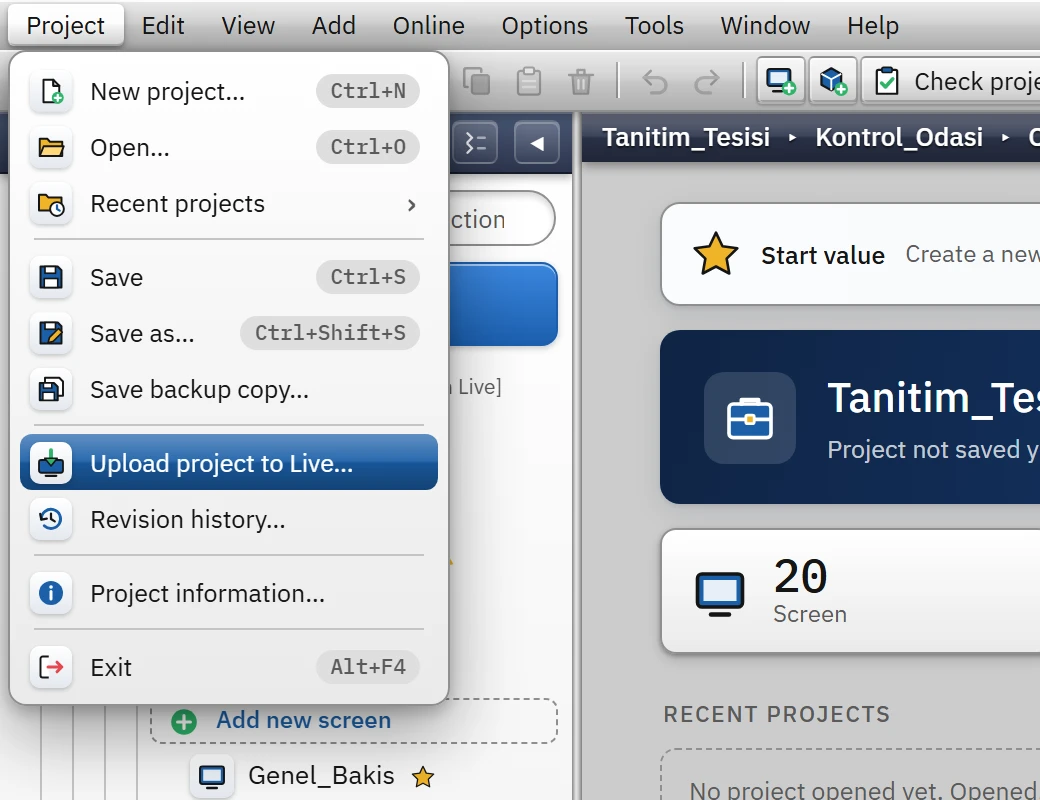
Upload and version history commands in the Project menu. - Answer the error question (if any)
If the project contains errors, the question “The project has N error(s); upload it anyway? Faulty tags and connections cannot be read in the Live program.” is asked: Upload, Show problems or Cancel. Details: Check the project.
- Enter the revision description
Write what changed in this version; a description is required. Cancel cancels the load.
- Select the target folder
A “Select the folder to upload the project to (the Live program’s project folder)” window opens. The window starts in the following folders, in this order: the folder you uploaded to most recently; if there is none,
..\Live\Projelernext to Studio (installation layout); if there is none,FabyaVision Projeleri\Liveunder Documents,FabyaVision Projelerior the Documents folder itself (the first one found). - Answer the overwrite question (if any)
If a project with the same name exists at the target, the Project already exists question appears: “A project with the same name already exists in this folder. Overwrite it? The old version is kept in the Yedek (backup) folder.” Overwrite backs up the old version and writes the new one; Cancel writes nothing.
- Check the result
The Project uploaded window shows “Project uploaded (Rev. N):” and the path of the file written; if the file was overwritten, it also shows “The previous version was kept in the Yedek (backup) folder.” The Revision history button opens the revision list, Open folder shows the target folder in Windows Explorer.
Target folder rules
- The file is written to the path
<seçtiğiniz klasör>\<Ad>\<Ad>.fvs;<Ad>is the name of the source file. If the name of the folder you chose is already the project name, or if it already contains<Ad>.fvs/<Ad>.fyscada, the file is written directly to that folder (no nested folder is created). - Even if the source file has the old extension (
.fyscada), the target file is.fvs. - The
<Ad>.verifolder at the destination (Live's records) is not touched: it is not copied, deleted or changed. For this reason, updating the project does not damage the existing alarm, event, archive and report records. - The old version is stored as
<hedef proje klasörü>\Yedek\<Ad>_<yyyy-MM-dd_HHmm>.fvs; a maximum of 10 backups are kept. - Writing is done to a temporary file first; if the disk is full or there is no permission, the old version is left untouched.
| Message | Meaning and solution |
|---|---|
| The project is already in this location; select the project folder of the Live program. | You selected the folder that contains the source file. Select the Live project folder. |
| The selected folder was not found: … | The folder has been deleted or disconnected from the network. |
| There is no write permission for this location (the folder or file may be read-only): … | Check the permissions of the folder; writing to a folder under Program Files may require administrator rights. |
| The target file is open in another program; close it and try again: … | Close the program that is holding the file (for example, a text editor). |
| There is not enough free space on the disk: … | Free up space on the target disk. |
The project folder and project selector of Live
Project folder
- The Select project screen of Live scans a project folder. The default folder is
Projelernext to Live (<Live klasörü>\Projeler); if it cannot be written to,%LOCALAPPDATA%\FabyaVision\Projeleris used. If the folder does not exist, it is created on first use. - The folder can be moved to another location with Select project on the Change folder… page; the selection is written to the
ProjeKlasorufield in Live'slive_ayarlar.jsonfile (File and folder locations). - The scan covers the folder itself and one sub-level:
*.fvsand*.fyscadafiles; folders such as.veri,Yedek,Backup,logsand.gitare skipped. The loading layout (Projeler\<Ad>\<Ad>.fvs) complies with this rule.
Project selection screen
- Each project appears as a card: name, description, “N screens · N tags”, modification date, last revision (Rev. N · date · person · description), badge of the old file extension. Clicking the card or Enter opens the project; the arrow keys move between the cards.
- The History button (History (N) if there are several revisions) or the H key shows the version history without opening the project. F5 refreshes the list.
- At the top are the folder path and the Change folder…, Open folder and Open from file… buttons (Open from file… selects a project file outside the folder).
- A corrupt or non-JSON file appears with a red “unreadable” row; the program does not crash.
- If there is no project in the folder, the page says “There are no projects in this folder.” and suggests that you upload the project from Studio.
- While running, Change project… in the system menu reopens the selection screen; when you select a project, the current project closes and the new one opens (confirmation is requested).
Automatic start
When the Start automatically with the last project box at the bottom of the screen is on, Live opens the most recently opened project (if its file still exists) at startup without showing the selection screen. On a new installation the box is off. If a project path is given on the command line (FabyaVision_Live.exe "<proje>.fvs"; the Start Live button of Studio uses this), the project opens directly. Starting Live when the computer starts is a separate option (Installation).